
Top Related Projects

Android UI library.

Realize a beautiful circular fillable loaders to be used for splashscreen 🌊

An implementation of tap targets from the Material Design guidelines for feature discovery.
Quick Overview
ShineButton is an Android UI library that provides an attractive and interactive button with a shining animation effect. It allows developers to create visually appealing buttons that shine when pressed, adding a dynamic and engaging element to Android applications.
Pros
- Easy to implement and customize
- Smooth and visually appealing animation
- Supports various shapes (circle, rectangle, heart)
- Compatible with Android 4.0 (API 14) and above
Cons
- Limited to a specific animation style
- May not be suitable for all app designs or themes
- Requires additional dependencies (Android Support Library)
- Lack of recent updates or maintenance
Code Examples
- Basic ShineButton implementation:
ShineButton shineButton = new ShineButton(this);
shineButton.init(this);
- Customizing ShineButton appearance:
ShineButton shineButton = (ShineButton) findViewById(R.id.shine_button);
shineButton.setBtnColor(Color.GRAY);
shineButton.setBtnFillColor(Color.RED);
shineButton.setShapeResource(R.raw.heart);
shineButton.setAllowRandomColor(true);
- Setting up a click listener:
shineButton.setOnCheckStateChangeListener(new ShineButton.OnCheckedChangeListener() {
    @Override
    public void onCheckedChanged(View view, boolean checked) {
        // Handle button state change
    }
});
Getting Started
To use ShineButton in your Android project, follow these steps:
- Add the JitPack repository to your project's build.gradle file:
allprojects {
    repositories {
        ...
        maven { url 'https://jitpack.io' }
    }
}
- Add the dependency to your app's build.gradle file:
dependencies {
    implementation 'com.github.ChadCSong:ShineButton:0.2.0'
}
- Sync your project, and you can now use ShineButton in your layouts or create them programmatically.
Competitor Comparisons
Android UI library.
Pros of android-ui
- More comprehensive UI library with multiple components
- Longer development history and larger community
- Supports a wider range of Android versions
Cons of android-ui
- Less focused on specific animation effects
- May have more complexity for simple use cases
- Potentially larger library size
Code Comparison
ShineButton:
ShineButton shineButton = new ShineButton(this);
shineButton.init(activity);
shineButton.setChecked(true);
shineButton.setShineCount(8);
shineButton.setAllowRandomColor(true);
android-ui:
RevealColorView revealColorView = new RevealColorView(this);
revealColorView.setColor(Color.BLUE);
revealColorView.startAnimation();
Summary
ShineButton is a specialized library focusing on a specific button animation effect, while android-ui is a more comprehensive UI library with various components. ShineButton offers a simpler implementation for its specific use case, while android-ui provides a broader range of UI elements and animations.
ShineButton may be preferable for projects requiring only its specific animation effect, while android-ui could be more suitable for larger projects needing diverse UI components. The choice between the two depends on the specific requirements of the project and the desired balance between simplicity and feature richness.
Realize a beautiful circular fillable loaders to be used for splashscreen 🌊
Pros of CircularFillableLoaders
- Offers a circular progress indicator with customizable fill animations
- Provides smooth and fluid loading animations
- Allows easy integration into Android projects
Cons of CircularFillableLoaders
- Limited to circular shapes and fill animations
- Less versatile in terms of button functionality
- Focused primarily on loading indicators rather than interactive elements
Code Comparison
CircularFillableLoaders:
<com.mikhaellopez.circularfillableloaders.CircularFillableLoaders
    android:id="@+id/circularFillableLoaders"
    android:layout_width="wrap_content"
    android:layout_height="wrap_content"
    app:cfl_border="true"
    app:cfl_progress="80"
    app:cfl_wave_color="#3f51b5" />
ShineButton:
<com.sackcentury.shinebuttonlib.ShineButton
    android:id="@+id/shine_button"
    android:layout_width="50dp"
    android:layout_height="50dp"
    app:btn_color="@android:color/darker_gray"
    app:btn_fill_color="#FF6666"
    app:allow_random_color="false"
    app:enable_flashing="false" />
CircularFillableLoaders focuses on creating circular loading indicators with customizable fill animations, while ShineButton provides interactive buttons with shine effects. CircularFillableLoaders is more suitable for displaying progress, whereas ShineButton offers a wider range of interactive button functionalities with visually appealing animations.
An implementation of tap targets from the Material Design guidelines for feature discovery.
Pros of TapTargetView
- Provides a more comprehensive onboarding experience with customizable prompts and highlights
- Offers a wider range of customization options for the target view appearance
- Supports chaining multiple targets for guided user tours
Cons of TapTargetView
- More complex implementation compared to ShineButton's simpler animation
- Requires more setup code for each target view
- May not be suitable for simple button animations or feedback
Code Comparison
TapTargetView:
TapTargetView.showFor(this,
    TapTarget.forView(findViewById(R.id.button), "This is a button", "It does something!")
        .outerCircleColor(R.color.red)
        .targetCircleColor(R.color.white)
        .titleTextSize(20)
        .titleTextColor(R.color.white)
        .descriptionTextSize(10)
        .descriptionTextColor(R.color.red)
        .textColor(R.color.blue)
        .dimColor(R.color.black)
        .drawShadow(true)
        .cancelable(false)
        .tintTarget(true)
        .transparentTarget(false)
        .targetRadius(60))
ShineButton:
val shineButton = ShineButton(this)
shineButton.setBtnColor(Color.GRAY)
shineButton.setBtnFillColor(Color.RED)
shineButton.setShapeResource(R.raw.heart)
shineButton.setAllowRandomColor(true)
TapTargetView offers more extensive customization for guided user experiences, while ShineButton provides a simpler, eye-catching button animation with fewer lines of code.
Convert  designs to code with AI
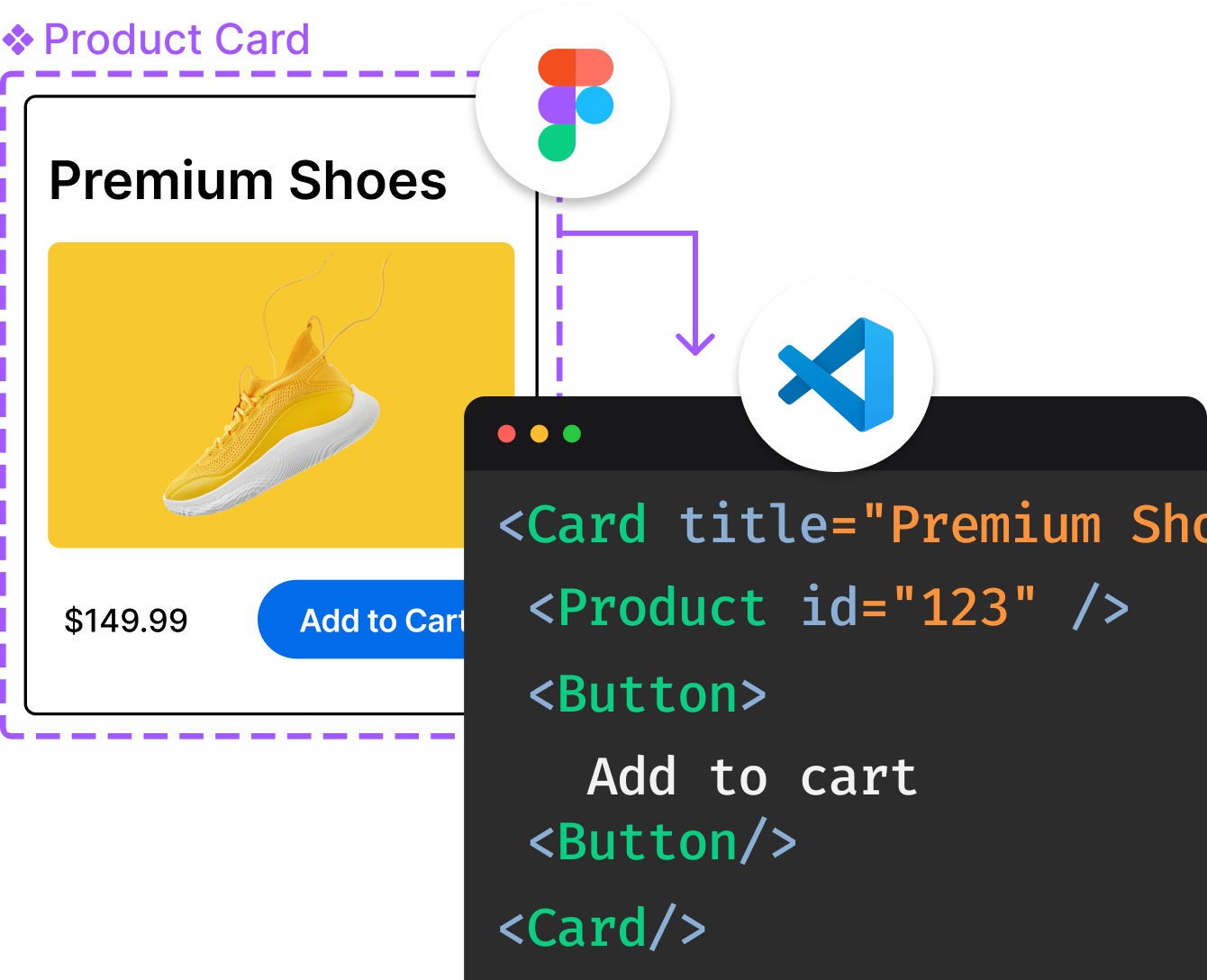
Introducing Visual Copilot: A new AI model to turn Figma designs to high quality code using your components.
Try Visual CopilotREADME
ShineButton





A lightweight, customizable Android UI library that adds a "shining" effect to buttons, similar to Twitter's heart animation.

Features
- Customizable Shapes: Use any PNG mask as a button shape.
- Vibrant Effects: Adjust shine color, size, count, and distance.
- Interactive: Smooth animations for both clicking and shining.
- Random Colors: Option to enable random colors for the shine effect.
- Dialog Support: Works seamlessly inside Dialogs.
- Lightweight: Minimal dependencies and easy to integrate.
Installation
JitPack (Recommended for latest version)
- Add the JitPack repository to your root
build.gradlefile:
allprojects {
    repositories {
        ...
        maven { url 'https://jitpack.io' }
    }
}
- Add the dependency to your
app/build.gradlefile:
dependencies {
    implementation 'com.github.ChadCSong:ShineButton:v2.0.0'
}
Gradle (Maven Central)
Add the dependency to your app/build.gradle file:
dependencies {
    implementation 'com.sackcentury:shinebutton:2.0.0'
}
Maven
<dependency>
  <groupId>com.sackcentury</groupId>
  <artifactId>shinebutton</artifactId>
  <version>2.0.0</version>
  <type>aar</type>
</dependency>
Usage
XML Layout
The simplest way to use ShineButton is in your XML layout:
<com.sackcentury.shinebuttonlib.ShineButton
    android:id="@+id/shine_button"
    android:layout_width="50dp"
    android:layout_height="50dp"
    android:layout_centerInParent="true"
    android:src="@android:color/darker_gray"
    app:btn_color="@android:color/darker_gray"
    app:btn_fill_color="#FF6666"
    app:allow_random_color="false"
    app:siShape="@raw/like" />
Java Implementation
ShineButton shineButton = (ShineButton) findViewById(R.id.shine_button);
shineButton.init(activity);
Jetpack Compose Implementation
ShineButton now supports Jetpack Compose natively!
var isChecked by remember { mutableStateOf(false) }

ShineButtonCompose(
    isChecked = isChecked,
    onCheckedChange = { isChecked = it },
    shape = Icons.Default.Favorite, // Use any ImageVector
    btnColor = Color.LightGray,
    btnFillColor = Color.Red,
    shineColor = Color.Red,
    shineSize = 50.dp,
    allowRandomColor = true
)
Or create it dynamically:
ShineButton shineButtonJava = new ShineButton(this);
shineButtonJava.setBtnColor(Color.GRAY);
shineButtonJava.setBtnFillColor(Color.RED);
shineButtonJava.setShapeResource(R.raw.heart);
shineButtonJava.setAllowRandomColor(true);

LinearLayout.LayoutParams layoutParams = new LinearLayout.LayoutParams(100, 100);
shineButtonJava.setLayoutParams(layoutParams);
linearLayout.addView(shineButtonJava);
Dialog Support
If you are using ShineButton inside a Dialog, call setFixDialog(dialog) to ensure it renders correctly:
shineButton.setFixDialog(dialog);
Attributes
| Attribute | Java Method | Description | Default |
|---|---|---|---|
app:siShape | setShapeResource(int) | Raw resource (PNG mask) for the shape | - |
app:btn_color | setBtnColor(int) | Initial color of the button | Color.GRAY |
app:btn_fill_color | setBtnFillColor(int) | Color of the button after being checked | Color.BLACK |
app:allow_random_color | setAllowRandomColor(boolean) | Whether the shine effects use random colors | false |
app:shine_count | setShineCount(int) | Number of shine particles | 8 |
app:shine_size | setShineSize(int) | Size of the shine particles in pixels | - |
app:big_shine_color | setBigShineColor(int) | Color of the primary shine particles | - |
app:small_shine_color | setSmallShineColor(int) | Color of the secondary shine particles | - |
app:shine_animation_duration | setAnimDuration(int) | Duration of the shine animation (ms) | 1500 |
app:click_animation_duration | setClickAnimDuration(int) | Duration of the click animation (ms) | 200 |
app:enable_flashing | enableFlashing(boolean) | Enable a flashing effect | false |
app:shine_distance_multiple | setShineDistanceMultiple(float) | Multiple of distance from button center | 1.5f |
app:shine_turn_angle | setShineTurnAngle(float) | Angle offset for shine particles | 20 |
Preview
| Small Shine | More Shine | Others |
|---|---|---|
 |  | |
Roadmap
We are continuously working to improve ShineButton. Here is what we have planned:
- Kotlin Migration: Fully convert the library to Kotlin for better safety and modern features.
- Jetpack Compose: Provide a native Composable version of ShineButton.
- Vector Support: Allow using
VectorDrawableas shape masks. - Custom Animators: Support for custom easing and path-based animations.
- Material 3: Update the demo app with Material 3 design and dynamic colors.
- Performance: Further optimize canvas operations and memory allocation.
Requirements
- Android API Level 14+ (Android 4.0+)
Credits
- Inspired by fave-button for iOS.
- Uses EasingInterpolator for smooth animations.
- Concepts from android-shape-imageview.
Third Party Bindings
React Native
You may now use this library with React Native via the module here
NativeScript
You may also use this library with NativeScript via the plugin here
License
MIT License. See LICENSE for details.
Top Related Projects
Android UI library.
Realize a beautiful circular fillable loaders to be used for splashscreen 🌊
An implementation of tap targets from the Material Design guidelines for feature discovery.
Convert designs to code with AI
Introducing Visual Copilot: A new AI model to turn Figma designs to high quality code using your components.
Try Visual Copilot