 MPAndroidChart
A powerful 🚀 Android chart view / graph view library, supporting line- bar- pie- radar- bubble- and candlestick charts as well as scaling, panning and animations.
Top Related Projects

Beautiful charts for iOS/tvOS/OSX! The Apple side of the crossplatform MPAndroidChart.

📈📊🚀🚀🚀An elegant modern declarative data visualization chart framework for iOS, iPadOS and macOS. Extremely powerful, supports line, spline, area, areaspline, column, bar, pie, scatter, angular gauges, arearange, areasplinerange, columnrange, bubble, box plot, error bars, funnel, waterfall and polar chart types. 极其精美而又强大的现代化声明式数据可视化图表框架,支持柱状图、条形图、折线图、曲线图、折线填充图、曲线填充图、气泡图、扇形图、环形图、散点图、雷达图、混合图等各种类型的多达几十种的信息图图表,完全满足工作所需.

FL Chart is a highly customizable Flutter chart library that supports Line Chart, Bar Chart, Pie Chart, Scatter Chart, Radar Chart and Candlestick Chart.

Promises for Swift & ObjC.

Android Graph Library for creating zoomable and scrollable line and bar graphs.
Quick Overview
MPAndroidChart is a powerful and flexible charting library for Android applications. It provides a wide range of chart types and customization options, allowing developers to create visually appealing and interactive charts with ease.
Pros
- Extensive chart types: Supports line, bar, pie, scatter, bubble, candlestick, and more chart types
- High performance: Optimized for handling large datasets and smooth animations
- Customizable: Offers numerous styling and configuration options for charts and their components
- Active development: Regularly updated with new features and bug fixes
Cons
- Steep learning curve: Due to its extensive features, it may take time to master all aspects of the library
- Limited documentation: While documentation exists, it may not cover all use cases or be as comprehensive as desired
- Android-specific: Not suitable for cross-platform development or web applications
Code Examples
- Creating a basic line chart:
val entries = ArrayList<Entry>()
for (i in 0 until 10) {
    entries.add(Entry(i.toFloat(), (Math.random() * 10).toFloat()))
}

val dataSet = LineDataSet(entries, "Sample Data")
val lineData = LineData(dataSet)

chart.data = lineData
chart.invalidate()
- Customizing chart appearance:
val dataSet = LineDataSet(entries, "Sample Data")
dataSet.color = Color.RED
dataSet.valueTextColor = Color.BLUE
dataSet.lineWidth = 2f
dataSet.setCircleColor(Color.GREEN)

chart.description.isEnabled = false
chart.setTouchEnabled(true)
chart.isDragEnabled = true
chart.setScaleEnabled(true)
- Adding animations to a bar chart:
val barDataSet = BarDataSet(entries, "Bar Data")
val barData = BarData(barDataSet)

chart.data = barData
chart.animateY(1000)
Getting Started
- Add the dependency to your app's
build.gradlefile:
dependencies {
    implementation 'com.github.PhilJay:MPAndroidChart:v3.1.0'
}
- Add the chart view to your layout XML:
<com.github.mikephil.charting.charts.LineChart
    android:id="@+id/chart"
    android:layout_width="match_parent"
    android:layout_height="match_parent" />
- Initialize and use the chart in your Activity or Fragment:
import com.github.mikephil.charting.charts.LineChart
import com.github.mikephil.charting.data.Entry
import com.github.mikephil.charting.data.LineData
import com.github.mikephil.charting.data.LineDataSet

class MainActivity : AppCompatActivity() {
    private lateinit var chart: LineChart

    override fun onCreate(savedInstanceState: Bundle?) {
        super.onCreate(savedInstanceState)
        setContentView(R.layout.activity_main)

        chart = findViewById(R.id.chart)
        // Configure and populate the chart
    }
}
Competitor Comparisons
Beautiful charts for iOS/tvOS/OSX! The Apple side of the crossplatform MPAndroidChart.
Pros of Charts
- Written in Swift, providing better performance and native iOS integration
- Supports both iOS and macOS platforms
- More modern and actively maintained codebase
Cons of Charts
- Limited to Apple platforms, not cross-platform like MPAndroidChart
- Smaller community and fewer resources compared to MPAndroidChart
- Steeper learning curve for developers not familiar with Swift
Code Comparison
MPAndroidChart (Java):
LineDataSet dataSet = new LineDataSet(entries, "Label");
LineData lineData = new LineData(dataSet);
chart.setData(lineData);
chart.invalidate();
Charts (Swift):
let dataSet = LineChartDataSet(entries: entries, label: "Label")
let data = LineChartData(dataSet: dataSet)
chartView.data = data
chartView.notifyDataSetChanged()
Both libraries offer similar functionality for creating charts, but Charts uses Swift syntax and conventions, while MPAndroidChart uses Java. The main difference lies in the language-specific features and the platforms they support. Charts is tailored for iOS and macOS development, while MPAndroidChart is designed for Android applications. Developers should choose based on their target platform and programming language preferences.
📈📊🚀🚀🚀An elegant modern declarative data visualization chart framework for iOS, iPadOS and macOS. Extremely powerful, supports line, spline, area, areaspline, column, bar, pie, scatter, angular gauges, arearange, areasplinerange, columnrange, bubble, box plot, error bars, funnel, waterfall and polar chart types. 极其精美而又强大的现代化声明式数据可视化图表框架,支持柱状图、条形图、折线图、曲线图、折线填充图、曲线填充图、气泡图、扇形图、环形图、散点图、雷达图、混合图等各种类型的多达几十种的信息图图表,完全满足工作所需.
Pros of AAChartKit
- Cross-platform support for iOS, Android, and web applications
- Simpler API and easier to use for basic charting needs
- Extensive customization options for chart appearance
Cons of AAChartKit
- Less comprehensive documentation compared to MPAndroidChart
- Fewer advanced chart types and features
- Smaller community and fewer third-party resources
Code Comparison
MPAndroidChart:
LineDataSet dataSet = new LineDataSet(entries, "Label");
LineData lineData = new LineData(dataSet);
chart.setData(lineData);
chart.invalidate();
AAChartKit:
let chartModel = AAChartModel()
    .chartType(.line)
    .title("Chart Title")
    .series([
        AASeriesElement()
            .name("Series Name")
            .data([1, 2, 3, 4, 5])
    ])
MPAndroidChart offers more granular control over chart elements, while AAChartKit provides a more concise and declarative approach to chart creation. MPAndroidChart is specifically designed for Android, offering deep integration with the platform, whereas AAChartKit aims for cross-platform compatibility at the expense of some platform-specific optimizations.
Both libraries have their strengths, with MPAndroidChart excelling in advanced customization and performance for Android, while AAChartKit offers simplicity and cross-platform support. The choice between them depends on the specific requirements of your project and the platforms you need to support.
FL Chart is a highly customizable Flutter chart library that supports Line Chart, Bar Chart, Pie Chart, Scatter Chart, Radar Chart and Candlestick Chart.
Pros of fl_chart
- Cross-platform support for Flutter, allowing development for both iOS and Android
- Simpler API and easier to use for basic charting needs
- More modern and actively maintained, with frequent updates
Cons of fl_chart
- Less feature-rich compared to MPAndroidChart
- Limited to Flutter projects, not suitable for native Android development
- Smaller community and fewer resources available online
Code Comparison
MPAndroidChart:
LineDataSet dataSet = new LineDataSet(entries, "Label");
LineData lineData = new LineData(dataSet);
chart.setData(lineData);
chart.invalidate();
fl_chart:
LineChartData data = LineChartData(
  lineBarsData: [
    LineChartBarData(spots: spots, isCurved: true),
  ],
);
LineChart(data);
Both libraries offer straightforward ways to create line charts, but fl_chart's syntax is more concise and Flutter-friendly. MPAndroidChart provides more customization options out of the box, while fl_chart focuses on simplicity and ease of use.
MPAndroidChart is specifically designed for Android development, offering deep integration with the Android ecosystem. fl_chart, being a Flutter library, provides cross-platform support but may lack some platform-specific optimizations.
Overall, the choice between these libraries depends on the project requirements, target platforms, and the developer's familiarity with the respective ecosystems.
Promises for Swift & ObjC.
Pros of PromiseKit
- Simplifies asynchronous programming in Swift and Objective-C
- Extensive ecosystem with extensions for popular iOS frameworks
- Robust error handling and chaining capabilities
Cons of PromiseKit
- Limited to iOS and macOS development, unlike MPAndroidChart's Android focus
- Steeper learning curve for developers new to promise-based programming
- Less suitable for data visualization tasks
Code Comparison
PromiseKit:
firstly {
    fetchUser()
}.then { user in
    fetchAvatar(for: user)
}.done { avatar in
    self.imageView.image = avatar
}.catch { error in
    print("Error: \(error)")
}
MPAndroidChart:
LineChart chart = findViewById(R.id.chart);
List<Entry> entries = new ArrayList<>();
entries.add(new Entry(1f, 10f));
entries.add(new Entry(2f, 20f));
LineDataSet dataSet = new LineDataSet(entries, "Label");
LineData lineData = new LineData(dataSet);
chart.setData(lineData);
chart.invalidate();
While PromiseKit excels in handling asynchronous operations and simplifying complex workflows, MPAndroidChart is specifically designed for creating charts and graphs in Android applications. The code examples demonstrate their different focuses, with PromiseKit handling asynchronous tasks and MPAndroidChart creating a simple line chart.
Android Graph Library for creating zoomable and scrollable line and bar graphs.
Pros of GraphView
- Simpler API and easier to use for basic charting needs
- Smaller library size, potentially reducing app bloat
- Better documentation and examples for beginners
Cons of GraphView
- Limited chart types and customization options
- Less active development and community support
- Fewer advanced features for complex data visualization
Code Comparison
MPAndroidChart:
LineChart chart = findViewById(R.id.chart);
LineDataSet dataSet = new LineDataSet(entries, "Label");
LineData lineData = new LineData(dataSet);
chart.setData(lineData);
chart.invalidate();
GraphView:
GraphView graph = findViewById(R.id.graph);
LineGraphSeries<DataPoint> series = new LineGraphSeries<>(dataPoints);
graph.addSeries(series);
Summary
MPAndroidChart offers more advanced features and customization options, making it suitable for complex charting needs. It has a steeper learning curve but provides greater flexibility. GraphView, on the other hand, is simpler to use and more lightweight, making it a good choice for basic charting requirements or projects with limited resources. The choice between the two depends on the specific needs of your project, the complexity of the charts you want to create, and your familiarity with charting libraries.
Convert  designs to code with AI
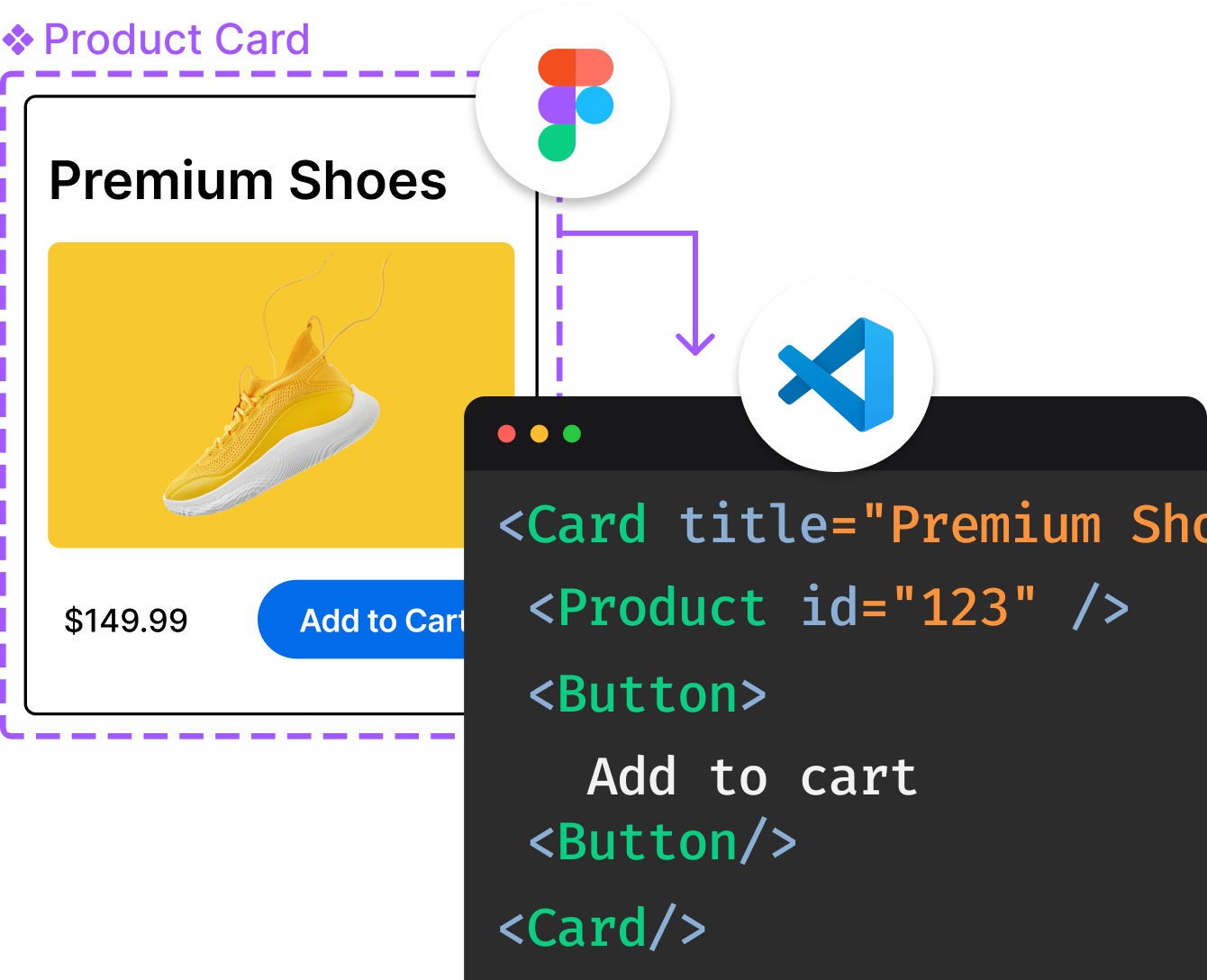
Introducing Visual Copilot: A new AI model to turn Figma designs to high quality code using your components.
Try Visual CopilotREADME


The charting library Android has relied on since 2014, rewritten from the ground up in Kotlin. Nine chart types, a Jetpack Compose module and a property based API, with zooming, dragging, highlighting, markers, animations and styling control over every pixel. Thirty thousand points stay smooth, one dependency line gets you started, and 35 chapters of guides cover the rest.
Charts is the iOS version of this library.
Support the project
Support the project by downloading my other apps and leaving a rating, such as Sightline, a fast screenshot and screen recording tool for macOS with one editor for pictures and clips, scrolling capture, text recognition and a built in MCP server for AI agents. All my apps and projects are on philjay.cc.
If this library helps you, you can also support it by sponsoring me on GitHub or with a donation.
Gallery
The example app opens with every chart type in one consistent style, in a dark and a light variant, drawn by the library. The styling code is in MPChartExample/src/main/kotlin/com/xxmassdeveloper/mpchartexample/design/.

Watch the overview: twenty two seconds through the chart types, the styling, thirty thousand points and the code it takes.

Documentation
The guides at philjay.cc cover the library in 35 chapters, from a first chart to theming, Compose, custom renderers and troubleshooting. Every class, function and property also has KDoc, and the generated API reference is served by JitPack for each release: MPChartLib and MPChartCompose. To build it locally run ./gradlew dokkaGenerate and open build/dokka/html/index.html.
Requirements
minSdk 23, compileSdk 35, Java 17 and Kotlin 2.0 or newer. The Compose module needs compileSdk 37, because Compose itself does. Java callers need no Kotlin at all. Coming from the Java 3.x versions? Read MIGRATION.md or the longer migration guide. CHANGELOG.md lists what changed in 4.0.
Install
4.0 is a rewrite in Kotlin. Its coordinates differ from 3.x, so a project on the 3.x coordinates com.github.PhilJay:MPAndroidChart keeps building untouched. Pin the version, do not track the newest one.
// settings.gradle.kts
dependencyResolutionManagement {
    repositories {
        maven("https://jitpack.io")
    }
}

// build.gradle.kts
dependencies {
    implementation("com.github.PhilJay.MPAndroidChart:MPChartLib:v4.0.1")
    implementation("com.github.PhilJay.MPAndroidChart:MPChartCompose:v4.0.1") // only for Compose
}
Quick start with Compose
Every chart type has a composable with the same name. Pass data as state, configure the view once in setup, and read selection and viewport back through the state:
val state = rememberChartState()
LaunchedEffect(lineData) { state.animateX(500) }

LineChart(
    data = lineData,
    modifier = Modifier.fillMaxWidth().height(300.dp),
    state = state,
    marker = { entry, _ -> Text("${entry.y}") },
    setup = {
        description.isEnabled = false
        axisRight.isEnabled = false
    },
)
setup runs once. ChartState exposes selectedEntry, the visible range and the zoom, and offers highlight, zoomIn, fitScreen, moveViewToX and the animate functions. The Compose chapter covers state, markers, previews and the Compose colour and typeface helpers.
Quick start with Views
Put a chart in a layout, then give it data. Entries are points, a data set is one series with its styling, and the data object holds all series of a chart:
val entries = listOf(Entry(0f, 4f), Entry(1f, 8f), Entry(2f, 6f))
val set = LineDataSet(entries, "Sales").apply {
    color = Color.BLUE
    lineWidth = 2f
    mode = LineDataSet.Mode.CUBIC_BEZIER
}
chart.data = LineData(set)
chart.animateX(500)
Every chart type follows the same pattern: BarEntry into BarDataSet into BarData for a BarChart, and so on. Everything is configured through properties, and formatters and listeners are lambdas:
chart.xAxis.position = XAxis.XAxisPosition.BOTTOM
chart.axisRight.isEnabled = false
chart.xAxis.valueFormatter = IAxisValueFormatter { value, _ -> months[value.toInt()] }
chart.onValueSelected { entry, _ -> showDetails(entry) }
Entries can also carry your own object: Entry(1f, 2f, data = order) is an Entry<Order>, and the payload comes back typed from lookups and selections.
To change data later, assign a new data object or edit the entries and call chart.notifyDataSetChanged(), which also redraws. The guides cover axes, markers, styling and the rest.
Example app
The MPChartExample module in this repository shows every chart type and feature, starting with the showcase above, plus Compose screens. Open the project in Android Studio and run it.
Questions and issues
The issue tracker is for bugs and feature requests. Ask usage questions on Stack Overflow with the mpandroidchart tag.
License
Copyright 2014-2026 Philipp Jahoda
Licensed under the Apache License, Version 2.0. LICENSE holds the full text and NOTICE the attribution.
Special thanks
- danielgindi - Daniel Gindi
- mikegr - Michael Greifeneder
- tony - Tony
- almic - Mick A.
- jitpack.io - JitPack.io
Top Related Projects
Beautiful charts for iOS/tvOS/OSX! The Apple side of the crossplatform MPAndroidChart.
📈📊🚀🚀🚀An elegant modern declarative data visualization chart framework for iOS, iPadOS and macOS. Extremely powerful, supports line, spline, area, areaspline, column, bar, pie, scatter, angular gauges, arearange, areasplinerange, columnrange, bubble, box plot, error bars, funnel, waterfall and polar chart types. 极其精美而又强大的现代化声明式数据可视化图表框架,支持柱状图、条形图、折线图、曲线图、折线填充图、曲线填充图、气泡图、扇形图、环形图、散点图、雷达图、混合图等各种类型的多达几十种的信息图图表,完全满足工作所需.
FL Chart is a highly customizable Flutter chart library that supports Line Chart, Bar Chart, Pie Chart, Scatter Chart, Radar Chart and Candlestick Chart.
Promises for Swift & ObjC.
Android Graph Library for creating zoomable and scrollable line and bar graphs.
Convert designs to code with AI
Introducing Visual Copilot: A new AI model to turn Figma designs to high quality code using your components.
Try Visual Copilot