
Top Related Projects

Glances an Eye on your system. A top/htop alternative for GNU/Linux, BSD, Mac OS and Windows operating systems.

A fancy self-hosted monitoring tool

Open-source cron job and background task monitoring service, written in Python & Django

The Prometheus monitoring system and time series database.

The open and composable observability and data visualization platform. Visualize metrics, logs, and traces from multiple sources like Prometheus, Loki, Elasticsearch, InfluxDB, Postgres and many more.

The fastest path to AI-powered full stack observability, even for lean teams.
Quick Overview
Gatus is an automated service health dashboard that allows you to monitor your services and receive alerts. It provides a clean, easy-to-use interface for tracking the status and performance of various endpoints, APIs, and services. Gatus is highly configurable and can be easily integrated into existing infrastructure.
Pros
- Easy to set up and configure with YAML-based configuration
- Supports multiple types of health checks (HTTP, TCP, ICMP, DNS)
- Provides a clean and responsive web UI for monitoring
- Offers various alerting options (Slack, PagerDuty, Twilio, etc.)
Cons
- Limited advanced monitoring features compared to enterprise solutions
- May require additional setup for complex scenarios
- Documentation could be more comprehensive for advanced use cases
Getting Started
To get started with Gatus, follow these steps:
- Create a
config.yamlfile with your service configurations:
endpoints:
  - name: Example Website
    url: https://example.com
    interval: 5m
    conditions:
      - "[STATUS] == 200"

  - name: Example API
    url: https://api.example.com/health
    interval: 30s
    conditions:
      - "[STATUS] == 200"
      - "[BODY].status == UP"

alerting:
  slack:
    webhook-url: https://hooks.slack.com/services/YOUR/SLACK/WEBHOOK
- Run Gatus using Docker:
docker run -p 8080:8080 --name gatus -v /path/to/your/config.yaml:/config/config.yaml twinproduction/gatus
- Access the Gatus dashboard at
http://localhost:8080
For more detailed configuration options and advanced usage, refer to the official Gatus documentation.
Competitor Comparisons
Glances an Eye on your system. A top/htop alternative for GNU/Linux, BSD, Mac OS and Windows operating systems.
Pros of Glances
- More comprehensive system monitoring, including CPU, memory, disk, network, and processes
- Cross-platform support (Linux, macOS, Windows)
- Extensive plugin system for additional functionality
Cons of Glances
- Heavier resource usage due to more extensive monitoring
- Steeper learning curve for configuration and customization
- Less focused on external service monitoring compared to Gatus
Code Comparison
Glances configuration (glances.conf):
[cpu]
careful=50
warning=70
critical=90

[memory]
careful=50
warning=70
critical=90
Gatus configuration (config.yaml):
endpoints:
  - name: website
    url: https://example.com
    interval: 5m
    conditions:
      - "[STATUS] == 200"
Glances focuses on system-level monitoring with threshold configurations, while Gatus emphasizes external endpoint monitoring with specific conditions. Glances provides a more comprehensive view of system resources, making it suitable for detailed server monitoring. Gatus, on the other hand, excels in monitoring external services and APIs with its simplified configuration and alerting system.
A fancy self-hosted monitoring tool
Pros of Uptime Kuma
- User-friendly web interface with a modern, responsive design
- Supports a wide range of notification services (e.g., Telegram, Discord, Slack)
- Easy to set up and configure, with a built-in status page
Cons of Uptime Kuma
- Less flexible for complex monitoring scenarios
- Limited support for custom plugins or extensions
- May consume more resources due to its full-featured web interface
Code Comparison
Gatus configuration (YAML):
endpoints:
  - name: website
    url: https://example.com
    interval: 5m
    conditions:
      - "[STATUS] == 200"
Uptime Kuma configuration (via UI, no direct code equivalent):
- Monitor Type: HTTP(s)
- URL: https://example.com
- Heartbeat Interval: 5 minutes
- Conditions: Status Code is 200
Summary
Gatus is a lightweight, YAML-configured monitoring tool ideal for DevOps professionals and those comfortable with configuration files. It offers more flexibility for complex scenarios but requires more technical knowledge to set up.
Uptime Kuma provides a user-friendly web interface, making it accessible to a broader audience. It's easier to set up and manage but may be less suitable for advanced monitoring needs or resource-constrained environments.
Both tools are effective for uptime monitoring, with the choice depending on user preferences, technical expertise, and specific monitoring requirements.
Open-source cron job and background task monitoring service, written in Python & Django
Pros of healthchecks
- More comprehensive web interface with detailed reporting and analytics
- Supports a wider range of notification channels (e.g., SMS, WhatsApp, Telegram)
- Offers a hosted solution, reducing setup and maintenance overhead
Cons of healthchecks
- Less flexible in terms of custom health check types
- May be overkill for simple monitoring needs
- Requires more resources to run self-hosted
Code Comparison
healthchecks:
from hc.api.models import Check

check = Check(name="My Check")
check.save()
check.ping()
Gatus:
endpoints:
  - name: My Check
    url: https://example.com
    interval: 5m
    conditions:
      - "[STATUS] == 200"
Summary
healthchecks is a more feature-rich solution with a comprehensive web interface and extensive notification options. It's ideal for teams requiring detailed reporting and analytics. Gatus, on the other hand, offers a simpler, more lightweight approach to health monitoring, making it suitable for basic monitoring needs or resource-constrained environments. The choice between the two depends on the specific requirements of your project and the level of complexity you're comfortable managing.
The Prometheus monitoring system and time series database.
Pros of Prometheus
- More comprehensive monitoring solution with a powerful query language (PromQL)
- Extensive ecosystem with wide range of exporters and integrations
- Highly scalable and suitable for large-scale deployments
Cons of Prometheus
- Steeper learning curve and more complex setup
- Requires additional components for alerting (e.g., Alertmanager)
- Higher resource consumption, especially for large-scale deployments
Code Comparison
Prometheus configuration (prometheus.yml):
global:
  scrape_interval: 15s

scrape_configs:
  - job_name: 'example'
    static_configs:
      - targets: ['localhost:8080']
Gatus configuration (config.yaml):
endpoints:
  - name: example
    url: http://localhost:8080
    interval: 15s
    conditions:
      - "[STATUS] == 200"
Summary
Prometheus is a more powerful and scalable monitoring solution suitable for large-scale deployments, offering a rich query language and extensive ecosystem. However, it comes with a steeper learning curve and higher resource requirements. Gatus, on the other hand, provides a simpler and more lightweight approach to monitoring, focusing on automated health checks and status pages. The choice between the two depends on the specific needs and scale of the project.
The open and composable observability and data visualization platform. Visualize metrics, logs, and traces from multiple sources like Prometheus, Loki, Elasticsearch, InfluxDB, Postgres and many more.
Pros of Grafana
- More comprehensive data visualization and analytics platform
- Supports a wide range of data sources and integrations
- Large community and extensive plugin ecosystem
Cons of Grafana
- Steeper learning curve and more complex setup
- Higher resource requirements for deployment and operation
- May be overkill for simple monitoring needs
Code Comparison
Grafana (dashboard JSON configuration):
{
  "panels": [
    {
      "type": "graph",
      "title": "CPU Usage",
      "datasource": "Prometheus",
      "targets": [
        { "expr": "node_cpu_usage_percent" }
      ]
    }
  ]
}
Gatus (YAML configuration):
endpoints:
  - name: website
    url: https://example.com
    interval: 5m
    conditions:
      - "[STATUS] == 200"
      - "[RESPONSE_TIME] < 500"
Summary
Grafana is a powerful and flexible data visualization platform suitable for complex monitoring and analytics needs. It offers extensive customization options and supports various data sources. However, it may be more resource-intensive and challenging to set up compared to Gatus.
Gatus, on the other hand, is a lightweight and straightforward monitoring tool focused on automated health checks and status pages. It's easier to configure and deploy but has more limited visualization capabilities compared to Grafana.
Choose Grafana for comprehensive data analysis and visualization across multiple sources, or opt for Gatus when you need a simple, resource-efficient monitoring solution for basic health checks and status reporting.
The fastest path to AI-powered full stack observability, even for lean teams.
Pros of netdata
- Comprehensive system monitoring with real-time metrics for CPU, memory, disk, network, and more
- Highly customizable dashboards and alerting system
- Large and active community with extensive documentation
Cons of netdata
- More resource-intensive due to its comprehensive monitoring capabilities
- Steeper learning curve for configuration and customization
- Primarily focused on system-level monitoring rather than external service checks
Code Comparison
netdata configuration example:
[global]
    update every = 1
    memory mode = ram
    history = 3600
    access log = none
    error log = syslog
Gatus configuration example:
endpoints:
  - name: website
    url: https://example.com
    interval: 5m
    conditions:
      - "[STATUS] == 200"
      - "[BODY] contains 'Welcome'"
Summary
netdata excels in comprehensive system monitoring with real-time metrics and customizable dashboards, while Gatus focuses on simpler, lightweight endpoint monitoring and status checks. netdata offers more detailed insights but requires more resources and setup time, whereas Gatus provides a straightforward solution for monitoring external services and endpoints with minimal configuration.
Convert  designs to code with AI

Introducing Visual Copilot: A new AI model to turn Figma designs to high quality code using your components.
Try Visual CopilotREADME




Gatus is a developer-oriented health dashboard that gives you the ability to monitor your services using HTTP, ICMP, TCP, and even DNS queries as well as evaluate the result of said queries by using a list of conditions on values like the status code, the response time, the certificate expiration, the body and many others. The icing on top is that each of these health checks can be paired with alerting via Slack, Teams, PagerDuty, Discord, Twilio and many more.
I personally deploy it in my Kubernetes cluster and let it monitor the status of my core applications: https://status.twin.sh/
Looking for a managed solution? Check out Gatus.io.
Quick start
docker run -p 8080:8080 --name gatus ghcr.io/twin/gatus:stable
You can also use Docker Hub if you prefer:
docker run -p 8080:8080 --name gatus twinproduction/gatus:stable
For more details, see Usage
⤠Like this project? Please consider sponsoring me.

Have any feedback or questions? Create a discussion.
Table of Contents
- Table of Contents
- Why Gatus?
- Features
- Usage
- Configuration
- Endpoints
- External Endpoints
- Suites (ALPHA)
- Conditions
- Web
- UI
- Announcements
- Storage
- Client configuration
- Tunneling
- Alerting
- Configuring AWS SES alerts
- Configuring ClickUp alerts
- Configuring Datadog alerts
- Configuring Discord alerts
- Configuring Email alerts
- Configuring Gitea alerts
- Configuring GitHub alerts
- Configuring GitLab alerts
- Configuring Google Chat alerts
- Configuring Gotify alerts
- Configuring HomeAssistant alerts
- Configuring IFTTT alerts
- Configuring Ilert alerts
- Configuring Incident.io alerts
- Configuring Line alerts
- Configuring Matrix alerts
- Configuring Mattermost alerts
- Configuring Messagebird alerts
- Configuring n8n alerts
- Configuring New Relic alerts
- Configuring Ntfy alerts
- Configuring Opsgenie alerts
- Configuring PagerDuty alerts
- Configuring Plivo alerts
- Configuring Pushover alerts
- Configuring Rocket.Chat alerts
- Configuring SendGrid alerts
- Configuring Signal alerts
- Configuring SIGNL4 alerts
- Configuring Slack alerts
- Configuring Splunk alerts
- Configuring Squadcast alerts
- Configuring Teams alerts (Deprecated)
- Configuring Teams Workflow alerts
- Configuring Telegram alerts
- Configuring Twilio alerts
- Configuring Vonage alerts
- Configuring Webex alerts
- Configuring Zapier alerts
- Configuring Zulip alerts
- Configuring custom alerts
- Setting a default alert
- Maintenance
- Security
- TLS Encryption
- Metrics
- Connectivity
- Remote instances (EXPERIMENTAL)
- Deployment
- Running the tests
- Using in Production
- FAQ
- Sending a GraphQL request
- Recommended interval
- Default timeouts
- Monitoring a TCP endpoint
- Monitoring a UDP endpoint
- Monitoring a SCTP endpoint
- Monitoring a WebSocket endpoint
- Monitoring an endpoint using gRPC
- Monitoring an endpoint using ICMP
- Monitoring an endpoint using DNS queries
- Monitoring an endpoint using SSH
- Monitoring an endpoint using STARTTLS
- Monitoring an endpoint using TLS
- Monitoring domain expiration
- Concurrency
- Reloading configuration on the fly
- Endpoint groups
- How do I sort by group by default?
- Exposing Gatus on a custom path
- Exposing Gatus on a custom port
- Use environment variables in config files
- Configuring a startup delay
- Keeping your configuration small
- Proxy client configuration
- How to fix 431 Request Header Fields Too Large error
- Badges
- API
- Installing as binary
- High level design overview
Why Gatus?
Before getting into the specifics, I want to address the most common question:
Why would I use Gatus when I can just use Prometheusâ Alertmanager, Cloudwatch or even Splunk?
Neither of these can tell you that thereâs a problem if there are no clients actively calling the endpoint. In other words, it's because monitoring metrics mostly rely on existing traffic, which effectively means that unless your clients are already experiencing a problem, you won't be notified.
Gatus, on the other hand, allows you to configure health checks for each of your features, which in turn allows it to monitor these features and potentially alert you before any clients are impacted.
A sign you may want to look into Gatus is by simply asking yourself whether you'd receive an alert if your load balancer was to go down right now. Will any of your existing alerts be triggered? Your metrics wonât report an increase in errors if no traffic makes it to your applications. This puts you in a situation where your clients are the ones that will notify you about the degradation of your services rather than you reassuring them that you're working on fixing the issue before they even know about it.
Features
The main features of Gatus are:
- Highly flexible health check conditions: While checking the response status may be enough for some use cases, Gatus goes much further and allows you to add conditions on the response time, the response body and even the IP address.
- Ability to use Gatus for user acceptance tests: Thanks to the point above, you can leverage this application to create automated user acceptance tests.
- Very easy to configure: Not only is the configuration designed to be as readable as possible, it's also extremely easy to add a new service or a new endpoint to monitor.
- Alerting: While having a pretty visual dashboard is useful to keep track of the state of your application(s), you probably don't want to stare at it all day. Thus, notifications via Slack, Mattermost, Messagebird, PagerDuty, Twilio, Google chat and Teams are supported out of the box with the ability to configure a custom alerting provider for any needs you might have, whether it be a different provider or a custom application that manages automated rollbacks.
- Metrics
- Low resource consumption: As with most Go applications, the resource footprint that this application requires is negligibly small.
- Badges:


- Dark mode

Usage
docker run -p 8080:8080 --name gatus ghcr.io/twin/gatus:stable
You can also use Docker Hub if you prefer:
docker run -p 8080:8080 --name gatus twinproduction/gatus:stable
If you want to create your own configuration, see Docker for information on how to mount a configuration file.
Here's a simple example:
endpoints:
  - name: website                 # Name of your endpoint, can be anything
    url: "https://twin.sh/health"
    interval: 5m                  # Duration to wait between every status check (default: 60s)
    conditions:
      - "[STATUS] == 200"         # Status must be 200
      - "[BODY].status == UP"     # The json path "$.status" must be equal to UP
      - "[RESPONSE_TIME] < 300"   # Response time must be under 300ms

  - name: make-sure-header-is-rendered
    url: "https://example.org/"
    interval: 60s
    conditions:
      - "[STATUS] == 200"                          # Status must be 200
      - "[BODY] == pat(*<h1>Example Domain</h1>*)" # Body must contain the specified header
This example would look similar to this:

If you want to test it locally, see Docker.
Configuration
By default, the configuration file is expected to be at config/config.yaml.
You can specify a custom path by setting the GATUS_CONFIG_PATH environment variable.
If GATUS_CONFIG_PATH points to a directory, all *.yaml and *.yml files inside said directory and its
subdirectories are merged like so:
- All maps/objects are deep merged (i.e. you could define
alerting.slackin one file andalerting.pagerdutyin another file) - All slices/arrays are appended (i.e. you can define
endpointsin multiple files and each endpoint will be added to the final list of endpoints) - Parameters with a primitive value (e.g.
metrics,alerting.slack.webhook-url, etc.) may only be defined once to forcefully avoid any ambiguity- To clarify, this also means that you could not define
alerting.slack.webhook-urlin two files with different values. All files are merged into one before they are processed. This is by design.
- To clarify, this also means that you could not define
ð¡ You can also use environment variables in the configuration file (e.g.
$DOMAIN,${DOMAIN})â ï¸ When your configuration parameter contains a
$symbol, you have to escape$with$$.See Use environment variables in config files or examples/docker-compose-postgres-storage/config/config.yaml for examples.
If you want to test it locally, see Docker.
Configuration
| Parameter | Description | Default |
|---|---|---|
metrics | Whether to expose metrics at /metrics. | false |
storage | Storage configuration. | {} |
alerting | Alerting configuration. | {} |
announcements | Announcements configuration. | [] |
endpoints | Endpoints configuration. | Required [] |
external-endpoints | External Endpoints configuration. | [] |
security | Security configuration. | {} |
concurrency | Maximum number of endpoints/suites to monitor concurrently. Set to 0 for unlimited. See Concurrency. | 3 |
disable-monitoring-lock | Whether to disable the monitoring lock. Deprecated: Use concurrency: 0 instead. | false |
skip-invalid-config-update | Whether to ignore invalid configuration update. See Reloading configuration on the fly. | false |
web | Web configuration. | {} |
ui | UI configuration. | {} |
maintenance | Maintenance configuration. | {} |
If you want more verbose logging, you may set the GATUS_LOG_LEVEL environment variable to DEBUG.
Conversely, if you want less verbose logging, you can set the aforementioned environment variable to WARN, ERROR or FATAL.
The default value for GATUS_LOG_LEVEL is INFO.
Endpoints
Endpoints are URLs, applications, or services that you want to monitor. Each endpoint has a list of conditions that are evaluated on an interval that you define. If any condition fails, the endpoint is considered as unhealthy. You can then configure alerts to be triggered when an endpoint is unhealthy once a certain threshold is reached.
| Parameter | Description | Default |
|---|---|---|
endpoints | List of endpoints to monitor. | Required [] |
endpoints[].enabled | Whether to monitor the endpoint. | true |
endpoints[].name | Name of the endpoint. Can be anything. | Required "" |
endpoints[].group | Group name. Used to group multiple endpoints together on the dashboard. See Endpoint groups. | "" |
endpoints[].url | URL to send the request to. | Required "" |
endpoints[].method | Request method. | GET |
endpoints[].conditions | Conditions used to determine the health of the endpoint. See Conditions. | [] |
endpoints[].interval | Duration to wait between every status check. | 60s |
endpoints[].graphql | Whether to wrap the body in a query param ({"query":"$body"}). | false |
endpoints[].body | Request body. | "" |
endpoints[].headers | Request headers. | {} |
endpoints[].dns | Configuration for an endpoint of type DNS. See Monitoring an endpoint using DNS queries. | "" |
endpoints[].dns.query-type | Query type (e.g. MX). | "" |
endpoints[].dns.query-name | Query name (e.g. example.com). | "" |
endpoints[].ssh | Configuration for an endpoint of type SSH. See Monitoring an endpoint using SSH. | "" |
endpoints[].ssh.username | SSH username (e.g. example). | Required "" |
endpoints[].ssh.password | SSH password (e.g. password). | Required "" |
endpoints[].alerts | List of all alerts for a given endpoint. See Alerting. | [] |
endpoints[].maintenance-windows | List of all maintenance windows for a given endpoint. See Maintenance. | [] |
endpoints[].client | Client configuration. | {} |
endpoints[].ui | UI configuration at the endpoint level. | {} |
endpoints[].ui.hide-conditions | Whether to hide conditions from the results. Note that this only hides conditions from results evaluated from the moment this was enabled. | false |
endpoints[].ui.hide-hostname | Whether to hide the hostname from the results. | false |
endpoints[].ui.hide-port | Whether to hide the port from the results. | false |
endpoints[].ui.hide-url | Whether to hide the URL from the results. Useful if the URL contains a token. | false |
endpoints[].ui.hide-errors | Whether to hide errors from the results. | false |
endpoints[].ui.dont-resolve-failed-conditions | Whether to resolve failed conditions for the UI. | false |
endpoints[].ui.resolve-successful-conditions | Whether to resolve successful conditions for the UI (helpful to expose body assertions even when checks pass). | false |
endpoints[].ui.badge.response-time | List of response time thresholds. Each time a threshold is reached, the badge has a different color. | [50, 200, 300, 500, 750] |
endpoints[].extra-labels | Extra labels to add to the metrics. Useful for grouping endpoints together. | {} |
endpoints[].always-run | (SUITES ONLY) Whether to execute this endpoint even if previous endpoints in the suite failed. | false |
endpoints[].store | (SUITES ONLY) Map of values to extract from the response and store in the suite context (stored even on failure). | {} |
You may use the following placeholders in the body (endpoints[].body):
[ENDPOINT_NAME](resolved fromendpoints[].name)[ENDPOINT_GROUP](resolved fromendpoints[].group)[ENDPOINT_URL](resolved fromendpoints[].url)[LOCAL_ADDRESS](resolves to the local IP and port like192.0.2.1:25or[2001:db8::1]:80)[RANDOM_STRING_N](resolves to a random string of numbers and letters of length N (max: 8192))
External Endpoints
Unlike regular endpoints, external endpoints are not monitored by Gatus, but they are instead pushed programmatically. This allows you to monitor anything you want, even when what you want to check lives in an environment that would not normally be accessible by Gatus.
For instance:
- You can create your own agent that lives in a private network and pushes the status of your services to a publicly-exposed Gatus instance
- You can monitor services that are not supported by Gatus
- You can implement your own monitoring system while using Gatus as the dashboard
| Parameter | Description | Default |
|---|---|---|
external-endpoints | List of endpoints to monitor. | [] |
external-endpoints[].enabled | Whether to monitor the endpoint. | true |
external-endpoints[].name | Name of the endpoint. Can be anything. | Required "" |
external-endpoints[].group | Group name. Used to group multiple endpoints together on the dashboard. See Endpoint groups. | "" |
external-endpoints[].token | Bearer token required to push status to. | Required "" |
external-endpoints[].alerts | List of all alerts for a given endpoint. See Alerting. | [] |
external-endpoints[].heartbeat | Heartbeat configuration for monitoring when the external endpoint stops sending updates. | {} |
external-endpoints[].heartbeat.interval | Expected interval between updates. If no update is received within this interval, alerts will be triggered. Must be at least 10s. | 0 (disabled) |
Example:
external-endpoints:
  - name: ext-ep-test
    group: core
    token: "potato"
    heartbeat:
      interval: 30m  # Automatically create a failure if no update is received within 30 minutes
    alerts:
      - type: discord
        description: "healthcheck failed"
        send-on-resolved: true
To push the status of an external endpoint, you can use gatus-cli:
gatus-cli external-endpoint push --url https://status.example.org --key "core_ext-ep-test" --token "potato" --success
or send an HTTP request:
POST /api/v1/endpoints/{key}/external?success={success}&error={error}&duration={duration}
Where:
{key}has the pattern<GROUP_NAME>_<ENDPOINT_NAME>in which both variables have/,_,,,.,#,+and&replaced by-.- Using the example configuration above, the key would be
core_ext-ep-test.
- Using the example configuration above, the key would be
{success}is a boolean (trueorfalse) value indicating whether the health check was successful or not.{error}(optional): a string describing the reason for a failed health check. If {success} is false, this should contain the error message; if the check is successful, this will be ignored.{duration}(optional): the time that the request took as a duration string (e.g. 10s).
You must also pass the token as a Bearer token in the Authorization header.
Suites (ALPHA)
Suites are collections of endpoints that are executed sequentially with a shared context. This allows you to create complex monitoring scenarios where the result from one endpoint can be used in subsequent endpoints, enabling workflow-style monitoring.
Here are a few cases in which suites could be useful:
- Testing multi-step authentication flows (login -> access protected resource -> logout)
- API workflows where you need to chain requests (create resource -> update -> verify -> delete)
- Monitoring business processes that span multiple services
- Validating data consistency across multiple endpoints
| Parameter | Description | Default |
|---|---|---|
suites | List of suites to monitor. | [] |
suites[].enabled | Whether to monitor the suite. | true |
suites[].name | Name of the suite. Must be unique. | Required "" |
suites[].group | Group name. Used to group multiple suites together on the dashboard. | "" |
suites[].interval | Duration to wait between suite executions. | 10m |
suites[].timeout | Maximum duration for the entire suite execution. | 5m |
suites[].context | Initial context values that can be referenced by endpoints. | {} |
suites[].endpoints | List of endpoints to execute sequentially. | Required [] |
suites[].endpoints[].store | Map of values to extract from the response and store in the suite context (stored even on failure). | {} |
suites[].endpoints[].always-run | Whether to execute this endpoint even if previous endpoints in the suite failed. | false |
Note: Suite-level alerts are not supported yet. Configure alerts on individual endpoints within the suite instead.
Using Context in Endpoints
Once values are stored in the context, they can be referenced in subsequent endpoints:
- In the URL:
https://api.example.com/users/[CONTEXT].user_id - In headers:
Authorization: Bearer [CONTEXT].auth_token - In the body:
{"user_id": "[CONTEXT].user_id"} - In conditions:
[BODY].server_ip == [CONTEXT].server_ip
Note that context/store keys are limited to A-Z, a-z, 0-9, underscores (_), and hyphens (-).
Example Suite Configuration
suites:
  - name: item-crud-workflow
    group: api-tests
    interval: 5m
    context:
      price: "19.99"  # Initial static value in context
    endpoints:
      # Step 1: Create an item and store the item ID
      - name: create-item
        url: https://api.example.com/items
        method: POST
        body: '{"name": "Test Item", "price": "[CONTEXT].price"}'
        conditions:
          - "[STATUS] == 201"
          - "len([BODY].id) > 0"
          - "[BODY].price == [CONTEXT].price"
        store:
          itemId: "[BODY].id"
        alerts:
          - type: slack
            description: "Failed to create item"

      # Step 2: Update the item using the stored item ID
      - name: update-item
        url: https://api.example.com/items/[CONTEXT].itemId
        method: PUT
        body: '{"price": "24.99"}'
        conditions:
          - "[STATUS] == 200"
        alerts:
          - type: slack
            description: "Failed to update item"

      # Step 3: Fetch the item and validate the price
      - name: get-item
        url: https://api.example.com/items/[CONTEXT].itemId
        method: GET
        conditions:
          - "[STATUS] == 200"
          - "[BODY].price == 24.99"
        alerts:
          - type: slack
            description: "Item price did not update correctly"

      # Step 4: Delete the item (always-run: true to ensure cleanup even if step 2 or 3 fails)
      - name: delete-item
        url: https://api.example.com/items/[CONTEXT].itemId
        method: DELETE
        always-run: true
        conditions:
          - "[STATUS] == 204"
        alerts:
          - type: slack
            description: "Failed to delete item"
The suite will be considered successful only if all required endpoints pass their conditions.
Conditions
Here are some examples of conditions you can use:
| Condition | Description | Passing values | Failing values |
|---|---|---|---|
[STATUS] == 200 | Status must be equal to 200 | 200 | 201, 404, ... |
[STATUS] < 300 | Status must lower than 300 | 200, 201, 299 | 301, 302, ... |
[STATUS] <= 299 | Status must be less than or equal to 299 | 200, 201, 299 | 301, 302, ... |
[STATUS] > 400 | Status must be greater than 400 | 401, 402, 403, 404 | 400, 200, ... |
[STATUS] == any(200, 429) | Status must be either 200 or 429 | 200, 429 | 201, 400, ... |
[CONNECTED] == true | Connection to host must've been successful | true | false |
[RESPONSE_TIME] < 500 | Response time must be below 500ms | 100ms, 200ms, 300ms | 500ms, 501ms |
[IP] == 127.0.0.1 | Target IP must be 127.0.0.1 | 127.0.0.1 | 0.0.0.0 |
[BODY] == 1 | The body must be equal to 1 | 1 | {}, 2, ... |
[BODY].user.name == john | JSONPath value of $.user.name is equal to john | {"user":{"name":"john"}} | |
[BODY].data[0].id == 1 | JSONPath value of $.data[0].id is equal to 1 | {"data":[{"id":1}]} | |
[BODY].age == [BODY].id | JSONPath value of $.age is equal JSONPath $.id | {"age":1,"id":1} | |
len([BODY].data) < 5 | Array at JSONPath $.data has less than 5 elements | {"data":[{"id":1}]} | |
len([BODY].name) == 8 | String at JSONPath $.name has a length of 8 | {"name":"john.doe"} | {"name":"bob"} |
has([BODY].errors) == false | JSONPath $.errors does not exist | {"name":"john.doe"} | {"errors":[]} |
has([BODY].users) == true | JSONPath $.users exists | {"users":[]} | {} |
[BODY].name == pat(john*) | String at JSONPath $.name matches pattern john* | {"name":"john.doe"} | {"name":"bob"} |
[BODY].id == any(1, 2) | Value at JSONPath $.id is equal to 1 or 2 | 1, 2 | 3, 4, 5 |
[CERTIFICATE_EXPIRATION] > 48h | Certificate expiration is more than 48h away | 49h, 50h, 123h | 1h, 24h, ... |
[DOMAIN_EXPIRATION] > 720h | The domain must expire in more than 720h | 4000h | 1h, 24h, ... |
Placeholders
| Placeholder | Description | Example of resolved value |
|---|---|---|
[STATUS] | Resolves into the HTTP status of the request | 404 |
[RESPONSE_TIME] | Resolves into the response time the request took, in ms | 10 |
[IP] | Resolves into the IP of the target host | 192.168.0.232 |
[BODY] | Resolves into the response body. Supports JSONPath. | {"name":"john.doe"} |
[CONNECTED] | Resolves into whether a connection could be established | true |
[CERTIFICATE_EXPIRATION] | Resolves into the duration before certificate expiration (valid units are "s", "m", "h".) | 24h, 48h, 0 (if not protocol with certs) |
[DOMAIN_EXPIRATION] | Resolves into the duration before the domain expires (valid units are "s", "m", "h".) | 24h, 48h, 1234h56m78s |
[DNS_RCODE] | Resolves into the DNS status of the response | NOERROR |
Functions
| Function | Description | Example |
|---|---|---|
len | If the given path leads to an array, returns its length. Otherwise, the JSON at the given path is minified and converted to a string, and the resulting number of characters is returned. Works only with the [BODY] placeholder. | len([BODY].username) > 8 |
has | Returns true or false based on whether a given path is valid. Works only with the [BODY] placeholder. | has([BODY].errors) == false |
pat | Specifies that the string passed as parameter should be evaluated as a pattern. Works only with == and !=. | [IP] == pat(192.168.*) |
any | Specifies that any one of the values passed as parameters is a valid value. Works only with == and !=. | [BODY].ip == any(127.0.0.1, ::1) |
ð¡ Use
patonly when you need to.[STATUS] == pat(2*)is a lot more expensive than[STATUS] < 300.
Web
Allows you to configure how and where the dashboard is being served.
| Parameter | Description | Default |
|---|---|---|
web | Web configuration | {} |
web.address | Address to listen on. | 0.0.0.0 |
web.port | Port to listen on. | 8080 |
web.read-buffer-size | Buffer size for reading requests from a connection. Also limit for the maximum header size. | 8192 |
web.tls.certificate-file | Optional public certificate file for TLS in PEM format. | "" |
web.tls.private-key-file | Optional private key file for TLS in PEM format. | "" |
UI
Allows you to configure the application wide defaults for the dashboard's UI. Some of these parameters can be overridden locally by users using the local storage of their browser.
| Parameter | Description | Default |
|---|---|---|
ui | UI configuration | {} |
ui.title | Title of the document. | Health Dashboard Ç Gatus |
ui.description | Meta description for the page. | Gatus is an advanced.... |
ui.dashboard-heading | Dashboard title between header and endpoints | Health Dashboard |
ui.dashboard-subheading | Dashboard description between header and endpoints | Monitor the health of your endpoints in real-time |
ui.header | Header at the top of the dashboard. Also used as the title on the OIDC login page. | Gatus |
ui.logo | URL to the logo to display. When set, shown alongside the Gatus logo on the OIDC login page. | "" |
ui.link | Link to open when the logo is clicked. | "" |
ui.favicon.default | Favourite default icon to display in web browser tab or address bar. | /favicon.ico |
ui.favicon.size16x16 | Favourite icon to display in web browser for 16x16 size. | /favicon-16x16.png |
ui.favicon.size32x32 | Favourite icon to display in web browser for 32x32 size. | /favicon-32x32.png |
ui.buttons | List of buttons to display below the header. | [] |
ui.buttons[].name | Text to display on the button. | Required "" |
ui.buttons[].link | Link to open when the button is clicked. | Required "" |
ui.custom-css | Custom CSS | "" |
ui.dark-mode | Whether to enable dark mode by default. Note that this is superseded by the user's operating system theme preferences. | true |
ui.default-sort-by | Default sorting option for endpoints in the dashboard. Can be name, group, or health. Note that user preferences override this. | name |
ui.default-filter-by | Default filter option for endpoints in the dashboard. Can be none, failing, or unstable. Note that user preferences override this. | none |
ui.login-subtitle | Subtitle displayed on the OIDC login page. | System Monitoring Dashboard |
Announcements
System-wide announcements allow you to display important messages at the top of the status page. These can be used to inform users about planned maintenance, ongoing issues, or general information. You can use markdown to format your announcements.
This is essentially what some status page calls "incident communications".
| Parameter | Description | Default |
|---|---|---|
announcements | List of announcements to display | [] |
announcements[].timestamp | UTC timestamp when the announcement was made (RFC3339 format) | Required |
announcements[].type | Type of announcement. Valid values: outage, warning, information, operational, none | "none" |
announcements[].message | The message to display to users | Required |
announcements[].archived | Whether to archive the announcement. Archived announcements show at the bottom of the status page instead of at the top. | false |
Types:
- outage: Indicates service disruptions or critical issues (red theme)
- warning: Indicates potential issues or important notices (yellow theme)
- information: General information or updates (blue theme)
- operational: Indicates resolved issues or normal operations (green theme)
- none: Neutral announcements with no specific severity (gray theme, default if none are specified)
Example Configuration:
announcements:
  - timestamp: 2025-11-07T14:00:00Z
    type: outage
    message: "Scheduled maintenance on database servers from 14:00 to 16:00 UTC"
  - timestamp: 2025-11-07T16:15:00Z
    type: operational
    message: "Database maintenance completed successfully. All systems operational."
  - timestamp: 2025-11-07T12:00:00Z
    type: information
    message: "New monitoring dashboard features will be deployed next week"
  - timestamp: 2025-11-06T09:00:00Z
    type: warning
    message: "Elevated API response times observed for US customers"
    archived: true
If at least one announcement is archived, a Past Announcements section will be rendered at the bottom of the status page:

Storage
| Parameter | Description | Default |
|---|---|---|
storage | Storage configuration | {} |
storage.path | Path to persist the data in. Only supported for types sqlite and postgres. | "" |
storage.type | Type of storage. Valid types: memory, sqlite, postgres. | "memory" |
storage.caching | Whether to use write-through caching. Improves loading time for large dashboards. Only supported if storage.type is sqlite or postgres | false |
storage.maximum-number-of-results | The maximum number of results that an endpoint can have | 100 |
storage.maximum-number-of-events | The maximum number of events that an endpoint can have | 50 |
The results for each endpoint health check as well as the data for uptime and the past events must be persisted so that they can be displayed on the dashboard. These parameters allow you to configure the storage in question.
- If
storage.typeismemory(default):
# Note that this is the default value, and you can omit the storage configuration altogether to achieve the same result.
# Because the data is stored in memory, the data will not survive a restart.
storage:
  type: memory
  maximum-number-of-results: 200
  maximum-number-of-events: 5
- If
storage.typeissqlite,storage.pathmust not be blank:
storage:
  type: sqlite
  path: data.db
See examples/docker-compose-sqlite-storage for an example.
- If
storage.typeispostgres,storage.pathmust be the connection URL:
storage:
  type: postgres
  path: "postgres://user:password@127.0.0.1:5432/gatus?sslmode=disable"
See examples/docker-compose-postgres-storage for an example.
Client configuration
In order to support a wide range of environments, each monitored endpoint has a unique configuration for the client used to send the request.
| Parameter | Description | Default |
|---|---|---|
client.insecure | Whether to skip verifying the server's certificate chain and host name. | false |
client.ignore-redirect | Whether to ignore redirects (true) or follow them (false, default). | false |
client.timeout | Duration before timing out. | 10s |
client.dns-resolver | Override the DNS resolver using the format {proto}://{host}:{port}. | "" |
client.oauth2 | OAuth2 client configuration. | {} |
client.oauth2.token-url | The token endpoint URL | required "" |
client.oauth2.client-id | The client id which should be used for the Client credentials flow | required "" |
client.oauth2.client-secret | The client secret which should be used for the Client credentials flow | required "" |
client.oauth2.scopes[] | A list of scopes which should be used for the Client credentials flow. | required [""] |
client.proxy-url | The URL of the proxy to use for the client | "" |
client.identity-aware-proxy | Google Identity-Aware-Proxy client configuration. | {} |
client.identity-aware-proxy.audience | The Identity-Aware-Proxy audience. (client-id of the IAP oauth2 credential) | required "" |
client.tls.certificate-file | Path to a client certificate (in PEM format) for mTLS configurations. | "" |
client.tls.private-key-file | Path to a client private key (in PEM format) for mTLS configurations. | "" |
client.tls.renegotiation | Type of renegotiation support to provide. (never, freely, once). | "never" |
client.network | The network to use for ICMP endpoint client (ip, ip4 or ip6). | "ip" |
client.tunnel | Name of the SSH tunnel to use for this endpoint. See Tunneling. | "" |
client.store-cookies | Whether to store cookies between requests. | false |
ð Some of these parameters are ignored based on the type of endpoint. For instance, there's no certificate involved in ICMP requests (ping), therefore, setting
client.insecuretotruefor an endpoint of that type will not do anything.
This default configuration is as follows:
client:
  insecure: false
  ignore-redirect: false
  timeout: 10s
  store-cookies: false
Note that this configuration is only available under endpoints[], alerting.mattermost and alerting.custom.
Here's an example with the client configuration under endpoints[]:
endpoints:
  - name: website
    url: "https://twin.sh/health"
    client:
      insecure: false
      ignore-redirect: false
      timeout: 10s
    conditions:
      - "[STATUS] == 200"
This example shows how you can specify a custom DNS resolver:
endpoints:
  - name: with-custom-dns-resolver
    url: "https://your.health.api/health"
    client:
      dns-resolver: "tcp://8.8.8.8:53"
    conditions:
      - "[STATUS] == 200"
This example shows how you can use the client.oauth2 configuration to query a backend API with Bearer token:
endpoints:
  - name: with-custom-oauth2
    url: "https://your.health.api/health"
    client:
      oauth2:
        token-url: https://your-token-server/token
        client-id: 00000000-0000-0000-0000-000000000000
        client-secret: your-client-secret
        scopes: ['https://your.health.api/.default']
    conditions:
      - "[STATUS] == 200"
This example shows how you can use the client.identity-aware-proxy configuration to query a backend API with Bearer token using Google Identity-Aware-Proxy:
endpoints:
  - name: with-custom-iap
    url: "https://my.iap.protected.app/health"
    client:
      identity-aware-proxy:
        audience: "XXXXXXXX-XXXXXXXXXXXX.apps.googleusercontent.com"
    conditions:
      - "[STATUS] == 200"
ð Note that Gatus will use the gcloud default credentials within its environment to generate the token.
This example shows you how you can use the client.tls configuration to perform an mTLS query to a backend API:
endpoints:
  - name: website
    url: "https://your.mtls.protected.app/health"
    client:
      tls:
        certificate-file: /path/to/user_cert.pem
        private-key-file: /path/to/user_key.pem
        renegotiation: once
    conditions:
      - "[STATUS] == 200"
ð Note that if running in a container, you must volume mount the certificate and key into the container.
Tunneling
Gatus supports SSH tunneling to monitor internal services through jump hosts or bastion servers. This is particularly useful for monitoring services that are not directly accessible from where Gatus is deployed.
SSH tunnels are defined globally in the tunneling section and then referenced by name in endpoint client configurations.
| Parameter | Description | Default |
|---|---|---|
tunneling | SSH tunnel configurations | {} |
tunneling.<tunnel-name> | Configuration for a named SSH tunnel | {} |
tunneling.<tunnel-name>.type | Type of tunnel (currently only SSH is supported) | Required "" |
tunneling.<tunnel-name>.host | SSH server hostname or IP address | Required "" |
tunneling.<tunnel-name>.port | SSH server port | 22 |
tunneling.<tunnel-name>.username | SSH username | Required "" |
tunneling.<tunnel-name>.password | SSH password (use either this or private-key) | "" |
tunneling.<tunnel-name>.private-key | SSH private key in PEM format (use either this or password) | "" |
client.tunnel | Name of the tunnel to use for this endpoint | "" |
tunneling:
  production:
    type: SSH
    host: "jumphost.example.com"
    username: "monitoring"
    private-key: |
      -----BEGIN RSA PRIVATE KEY-----
      MIIEpAIBAAKCAQEA...
      -----END RSA PRIVATE KEY-----

endpoints:
  - name: "internal-api"
    url: "http://internal-api.example.com:8080/health"
    client:
      tunnel: "production"
    conditions:
      - "[STATUS] == 200"
â ï¸ WARNING:: Tunneling may introduce additional latency, especially if the connection to the tunnel is retried frequently. This may lead to inaccurate response time measurements.
Alerting
Gatus supports multiple alerting providers, such as Slack and PagerDuty, and supports different alerts for each individual endpoints with configurable descriptions and thresholds.
Alerts are configured at the endpoint level like so:
| Parameter | Description | Default |
|---|---|---|
alerts | List of all alerts for a given endpoint. | [] |
alerts[].type | Type of alert. See table below for all valid types. | Required "" |
alerts[].enabled | Whether to enable the alert. | true |
alerts[].failure-threshold | Number of failures in a row needed before triggering the alert. | 3 |
alerts[].success-threshold | Number of successes in a row before an ongoing incident is marked as resolved. | 2 |
alerts[].minimum-reminder-interval | Minimum time interval between alert reminders. E.g. "30m", "1h45m30s" or "24h". If empty or 0, reminders are disabled. Cannot be lower than 5m. | 0 |
alerts[].send-on-resolved | Whether to send a notification once a triggered alert is marked as resolved. | false |
alerts[].description | Description of the alert. Will be included in the alert sent. | "" |
alerts[].provider-override | Alerting provider configuration override for the given alert type | {} |
Here's an example of what an alert configuration might look like at the endpoint level:
endpoints:
  - name: example
    url: "https://example.org"
    conditions:
      - "[STATUS] == 200"
    alerts:
      - type: slack
        description: "healthcheck failed"
        send-on-resolved: true
You can also override global provider configuration by using alerts[].provider-override, like so:
endpoints:
  - name: example
    url: "https://example.org"
    conditions:
      - "[STATUS] == 200"
    alerts:
      - type: slack
        provider-override:
          webhook-url: "https://hooks.slack.com/services/**********/**********/**********"
ð If an alerting provider is not properly configured, all alerts configured with the provider's type will be ignored.
| Parameter | Description | Default |
|---|---|---|
alerting.awsses | Configuration for alerts of type awsses. See Configuring AWS SES alerts. | {} |
alerting.clickup | Configuration for alerts of type clickup. See Configuring ClickUp alerts. | {} |
alerting.custom | Configuration for custom actions on failure or alerts. See Configuring Custom alerts. | {} |
alerting.datadog | Configuration for alerts of type datadog. See Configuring Datadog alerts. | {} |
alerting.discord | Configuration for alerts of type discord. See Configuring Discord alerts. | {} |
alerting.email | Configuration for alerts of type email. See Configuring Email alerts. | {} |
alerting.gitea | Configuration for alerts of type gitea. See Configuring Gitea alerts. | {} |
alerting.github | Configuration for alerts of type github. See Configuring GitHub alerts. | {} |
alerting.gitlab | Configuration for alerts of type gitlab. See Configuring GitLab alerts. | {} |
alerting.googlechat | Configuration for alerts of type googlechat. See Configuring Google Chat alerts. | {} |
alerting.gotify | Configuration for alerts of type gotify. See Configuring Gotify alerts. | {} |
alerting.homeassistant | Configuration for alerts of type homeassistant. See Configuring HomeAssistant alerts. | {} |
alerting.ifttt | Configuration for alerts of type ifttt. See Configuring IFTTT alerts. | {} |
alerting.ilert | Configuration for alerts of type ilert. See Configuring ilert alerts. | {} |
alerting.incident-io | Configuration for alerts of type incident-io. See Configuring Incident.io alerts. | {} |
alerting.line | Configuration for alerts of type line. See Configuring Line alerts. | {} |
alerting.matrix | Configuration for alerts of type matrix. See Configuring Matrix alerts. | {} |
alerting.mattermost | Configuration for alerts of type mattermost. See Configuring Mattermost alerts. | {} |
alerting.messagebird | Configuration for alerts of type messagebird. See Configuring Messagebird alerts. | {} |
alerting.n8n | Configuration for alerts of type n8n. See Configuring n8n alerts. | {} |
alerting.newrelic | Configuration for alerts of type newrelic. See Configuring New Relic alerts. | {} |
alerting.ntfy | Configuration for alerts of type ntfy. See Configuring Ntfy alerts. | {} |
alerting.opsgenie | Configuration for alerts of type opsgenie. See Configuring Opsgenie alerts. | {} |
alerting.pagerduty | Configuration for alerts of type pagerduty. See Configuring PagerDuty alerts. | {} |
alerting.plivo | Configuration for alerts of type plivo. See Configuring Plivo alerts. | {} |
alerting.pushover | Configuration for alerts of type pushover. See Configuring Pushover alerts. | {} |
alerting.rocketchat | Configuration for alerts of type rocketchat. See Configuring Rocket.Chat alerts. | {} |
alerting.sendgrid | Configuration for alerts of type sendgrid. See Configuring SendGrid alerts. | {} |
alerting.signal | Configuration for alerts of type signal. See Configuring Signal alerts. | {} |
alerting.signl4 | Configuration for alerts of type signl4. See Configuring SIGNL4 alerts. | {} |
alerting.slack | Configuration for alerts of type slack. See Configuring Slack alerts. | {} |
alerting.splunk | Configuration for alerts of type splunk. See Configuring Splunk alerts. | {} |
alerting.squadcast | Configuration for alerts of type squadcast. See Configuring Squadcast alerts. | {} |
alerting.teams | Configuration for alerts of type teams. (Deprecated) See Configuring Teams alerts. | {} |
alerting.teams-workflows | Configuration for alerts of type teams-workflows. See Configuring Teams Workflow alerts. | {} |
alerting.telegram | Configuration for alerts of type telegram. See Configuring Telegram alerts. | {} |
alerting.twilio | Settings for alerts of type twilio. See Configuring Twilio alerts. | {} |
alerting.vonage | Configuration for alerts of type vonage. See Configuring Vonage alerts. | {} |
alerting.webex | Configuration for alerts of type webex. See Configuring Webex alerts. | {} |
alerting.zapier | Configuration for alerts of type zapier. See Configuring Zapier alerts. | {} |
alerting.zulip | Configuration for alerts of type zulip. See Configuring Zulip alerts. | {} |
Configuring AWS SES alerts
| Parameter | Description | Default |
|---|---|---|
alerting.aws-ses | Settings for alerts of type aws-ses | {} |
alerting.aws-ses.access-key-id | AWS Access Key ID | Optional "" |
alerting.aws-ses.secret-access-key | AWS Secret Access Key | Optional "" |
alerting.aws-ses.region | AWS Region | Required "" |
alerting.aws-ses.from | The Email address to send the emails from (should be registered in SES) | Required "" |
alerting.aws-ses.to | Comma separated list of email address to notify | Required "" |
alerting.aws-ses.default-alert | Default alert configuration. See Setting a default alert | N/A |
alerting.aws-ses.overrides | List of overrides that may be prioritized over the default configuration | [] |
alerting.aws-ses.overrides[].group | Endpoint group for which the configuration will be overridden by this configuration | "" |
alerting.aws-ses.overrides[].* | See alerting.aws-ses.* parameters | {} |
alerting:
  aws-ses:
    access-key-id: "..."
    secret-access-key: "..."
    region: "us-east-1"
    from: "status@example.com"
    to: "user@example.com"

endpoints:
  - name: website
    interval: 30s
    url: "https://twin.sh/health"
    conditions:
      - "[STATUS] == 200"
      - "[BODY].status == UP"
      - "[RESPONSE_TIME] < 300"
    alerts:
      - type: aws-ses
        failure-threshold: 5
        send-on-resolved: true
        description: "healthcheck failed"
If the access-key-id and secret-access-key are not defined Gatus will fall back to IAM authentication.
Make sure you have the ability to use ses:SendEmail.
Configuring ClickUp alerts
| Parameter | Description | Default |
|---|---|---|
alerting.clickup | Configuration for alerts of type clickup | {} |
alerting.clickup.list-id | ClickUp List ID where tasks will be created | Required "" |
alerting.clickup.token | ClickUp API token | Required "" |
alerting.clickup.api-url | Custom API URL | https://api.clickup.com/api/v2 |
alerting.clickup.assignees | List of user IDs to assign tasks to | [] |
alerting.clickup.status | Initial status for created tasks | "" |
alerting.clickup.priority | Priority level: urgent, high, normal, low, or none | normal |
alerting.clickup.notify-all | Whether to notify all assignees when task is created | true |
alerting.clickup.name | Custom task name template (supports placeholders) | Health Check: [ENDPOINT_GROUP]:[ENDPOINT_NAME] |
alerting.clickup.content | Custom task content template (supports placeholders) | Triggered: [ENDPOINT_GROUP] - [ENDPOINT_NAME] - [ALERT_DESCRIPTION] - [RESULT_ERRORS] |
alerting.clickup.default-alert | Default alert configuration. See Setting a default alert | N/A |
alerting.clickup.overrides | List of overrides that may be prioritized over the default configuration | [] |
alerting.clickup.overrides[].group | Endpoint group for which the configuration will be overridden by this configuration | "" |
alerting.clickup.overrides[].* | See alerting.clickup.* parameters | {} |
The ClickUp alerting provider creates tasks in a ClickUp list when alerts are triggered. If send-on-resolved is set to true on the endpoint alert, the task will be automatically closed when the alert is resolved.
The following placeholders are supported in name and content:
[ENDPOINT_GROUP]- Resolved fromendpoints[].group[ENDPOINT_NAME]- Resolved fromendpoints[].name[ALERT_DESCRIPTION]- Resolved fromendpoints[].alerts[].description[RESULT_ERRORS]- Resolved from the health evaluation errors
alerting:
  clickup:
    list-id: "123456789"
    token: "pk_xxxxxxxxxxxxxxxxxxxxxxxxxxxxxxxx"
    assignees:
      - "12345"
      - "67890"
    status: "in progress"
    priority: high
    name: "Health Check Alert: [ENDPOINT_GROUP] - [ENDPOINT_NAME]"
    content: "Alert triggered for [ENDPOINT_GROUP] - [ENDPOINT_NAME] - [ALERT_DESCRIPTION] - [RESULT_ERRORS]"

endpoints:
  - name: website
    url: "https://twin.sh/health"
    interval: 5m
    conditions:
      - "[STATUS] == 200"
    alerts:
      - type: clickup
        send-on-resolved: true
To get your ClickUp API token follow: Generate or regenerate a Personal API Token
To find your List ID:
- Open the ClickUp list where you want tasks to be created
- The List ID is in the URL:
https://app.clickup.com/{workspace_id}/v/l/li/{list_id}
To find Assignee IDs:
- Go to
https://app.clickup.com/{workspace_id}/teams-pulse/teams/people - Hover over a team member
- Click the 3 dots (overflow menu)
- Click
Copy member ID
Configuring Datadog alerts
â ï¸ WARNING: This alerting provider has not been tested yet. If you've tested it and confirmed that it works, please remove this warning and create a pull request, or comment on #1223 with whether the provider works as intended. Thank you for your cooperation.
| Parameter | Description | Default |
|---|---|---|
alerting.datadog | Configuration for alerts of type datadog | {} |
alerting.datadog.api-key | Datadog API key | Required "" |
alerting.datadog.site | Datadog site (e.g., datadoghq.com, datadoghq.eu) | "datadoghq.com" |
alerting.datadog.tags | Additional tags to include | [] |
alerting.datadog.default-alert | Default alert configuration. See Setting a default alert | N/A |
alerting.datadog.overrides | List of overrides that may be prioritized over the default configuration | [] |
alerting.datadog.overrides[].group | Endpoint group for which the configuration will be overridden by this configuration | "" |
alerting.datadog.overrides[].* | See alerting.datadog.* parameters | {} |
alerting:
  datadog:
    api-key: "YOUR_API_KEY"
    site: "datadoghq.com"  # or datadoghq.eu for EU region
    tags:
      - "environment:production"
      - "team:platform"

endpoints:
  - name: website
    url: "https://twin.sh/health"
    interval: 5m
    conditions:
      - "[STATUS] == 200"
    alerts:
      - type: datadog
        send-on-resolved: true
Configuring Discord alerts
| Parameter | Description | Default |
|---|---|---|
alerting.discord | Configuration for alerts of type discord | {} |
alerting.discord.webhook-url | Discord Webhook URL | Required "" |
alerting.discord.title | Title of the notification | ":helmet_with_white_cross: Gatus" |
alerting.discord.message-content | Message content to send before the embed (useful for pinging users/roles, e.g. <@123>) | "" |
alerting.discord.default-alert | Default alert configuration. See Setting a default alert | N/A |
alerting.discord.overrides | List of overrides that may be prioritized over the default configuration | [] |
alerting.discord.overrides[].group | Endpoint group for which the configuration will be overridden by this configuration | "" |
alerting.discord.overrides[].* | See alerting.discord.* parameters | {} |
alerting:
  discord:
    webhook-url: "https://discord.com/api/webhooks/**********/**********"

endpoints:
  - name: website
    url: "https://twin.sh/health"
    interval: 5m
    conditions:
      - "[STATUS] == 200"
      - "[BODY].status == UP"
      - "[RESPONSE_TIME] < 300"
    alerts:
      - type: discord
        description: "healthcheck failed"
        send-on-resolved: true
Configuring Email alerts
| Parameter | Description | Default |
|---|---|---|
alerting.email | Configuration for alerts of type email | {} |
alerting.email.from | Email used to send the alert | Required "" |
alerting.email.username | Username of the SMTP server used to send the alert. If empty, uses alerting.email.from. | "" |
alerting.email.password | Password of the SMTP server used to send the alert. If empty, no authentication is performed. | "" |
alerting.email.host | Host of the mail server (e.g. smtp.gmail.com) | Required "" |
alerting.email.port | Port the mail server is listening to (e.g. 587) | Required 0 |
alerting.email.to | Email(s) to send the alerts to | Required "" |
alerting.email.default-alert | Default alert configuration. See Setting a default alert | N/A |
alerting.email.client.insecure | Whether to skip TLS verification | false |
alerting.email.overrides | List of overrides that may be prioritized over the default configuration | [] |
alerting.email.overrides[].group | Endpoint group for which the configuration will be overridden by this configuration | "" |
alerting.email.overrides[].* | See alerting.email.* parameters | {} |
alerting:
  email:
    from: "from@example.com"
    username: "from@example.com"
    password: "hunter2"
    host: "mail.example.com"
    port: 587
    to: "recipient1@example.com,recipient2@example.com"
    client:
      insecure: false
    # You can also add group-specific to keys, which will
    # override the to key above for the specified groups
    overrides:
      - group: "core"
        to: "recipient3@example.com,recipient4@example.com"

endpoints:
  - name: website
    url: "https://twin.sh/health"
    interval: 5m
    conditions:
      - "[STATUS] == 200"
      - "[BODY].status == UP"
      - "[RESPONSE_TIME] < 300"
    alerts:
      - type: email
        description: "healthcheck failed"
        send-on-resolved: true

  - name: back-end
    group: core
    url: "https://example.org/"
    interval: 5m
    conditions:
      - "[STATUS] == 200"
      - "[CERTIFICATE_EXPIRATION] > 48h"
    alerts:
      - type: email
        description: "healthcheck failed"
        send-on-resolved: true
â Some mail servers are painfully slow.
Configuring Gitea alerts
| Parameter | Description | Default |
|---|---|---|
alerting.gitea | Configuration for alerts of type gitea | {} |
alerting.gitea.repository-url | Gitea repository URL (e.g. https://gitea.com/TwiN/example) | Required "" |
alerting.gitea.token | Personal access token to use for authentication. Must have at least RW on issues and RO on metadata. | Required "" |
alerting.gitea.default-alert | Default alert configuration. See Setting a default alert. | N/A |
The Gitea alerting provider creates an issue prefixed with alert(gatus): and suffixed with the endpoint's display
name for each alert. If send-on-resolved is set to true on the endpoint alert, the issue will be automatically
closed when the alert is resolved.
alerting:
  gitea:
    repository-url: "https://gitea.com/TwiN/test"
    token: "349d63f16......"

endpoints:
  - name: example
    url: "https://twin.sh/health"
    interval: 5m
    conditions:
      - "[STATUS] == 200"
      - "[BODY].status == UP"
      - "[RESPONSE_TIME] < 75"
    alerts:
      - type: gitea
        failure-threshold: 2
        success-threshold: 3
        send-on-resolved: true
        description: "Everything's burning AAAAAHHHHHHHHHHHHHHH"

Configuring GitHub alerts
| Parameter | Description | Default |
|---|---|---|
alerting.github | Configuration for alerts of type github | {} |
alerting.github.repository-url | GitHub repository URL (e.g. https://github.com/TwiN/example) | Required "" |
alerting.github.token | Personal access token to use for authentication. Must have at least RW on issues and RO on metadata. | Required "" |
alerting.github.default-alert | Default alert configuration. See Setting a default alert. | N/A |
The GitHub alerting provider creates an issue prefixed with alert(gatus): and suffixed with the endpoint's display
name for each alert. If send-on-resolved is set to true on the endpoint alert, the issue will be automatically
closed when the alert is resolved.
alerting:
  github:
    repository-url: "https://github.com/TwiN/test"
    token: "github_pat_12345..."

endpoints:
  - name: example
    url: "https://twin.sh/health"
    interval: 5m
    conditions:
      - "[STATUS] == 200"
      - "[BODY].status == UP"
      - "[RESPONSE_TIME] < 75"
    alerts:
      - type: github
        failure-threshold: 2
        success-threshold: 3
        send-on-resolved: true
        description: "Everything's burning AAAAAHHHHHHHHHHHHHHH"

Configuring GitLab alerts
| Parameter | Description | Default |
|---|---|---|
alerting.gitlab | Configuration for alerts of type gitlab | {} |
alerting.gitlab.webhook-url | GitLab alert webhook URL (e.g. https://gitlab.com/yourusername/example/alerts/notify/gatus/xxxxxxxxxxxxxxxx.json) | Required "" |
alerting.gitlab.authorization-key | GitLab alert authorization key. | Required "" |
alerting.gitlab.severity | Override default severity (critical), can be one of critical, high, medium, low, info, unknown | "" |
alerting.gitlab.monitoring-tool | Override the monitoring tool name (gatus) | "gatus" |
alerting.gitlab.environment-name | Set gitlab environment's name. Required to display alerts on a dashboard. | "" |
alerting.gitlab.service | Override endpoint display name | "" |
alerting.gitlab.default-alert | Default alert configuration. See Setting a default alert. | N/A |
The GitLab alerting provider creates an alert prefixed with alert(gatus): and suffixed with the endpoint's display
name for each alert. If send-on-resolved is set to true on the endpoint alert, the alert will be automatically
closed when the alert is resolved. See
https://docs.gitlab.com/ee/operations/incident_management/integrations.html#configuration to configure the endpoint.
alerting:
  gitlab:
    webhook-url: "https://gitlab.com/hlidotbe/example/alerts/notify/gatus/xxxxxxxxxxxxxxxx.json"
    authorization-key: "12345"

endpoints:
  - name: example
    url: "https://twin.sh/health"
    interval: 5m
    conditions:
      - "[STATUS] == 200"
      - "[BODY].status == UP"
      - "[RESPONSE_TIME] < 75"
    alerts:
      - type: gitlab
        failure-threshold: 2
        success-threshold: 3
        send-on-resolved: true
        description: "Everything's burning AAAAAHHHHHHHHHHHHHHH"

Configuring Google Chat alerts
| Parameter | Description | Default |
|---|---|---|
alerting.googlechat | Configuration for alerts of type googlechat | {} |
alerting.googlechat.webhook-url | Google Chat Webhook URL | Required "" |
alerting.googlechat.client | Client configuration. See Client configuration. | {} |
alerting.googlechat.default-alert | Default alert configuration. See Setting a default alert. | N/A |
alerting.googlechat.overrides | List of overrides that may be prioritized over the default configuration | [] |
alerting.googlechat.overrides[].group | Endpoint group for which the configuration will be overridden by this configuration | "" |
alerting.googlechat.overrides[].* | See alerting.googlechat.* parameters | {} |
alerting:
  googlechat:
    webhook-url: "https://chat.googleapis.com/v1/spaces/*******/messages?key=**********&token=********"

endpoints:
  - name: website
    url: "https://twin.sh/health"
    interval: 5m
    conditions:
      - "[STATUS] == 200"
      - "[BODY].status == UP"
      - "[RESPONSE_TIME] < 300"
    alerts:
      - type: googlechat
        description: "healthcheck failed"
        send-on-resolved: true
Configuring Gotify alerts
| Parameter | Description | Default |
|---|---|---|
alerting.gotify | Configuration for alerts of type gotify | {} |
alerting.gotify.server-url | Gotify server URL | Required "" |
alerting.gotify.token | Token that is used for authentication. | Required "" |
alerting.gotify.priority | Priority of the alert according to Gotify standards. | 5 |
alerting.gotify.title | Title of the notification | "Gatus: <endpoint>" |
alerting.gotify.default-alert | Default alert configuration. See Setting a default alert. | N/A |
alerting:
  gotify:
    server-url: "https://gotify.example"
    token: "**************"

endpoints:
  - name: website
    url: "https://twin.sh/health"
    interval: 5m
    conditions:
      - "[STATUS] == 200"
      - "[BODY].status == UP"
      - "[RESPONSE_TIME] < 300"
    alerts:
      - type: gotify
        description: "healthcheck failed"
        send-on-resolved: true
Here's an example of what the notifications look like:

Configuring HomeAssistant alerts
[!NOTE] It is recommended to use the native Home Assistant integration instead (see below).
| Parameter | Description | Default Value |
|---|---|---|
alerting.homeassistant.url | HomeAssistant instance URL | Required "" |
alerting.homeassistant.token | Long-lived access token from HomeAssistant | Required "" |
alerting.homeassistant.default-alert | Default alert configuration to use for endpoints with an alert of the appropriate type | {} |
alerting.homeassistant.overrides | List of overrides that may be prioritized over the default configuration | [] |
alerting.homeassistant.overrides[].group | Endpoint group for which the configuration will be overridden by this configuration | "" |
alerting.homeassistant.overrides[].* | See alerting.homeassistant.* parameters | {} |
alerting:
  homeassistant:
    url: "http://homeassistant:8123"  # URL of your HomeAssistant instance
    token: "YOUR_LONG_LIVED_ACCESS_TOKEN"  # Long-lived access token from HomeAssistant

endpoints:
  - name: my-service
    url: "https://my-service.com"
    interval: 5m
    conditions:
      - "[STATUS] == 200"
    alerts:
      - type: homeassistant
        enabled: true
        send-on-resolved: true
        description: "My service health check"
        failure-threshold: 3
        success-threshold: 2
The alerts will be sent as events to HomeAssistant with the event type gatus_alert. The event data includes:
status: "triggered" or "resolved"endpoint: The name of the monitored endpointdescription: The alert description if providedconditions: List of conditions and their resultsfailure_count: Number of consecutive failures (when triggered)success_count: Number of consecutive successes (when resolved)
You can use these events in HomeAssistant automations to:
- Send notifications
- Control devices
- Trigger scenes
- Log to history
- And more
Example HomeAssistant automation:
automation:
- alias: "Gatus Alert Handler"
trigger:
platform: event
event_type: gatus_alert
action:
- service: notify.notify
data_template:
title: "Gatus Alert: {{ trigger.event.data.event_data.endpoint }}"
message: >
Status: {{ trigger.event.data.event_data.status }}
{% if trigger.event.data.event_data.description %}
Description: {{ trigger.event.data.event_data.description }}
{% endif %}
{% for condition in trigger.event.data.event_data.conditions %}
{{ 'â
' if condition.success else 'â' }} {{ condition.condition }}
{% endfor %}
To get your HomeAssistant long-lived access token:
- Open HomeAssistant
- Click on your profile name (bottom left)
- Scroll down to "Long-Lived Access Tokens"
- Click "Create Token"
- Give it a name (e.g., "Gatus")
- Copy the token - you'll only see it once!
Native Home Assistant Integration
Gatus can be integrated into Home Assistant to monitor the status of your endpoints directly from your home automation dashboard.

Configuration & Automation Examples
Configuration
To add the integration, click the button above or:
- In Home Assistant, navigate to Settings > Devices & Services.
- Click Add Integration in the bottom-right corner.
- Search for Gatus and select it.
- Enter the base URL of your Gatus instance (e.g.,
http://192.168.1.50:8080).
Home Assistant will create a binary sensor for each endpoint configured in Gatus. Because these sensors use the connectivity device class, they will show as Connected (Up) when the endpoint is healthy, and Disconnected (Down) when the endpoint is unhealthy.
Automation Example
You can easily set up a UI automation in Home Assistant to receive mobile notifications if any endpoint goes down:
- Navigate to Settings > Automations & Scenes > Create Automation > Create new automation.
- Under Triggers, click Add Trigger and select State.
- In the Entity field, select the Gatus binary sensor(s) you want to monitor.
- Set the To field to
off(since a state ofoffrepresents a disconnected/down endpoint). - Under Actions, click Add Action and select Perform action.
- Select your notification service (e.g.,
Send a notification via mobile_app_<your_device_name>). - Set the Message field. You can use template values to dynamically include the endpoint name:
message: "The endpoint {{ trigger.to_state.name }} is down!"
For advanced users, here is the YAML representation of the automation:
alias: "Notify when Gatus endpoint goes down"
description: "Sends a mobile notification if a Gatus endpoint goes down"
trigger:
  - platform: state
    entity_id:
      - binary_sensor.website
      - binary_sensor.make_sure_header_is_rendered
    to: "off"
action:
  - action: notify.mobile_app_your_device_name
    data:
      title: "Gatus Alert"
      message: "The endpoint {{ trigger.to_state.name }} is down!"
Configuring IFTTT alerts
â ï¸ WARNING: This alerting provider has not been tested yet. If you've tested it and confirmed that it works, please remove this warning and create a pull request, or comment on #1223 with whether the provider works as intended. Thank you for your cooperation.
| Parameter | Description | Default |
|---|---|---|
alerting.ifttt | Configuration for alerts of type ifttt | {} |
alerting.ifttt.webhook-key | IFTTT Webhook key | Required "" |
alerting.ifttt.event-name | IFTTT event name | Required "" |
alerting.ifttt.default-alert | Default alert configuration. See Setting a default alert | N/A |
alerting.ifttt.overrides | List of overrides that may be prioritized over the default configuration | [] |
alerting.ifttt.overrides[].group | Endpoint group for which the configuration will be overridden by this configuration | "" |
alerting.ifttt.overrides[].* | See alerting.ifttt.* parameters | {} |
alerting:
  ifttt:
    webhook-key: "YOUR_WEBHOOK_KEY"
    event-name: "gatus_alert"

endpoints:
  - name: website
    url: "https://twin.sh/health"
    interval: 5m
    conditions:
      - "[STATUS] == 200"
    alerts:
      - type: ifttt
        send-on-resolved: true
Configuring Ilert alerts
| Parameter | Description | Default |
|---|---|---|
alerting.ilert | Configuration for alerts of type ilert | {} |
alerting.ilert.integration-key | ilert Alert Source integration key | "" |
alerting.ilert.default-alert | Default alert configuration. See Setting a default alert | N/A |
alerting.ilert.overrides | List of overrides that may be prioritized over the default configuration | [] |
alerting.ilert.overrides[].group | Endpoint group for which the configuration will be overridden by this configuration | "" |
alerting.ilert.overrides[].* | See alerting.ilert.* parameters | {} |
It is highly recommended to set endpoints[].alerts[].send-on-resolved to true for alerts
of type ilert, because unlike other alerts, the operation resulting from setting said
parameter to true will not create another alert but mark the alert as resolved on
ilert instead.
Behavior:
- By default,
alerting.ilert.integration-keyis used as the integration key - If the endpoint being evaluated belongs to a group (
endpoints[].group) matching the value ofalerting.ilert.overrides[].group, the provider will use that override's integration key instead ofalerting.ilert.integration-key's
alerting:
  ilert:
    integration-key: "********************************"
    # You can also add group-specific integration keys, which will
    # override the integration key above for the specified groups
    overrides:
      - group: "core"
        integration-key: "********************************"

endpoints:
  - name: website
    url: "https://twin.sh/health"
    interval: 30s
    conditions:
      - "[STATUS] == 200"
      - "[BODY].status == UP"
      - "[RESPONSE_TIME] < 300"
    alerts:
      - type: ilert
        failure-threshold: 3
        success-threshold: 5
        send-on-resolved: true
        description: "healthcheck failed"
Configuring Incident.io alerts
| Parameter | Description | Default |
|---|---|---|
alerting.incident-io | Configuration for alerts of type incident-io | {} |
alerting.incident-io.url | url to trigger an alert event. | Required "" |
alerting.incident-io.auth-token | Token that is used for authentication. | Required "" |
alerting.incident-io.source-url | Source URL | "" |
alerting.incident-io.default-alert | Default alert configuration. See Setting a default alert | N/A |
alerting.incident-io.overrides | List of overrides that may be prioritized over the default configuration | [] |
alerting.incident-io.overrides[].group | Endpoint group for which the configuration will be overridden by this configuration | "" |
alerting.incident-io.overrides[].* | See alerting.incident-io.* parameters | {} |
alerting:
  incident-io:
    url: "*****************"
    auth-token: "********************************************"

endpoints:
  - name: website
    url: "https://twin.sh/health"
    interval: 30s
    conditions:
      - "[STATUS] == 200"
      - "[BODY].status == UP"
      - "[RESPONSE_TIME] < 300"
    alerts:
      - type: incident-io
        description: "healthcheck failed"
        send-on-resolved: true
In order to get the required alert source config id and authentication token, you must configure an HTTP alert source.
NOTE: the source config id is of the form
https://api.incident.io/v2/alert_events/http/$IDand the token is expected to be passed as a bearer token like so:Authorization: Bearer $TOKEN
Configuring Line alerts
| Parameter | Description | Default |
|---|---|---|
alerting.line | Configuration for alerts of type line | {} |
alerting.line.channel-access-token | Line Messaging API channel access token | Required "" |
alerting.line.user-ids | List of Line user IDs to send messages to (this can be user ids, room ids or group ids) | Required [] |
alerting.line.default-alert | Default alert configuration. See Setting a default alert | N/A |
alerting.line.overrides | List of overrides that may be prioritized over the default configuration | [] |
alerting.line.overrides[].group | Endpoint group for which the configuration will be overridden by this configuration | "" |
alerting.line.overrides[].* | See alerting.line.* parameters | {} |
alerting:
  line:
    channel-access-token: "YOUR_CHANNEL_ACCESS_TOKEN"
    user-ids:
      - "U1234567890abcdef" # This can be a group id, room id or user id
      - "U2345678901bcdefg"

endpoints:
  - name: website
    url: "https://twin.sh/health"
    interval: 5m
    conditions:
      - "[STATUS] == 200"
    alerts:
      - type: line
        send-on-resolved: true
Configuring Matrix alerts
| Parameter | Description | Default |
|---|---|---|
alerting.matrix | Configuration for alerts of type matrix | {} |
alerting.matrix.server-url | Homeserver URL | https://matrix-client.matrix.org |
alerting.matrix.access-token | Bot user access token (see https://webapps.stackexchange.com/q/131056) | Required "" |
alerting.matrix.internal-room-id | Internal room ID of room to send alerts to (can be found in Room Settings > Advanced) | Required "" |
alerting.matrix.default-alert | Default alert configuration. See Setting a default alert | N/A |
alerting.matrix.overrides | List of overrides that may be prioritized over the default configuration | [] |
alerting.matrix.overrides[].group | Endpoint group for which the configuration will be overridden by this configuration | "" |
alerting.matrix.overrides[].* | See alerting.matrix.* parameters | {} |
alerting:
  matrix:
    server-url: "https://matrix-client.matrix.org"
    access-token: "123456"
    internal-room-id: "!example:matrix.org"

endpoints:
  - name: website
    interval: 5m
    url: "https://twin.sh/health"
    conditions:
      - "[STATUS] == 200"
      - "[BODY].status == UP"
      - "[RESPONSE_TIME] < 300"
    alerts:
      - type: matrix
        send-on-resolved: true
        description: "healthcheck failed"
Configuring Mattermost alerts
| Parameter | Description | Default |
|---|---|---|
alerting.mattermost | Configuration for alerts of type mattermost | {} |
alerting.mattermost.webhook-url | Mattermost Webhook URL | Required "" |
alerting.mattermost.channel | Mattermost channel name override (optional) | "" |
alerting.mattermost.client | Client configuration. See Client configuration. | {} |
alerting.mattermost.default-alert | Default alert configuration. See Setting a default alert. | N/A |
alerting.mattermost.overrides | List of overrides that may be prioritized over the default configuration | [] |
alerting.mattermost.overrides[].group | Endpoint group for which the configuration will be overridden by this configuration | "" |
alerting.mattermost.overrides[].* | See alerting.mattermost.* parameters | {} |
alerting:
  mattermost:
    webhook-url: "http://**********/hooks/**********"
    client:
      insecure: true

endpoints:
  - name: website
    url: "https://twin.sh/health"
    interval: 5m
    conditions:
      - "[STATUS] == 200"
      - "[BODY].status == UP"
      - "[RESPONSE_TIME] < 300"
    alerts:
      - type: mattermost
        description: "healthcheck failed"
        send-on-resolved: true
Here's an example of what the notifications look like:

Configuring Messagebird alerts
| Parameter | Description | Default |
|---|---|---|
alerting.messagebird | Configuration for alerts of type messagebird | {} |
alerting.messagebird.access-key | Messagebird access key | Required "" |
alerting.messagebird.originator | The sender of the message | Required "" |
alerting.messagebird.recipients | The recipients of the message | Required "" |
alerting.messagebird.default-alert | Default alert configuration. See Setting a default alert | N/A |
Example of sending SMS text message alert using Messagebird:
alerting:
  messagebird:
    access-key: "..."
    originator: "31619191918"
    recipients: "31619191919,31619191920"

endpoints:
  - name: website
    interval: 5m
    url: "https://twin.sh/health"
    conditions:
      - "[STATUS] == 200"
      - "[BODY].status == UP"
      - "[RESPONSE_TIME] < 300"
    alerts:
      - type: messagebird
        failure-threshold: 3
        send-on-resolved: true
        description: "healthcheck failed"
Configuring New Relic alerts
â ï¸ WARNING: This alerting provider has not been tested yet. If you've tested it and confirmed that it works, please remove this warning and create a pull request, or comment on #1223 with whether the provider works as intended. Thank you for your cooperation.
| Parameter | Description | Default |
|---|---|---|
alerting.newrelic | Configuration for alerts of type newrelic | {} |
alerting.newrelic.api-key | New Relic API key | Required "" |
alerting.newrelic.account-id | New Relic account ID | Required "" |
alerting.newrelic.region | Region (US or EU) | "US" |
alerting.newrelic.default-alert | Default alert configuration. See Setting a default alert | N/A |
alerting.newrelic.overrides | List of overrides that may be prioritized over the default configuration | [] |
alerting.newrelic.overrides[].group | Endpoint group for which the configuration will be overridden by this configuration | "" |
alerting.newrelic.overrides[].* | See alerting.newrelic.* parameters | {} |
alerting:
  newrelic:
    api-key: "YOUR_API_KEY"
    account-id: "1234567"
    region: "US"  # or "EU" for European region

endpoints:
  - name: example
    url: "https://example.org"
    interval: 5m
    conditions:
      - "[STATUS] == 200"
    alerts:
      - type: newrelic
        send-on-resolved: true
Configuring n8n alerts
| Parameter | Description | Default |
|---|---|---|
alerting.n8n | Configuration for alerts of type n8n | {} |
alerting.n8n.webhook-url | n8n webhook URL | Required "" |
alerting.n8n.title | Title of the alert sent to n8n | "" |
alerting.n8n.default-alert | Default alert configuration. See Setting a default alert | N/A |
alerting.n8n.overrides | List of overrides that may be prioritized over the default configuration | [] |
alerting.n8n.overrides[].group | Endpoint group for which the configuration will be overridden by this configuration | "" |
alerting.n8n.overrides[].* | See alerting.n8n.* parameters | {} |
n8n is a workflow automation platform that allows you to automate tasks across different applications and services using webhooks.
See n8n-nodes-gatus-trigger for a n8n community node that can be used as trigger.
Example:
alerting:
  n8n:
    webhook-url: "https://your-n8n-instance.com/webhook/your-webhook-id"
    title: "Gatus Monitoring"
    default-alert:
      send-on-resolved: true

endpoints:
  - name: example
    url: "https://example.org"
    interval: 5m
    conditions:
      - "[STATUS] == 200"
    alerts:
      - type: n8n
        description: "Health check alert"
The JSON payload sent to the n8n webhook will include:
title: The configured titleendpoint_name: Name of the endpointendpoint_group: Group of the endpoint (if any)endpoint_url: URL being monitoredalert_description: Custom alert descriptionresolved: Boolean indicating if the alert is resolvedmessage: Human-readable alert messagecondition_results: Array of condition results with their success status
Configuring Ntfy alerts
| Parameter | Description | Default |
|---|---|---|
alerting.ntfy | Configuration for alerts of type ntfy | {} |
alerting.ntfy.topic | Topic at which the alert will be sent | Required "" |
alerting.ntfy.url | The URL of the target server | https://ntfy.sh |
alerting.ntfy.token | Access token for restricted topics | "" |
alerting.ntfy.email | E-mail address for additional e-mail notifications | "" |
alerting.ntfy.click | Website opened when notification is clicked | "" |
alerting.ntfy.priority | The priority of the alert | 3 |
alerting.ntfy.disable-firebase | Whether message push delivery via firebase should be disabled. ntfy.sh defaults to enabled | false |
alerting.ntfy.disable-cache | Whether server side message caching should be disabled. ntfy.sh defaults to enabled | false |
alerting.ntfy.default-alert | Default alert configuration. See Setting a default alert | N/A |
alerting.ntfy.overrides | List of overrides that may be prioritized over the default configuration | [] |
alerting.ntfy.overrides[].group | Endpoint group for which the configuration will be overridden by this configuration | "" |
alerting.ntfy.overrides[].* | See alerting.ntfy.* parameters | {} |
ntfy is an amazing project that allows you to subscribe to desktop and mobile notifications, making it an awesome addition to Gatus.
Example:
alerting:
  ntfy:
    topic: "gatus-test-topic"
    priority: 2
    token: faketoken
    default-alert:
      failure-threshold: 3
      send-on-resolved: true
    # You can also add group-specific to keys, which will
    # override the to key above for the specified groups
    overrides:
      - group: "other"
        topic: "gatus-other-test-topic"
        priority: 4
        click: "https://example.com"

endpoints:
  - name: website
    interval: 5m
    url: "https://twin.sh/health"
    conditions:
      - "[STATUS] == 200"
      - "[BODY].status == UP"
      - "[RESPONSE_TIME] < 300"
    alerts:
      - type: ntfy
  - name: other example
    group: other
    interval: 30m
    url: "https://example.com"
    conditions:
      - "[STATUS] == 200"
      - "[BODY].status == UP"
    alerts:
      - type: ntfy
        description: example
Configuring Opsgenie alerts
| Parameter | Description | Default |
|---|---|---|
alerting.opsgenie | Configuration for alerts of type opsgenie | {} |
alerting.opsgenie.api-key | Opsgenie API Key | Required "" |
alerting.opsgenie.priority | Priority level of the alert. | P1 |
alerting.opsgenie.source | Source field of the alert. | gatus |
alerting.opsgenie.entity-prefix | Entity field prefix. | gatus- |
alerting.opsgenie.alias-prefix | Alias field prefix. | gatus-healthcheck- |
alerting.opsgenie.tags | Tags of alert. | [] |
alerting.opsgenie.default-alert | Default alert configuration. See Setting a default alert | N/A |
Opsgenie provider will automatically open and close alerts.
alerting:
  opsgenie:
    api-key: "00000000-0000-0000-0000-000000000000"
Configuring PagerDuty alerts
| Parameter | Description | Default |
|---|---|---|
alerting.pagerduty | Configuration for alerts of type pagerduty | {} |
alerting.pagerduty.integration-key | PagerDuty Events API v2 integration key | "" |
alerting.pagerduty.default-alert | Default alert configuration. See Setting a default alert | N/A |
alerting.pagerduty.overrides | List of overrides that may be prioritized over the default configuration | [] |
alerting.pagerduty.overrides[].group | Endpoint group for which the configuration will be overridden by this configuration | "" |
alerting.pagerduty.overrides[].* | See alerting.pagerduty.* parameters | {} |
It is highly recommended to set endpoints[].alerts[].send-on-resolved to true for alerts
of type pagerduty, because unlike other alerts, the operation resulting from setting said
parameter to true will not create another incident but mark the incident as resolved on
PagerDuty instead.
Behavior:
- By default,
alerting.pagerduty.integration-keyis used as the integration key - If the endpoint being evaluated belongs to a group (
endpoints[].group) matching the value ofalerting.pagerduty.overrides[].group, the provider will use that override's integration key instead ofalerting.pagerduty.integration-key's
alerting:
  pagerduty:
    integration-key: "********************************"
    # You can also add group-specific integration keys, which will
    # override the integration key above for the specified groups
    overrides:
      - group: "core"
        integration-key: "********************************"

endpoints:
  - name: website
    url: "https://twin.sh/health"
    interval: 30s
    conditions:
      - "[STATUS] == 200"
      - "[BODY].status == UP"
      - "[RESPONSE_TIME] < 300"
    alerts:
      - type: pagerduty
        failure-threshold: 3
        success-threshold: 5
        send-on-resolved: true
        description: "healthcheck failed"

  - name: back-end
    group: core
    url: "https://example.org/"
    interval: 5m
    conditions:
      - "[STATUS] == 200"
      - "[CERTIFICATE_EXPIRATION] > 48h"
    alerts:
      - type: pagerduty
        failure-threshold: 3
        success-threshold: 5
        send-on-resolved: true
        description: "healthcheck failed"
Configuring Plivo alerts
â ï¸ WARNING: This alerting provider has not been tested yet. If you've tested it and confirmed that it works, please remove this warning and create a pull request, or comment on #1223 with whether the provider works as intended. Thank you for your cooperation.
| Parameter | Description | Default |
|---|---|---|
alerting.plivo | Configuration for alerts of type plivo | {} |
alerting.plivo.auth-id | Plivo Auth ID | Required "" |
alerting.plivo.auth-token | Plivo Auth Token | Required "" |
alerting.plivo.from | Phone number to send SMS from | Required "" |
alerting.plivo.to | List of phone numbers to send SMS to | Required [] |
alerting.plivo.default-alert | Default alert configuration. See Setting a default alert | N/A |
alerting.plivo.overrides | List of overrides that may be prioritized over the default configuration | [] |
alerting.plivo.overrides[].group | Endpoint group for which the configuration will be overridden by this configuration | "" |
alerting.plivo.overrides[].* | See alerting.plivo.* parameters | {} |
alerting:
  plivo:
    auth-id: "MAXXXXXXXXXXXXXXXXXX"
    auth-token: "your-auth-token"
    from: "+1234567890"
    to:
      - "+0987654321"
      - "+1122334455"

endpoints:
  - name: website
    interval: 30s
    url: "https://twin.sh/health"
    conditions:
      - "[STATUS] == 200"
      - "[BODY].status == UP"
      - "[RESPONSE_TIME] < 300"
    alerts:
      - type: plivo
        failure-threshold: 5
        send-on-resolved: true
        description: "healthcheck failed"
Configuring Pushover alerts
| Parameter | Description | Default |
|---|---|---|
alerting.pushover | Configuration for alerts of type pushover | {} |
alerting.pushover.application-token | Pushover application token | "" |
alerting.pushover.user-key | User or group key | "" |
alerting.pushover.title | Fixed title for all messages sent via Pushover | "Gatus: <endpoint>" |
alerting.pushover.priority | Priority of all messages, ranging from -2 (very low) to 2 (emergency) | 0 |
alerting.pushover.resolved-priority | Override the priority of messages on resolved, ranging from -2 (very low) to 2 (emergency) | 0 |
alerting.pushover.sound | Sound of all messages See sounds for all valid choices. | "" |
alerting.pushover.ttl | Set the Time-to-live of the message to be automatically deleted from pushover notifications | 0 |
alerting.pushover.device | Device to send the message to (optional) See devices for details | "" (all devices) |
alerting.pushover.default-alert | Default alert configuration. See Setting a default alert | N/A |
alerting:
  pushover:
    application-token: "******************************"
    user-key: "******************************"

endpoints:
  - name: website
    url: "https://twin.sh/health"
    interval: 30s
    conditions:
      - "[STATUS] == 200"
      - "[BODY].status == UP"
      - "[RESPONSE_TIME] < 300"
    alerts:
      - type: pushover
        failure-threshold: 3
        success-threshold: 5
        send-on-resolved: true
        description: "healthcheck failed"
Configuring Rocket.Chat alerts
â ï¸ WARNING: This alerting provider has not been tested yet. If you've tested it and confirmed that it works, please remove this warning and create a pull request, or comment on #1223 with whether the provider works as intended. Thank you for your cooperation.
| Parameter | Description | Default |
|---|---|---|
alerting.rocketchat | Configuration for alerts of type rocketchat | {} |
alerting.rocketchat.webhook-url | Rocket.Chat incoming webhook URL | Required "" |
alerting.rocketchat.channel | Optional channel override | "" |
alerting.rocketchat.default-alert | Default alert configuration. See Setting a default alert | N/A |
alerting.rocketchat.overrides | List of overrides that may be prioritized over the default configuration | [] |
alerting.rocketchat.overrides[].group | Endpoint group for which the configuration will be overridden by this configuration | "" |
alerting.rocketchat.overrides[].* | See alerting.rocketchat.* parameters | {} |
alerting:
  rocketchat:
    webhook-url: "https://your-rocketchat.com/hooks/YOUR_WEBHOOK_ID/YOUR_TOKEN"
    channel: "#alerts"  # Optional

endpoints:
  - name: website
    url: "https://twin.sh/health"
    interval: 5m
    conditions:
      - "[STATUS] == 200"
    alerts:
      - type: rocketchat
        send-on-resolved: true
Configuring SendGrid alerts
â ï¸ WARNING: This alerting provider has not been tested yet. If you've tested it and confirmed that it works, please remove this warning and create a pull request, or comment on #1223 with whether the provider works as intended. Thank you for your cooperation.
| Parameter | Description | Default |
|---|---|---|
alerting.sendgrid | Configuration for alerts of type sendgrid | {} |
alerting.sendgrid.api-key | SendGrid API key | Required "" |
alerting.sendgrid.from | Email address to send from | Required "" |
alerting.sendgrid.to | Email address(es) to send alerts to (comma-separated for multiple recipients) | Required "" |
alerting.sendgrid.default-alert | Default alert configuration. See Setting a default alert | N/A |
alerting.sendgrid.overrides | List of overrides that may be prioritized over the default configuration | [] |
alerting.sendgrid.overrides[].group | Endpoint group for which the configuration will be overridden by this configuration | "" |
alerting.sendgrid.overrides[].* | See alerting.sendgrid.* parameters | {} |
alerting:
  sendgrid:
    api-key: "SG.xxxxxxxxxxxxxxxxxxxxxxxxxxxxxxxxxxxxxxxxxxxxxxxxxxxxxxxxxxxxxxxxxxxx"
    from: "alerts@example.com"
    to: "admin@example.com,ops@example.com"

endpoints:
  - name: website
    url: "https://twin.sh/health"
    interval: 5m
    conditions:
      - "[STATUS] == 200"
    alerts:
      - type: sendgrid
        send-on-resolved: true
Configuring Signal alerts
â ï¸ WARNING: This alerting provider has not been tested yet. If you've tested it and confirmed that it works, please remove this warning and create a pull request, or comment on #1223 with whether the provider works as intended. Thank you for your cooperation.
| Parameter | Description | Default |
|---|---|---|
alerting.signal | Configuration for alerts of type signal | {} |
alerting.signal.api-url | Signal API URL (e.g., signal-cli-rest-api instance) | Required "" |
alerting.signal.number | Sender phone number | Required "" |
alerting.signal.recipients | List of recipient phone numbers | Required [] |
alerting.signal.default-alert | Default alert configuration. See Setting a default alert | N/A |
alerting.signal.overrides | List of overrides that may be prioritized over the default configuration | [] |
alerting.signal.overrides[].group | Endpoint group for which the configuration will be overridden by this configuration | "" |
alerting.signal.overrides[].* | See alerting.signal.* parameters | {} |
alerting:
  signal:
    api-url: "http://localhost:8080"
    number: "+1234567890"
    recipients:
      - "+0987654321"
      - "+1122334455"

endpoints:
  - name: website
    url: "https://twin.sh/health"
    interval: 5m
    conditions:
      - "[STATUS] == 200"
    alerts:
      - type: signal
        send-on-resolved: true
Configuring SIGNL4 alerts
SIGNL4 is a mobile alerting and incident management service that sends critical alerts to team members via mobile push, SMS, voice calls, and email.
| Parameter | Description | Default |
|---|---|---|
alerting.signl4 | Configuration for alerts of type signl4 | {} |
alerting.signl4.team-secret | SIGNL4 team secret (part of webhook URL) | Required "" |
alerting.signl4.default-alert | Default alert configuration. See Setting a default alert | N/A |
alerting.signl4.overrides | List of overrides that may be prioritized over the default configuration | [] |
alerting.signl4.overrides[].group | Endpoint group for which the configuration will be overridden by this configuration | "" |
alerting.signl4.overrides[].* | See alerting.signl4.* parameters | {} |
alerting:
  signl4:
    team-secret: "your-team-secret-here"

endpoints:
  - name: website
    url: "https://twin.sh/health"
    interval: 5m
    conditions:
      - "[STATUS] == 200"
    alerts:
      - type: signl4
        send-on-resolved: true
Configuring Slack alerts
| Parameter | Description | Default |
|---|---|---|
alerting.slack | Configuration for alerts of type slack | {} |
alerting.slack.webhook-url | Slack Webhook URL | Required "" |
alerting.slack.title | Title of the notification | ":helmet_with_white_cross: Gatus" |
alerting.slack.default-alert | Default alert configuration. See Setting a default alert | N/A |
alerting.slack.overrides | List of overrides that may be prioritized over the default configuration | [] |
alerting.slack.overrides[].group | Endpoint group for which the configuration will be overridden by this configuration | "" |
alerting.slack.overrides[].* | See alerting.slack.* parameters | {} |
alerting:
  slack:
    webhook-url: "https://hooks.slack.com/services/**********/**********/**********"

endpoints:
  - name: website
    url: "https://twin.sh/health"
    interval: 30s
    conditions:
      - "[STATUS] == 200"
      - "[BODY].status == UP"
      - "[RESPONSE_TIME] < 300"
    alerts:
      - type: slack
        description: "healthcheck failed 3 times in a row"
        send-on-resolved: true
      - type: slack
        failure-threshold: 5
        description: "healthcheck failed 5 times in a row"
        send-on-resolved: true
Here's an example of what the notifications look like:

Configuring Splunk alerts
| Parameter | Description | Default |
|---|---|---|
alerting.splunk | Configuration for alerts of type splunk | {} |
alerting.splunk.hec-url | Splunk HEC (HTTP Event Collector) URL | Required "" |
alerting.splunk.hec-token | Splunk HEC token | Required "" |
alerting.splunk.source | Event source | "gatus" |
alerting.splunk.sourcetype | Event source type | "gatus:alert" |
alerting.splunk.index | Splunk index | "" |
alerting.splunk.default-alert | Default alert configuration. See Setting a default alert | N/A |
alerting.splunk.overrides | List of overrides that may be prioritized over the default configuration | [] |
alerting.splunk.overrides[].group | Endpoint group for which the configuration will be overridden by this configuration | "" |
alerting.splunk.overrides[].* | See alerting.splunk.* parameters | {} |
alerting:
  splunk:
    hec-url: "https://splunk.example.com:8088"
    hec-token: "YOUR_HEC_TOKEN"
    index: "main"  # Optional

endpoints:
  - name: website
    url: "https://twin.sh/health"
    interval: 5m
    conditions:
      - "[STATUS] == 200"
    alerts:
      - type: splunk
        send-on-resolved: true
Configuring Squadcast alerts
â ï¸ WARNING: This alerting provider has not been tested yet. If you've tested it and confirmed that it works, please remove this warning and create a pull request, or comment on #1223 with whether the provider works as intended. Thank you for your cooperation.
| Parameter | Description | Default |
|---|---|---|
alerting.squadcast | Configuration for alerts of type squadcast | {} |
alerting.squadcast.webhook-url | Squadcast webhook URL | Required "" |
alerting.squadcast.default-alert | Default alert configuration. See Setting a default alert | N/A |
alerting.squadcast.overrides | List of overrides that may be prioritized over the default configuration | [] |
alerting.squadcast.overrides[].group | Endpoint group for which the configuration will be overridden by this configuration | "" |
alerting.squadcast.overrides[].* | See alerting.squadcast.* parameters | {} |
alerting:
  squadcast:
    webhook-url: "https://api.squadcast.com/v3/incidents/api/YOUR_API_KEY"

endpoints:
  - name: website
    url: "https://twin.sh/health"
    interval: 5m
    conditions:
      - "[STATUS] == 200"
    alerts:
      - type: squadcast
        send-on-resolved: true
Configuring Teams alerts (Deprecated)
[!CAUTION] Deprecated: Office 365 Connectors within Microsoft Teams are being retired (Source: Microsoft DevBlog). Existing connectors will continue to work until December 2025. The new Teams Workflow Alerts should be used with Microsoft Workflows instead of this legacy configuration.
| Parameter | Description | Default |
|---|---|---|
alerting.teams | Configuration for alerts of type teams | {} |
alerting.teams.webhook-url | Teams Webhook URL | Required "" |
alerting.teams.default-alert | Default alert configuration. See Setting a default alert | N/A |
alerting.teams.title | Title of the notification | "🚨 Gatus" |
alerting.teams.client.insecure | Whether to skip TLS verification | false |
alerting.teams.overrides | List of overrides that may be prioritized over the default configuration | [] |
alerting.teams.overrides[].group | Endpoint group for which the configuration will be overridden by this configuration | "" |
alerting.teams.overrides[].* | See alerting.teams.* parameters | {} |
alerting:
  teams:
    webhook-url: "https://********.webhook.office.com/webhookb2/************"
    client:
      insecure: false
    # You can also add group-specific to keys, which will
    # override the to key above for the specified groups
    overrides:
      - group: "core"
        webhook-url: "https://********.webhook.office.com/webhookb3/************"

endpoints:
  - name: website
    url: "https://twin.sh/health"
    interval: 30s
    conditions:
      - "[STATUS] == 200"
      - "[BODY].status == UP"
      - "[RESPONSE_TIME] < 300"
    alerts:
      - type: teams
        description: "healthcheck failed"
        send-on-resolved: true

  - name: back-end
    group: core
    url: "https://example.org/"
    interval: 5m
    conditions:
      - "[STATUS] == 200"
      - "[CERTIFICATE_EXPIRATION] > 48h"
    alerts:
      - type: teams
        description: "healthcheck failed"
        send-on-resolved: true
Here's an example of what the notifications look like:

Configuring Teams Workflow alerts
[!NOTE] This alert is compatible with Workflows for Microsoft Teams. To setup the workflow and get the webhook URL, follow the Microsoft Documentation.
| Parameter | Description | Default |
|---|---|---|
alerting.teams-workflows | Configuration for alerts of type teams | {} |
alerting.teams-workflows.webhook-url | Teams Webhook URL | Required "" |
alerting.teams-workflows.title | Title of the notification | "⛑ Gatus" |
alerting.teams-workflows.default-alert | Default alert configuration. See Setting a default alert | N/A |
alerting.teams-workflows.overrides | List of overrides that may be prioritized over the default configuration | [] |
alerting.teams-workflows.overrides[].group | Endpoint group for which the configuration will be overridden by this configuration | "" |
alerting.teams-workflows.overrides[].* | See alerting.teams-workflows.* parameters | {} |
alerting:
  teams-workflows:
    webhook-url: "https://********.webhook.office.com/webhookb2/************"
    # You can also add group-specific to keys, which will
    # override the to key above for the specified groups
    overrides:
      - group: "core"
        webhook-url: "https://********.webhook.office.com/webhookb3/************"

endpoints:
  - name: website
    url: "https://twin.sh/health"
    interval: 30s
    conditions:
      - "[STATUS] == 200"
      - "[BODY].status == UP"
      - "[RESPONSE_TIME] < 300"
    alerts:
      - type: teams-workflows
        description: "healthcheck failed"
        send-on-resolved: true

  - name: back-end
    group: core
    url: "https://example.org/"
    interval: 5m
    conditions:
      - "[STATUS] == 200"
      - "[CERTIFICATE_EXPIRATION] > 48h"
    alerts:
      - type: teams-workflows
        description: "healthcheck failed"
        send-on-resolved: true
Here's an example of what the notifications look like:

Configuring Telegram alerts
| Parameter | Description | Default |
|---|---|---|
alerting.telegram | Configuration for alerts of type telegram | {} |
alerting.telegram.token | Telegram Bot Token | Required "" |
alerting.telegram.id | Telegram Chat ID | Required "" |
alerting.telegram.topic-id | Telegram Topic ID in a group corresponds to message_thread_id in the Telegram API | "" |
alerting.telegram.api-url | Telegram API URL | https://api.telegram.org |
alerting.telegram.client | Client configuration. See Client configuration. | {} |
alerting.telegram.default-alert | Default alert configuration. See Setting a default alert | N/A |
alerting.telegram.overrides | List of overrides that may be prioritized over the default configuration | [] |
alerting.telegram.overrides[].group | Endpoint group for which the configuration will be overridden by this configuration | "" |
alerting.telegram.overrides[].* | See alerting.telegram.* parameters | {} |
alerting:
  telegram:
    token: "123456:ABC-DEF1234ghIkl-zyx57W2v1u123ew11"
    id: "0123456789"
    topic-id: "7"

endpoints:
  - name: website
    url: "https://twin.sh/health"
    interval: 30s
    conditions:
      - "[STATUS] == 200"
      - "[BODY].status == UP"
    alerts:
      - type: telegram
        send-on-resolved: true
Here's an example of what the notifications look like:

Configuring Twilio alerts
| Parameter | Description | Default |
|---|---|---|
alerting.twilio | Settings for alerts of type twilio | {} |
alerting.twilio.sid | Twilio account SID | Required "" |
alerting.twilio.token | Twilio auth token | Required "" |
alerting.twilio.from | Number to send Twilio alerts from | Required "" |
alerting.twilio.to | Number to send twilio alerts to | Required "" |
alerting.twilio.default-alert | Default alert configuration. See Setting a default alert | N/A |
Custom message templates are supported via the following additional parameters:
| Parameter | Description | Default |
|---|---|---|
alerting.twilio.text-twilio-triggered | Custom message template for triggered alerts. Supports [ENDPOINT], [ALERT_DESCRIPTION] | "" |
alerting.twilio.text-twilio-resolved | Custom message template for resolved alerts. Supports [ENDPOINT], [ALERT_DESCRIPTION] | "" |
alerting:
twilio:
sid: "..."
token: "..."
from: "+1-234-567-8901"
to: "+1-234-567-8901"
# Custom message templates using placeholders (optional)
# Supports both old format {endpoint}/{description} and new format [ENDPOINT]/[ALERT_DESCRIPTION]
text-twilio-triggered: "ð¨ ALERT: [ENDPOINT] is down! [ALERT_DESCRIPTION]"
text-twilio-resolved: "â
RESOLVED: [ENDPOINT] is back up! [ALERT_DESCRIPTION]"
endpoints:
- name: website
interval: 30s
url: "https://twin.sh/health"
conditions:
- "[STATUS] == 200"
- "[BODY].status == UP"
- "[RESPONSE_TIME] < 300"
alerts:
- type: twilio
failure-threshold: 5
send-on-resolved: true
description: "healthcheck failed"
Configuring Vonage alerts
â ï¸ WARNING: This alerting provider has not been tested yet. If you've tested it and confirmed that it works, please remove this warning and create a pull request, or comment on #1223 with whether the provider works as intended. Thank you for your cooperation.
| Parameter | Description | Default |
|---|---|---|
alerting.vonage | Configuration for alerts of type vonage | {} |
alerting.vonage.api-key | Vonage API key | Required "" |
alerting.vonage.api-secret | Vonage API secret | Required "" |
alerting.vonage.from | Sender name or phone number | Required "" |
alerting.vonage.to | Recipient phone number | Required "" |
alerting.vonage.default-alert | Default alert configuration. See Setting a default alert | N/A |
alerting.vonage.overrides | List of overrides that may be prioritized over the default configuration | [] |
alerting.vonage.overrides[].group | Endpoint group for which the configuration will be overridden by this configuration | "" |
alerting.vonage.overrides[].* | See alerting.vonage.* parameters | {} |
alerting:
  vonage:
    api-key: "YOUR_API_KEY"
    api-secret: "YOUR_API_SECRET"
    from: "Gatus"
    to: "+1234567890"
Example of sending alerts to Vonage:
endpoints:
  - name: website
    url: "https://example.org"
    alerts:
      - type: vonage
        failure-threshold: 5
        send-on-resolved: true
        description: "healthcheck failed"
Configuring Webex alerts
â ï¸ WARNING: This alerting provider has not been tested yet. If you've tested it and confirmed that it works, please remove this warning and create a pull request, or comment on #1223 with whether the provider works as intended. Thank you for your cooperation.
| Parameter | Description | Default |
|---|---|---|
alerting.webex | Configuration for alerts of type webex | {} |
alerting.webex.webhook-url | Webex Teams webhook URL | Required "" |
alerting.webex.default-alert | Default alert configuration. See Setting a default alert | N/A |
alerting.webex.overrides | List of overrides that may be prioritized over the default configuration | [] |
alerting.webex.overrides[].group | Endpoint group for which the configuration will be overridden by this configuration | "" |
alerting.webex.overrides[].* | See alerting.webex.* parameters | {} |
alerting:
  webex:
    webhook-url: "https://webexapis.com/v1/webhooks/incoming/YOUR_WEBHOOK_ID"

endpoints:
  - name: website
    url: "https://twin.sh/health"
    interval: 5m
    conditions:
      - "[STATUS] == 200"
    alerts:
      - type: webex
        send-on-resolved: true
Configuring Zapier alerts
â ï¸ WARNING: This alerting provider has not been tested yet. If you've tested it and confirmed that it works, please remove this warning and create a pull request, or comment on #1223 with whether the provider works as intended. Thank you for your cooperation.
| Parameter | Description | Default |
|---|---|---|
alerting.zapier | Configuration for alerts of type zapier | {} |
alerting.zapier.webhook-url | Zapier webhook URL | Required "" |
alerting.zapier.default-alert | Default alert configuration. See Setting a default alert | N/A |
alerting.zapier.overrides | List of overrides that may be prioritized over the default configuration | [] |
alerting.zapier.overrides[].group | Endpoint group for which the configuration will be overridden by this configuration | "" |
alerting.zapier.overrides[].* | See alerting.zapier.* parameters | {} |
alerting:
  zapier:
    webhook-url: "https://hooks.zapier.com/hooks/catch/YOUR_WEBHOOK_ID/"

endpoints:
  - name: website
    url: "https://twin.sh/health"
    interval: 5m
    conditions:
      - "[STATUS] == 200"
    alerts:
      - type: zapier
        send-on-resolved: true
Configuring Zulip alerts
| Parameter | Description | Default |
|---|---|---|
alerting.zulip | Configuration for alerts of type zulip | {} |
alerting.zulip.bot-email | Bot Email | Required "" |
alerting.zulip.bot-api-key | Bot API key | Required "" |
alerting.zulip.domain | Full organization domain (e.g.: yourZulipDomain.zulipchat.com) | Required "" |
alerting.zulip.channel-id | The channel ID where Gatus will send the alerts | Required "" |
alerting.zulip.topic | The topic under which the alerts will be sent. Supports the [ENDPOINT_NAME], [ENDPOINT_GROUP] and [ALERT_DESCRIPTION] placeholders. | Gatus |
alerting.zulip.overrides | List of overrides that may be prioritized over the default configuration | [] |
alerting.zulip.overrides[].group | Endpoint group for which the configuration will be overridden by this configuration | "" |
alerting.zulip.overrides[].* | See alerting.zulip.* parameters | {} |
alerting:
  zulip:
    bot-email: gatus-bot@some.zulip.org
    bot-api-key: "********************************"
    domain: some.zulip.org
    channel-id: 123456
    topic: "[ENDPOINT_NAME]" # Optional; groups each endpoint's alerts under its own topic. Defaults to "Gatus"

endpoints:
  - name: website
    url: "https://twin.sh/health"
    interval: 5m
    conditions:
      - "[STATUS] == 200"
      - "[BODY].status == UP"
      - "[RESPONSE_TIME] < 300"
    alerts:
      - type: zulip
        description: "healthcheck failed"
        send-on-resolved: true
Configuring custom alerts
| Parameter | Description | Default |
|---|---|---|
alerting.custom | Configuration for custom actions on failure or alerts | {} |
alerting.custom.url | Custom alerting request url | Required "" |
alerting.custom.method | Request method | GET |
alerting.custom.body | Custom alerting request body. | "" |
alerting.custom.headers | Custom alerting request headers | {} |
alerting.custom.client | Client configuration. See Client configuration. | {} |
alerting.custom.default-alert | Default alert configuration. See Setting a default alert | N/A |
alerting.custom.overrides | List of overrides that may be prioritized over the default configuration | [] |
alerting.custom.overrides[].group | Endpoint group for which the configuration will be overridden by this configuration | "" |
alerting.custom.overrides[].* | See alerting.custom.* parameters | {} |
While they're called alerts, you can use this feature to call anything.
For instance, you could automate rollbacks by having an application that keeps tracks of new deployments, and by leveraging Gatus, you could have Gatus call that application endpoint when an endpoint starts failing. Your application would then check if the endpoint that started failing was part of the recently deployed application, and if it was, then automatically roll it back.
Furthermore, you may use the following placeholders in the body (alerting.custom.body) and in the url (alerting.custom.url):
[ALERT_DESCRIPTION](resolved fromendpoints[].alerts[].description)[ENDPOINT_NAME](resolved fromendpoints[].name)[ENDPOINT_GROUP](resolved fromendpoints[].group)[ENDPOINT_URL](resolved fromendpoints[].url)[RESULT_ERRORS](resolved from the health evaluation of a given health check)[RESULT_CONDITIONS](condition results from the health evaluation of a given health check)
If you have an alert using the custom provider with send-on-resolved set to true, you can use the
[ALERT_TRIGGERED_OR_RESOLVED] placeholder to differentiate the notifications.
The aforementioned placeholder will be replaced by TRIGGERED or RESOLVED accordingly, though it can be modified
(details at the end of this section).
For all intents and purposes, we'll configure the custom alert with a Slack webhook, but you can call anything you want.
alerting:
  custom:
    url: "https://hooks.slack.com/services/**********/**********/**********"
    method: "POST"
    body: |
      {
        "text": "[ALERT_TRIGGERED_OR_RESOLVED]: [ENDPOINT_GROUP] - [ENDPOINT_NAME] - [ALERT_DESCRIPTION] - [RESULT_ERRORS]"
      }
endpoints:
  - name: website
    url: "https://twin.sh/health"
    interval: 30s
    conditions:
      - "[STATUS] == 200"
      - "[BODY].status == UP"
      - "[RESPONSE_TIME] < 300"
    alerts:
      - type: custom
        failure-threshold: 10
        success-threshold: 3
        send-on-resolved: true
        description: "health check failed"
Note that you can customize the resolved values for the [ALERT_TRIGGERED_OR_RESOLVED] placeholder like so:
alerting:
  custom:
    placeholders:
      ALERT_TRIGGERED_OR_RESOLVED:
        TRIGGERED: "partial_outage"
        RESOLVED: "operational"
As a result, the [ALERT_TRIGGERED_OR_RESOLVED] in the body of first example of this section would be replaced by
partial_outage when an alert is triggered and operational when an alert is resolved.
Setting a default alert
| Parameter | Description | Default |
|---|---|---|
alerting.*.default-alert.enabled | Whether to enable the alert | N/A |
alerting.*.default-alert.failure-threshold | Number of failures in a row needed before triggering the alert | N/A |
alerting.*.default-alert.success-threshold | Number of successes in a row before an ongoing incident is marked as resolved | N/A |
alerting.*.default-alert.send-on-resolved | Whether to send a notification once a triggered alert is marked as resolved | N/A |
alerting.*.default-alert.description | Description of the alert. Will be included in the alert sent | N/A |
â You must still specify the
typeof the alert in the endpoint configuration even if you set the default alert of a provider.
While you can specify the alert configuration directly in the endpoint definition, it's tedious and may lead to a very long configuration file.
To avoid such problem, you can use the default-alert parameter present in each provider configuration:
alerting:
  slack:
    webhook-url: "https://hooks.slack.com/services/**********/**********/**********"
    default-alert:
      description: "health check failed"
      send-on-resolved: true
      failure-threshold: 5
      success-threshold: 5
As a result, your Gatus configuration looks a lot tidier:
endpoints:
  - name: example
    url: "https://example.org"
    conditions:
      - "[STATUS] == 200"
    alerts:
      - type: slack

  - name: other-example
    url: "https://example.com"
    conditions:
      - "[STATUS] == 200"
    alerts:
      - type: slack
It also allows you to do things like this:
endpoints:
  - name: example
    url: "https://example.org"
    conditions:
      - "[STATUS] == 200"
    alerts:
      - type: slack
        failure-threshold: 5
      - type: slack
        failure-threshold: 10
      - type: slack
        failure-threshold: 15
Of course, you can also mix alert types:
alerting:
  slack:
    webhook-url: "https://hooks.slack.com/services/**********/**********/**********"
    default-alert:
      failure-threshold: 3
  pagerduty:
    integration-key: "********************************"
    default-alert:
      failure-threshold: 5

endpoints:
  - name: endpoint-1
    url: "https://example.org"
    conditions:
      - "[STATUS] == 200"
    alerts:
      - type: slack
      - type: pagerduty

  - name: endpoint-2
    url: "https://example.org"
    conditions:
      - "[STATUS] == 200"
    alerts:
      - type: slack
      - type: pagerduty
Maintenance
If you have maintenance windows, you may not want to be annoyed by alerts. To do that, you'll have to use the maintenance configuration:
| Parameter | Description | Default |
|---|---|---|
maintenance.enabled | Whether the maintenance period is enabled | true |
maintenance.start | Time at which the maintenance window starts in hh:mm format (e.g. 23:00) | Required "" |
maintenance.duration | Duration of the maintenance window (e.g. 1h, 30m) | Required "" |
maintenance.timezone | Timezone of the maintenance window format (e.g. Europe/Amsterdam).See List of tz database time zones for more info | UTC |
maintenance.every | Days on which the maintenance period applies (e.g. [Monday, Thursday]).If left empty, the maintenance window applies every day | [] |
Here's an example:
maintenance:
  start: 23:00
  duration: 1h
  timezone: "Europe/Amsterdam"
  every: [Monday, Thursday]
Note that you can also specify each day on separate lines:
maintenance:
  start: 23:00
  duration: 1h
  timezone: "Europe/Amsterdam"
  every:
    - Monday
    - Thursday
You can also specify maintenance windows on a per-endpoint basis:
endpoints:
  - name: endpoint-1
    url: "https://example.org"
    maintenance-windows:
      - start: "07:30"
        duration: 40m
        timezone: "Europe/Berlin"
      - start: "14:30"
        duration: 1h
        timezone: "Europe/Berlin"
Security
| Parameter | Description | Default |
|---|---|---|
security | Security configuration | {} |
security.basic | HTTP Basic configuration | {} |
security.oidc | OpenID Connect configuration | {} |
Basic Authentication
| Parameter | Description | Default |
|---|---|---|
security.basic | HTTP Basic configuration | {} |
security.basic.username | Username for Basic authentication. | Required "" |
security.basic.password-bcrypt-base64 | Password hashed with Bcrypt and then encoded with base64 for Basic authentication. | Required "" |
The example below will require that you authenticate with the username john.doe and the password hunter2:
security:
  basic:
    username: "john.doe"
    password-bcrypt-base64: "JDJhJDEwJHRiMnRFakxWazZLdXBzRERQazB1TE8vckRLY05Yb1hSdnoxWU0yQ1FaYXZRSW1McmladDYu"
â Make sure to carefully select the cost of the bcrypt hash. The higher the cost, the longer it takes to compute the hash, and basic auth verifies the password against the hash on every request. As of 2023-01-06, I suggest a cost of 9.
OIDC
| Parameter | Description | Default |
|---|---|---|
security.oidc | OpenID Connect configuration | {} |
security.oidc.issuer-url | Issuer URL | Required "" |
security.oidc.redirect-url | Redirect URL. Must end with /authorization-code/callback | Required "" |
security.oidc.client-id | Client id | Required "" |
security.oidc.client-secret | Client secret | Required "" |
security.oidc.scopes | Scopes to request. The only scope you need is openid. | Required [] |
security.oidc.allowed-subjects | List of subjects to allow. If empty, all subjects are allowed. | [] |
security.oidc.session-ttl | Session time-to-live (e.g. 8h, 1h30m, 2h). | 8h |
security:
  oidc:
    issuer-url: "https://example.okta.com"
    redirect-url: "https://status.example.com/authorization-code/callback"
    client-id: "123456789"
    client-secret: "abcdefghijk"
    scopes: ["openid"]
    # You may optionally specify a list of allowed subjects. If this is not specified, all subjects will be allowed.
    #allowed-subjects: ["johndoe@example.com"]
    # You may optionally specify a session time-to-live. If this is not specified, defaults to 8 hours.
    #session-ttl: 8h
Confused? Read Securing Gatus with OIDC using Auth0.
TLS Encryption
Gatus supports basic encryption with TLS. To enable this, certificate files in PEM format have to be provided.
The example below shows an example configuration which makes gatus respond on port 4443 to HTTPS requests:
web:
  port: 4443
  tls:
    certificate-file: "certificate.crt"
    private-key-file: "private.key"
Metrics
To enable metrics, you must set metrics to true. Doing so will expose Prometheus-friendly metrics at the /metrics
endpoint on the same port your application is configured to run on (web.port).
| Metric name | Type | Description | Labels | Relevant endpoint types |
|---|---|---|---|---|
| gatus_results_total | counter | Number of results per endpoint per success state | key, group, name, type, success | All |
| gatus_results_code_total | counter | Total number of results by code | key, group, name, type, code | DNS, HTTP |
| gatus_results_connected_total | counter | Total number of results in which a connection was successfully established | key, group, name, type | All |
| gatus_results_duration_seconds | gauge | Duration of the request in seconds | key, group, name, type | All |
| gatus_results_certificate_expiration_seconds | gauge | Number of seconds until the certificate expires | key, group, name, type | HTTP, STARTTLS |
| gatus_results_domain_expiration_seconds | gauge | Number of seconds until the domains expires | key, group, name, type | HTTP, STARTTLS |
| gatus_results_endpoint_success | gauge | Displays whether or not the endpoint was a success (0 failure, 1 success) | key, group, name, type | All |
See examples/docker-compose-grafana-prometheus for further documentation as well as an example.
Custom Labels
You can add custom labels to your endpointsâ Prometheus metrics by defining keyâvalue pairs under the extra-labels field. For example:
endpoints:
  - name: front-end
    group: core
    url: "https://twin.sh/health"
    interval: 5m
    conditions:
      - "[STATUS] == 200"
      - "[BODY].status == UP"
      - "[RESPONSE_TIME] < 150"
    extra-labels:
      environment: staging
Connectivity
| Parameter | Description | Default |
|---|---|---|
connectivity | Connectivity configuration | {} |
connectivity.checker | Connectivity checker configuration | Required {} |
connectivity.checker.target | Host to use for validating connectivity | Required "" |
connectivity.checker.interval | Interval at which to validate connectivity | 1m |
While Gatus is used to monitor other services, it is possible for Gatus itself to lose connectivity to the internet. In order to prevent Gatus from reporting endpoints as unhealthy when Gatus itself is unhealthy, you may configure Gatus to periodically check for internet connectivity.
All endpoint executions are skipped while the connectivity checker deems connectivity to be down.
connectivity:
  checker:
    target: 1.1.1.1:53
    interval: 60s
Remote instances (EXPERIMENTAL)
This feature allows you to retrieve endpoint statuses from a remote Gatus instance.
There are two main use cases for this:
- You have multiple Gatus instances running on different machines, and you wish to visually expose the statuses through a single dashboard
- You have one or more Gatus instances that are not publicly accessible (e.g. behind a firewall), and you wish to retrieve
This is an experimental feature. It may be removed or updated in a breaking manner at any time. Furthermore, there are known issues with this feature. If you'd like to provide some feedback, please write a comment in #64. Use at your own risk.
| Parameter | Description | Default |
|---|---|---|
remote | Remote configuration | {} |
remote.instances | List of remote instances | Required [] |
remote.instances.endpoint-prefix | String to prefix all endpoint names with | "" |
remote.instances.url | URL from which to retrieve endpoint statuses | Required "" |
remote.client | Client configuration. | {} |
remote:
  instances:
    - endpoint-prefix: "status.example.org-"
      url: "https://status.example.org/api/v1/endpoints/statuses"
Deployment
Many examples can be found in the .examples folder, but this section will focus on the most popular ways of deploying Gatus.
Docker
To run Gatus locally with Docker:
docker run -p 8080:8080 --name gatus ghcr.io/twin/gatus:stable
Other than using one of the examples provided in the .examples folder, you can also try it out locally by
creating a configuration file, we'll call it config.yaml for this example, and running the following
command:
docker run -p 8080:8080 --mount type=bind,source="$(pwd)"/config.yaml,target=/config/config.yaml --name gatus ghcr.io/twin/gatus:stable
If you're on Windows, replace "$(pwd)" by the absolute path to your current directory, e.g.:
docker run -p 8080:8080 --mount type=bind,source=C:/Users/Chris/Desktop/config.yaml,target=/config/config.yaml --name gatus ghcr.io/twin/gatus:stable
To build the image locally:
docker build . -t ghcr.io/twin/gatus:stable
Helm Chart
Helm must be installed to use the chart. Please refer to Helm's documentation to get started.
Once Helm is set up properly, add the repository as follows:
helm repo add twin https://twin.github.io/helm-charts
helm repo update
helm install gatus twin/gatus
To get more details, please check chart's configuration.
Terraform
Kubernetes
Gatus can be deployed on Kubernetes using Terraform by using the following module: terraform-kubernetes-gatus.
Running the tests
go test -v ./...
Using in Production
See the Deployment section.
FAQ
Sending a GraphQL request
By setting endpoints[].graphql to true, the body will automatically be wrapped by the standard GraphQL query parameter.
For instance, the following configuration:
endpoints:
  - name: filter-users-by-gender
    url: http://localhost:8080/playground
    method: POST
    graphql: true
    body: |
      {
        users(gender: "female") {
          id
          name
          gender
          avatar
        }
      }
    conditions:
      - "[STATUS] == 200"
      - "[BODY].data.users[0].gender == female"
will send a POST request to http://localhost:8080/playground with the following body:
{"query":" {\n users(gender: \"female\") {\n id\n name\n gender\n avatar\n }\n }"}
Recommended interval
To ensure that Gatus provides reliable and accurate results (i.e. response time), Gatus limits the number of endpoints/suites that can be evaluated at the same time. In other words, even if you have multiple endpoints with the same interval, they are not guaranteed to run at the same time.
The number of concurrent evaluations is determined by the concurrency configuration parameter, which defaults to 3.
You can test this yourself by running Gatus with several endpoints configured with a very short, unrealistic interval, such as 1ms. You'll notice that the response time does not fluctuate - that is because while endpoints are evaluated on different goroutines, there's a semaphore that controls how many endpoints/suites from running at the same time.
Unfortunately, there is a drawback. If you have a lot of endpoints, including some that are very slow or prone to timing out (the default timeout is 10s), those slow evaluations may prevent other endpoints/suites from being evaluated.
The interval does not include the duration of the request itself, which means that if an endpoint has an interval of 30s and the request takes 2s to complete, the timestamp between two evaluations will be 32s, not 30s.
While this does not prevent Gatus' from performing health checks on all other endpoints, it may cause Gatus to be unable
to respect the configured interval, for instance, assuming concurrency is set to 1:
- Endpoint A has an interval of 5s, and times out after 10s to complete
- Endpoint B has an interval of 5s, and takes 1ms to complete
- Endpoint B will be unable to run every 5s, because endpoint A's health evaluation takes longer than its interval
To sum it up, while Gatus can handle any interval you throw at it, you're better off having slow requests with higher interval.
As a rule of thumb, I personally set the interval for more complex health checks to 5m (5 minutes) and
simple health checks used for alerting (PagerDuty/Twilio) to 30s.
Default timeouts
| Endpoint type | Timeout |
|---|---|
| HTTP | 10s |
| TCP | 10s |
| ICMP | 10s |
To modify the timeout, see Client configuration.
Monitoring a TCP endpoint
By prefixing endpoints[].url with tcp://, you can monitor TCP endpoints at a very basic level:
endpoints:
  - name: redis
    url: "tcp://127.0.0.1:6379"
    interval: 30s
    conditions:
      - "[CONNECTED] == true"
If endpoints[].body is set then it is sent and the first 1024 bytes of the response will be in [BODY].
Placeholder [STATUS] as well as the fields endpoints[].headers,
endpoints[].method and endpoints[].graphql are not supported for TCP endpoints.
This works for applications such as databases (Postgres, MySQL, etc.) and caches (Redis, Memcached, etc.).
ð
[CONNECTED] == truedoes not guarantee that the endpoint itself is healthy - it only guarantees that there's something at the given address listening to the given port, and that a connection to that address was successfully established.
Monitoring a UDP endpoint
By prefixing endpoints[].url with udp://, you can monitor UDP endpoints at a very basic level:
endpoints:
  - name: example
    url: "udp://example.org:80"
    conditions:
      - "[CONNECTED] == true"
If endpoints[].body is set then it is sent and the first 1024 bytes of the response will be in [BODY].
Placeholder [STATUS] as well as the fields endpoints[].headers,
endpoints[].method and endpoints[].graphql are not supported for UDP endpoints.
This works for UDP based application.
Monitoring a SCTP endpoint
By prefixing endpoints[].url with sctp://, you can monitor Stream Control Transmission Protocol (SCTP) endpoints at a very basic level:
endpoints:
  - name: example
    url: "sctp://127.0.0.1:38412"
    conditions:
      - "[CONNECTED] == true"
Placeholders [STATUS] and [BODY] as well as the fields endpoints[].body, endpoints[].headers,
endpoints[].method and endpoints[].graphql are not supported for SCTP endpoints.
This works for SCTP based application.
Monitoring a WebSocket endpoint
By prefixing endpoints[].url with ws:// or wss://, you can monitor WebSocket endpoints:
endpoints:
  - name: example
    url: "wss://echo.websocket.org/"
    body: "status"
    conditions:
      - "[CONNECTED] == true"
      - "[BODY] == pat(*served by*)"
The [BODY] placeholder contains the output of the query, and [CONNECTED]
shows whether the connection was successfully established. You can use Go template
syntax.
Monitoring an endpoint using gRPC
You can monitor gRPC services by prefixing endpoints[].url with grpc:// or grpcs://.
Gatus executes the standard grpc.health.v1.Health/Check RPC against the target.
endpoints:
  - name: my-grpc
    url: grpc://localhost:50051
    interval: 30s
    conditions:
      - "[CONNECTED] == true"
      - "[BODY].status == SERVING"  # BODY is read only when referenced
    client:
      timeout: 5s
For TLS-enabled servers, use grpcs:// and configure client TLS if necessary:
endpoints:
  - name: my-grpcs
    url: grpcs://example.com:443
    conditions:
      - "[CONNECTED] == true"
      - "[BODY].status == SERVING"
    client:
      timeout: 5s
      insecure: false          # set true to skip cert verification (not recommended)
      tls:
        certificate-file: /path/to/cert.pem      # optional mTLS client cert
        private-key-file: /path/to/key.pem       # optional mTLS client key
Notes:
- The health check targets the default service (
service: ""). Support for a custom service name can be added later if needed. - The response body is exposed as a minimal JSON object like
{"status":"SERVING"}only when required by conditions or suite store mappings. - Timeouts, custom DNS resolvers and SSH tunnels are honored via the existing
clientconfiguration.
Monitoring an endpoint using ICMP
By prefixing endpoints[].url with icmp://, you can monitor endpoints at a very basic level using ICMP, or more
commonly known as "ping" or "echo":
endpoints:
  - name: ping-example
    url: "icmp://example.com"
    conditions:
      - "[CONNECTED] == true"
Only the placeholders [CONNECTED], [IP] and [RESPONSE_TIME] are supported for endpoints of type ICMP.
You can specify a domain prefixed by icmp://, or an IP address prefixed by icmp://.
If you run Gatus on Linux, please read the Linux section on [https://github.com/prometheus-community/pro-bing#linux] if you encounter any problems.
Prior to v5.31.0, some environment setups required adding CAP_NET_RAW capabilities to allow pings to work.
As of v5.31.0, this is no longer necessary, and ICMP checks will work with unprivileged pings unless running as root. See #1346 for details.
Monitoring an endpoint using DNS queries
Defining a dns configuration in an endpoint will automatically mark said endpoint as an endpoint of type DNS:
endpoints:
  - name: example-dns-query
    url: "8.8.8.8" # Address of the DNS server to use
    dns:
      query-name: "example.com"
      query-type: "A"
    conditions:
      - "[BODY] == 93.184.215.14"
      - "[DNS_RCODE] == NOERROR"
There are two placeholders that can be used in the conditions for endpoints of type DNS:
- The placeholder
[BODY]resolves to the output of the query. For instance, a query of typeAwould return an IPv4. - The placeholder
[DNS_RCODE]resolves to the name associated to the response code returned by the query, such asNOERROR,FORMERR,SERVFAIL,NXDOMAIN, etc.
Monitoring an endpoint using SSH
You can monitor endpoints using SSH by prefixing endpoints[].url with ssh://:
endpoints:
  # Password-based SSH example
  - name: ssh-example-password
    url: "ssh://example.com:22" # port is optional. Default is 22.
    ssh:
      username: "username"
      password: "password"
    body: |
      {
        "command": "echo '{\"memory\": {\"used\": 512}}'"
      }
    interval: 1m
    conditions:
      - "[CONNECTED] == true"
      - "[STATUS] == 0"
      - "[BODY].memory.used > 500"

  # Key-based SSH example
  - name: ssh-example-key
    url: "ssh://example.com:22" # port is optional. Default is 22.
    ssh:
      username: "username"
      private-key: |
        -----BEGIN RSA PRIVATE KEY-----
        TESTRSAKEY...
        -----END RSA PRIVATE KEY-----
    interval: 1m
    conditions:
      - "[CONNECTED] == true"
      - "[STATUS] == 0"
you can also use no authentication to monitor the endpoint by not specifying the username, password and private key fields.
endpoints:
  - name: ssh-example
    url: "ssh://example.com:22" # port is optional. Default is 22.
    ssh:
      username: ""
      password: ""
      private-key: ""

    interval: 1m
    conditions:
      - "[CONNECTED] == true"
      - "[STATUS] == 0"
The following placeholders are supported for endpoints of type SSH:
[CONNECTED]resolves totrueif the SSH connection was successful,falseotherwise[STATUS]resolves the exit code of the command executed on the remote server (e.g.0for success)[BODY]resolves to the stdout output of the command executed on the remote server[IP]resolves to the IP address of the server[RESPONSE_TIME]resolves to the time it took to establish the connection and execute the command
Monitoring an endpoint using STARTTLS
If you have an email server that you want to ensure there are no problems with, monitoring it through STARTTLS will serve as a good initial indicator:
endpoints:
  - name: starttls-smtp-example
    url: "starttls://smtp.gmail.com:587"
    interval: 30m
    client:
      timeout: 5s
    conditions:
      - "[CONNECTED] == true"
      - "[CERTIFICATE_EXPIRATION] > 48h"
Monitoring an endpoint using TLS
Monitoring endpoints using SSL/TLS encryption, such as LDAP over TLS, can help detect certificate expiration:
endpoints:
  - name: tls-ldaps-example
    url: "tls://ldap.example.com:636"
    interval: 30m
    client:
      timeout: 5s
    conditions:
      - "[CONNECTED] == true"
      - "[CERTIFICATE_EXPIRATION] > 48h"
If endpoints[].body is set then it is sent and the first 1024 bytes of the response will be in [BODY].
Placeholder [STATUS] as well as the fields endpoints[].headers,
endpoints[].method and endpoints[].graphql are not supported for TLS endpoints.
Monitoring domain expiration
You can monitor the expiration of a domain with all endpoint types except for DNS by using the [DOMAIN_EXPIRATION]
placeholder:
endpoints:
  - name: check-domain-and-certificate-expiration
    url: "https://example.org"
    interval: 1h
    conditions:
      - "[DOMAIN_EXPIRATION] > 720h"
      - "[CERTIFICATE_EXPIRATION] > 240h"
â The usage of the
[DOMAIN_EXPIRATION]placeholder requires Gatus to use RDAP, or as a fallback, send a request to the official IANA WHOIS service through a library and in some cases, a secondary request to a TLD-specific WHOIS server (e.g.whois.nic.sh). To prevent the WHOIS service from throttling your IP address if you send too many requests, Gatus will prevent you from using the[DOMAIN_EXPIRATION]placeholder on an endpoint with an interval of less than5m.
Concurrency
By default, Gatus allows up to 3 endpoints/suites to be monitored concurrently. This provides a balance between performance and resource usage while maintaining accurate response time measurements.
You can configure the concurrency level using the concurrency parameter:
# Allow 10 endpoints/suites to be monitored concurrently
concurrency: 10

# Allow unlimited concurrent monitoring
concurrency: 0

# Use default concurrency (3)
# concurrency: 3
Important considerations:
- Higher concurrency can improve monitoring performance when you have many endpoints
- Conditions using the
[RESPONSE_TIME]placeholder may be less accurate with very high concurrency due to system resource contention - Set to
0for unlimited concurrency (equivalent to the deprecateddisable-monitoring-lock: true)
Use cases for higher concurrency:
- You have a large number of endpoints to monitor
- You want to monitor endpoints at very short intervals (< 5s)
- You're using Gatus for load testing scenarios
Legacy configuration:
The disable-monitoring-lock parameter is deprecated but still supported for backward compatibility. It's equivalent to setting concurrency: 0.
Reloading configuration on the fly
For the sake of convenience, Gatus automatically reloads the configuration on the fly if the loaded configuration file is updated while Gatus is running.
By default, the application will exit if the updating configuration is invalid, but you can configure
Gatus to continue running if the configuration file is updated with an invalid configuration by
setting skip-invalid-config-update to true.
Keep in mind that it is in your best interest to ensure the validity of the configuration file after each update you apply to the configuration file while Gatus is running by looking at the log and making sure that you do not see the following message:
The configuration file was updated, but it is not valid. The old configuration will continue being used.
Failure to do so may result in Gatus being unable to start if the application is restarted for whatever reason.
I recommend not setting skip-invalid-config-update to true to avoid a situation like this, but the choice is yours
to make.
If you are not using a file storage, updating the configuration while Gatus is running is effectively the same as restarting the application.
ð Updates may not be detected if the config file is bound instead of the config folder. See #151.
Endpoint groups
Endpoint groups are used for grouping multiple endpoints together on the dashboard.
endpoints:
  - name: frontend
    group: core
    url: "https://example.org/"
    interval: 5m
    conditions:
      - "[STATUS] == 200"

  - name: backend
    group: core
    url: "https://example.org/"
    interval: 5m
    conditions:
      - "[STATUS] == 200"

  - name: monitoring
    group: internal
    url: "https://example.org/"
    interval: 5m
    conditions:
      - "[STATUS] == 200"

  - name: nas
    group: internal
    url: "https://example.org/"
    interval: 5m
    conditions:
      - "[STATUS] == 200"

  - name: random endpoint that is not part of a group
    url: "https://example.org/"
    interval: 5m
    conditions:
      - "[STATUS] == 200"
The configuration above will result in a dashboard that looks like this when sorting by group:

How do I sort by group by default?
Set ui.default-sort-by to group in the configuration file:
ui:
  default-sort-by: group
Note that if a user has already sorted the dashboard by a different field, the default sort will not be applied unless the user clears their browser's localstorage.
Exposing Gatus on a custom path
Currently, you can expose the Gatus UI using a fully qualified domain name (FQDN) such as status.example.org. However, it does not support path-based routing, which means you cannot expose it through a URL like example.org/status/.
For more information, see https://github.com/TwiN/gatus/issues/88.
Exposing Gatus on a custom port
By default, Gatus is exposed on port 8080, but you may specify a different port by setting the web.port parameter:
web:
  port: 8081
If you're using a PaaS like Heroku that doesn't let you set a custom port and exposes it through an environment variable instead see Use environment variables in config files.
Use environment variables in config files
You can use environment variables directly in the configuration file which will be substituted from the environment:
web:
  port: ${PORT}

ui:
  title: $TITLE
â ï¸ When your configuration parameter contains a $ symbol, you have to escape $ with $$.
Configuring a startup delay
If, for any reason, you need Gatus to wait for a given amount of time before monitoring the endpoints on application start, you can use the GATUS_DELAY_START_SECONDS environment variable to make Gatus sleep on startup.
Keeping your configuration small
While not specific to Gatus, you can leverage YAML anchors to create a default configuration. If you have a large configuration file, this should help you keep things clean.
Example
default-endpoint: &defaults
  group: core
  interval: 5m
  client:
    insecure: true
    timeout: 30s
  conditions:
    - "[STATUS] == 200"

endpoints:
  - name: anchor-example-1
    <<: *defaults               # This will merge the configuration under &defaults with this endpoint
    url: "https://example.org"

  - name: anchor-example-2
    <<: *defaults
    group: example              # This will override the group defined in &defaults
    url: "https://example.com"

  - name: anchor-example-3
    <<: *defaults
    url: "https://twin.sh/health"
    conditions:                # This will override the conditions defined in &defaults
      - "[STATUS] == 200"
      - "[BODY].status == UP"
Proxy client configuration
You can configure a proxy for the client to use by setting the proxy-url parameter in the client configuration.
endpoints:
  - name: website
    url: "https://twin.sh/health"
    client:
      proxy-url: http://proxy.example.com:8080
    conditions:
      - "[STATUS] == 200"
How to fix 431 Request Header Fields Too Large error
Depending on where your environment is deployed and what kind of middleware or reverse proxy sits in front of Gatus, you may run into this issue. This could be because the request headers are too large, e.g. big cookies.
By default, web.read-buffer-size is set to 8192, but increasing this value like so will increase the read buffer size:
web:
  read-buffer-size: 32768
Badges
Uptime



Gatus can automatically generate an SVG badge for one of your monitored endpoints. This allows you to put badges in your individual applications' README or even create your own status page if you desire.
The path to generate a badge is the following:
/api/v1/endpoints/{key}/uptimes/{duration}/badge.svg
Where:
{duration}is30d,7d,24hor1h{key}has the pattern<GROUP_NAME>_<ENDPOINT_NAME>in which both variables have/,_,,,.,#,+and&replaced by-.
For instance, if you want the uptime during the last 24 hours from the endpoint frontend in the group core,
the URL would look like this:
https://example.com/api/v1/endpoints/core_frontend/uptimes/7d/badge.svg
If you want to display an endpoint that is not part of a group, you must leave the group value empty:
https://example.com/api/v1/endpoints/_frontend/uptimes/7d/badge.svg
Example:

If you'd like to see a visual example of each badge available, you can simply navigate to the endpoint's detail page.
Health

The path to generate a badge is the following:
/api/v1/endpoints/{key}/health/badge.svg
Where:
{key}has the pattern<GROUP_NAME>_<ENDPOINT_NAME>in which both variables have/,_,,,.,#,+and&replaced by-.
For instance, if you want the current status of the endpoint frontend in the group core,
the URL would look like this:
https://example.com/api/v1/endpoints/core_frontend/health/badge.svg
Health (Shields.io)

The path to generate a badge is the following:
/api/v1/endpoints/{key}/health/badge.shields
Where:
{key}has the pattern<GROUP_NAME>_<ENDPOINT_NAME>in which both variables have/,_,,,.,#,+and&replaced by-.
For instance, if you want the current status of the endpoint frontend in the group core,
the URL would look like this:
https://example.com/api/v1/endpoints/core_frontend/health/badge.shields
See more information about the Shields.io badge endpoint here.
Response time



The endpoint to generate a badge is the following:
/api/v1/endpoints/{key}/response-times/{duration}/badge.svg
Where:
{duration}is30d,7d,24hor1h{key}has the pattern<GROUP_NAME>_<ENDPOINT_NAME>in which both variables have/,_,,,.,#,+and&replaced by-.
Response time (chart)
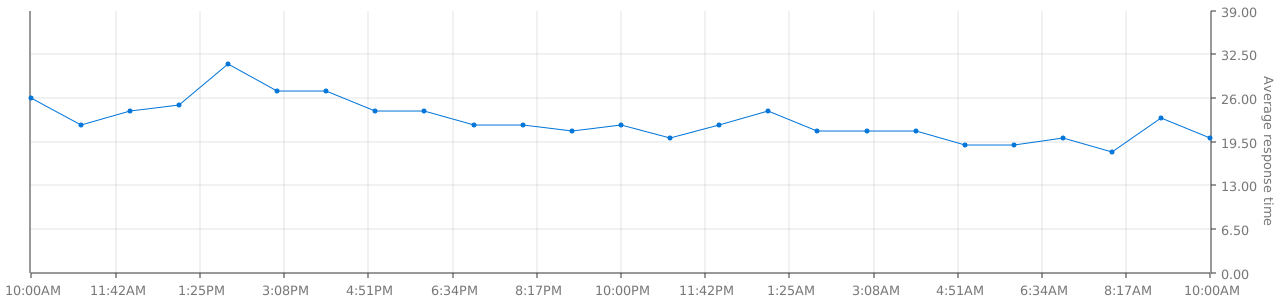
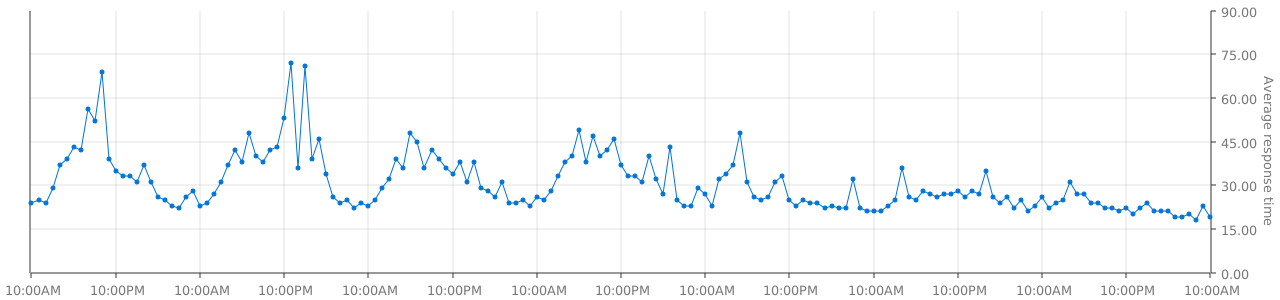
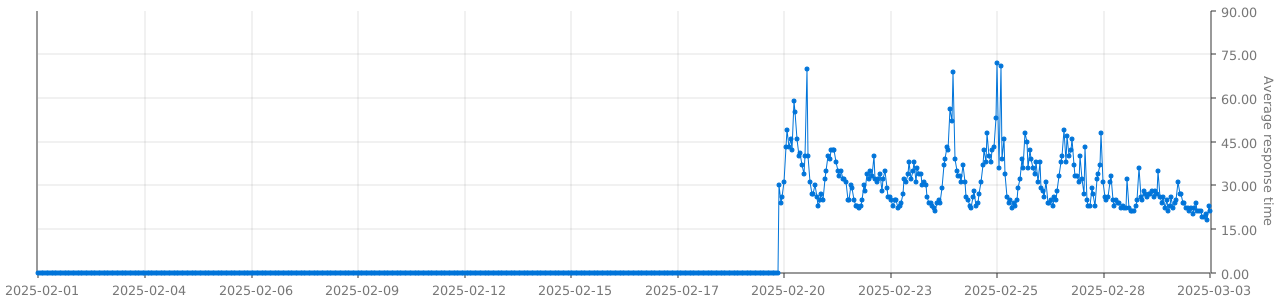
The endpoint to generate a response time chart is the following:
/api/v1/endpoints/{key}/response-times/{duration}/chart.svg
Where:
{duration}is30d,7d, or24h{key}has the pattern<GROUP_NAME>_<ENDPOINT_NAME>in which both variables have/,_,,,.,#,+and&replaced by-.
How to change the color thresholds of the response time badge
To change the response time badges' threshold, a corresponding configuration can be added to an endpoint. The values in the array correspond to the levels [Awesome, Great, Good, Passable, Bad] All five values must be given in milliseconds (ms).
endpoints:
- name: nas
  group: internal
  url: "https://example.org/"
  interval: 5m
  conditions:
    - "[STATUS] == 200"
  ui:
    badge:
      response-time:
        thresholds: [550, 850, 1350, 1650, 1750]
API
Gatus provides a simple read-only API that can be queried in order to programmatically determine endpoint status and history.
All endpoints are available via a GET request to the following endpoint:
/api/v1/endpoints/statuses
Example: https://status.twin.sh/api/v1/endpoints/statuses
Specific endpoints can also be queried by using the following pattern:
/api/v1/endpoints/{group}_{endpoint}/statuses
Example: https://status.twin.sh/api/v1/endpoints/core_blog-home/statuses
Gzip compression will be used if the Accept-Encoding HTTP header contains gzip.
The API will return a JSON payload with the Content-Type response header set to application/json.
No such header is required to query the API.
Interacting with the API programmatically
See TwiN/gatus-sdk
Raw Data
Gatus exposes the raw data for one of your monitored endpoints. This allows you to track and aggregate data in your own applications for monitored endpoints. For instance if you want to track uptime for a period longer than 7 days.
Uptime
The path to get raw uptime data for an endpoint is:
/api/v1/endpoints/{key}/uptimes/{duration}
Where:
{duration}is30d,7d,24hor1h{key}has the pattern<GROUP_NAME>_<ENDPOINT_NAME>in which both variables have/,_,,,.,#,+and&replaced by-.
For instance, if you want the raw uptime data for the last 24 hours from the endpoint frontend in the group core, the URL would look like this:
https://example.com/api/v1/endpoints/core_frontend/uptimes/24h
Response Time
The path to get raw response time data for an endpoint is:
/api/v1/endpoints/{key}/response-times/{duration}
Where:
{duration}is30d,7d,24hor1h{key}has the pattern<GROUP_NAME>_<ENDPOINT_NAME>in which both variables have/,_,,,.,#,+and&replaced by-.
For instance, if you want the raw response time data for the last 24 hours from the endpoint frontend in the group core, the URL would look like this:
https://example.com/api/v1/endpoints/core_frontend/response-times/24h
Installing as binary
You can download Gatus as a binary using the following command:
go install github.com/TwiN/gatus/v5@latest
High level design overview

Top Related Projects
Glances an Eye on your system. A top/htop alternative for GNU/Linux, BSD, Mac OS and Windows operating systems.
A fancy self-hosted monitoring tool
Open-source cron job and background task monitoring service, written in Python & Django
The Prometheus monitoring system and time series database.
The open and composable observability and data visualization platform. Visualize metrics, logs, and traces from multiple sources like Prometheus, Loki, Elasticsearch, InfluxDB, Postgres and many more.
The fastest path to AI-powered full stack observability, even for lean teams.
Convert designs to code with AI
Introducing Visual Copilot: A new AI model to turn Figma designs to high quality code using your components.
Try Visual Copilot