
Top Related Projects

A curated list of awesome Web Components resources.

A professional front-end template for building fast, robust, and adaptable web apps or sites.

🗂 The essential checklist for modern web development, for humans and AI agents

The world’s fastest framework for building websites.

A simpler site generator. Transforms a directory of templates (of varying types) into HTML.
Quick Overview
HEAD is a comprehensive guide to HTML <head> elements, providing a curated list of everything that can go in the <head> of an HTML document. It serves as a reference for web developers and designers, offering a detailed breakdown of various meta tags, link attributes, and other important elements that belong in the document head.
Pros
- Extensive and well-organized collection of
<head>elements - Regularly updated to include modern web standards and best practices
- Includes explanations and use cases for each element
- Available in multiple languages
Cons
- May be overwhelming for beginners due to the sheer amount of information
- Some less common or deprecated elements might not be immediately relevant to all users
- Lacks in-depth explanations for complex concepts or attributes
Getting Started
To use this resource, simply visit the GitHub repository at https://github.com/joshbuchea/HEAD. The main README file contains the entire guide, organized into sections such as:
- Minimum recommended
- Elements
- Meta
- Link
- Icons
- Social
- Browsers / Platforms
- Other Resources
Browse through the sections to find the relevant <head> elements for your project. Copy and paste the desired elements into your HTML file's <head> section, adjusting the content as needed for your specific use case.
Competitor Comparisons
A curated list of awesome Web Components resources.
Pros of awesome-web-components
- Comprehensive list of web component resources and libraries
- Regularly updated with new content and contributions
- Covers a wide range of topics related to web components
Cons of awesome-web-components
- Less focused on specific implementation details
- May require more time to find relevant information
- Not as directly applicable to immediate development needs
Code comparison
While HEAD provides specific meta tag examples:
<meta charset="utf-8">
<meta name="viewport" content="width=device-width, initial-scale=1">
awesome-web-components focuses on component libraries and usage:
import { LitElement, html } from 'lit-element';

class MyElement extends LitElement {
  render() {
    return html`<p>Hello, World!</p>`;
  }
}
Summary
HEAD is a concise reference for HTML head elements, offering immediate practical value for web developers. awesome-web-components serves as a comprehensive resource for web component technologies, libraries, and best practices. While HEAD provides specific code snippets for quick implementation, awesome-web-components offers a broader overview of the web component ecosystem, making it valuable for developers looking to explore and adopt web component technologies in their projects.
A professional front-end template for building fast, robust, and adaptable web apps or sites.
Pros of HTML5 Boilerplate
- Provides a more comprehensive starting point for web projects
- Includes additional features like a 404 page and server configs
- Offers a complete build process with optimization tools
Cons of HTML5 Boilerplate
- Larger file size and more complex structure
- May include unnecessary features for simpler projects
- Requires more setup and configuration
Code Comparison
HEAD:
<meta charset="utf-8">
<meta name="viewport" content="width=device-width, initial-scale=1">
<title>Page Title</title>
HTML5 Boilerplate:
<!doctype html>
<html class="no-js" lang="">
<head>
  <meta charset="utf-8">
  <title></title>
HEAD focuses on essential meta tags, while HTML5 Boilerplate provides a more structured HTML template with additional classes and elements.
HEAD is a concise reference for common <head> elements, making it ideal for quick lookups and simple projects. HTML5 Boilerplate offers a more robust starting point with additional features and optimizations, suitable for larger projects requiring a comprehensive foundation.
🗂 The essential checklist for modern web development, for humans and AI agents
Pros of Front-End-Checklist
- More comprehensive, covering a wider range of front-end development topics
- Includes detailed explanations and best practices for each checklist item
- Offers prioritization levels (High, Medium, Low) for checklist items
Cons of Front-End-Checklist
- May be overwhelming for beginners due to its extensive coverage
- Requires more frequent updates to keep up with rapidly changing front-end technologies
Code Comparison
HEAD focuses on <head> elements:
<meta charset="utf-8">
<meta name="viewport" content="width=device-width, initial-scale=1">
<title>Page Title</title>
Front-End-Checklist covers broader topics:
<!-- Performance optimization -->
<link rel="preload" href="style.css" as="style">
<link rel="preload" href="main.js" as="script">

<!-- Accessibility -->
<html lang="en" dir="ltr">
Both repositories provide valuable resources for front-end developers, but they serve different purposes. HEAD is more focused and specific to <head> elements, making it easier to use for quick reference. Front-End-Checklist offers a more comprehensive guide covering various aspects of front-end development, making it suitable for thorough project reviews and learning.
The world’s fastest framework for building websites.
Pros of Hugo
- Full-featured static site generator with extensive functionality
- Active development with frequent updates and a large community
- Supports themes, content management, and multilingual sites
Cons of Hugo
- Steeper learning curve due to its complexity
- Requires installation and setup, unlike HEAD which is just a reference
- May be overkill for simple projects or quick reference needs
Code Comparison
HEAD (HTML reference):
<meta charset="utf-8">
<meta name="viewport" content="width=device-width, initial-scale=1">
<title>Page Title</title>
Hugo (config example):
baseURL: "https://example.org/"
languageCode: "en-us"
title: "My Hugo Site"
theme: "ananke"
Summary
HEAD is a simple, lightweight reference for HTML <head> elements, while Hugo is a comprehensive static site generator. HEAD is ideal for quick lookups and basic HTML structure, whereas Hugo offers powerful features for building complex websites. The choice between them depends on the project's scope and requirements.
A simpler site generator. Transforms a directory of templates (of varying types) into HTML.
Error generating comparison
Convert  designs to code with AI
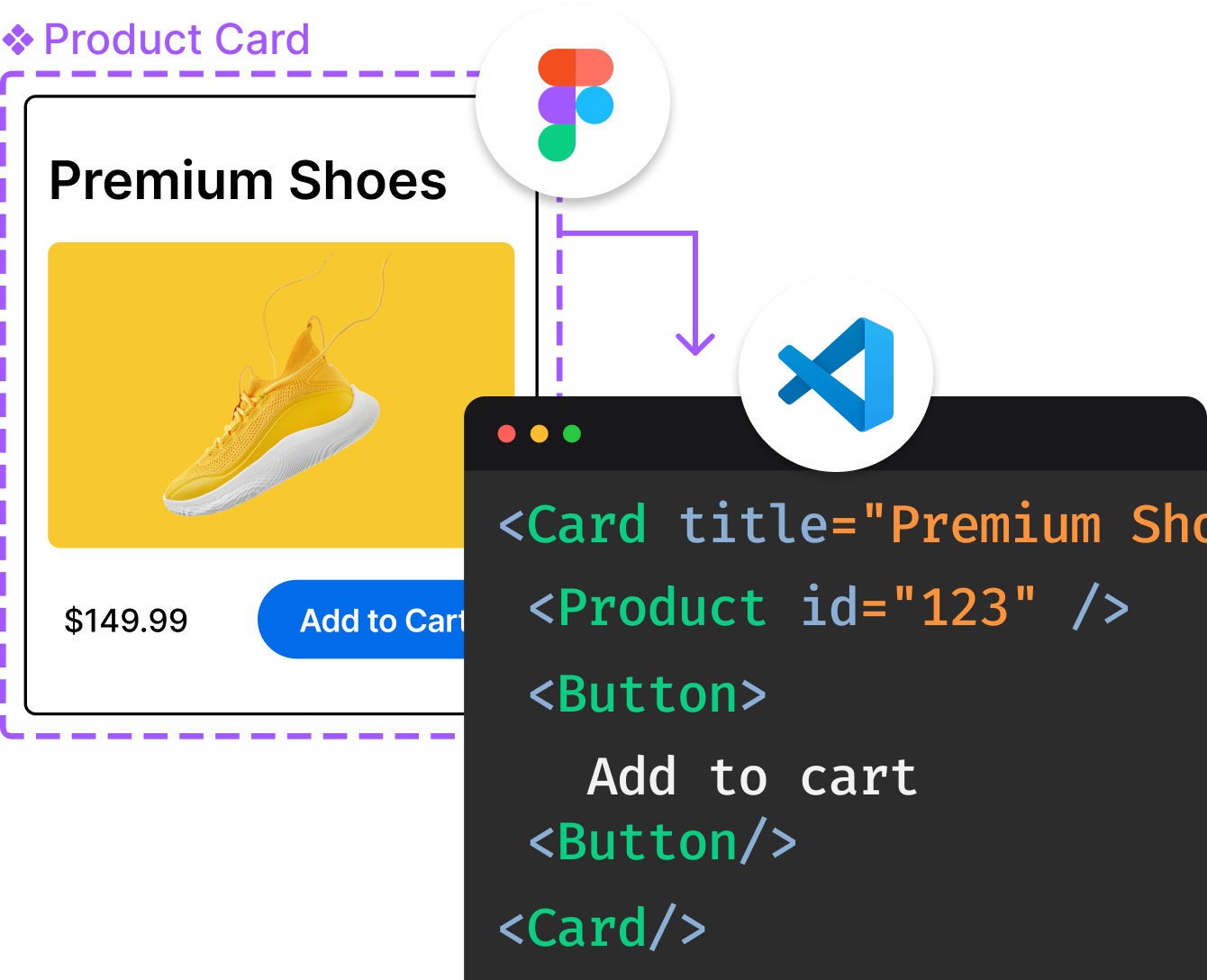
Introducing Visual Copilot: A new AI model to turn Figma designs to high quality code using your components.
Try Visual CopilotREADME
𤯠HEAD
A simple guide to HTML
<head>elements



Table of Contents
- Recommended Minimum
- Elements
- Recommended Order
- Meta
- Link
- Scripts
- Icons
- Social
- Browsers / Platforms
- Browsers (Chinese)
- App Links
- Deprecated
- Other Resources
- Related Projects
- Translations
- Contributing
- Contributors
- Author
- Support
- License
Recommended Minimum
Below are the essential elements for any web document (websites/apps):
<meta charset="utf-8">
<meta name="viewport" content="width=device-width, initial-scale=1">
<!--
  The above 2 meta tags should come as early as possible in the <head>
  to consistently ensure proper document rendering.
  Any other head element should come *after* these tags.
-->
<title>Page Title</title>
meta charset - defines the encoding of the website, utf-8 is the standard
meta name="viewport" - viewport settings related to mobile responsiveness
width=device-width - use the physical width of the device (great for mobile!)
initial-scale=1 - the initial zoom, 1 means no zoom
Elements
Valid <head> elements include meta, link, title, style, script, noscript, and base.
These elements provide information for how a document should be perceived, and rendered, by web technologies. e.g. browsers, search engines, bots, etc.
<!--
  Set the character encoding for this document, so that
  all characters within the UTF-8 space (such as emoji)
  are rendered correctly.
-->
<meta charset="utf-8">

<!-- Set the document's title -->
<title>Page Title</title>

<!-- Set the base URL for all relative URLs within the document -->
<base href="https://example.com/page.html">

<!-- Link to an external CSS file -->
<link rel="stylesheet" href="styles.css">

<!-- Used for adding in-document CSS -->
<style>
  /* ... */
</style>

<!-- JavaScript & No-JavaScript tags -->
<script src="script.js"></script>
<script>
  // function(s) go here
</script>
<noscript>
  <!-- No JS alternative -->
</noscript>
Recommended Order
The following is the recommended order of elements in the <head> for best performance and correct document rendering:
<meta charset>â Character encoding declaration; must appear within the first 1024 bytes of the document<meta name="viewport">â Viewport settings; declare early to ensure correct responsive rendering<title>â Document title; placed after encoding/viewport to prevent potential re-rendering- Other
<meta>tags (description, robots, etc.) - Open Graph / Social meta tags
<link rel="canonical">and other<link>tags (excluding stylesheets and resource hints)<link rel="preconnect">/<link rel="dns-prefetch">â Resource hints; early to maximize their value<link rel="stylesheet">â External CSS; stylesheets should come before scripts<link rel="icon">â Favicons<script>â Scripts; usedeferorasyncwhere possible to avoid blocking rendering
<head>
  <meta charset="utf-8">
  <meta name="viewport" content="width=device-width, initial-scale=1">

  <title>Page Title</title>

  <meta name="description" content="Page description">
  <!-- other meta tags -->

  <!-- Open Graph / Social meta tags -->
  <meta property="og:title" content="Page Title">
  <!-- other social meta tags -->

  <link rel="canonical" href="https://example.com/page.html">
  <!-- other link tags (excluding stylesheets and resource hints) -->

  <link rel="preconnect" href="https://example.com">
  <link rel="dns-prefetch" href="https://example.com">

  <link rel="stylesheet" href="styles.css">

  <link rel="icon" href="favicon.ico">

  <script defer src="script.js"></script>
</head>
Meta
<!--
  The following 2 meta tags should come as early as possible in the <head>
  to consistently ensure proper document rendering.
  Any other head element should come *after* these tags.
-->
<meta charset="utf-8">
<meta name="viewport" content="width=device-width, initial-scale=1">

<!--
  Allows control over where resources are loaded from.
  Place as early in the <head> as possible, as the tag
  only applies to resources that are declared after it.
-->
<meta http-equiv="Content-Security-Policy" content="default-src 'self'">

<!-- Name of web application (only should be used if the website is used as an app) -->
<meta name="application-name" content="Application Name">

<!-- Theme Color for Chrome, Firefox OS and Opera -->
<meta name="theme-color" content="#4285f4">

<!-- Indicates the supported color schemes for the page (light, dark, or both) -->
<meta name="color-scheme" content="light dark">

<!-- Short description of the document (limit to 150 characters) -->
<!-- This content *may* be used as a part of search engine results. -->
<meta name="description" content="A description of the page">

<!-- Control the behavior of search engine crawling and indexing -->
<meta name="robots" content="index,follow"><!-- All Search Engines -->
<meta name="googlebot" content="index,follow"><!-- Google Specific -->

<!-- Tells Google not to show the sitelinks search box -->
<meta name="google" content="nositelinkssearchbox">

<!-- Tells Google not to provide a translation for this document -->
<meta name="google" content="notranslate">

<!-- Verify website ownership -->
<meta name="google-site-verification" content="verification_token"><!-- Google Search Console -->
<meta name="yandex-verification" content="verification_token"><!-- Yandex Webmasters -->
<meta name="msvalidate.01" content="verification_token"><!-- Bing Webmaster Center -->
<meta name="p:domain_verify" content="code_from_pinterest"><!-- Pinterest Console-->
<meta name="norton-safeweb-site-verification" content="norton_code"><!-- Norton Safe Web -->

<!-- Identify the software used to build the document (i.e. - WordPress, Dreamweaver) -->
<meta name="generator" content="program">

<!-- Short description of your document's subject -->
<meta name="subject" content="your document's subject">

<!-- Gives a general age rating based on the document's content -->
<meta name="rating" content="General">

<!-- Allows control over how referrer information is passed -->
<meta name="referrer" content="no-referrer">

<!-- Disable automatic detection and formatting of possible phone numbers -->
<meta name="format-detection" content="telephone=no">

<!-- Geo tags -->
<meta name="ICBM" content="latitude, longitude"><!-- Geographic coordinates (latitude, longitude) in decimal degrees; eg. content="48.8566, 2.3522" -->
<meta name="geo.position" content="latitude;longitude"><!-- Geographic coordinates; latitude and longitude are separated by a semicolon -->
<meta name="geo.region" content="country[-state]"><!-- Country code (ISO 3166-1): mandatory, state code (ISO 3166-2): optional; eg. content="US" / content="US-NY" -->
<meta name="geo.placename" content="city/town"><!-- eg. content="New York City" -->

<!-- Web Monetization https://webmonetization.org/docs/getting-started -->
<meta name="monetization" content="$paymentpointer.example">
Note: Geo tags are not used by browsers directly â they are intended for search engines, web crawlers, and location-based services to understand the geographic relevance of a page's content. ICBM (named after the military ICBM address convention) and geo.position both express coordinates in decimal degrees; ICBM uses a comma separator while geo.position uses a semicolon. geo.region identifies the country (and optionally the state/region) using ISO codes, and geo.placename provides a human-readable place name.
- ð Meta tags that Google understands
- ð WHATWG Wiki: MetaExtensions
- ð ICBM on Wikipedia
- ð Geotagging on Wikipedia
Link
<!-- Points to an external stylesheet -->
<link rel="stylesheet" href="https://example.com/styles.css">
<!-- Helps prevent duplicate content issues -->
<link rel="canonical" href="https://example.com/article/?page=2">
<!-- Links to a Web App Manifest â the recommended way to define PWA metadata such as app name, icons, theme_color, and display mode -->
<link rel="manifest" href="manifest.json">
<!-- Links to information about the author(s) of the document -->
<link rel="author" href="humans.txt">
<!-- Refers to a copyright statement that applies to the link's context -->
<link rel="license" href="copyright.html">
<!-- Gives a reference to a location in your document that may be in another language -->
<link rel="alternate" href="https://es.example.com/" hreflang="es">
<!-- Provides information about an author or another person
Used for RelMeAuth, a distributed form of identity verification.
See https://microformats.org/wiki/RelMeAuth to learn more -->
<link rel="me" href="https://google.com/profiles/thenextweb" type="text/html">
<link rel="me" href="mailto:name@example.com">
<link rel="me" href="sms:+15035550125">
<!-- Provides a self reference - useful when the document has multiple possible references -->
<link rel="self" type="application/atom+xml" href="https://example.com/atom.xml">
<!-- The previous, and next documents in a series of documents, respectively -->
<link rel="prev" href="https://example.com/article/?page=1">
<link rel="next" href="https://example.com/article/?page=3">
<!-- Notifies a URL when you link to it on your document
More information at https://webmention.net -->
<link rel="webmention" href="https://example.com/webmention">
<!-- Enables posting to your own domain using a Micropub client
More information at https://indieweb.org/Micropub -->
<link rel="micropub" href="https://example.com/micropub">
<!-- Enables you to use your site with IndieAuth, an identity solution that
lets you authenticate with your domain name.
Read more at https://indieauth.net. -->
<link rel="token_endpoint" href="https://example.com/token">
<link rel="authorization_endpoint" href="https://example.com/auth">
<!-- Open Search -->
<link rel="search" href="/open-search.xml" type="application/opensearchdescription+xml" title="Search Title">
<!-- Feeds -->
<link rel="alternate" href="https://feeds.feedburner.com/example" type="application/rss+xml" title="RSS">
<link rel="alternate" href="https://example.com/feed.atom" type="application/atom+xml" title="Atom 0.3">
<!-- Prefetching, preloading, prebrowsing -->
<!-- More info: https://css-tricks.com/prefetching-preloading-prebrowsing/ -->
<link rel="dns-prefetch" href="//example.com/">
<link rel="preconnect" href="https://www.example.com/">
<link rel="prefetch" href="https://www.example.com/">
<link rel="preload" href="image.png" as="image">
Note: The Web App Manifest (manifest.json) is the recommended, cross-platform way to declare installable web app properties â including name, icons, theme_color, and display mode â in a single file, instead of relying on multiple platform-specific <meta> tags.
- ð Link Relations
- ð Web App Manifest (MDN)
Scripts
<!--
  Scripts: place <script> tags at the end of <body> when possible.
  The following attributes control loading behavior when placed in <head>:
-->

<!-- Blocks HTML parsing and content rendering until the script is fetched and executed -->
<script src="script.js"></script>

<!-- The script will be fetched in parallel with parsing and executed as soon as it is available (before parsing completes) -->
<script async src="script.js"></script>

<!-- The script will be fetched in parallel with parsing and executed when the page has finished parsing -->
<script defer src="script.js"></script>

<!-- async takes precedence in modern browsers; defer acts as a fallback for older browsers that don't support async -->
<script async defer src="script.js"></script>

<!-- Inline script -->
<script>
  // function(s) go here
</script>

<!-- Subresource Integrity (SRI): use the integrity attribute to verify that the fetched resource has been delivered without unexpected manipulation -->
<script src="https://example.com/script.js" integrity="sha384-oqVuAfXRKap7fdgcCY5uykM6+R9GqQ8K/uxy9rx7HNQlGYl1kPzQho1wx4JwY8wC"></script>
Icons
<!-- For IE 10 and below -->
<!-- Place favicon.ico in the root directory - no tag necessary -->

<!-- Icon in the highest resolution we need it for -->
<link rel="icon" sizes="192x192" href="/path/to/icon.png">

<!-- Apple Touch Icon (reuse 192px icon.png) -->
<link rel="apple-touch-icon" href="/path/to/apple-touch-icon.png">
Social
Open Graph
The Open Graph protocol is the de facto standard for controlling how your content appears when shared on social platforms. Originally created by Facebook, it's now consumed by most major platforms â including LinkedIn, X (as a fallback when Twitter Card tags are absent), Discord, Slack, iMessage, Mastodon, Bluesky, and WhatsApp.
<meta property="og:url" content="https://example.com/page.html">
<meta property="og:type" content="website">
<meta property="og:title" content="Content Title">
<meta property="og:image" content="https://example.com/image.jpg">
<meta property="og:image:alt" content="A description of what is in the image (not a caption)">
<meta property="og:description" content="Description Here">
<meta property="og:site_name" content="Site Name">
<meta property="og:locale" content="en_US">
<meta property="article:author" content="">
- ð Open Graph protocol
- ð Test your page with the Facebook Sharing Debugger or the LinkedIn Post Inspector
Schema.org
<html lang="" itemscope itemtype="https://schema.org/Article">
    <head>
      <link rel="author" href="">
      <link rel="publisher" href="">
      <meta itemprop="name" content="Content Title">
      <meta itemprop="description" content="Content description less than 200 characters">
      <meta itemprop="image" content="https://example.com/image.jpg">
Note: These meta tags require the itemscope and itemtype attributes to be added to the <html> tag.
- ð Getting Started - schema.org
- ð Test your page with the Rich Results Test
Google JSON-LD Schema
The following is used by Google to help provide your site with a knowledge graph result when someone Googles you (this is the pane to the right of the search results that typically appears for larger brands):
<script type="application/ld+json">
  {
    "@context": "http://schema.org",
    "@type": "Organization",
    "name": "yourbrand.com",
    "url": "https://www.yourbrand.com/",
    "logo": "https://www.yourbrand.com/logo.png",
    "sameAs": [
      "https://www.facebook.com/yourbrand",
      "https://twitter.com/yourbrand",
      "https://uk.pinterest.com/yourbrand/",
      "https://www.instagram.com/yourbrand/",
      "https://www.linkedin.com/company/yourbrand-com"
    ]
  }
</script>
Pinterest lets you prevent people from saving things from your website, according to their help center. The description is optional.
<meta name="pinterest" content="nopin" description="Sorry, you can't save from my website!">
OEmbed
<link rel="alternate" type="application/json+oembed"
href="https://example.com/services/oembed?url=http%3A%2F%2Fexample.com%2Ffoo%2F&format=json"
title="oEmbed Profile: JSON">
<link rel="alternate" type="text/xml+oembed"
href="https://example.com/services/oembed?url=http%3A%2F%2Fexample.com%2Ffoo%2F&format=xml"
title="oEmbed Profile: XML">
- ð oEmbed format
QQ/Wechat
Users share web pages to qq wechat will have a formatted message
<meta itemprop="name" content="share title">
<meta itemprop="image" content="http://imgcache.qq.com/qqshow/ac/v4/global/logo.png">
<meta name="description" itemprop="description" content="share content">
- ð Code Format Docs
Dublin Core
Dublin Core is a metadata vocabulary standardized as ISO 15836 and maintained by the Dublin Core Metadata Initiative (DCMI). It defines fifteen core elements for describing resources and is widely used in digital libraries, institutional repositories, academic publishing, and government portals. To use Dublin Core in HTML, declare the DC namespace and then add the desired elements as <meta> tags with a DC. prefix.
<!-- Declare the Dublin Core namespace -->
<link rel="schema.DC" href="https://purl.org/dc/elements/1.1/">

<meta name="DC.title" content="Page Title">
<meta name="DC.creator" content="Author Name">
<meta name="DC.subject" content="Keywords; Topics">
<meta name="DC.description" content="A brief description of the page content">
<meta name="DC.publisher" content="Publisher Name">
<meta name="DC.contributor" content="Contributor Name">
<meta name="DC.date" content="YYYY-MM-DD">
<meta name="DC.type" content="Text">
<meta name="DC.format" content="text/html">
<meta name="DC.identifier" content="https://example.com/page.html">
<meta name="DC.source" content="https://example.com/original-source">
<meta name="DC.language" content="en">
<meta name="DC.relation" content="https://example.com/related">
<meta name="DC.coverage" content="Spatial or temporal coverage">
<meta name="DC.rights" content="Copyright Owner Name">
Fediverse
Some Fediverse software such as Mastodon allow you to put your Fediverse handle in a meta tag which will show up in embeds to your website. In addition to the tag you will also need to add your domain to the list of allowed websites in "Settings -> Public profile -> Verification -> Author attribution" (for Mastodon).
<meta name="fediverse:creator" content="@handle@example.org">
Browsers / Platforms
Apple iOS
<!-- Smart App Banner -->
<meta name="apple-itunes-app" content="app-id=APP_ID,affiliate-data=AFFILIATE_ID,app-argument=SOME_TEXT">

<!-- Disable automatic detection and formatting of possible phone numbers -->
<meta name="format-detection" content="telephone=no">

<!-- Launch Icon (180x180px or larger) -->
<link rel="apple-touch-icon" href="/path/to/apple-touch-icon.png">

<!-- Launch Screen Image -->
<link rel="apple-touch-startup-image" href="/path/to/launch.png">

<!-- Launch Icon Title -->
<meta name="apple-mobile-web-app-title" content="App Title">

<!-- Enable standalone (full-screen) mode -->
<meta name="mobile-web-app-capable" content="yes">

<!-- Status bar appearance (has no effect unless standalone mode is enabled) -->
<meta name="apple-mobile-web-app-status-bar-style" content="black">

<!-- Viewport fit for notched phones (iPhone X and later); add viewport-fit=cover to your existing viewport meta tag -->
<meta name="viewport" content="width=device-width, initial-scale=1, viewport-fit=cover">

<!-- iOS app deep linking -->
<meta name="apple-itunes-app" content="app-id=APP-ID, app-argument=http/url-sample.com">
<link rel="alternate" href="ios-app://APP-ID/http/url-sample.com">
Note: Properties such as app title (apple-mobile-web-app-title), standalone/display mode, and app icons (apple-touch-icon) are more reliably and portably configured using the Web App Manifest (<link rel="manifest">), which is the recommended approach for Progressive Web Apps (PWAs). The Apple-specific meta tags remain useful as a fallback for older iOS versions.
Google Android
<meta name="theme-color" content="#E64545">

<!-- Add to home screen -->
<meta name="mobile-web-app-capable" content="yes">
<!-- More info: https://developer.chrome.com/multidevice/android/installtohomescreen -->

<!-- Android app deep linking -->
<meta name="google-play-app" content="app-id=package-name">
<link rel="alternate" href="android-app://package-name/http/url-sample.com">
Note: theme-color and the "add to home screen" / standalone behavior are better defined using the Web App Manifest (<link rel="manifest">). The theme-color meta tag can still serve as a fallback for browsers that do not yet support the manifest theme_color property.
Google Chrome
<link rel="chrome-webstore-item" href="https://chrome.google.com/webstore/detail/APP_ID">

<!-- Disable translation prompt -->
<meta name="google" content="notranslate">
Browsers (Chinese)
360 Browser
<!-- Select rendering engine order -->
<meta name="renderer" content="webkit|ie-comp|ie-stand">
QQ Mobile Browser
<!-- Locks the screen into the specified orientation -->
<meta name="x5-orientation" content="landscape/portrait">

<!-- Display this document in fullscreen -->
<meta name="x5-fullscreen" content="true">

<!-- Document will be displayed in "application mode" (fullscreen, etc.) -->
<meta name="x5-page-mode" content="app">
UC Mobile Browser
<!-- Locks the screen into the specified orientation -->
<meta name="screen-orientation" content="landscape/portrait">

<!-- Display this document in fullscreen -->
<meta name="full-screen" content="yes">

<!-- UC browser will display images even if in "text mode" -->
<meta name="imagemode" content="force">

<!-- Document will be displayed in "application mode"(fullscreen, forbidding gesture, etc.) -->
<meta name="browsermode" content="application">

<!-- Disabled the UC browser's "night mode" for this document -->
<meta name="nightmode" content="disable">

<!-- Simplify the document to reduce data transfer -->
<meta name="layoutmode" content="fitscreen">

<!-- Disable the UC browser's feature of "scaling font up when there are many words in this document" -->
<meta name="wap-font-scale" content="no">
- ð UC Browser Docs
App Links
<!-- iOS -->
<meta property="al:ios:url" content="applinks://docs">
<meta property="al:ios:app_store_id" content="12345">
<meta property="al:ios:app_name" content="App Links">

<!-- Android -->
<meta property="al:android:url" content="applinks://docs">
<meta property="al:android:app_name" content="App Links">
<meta property="al:android:package" content="org.applinks">

<!-- Web fall back -->
<meta property="al:web:url" content="https://applinks.org/documentation">
- ð App Links
Deprecated
For tags and elements that were once part of this guide but are no longer supported (Internet Explorer compatibility, Safari Pinned Tabs, Alexa verification, etc.), see DEPRECATED.md.
Other Resources
Related Projects
- Atom HTML Head Snippets - Atom package for
HEADsnippets - Sublime Text HTML Head Snippets - Sublime Text package for
HEADsnippets - head-it - CLI interface for
HEADsnippets - vue-head - Manipulating the meta information of the
HEADtag for Vue.js
ð Translations
- Bahasa
- Bengali
- Brazilian Portuguese
- Chinese (Simplified)
- German
- Italian
- Japanese
- Korean
- Malay
- Russian/Ð ÑÑÑкий
- Spanish
- Turkish/Türkçe
- Ukrainian
ð¤ Contributing
Open an issue or a pull request to suggest changes or additions.
Guide
The HEAD repository consists of two branches:
1. master
This branch consists of the README.md file that is reflected on the htmlhead.dev website. All changes to the content of the guide should be made in this file.
Please follow these steps for pull requests:
{:.list-style-default}
- Modify only one tag, or one related set of tags at a time
- Use double quotes on attributes
- Don't include a trailing slash in self-closing elements â the HTML5 spec says they're optional
- Consider including a link to documentation that supports your change
2. gh-pages
This branch is responsible for the htmlhead.dev website. We use Jekyll to deploy the README.md markdown file to GitHub Pages. All website related modifications should be made in this branch.
You may find it helpful to review the Jekyll Docs and understand how Jekyll works before working in this branch.
ð Contributors
Check out all the super awesome contributors ð¤©
ð¤ Author
Josh Buchea
- GitHub: @joshbuchea
- Mastodon: @joshbuchea@hachyderm.io
ð Support
If this project was helpful for you or your organization, please considering supporting my work directly:
- ð Sponsor me on GitHub
- âï¸ Star this project on GitHub
- ð Follow me on GitHub
- ð Follow me on Mastodon
Everything helps, thanks! ð
â Josh
ð License

Top Related Projects
A curated list of awesome Web Components resources.
A professional front-end template for building fast, robust, and adaptable web apps or sites.
🗂 The essential checklist for modern web development, for humans and AI agents
The world’s fastest framework for building websites.
A simpler site generator. Transforms a directory of templates (of varying types) into HTML.
Convert designs to code with AI
Introducing Visual Copilot: A new AI model to turn Figma designs to high quality code using your components.
Try Visual Copilot