 textgen
Open-source desktop app for local LLMs. Text, vision, tool-calling, OpenAI/Anthropic-compatible API. 100% private.
Top Related Projects

The official gpt4free repository | various collection of powerful language models | opus 4.6 gpt 5.3 kimi 2.5 deepseek v3.2 gemini 3

Stable Diffusion web UI

Python bindings for llama.cpp

Universal LLM Deployment Engine with ML Compilation

An open platform for training, serving, and evaluating large language models. Release repo for Vicuna and Chatbot Arena.

🤗 Transformers: the model-definition framework for state-of-the-art machine learning models in text, vision, audio, and multimodal models, for both inference and training.
Quick Overview
Text Generation WebUI is an open-source project that provides a user-friendly web interface for running Large Language Models (LLMs) locally. It supports various models and offers features like chat, notebook interface, and training capabilities, making it easier for users to interact with and fine-tune language models on their own hardware.
Pros
- Supports a wide range of LLMs, including popular ones like LLaMA, GPT-J, and RWKV
- Offers a user-friendly web interface for easy interaction with models
- Provides advanced features such as model fine-tuning and custom training
- Allows for local deployment, ensuring privacy and control over data
Cons
- Requires significant computational resources for running larger models
- May have a steeper learning curve for users unfamiliar with LLMs or command-line interfaces
- Limited compared to some commercial AI platforms in terms of out-of-the-box features
- Potential for inconsistent performance across different hardware configurations
Code Examples
# Loading a model
from modules import shared

shared.model_name = 'gpt-j-6B'
shared.model, shared.tokenizer = shared.load_model(shared.model_name)
# Generating text
from modules.text_generation import generate_reply

prompt = "Once upon a time"
reply = generate_reply(prompt, max_new_tokens=50)
print(reply)
# Fine-tuning a model
from modules.training import train

dataset = "path/to/your/dataset.json"
train(shared.model, shared.tokenizer, dataset, epochs=3, learning_rate=1e-5)
Getting Started
-
Clone the repository:
git clone https://github.com/oobabooga/text-generation-webui.git -
Install dependencies:
cd text-generation-webui pip install -r requirements.txt -
Download a model (e.g., GPT-J 6B):
python download-model.py gpt-j-6B -
Start the web UI:
python server.py -
Open a web browser and navigate to
http://localhost:7860to access the interface.
Competitor Comparisons
The official gpt4free repository | various collection of powerful language models | opus 4.6 gpt 5.3 kimi 2.5 deepseek v3.2 gemini 3
Pros of gpt4free
- Free access to GPT-4 and other AI models without API keys
- Supports multiple providers and models in one package
- Easier to integrate into existing projects due to its API-like structure
Cons of gpt4free
- Less stable and potentially unreliable due to using unofficial APIs
- Limited customization options for model parameters
- May raise ethical concerns due to unauthorized use of proprietary services
Code Comparison
text-generation-webui:
model = load_model(model_name, device='cuda')
generator = model.generate(prompt, max_length=100)
print(generator.text)
gpt4free:
import g4f
response = g4f.ChatCompletion.create(
    model="gpt-3.5-turbo",
    messages=[{"role": "user", "content": "Hello, how are you?"}]
)
print(response)
text-generation-webui focuses on local model deployment and customization, while gpt4free provides a simpler interface for accessing various AI models through unofficial channels. text-generation-webui offers more control over the generation process, but requires local resources and setup. gpt4free is easier to use but less reliable and potentially raises legal and ethical concerns.
Stable Diffusion web UI
Pros of stable-diffusion-webui
- More mature and feature-rich project with a larger community and extensive documentation
- Offers a wide range of image generation and manipulation capabilities
- Includes a built-in training interface for fine-tuning models
Cons of stable-diffusion-webui
- Focused solely on image generation, lacking text generation capabilities
- Requires more computational resources due to its complex image processing tasks
Code Comparison
text-generation-webui:
def generate_reply(
    question, history, max_new_tokens=200, temperature=0.7
):
    prompt = build_prompt(question, history)
    reply = model.generate(prompt, max_new_tokens, temperature)
    return reply
stable-diffusion-webui:
def process_images(
    p: StableDiffusionProcessing
) -> Processed:
    processed = Processed(p)
    init_image = p.init_images[0]
    image = modules.processing.process_images(p)[0]
    processed.images.append(image)
    return processed
The code snippets demonstrate the core functionality differences: text-generation-webui focuses on generating text replies, while stable-diffusion-webui processes images using stable diffusion techniques.
Python bindings for llama.cpp
Pros of llama-cpp-python
- Lightweight and focused on providing Python bindings for llama.cpp
- Easier to integrate into existing Python projects
- More suitable for developers who need fine-grained control over LLM interactions
Cons of llama-cpp-python
- Lacks a user-friendly web interface for non-technical users
- Fewer built-in features and extensions compared to text-generation-webui
- Requires more manual setup and configuration for advanced use cases
Code Comparison
text-generation-webui:
from modules import shared

shared.model = shared.load_model(shared.model_name)
output = shared.model.generate(prompt, max_new_tokens=100)
llama-cpp-python:
from llama_cpp import Llama

llm = Llama(model_path="path/to/model.bin")
output = llm("Your prompt here", max_tokens=100)
Both repositories serve different purposes. text-generation-webui provides a comprehensive web interface for interacting with various language models, while llama-cpp-python focuses on providing efficient Python bindings for llama.cpp. The choice between them depends on the user's specific needs and technical expertise.
Universal LLM Deployment Engine with ML Compilation
Pros of mlc-llm
- Focuses on efficient deployment of LLMs on various hardware platforms
- Utilizes MLC (Machine Learning Compilation) for optimized performance
- Supports a wide range of devices, including mobile and edge devices
Cons of mlc-llm
- Less user-friendly interface compared to text-generation-webui
- Requires more technical knowledge to set up and use effectively
- Limited out-of-the-box features for text generation tasks
Code Comparison
mlc-llm:
import mlc_llm
import mlc_chat

model = mlc_llm.load_model("vicuna-7b-v1.3")
chat = mlc_chat.ChatModule(model)
response = chat.generate("Hello, how are you?")
text-generation-webui:
import gradio as gr
from modules import shared

def generate_text(prompt):
    return shared.model.generate(prompt)

iface = gr.Interface(fn=generate_text, inputs="text", outputs="text")
iface.launch()
The code snippets highlight the different approaches:
- mlc-llm focuses on model loading and efficient generation
- text-generation-webui emphasizes creating a user interface for text generation
Overall, mlc-llm is better suited for deploying optimized LLMs across various hardware, while text-generation-webui provides a more accessible interface for text generation tasks.
An open platform for training, serving, and evaluating large language models. Release repo for Vicuna and Chatbot Arena.
Pros of FastChat
- Designed specifically for large language model (LLM) serving and fine-tuning
- Supports multi-turn conversations and chat-based interfaces out of the box
- Includes built-in model evaluation tools and benchmarks
Cons of FastChat
- Less flexible for general text generation tasks compared to text-generation-webui
- May have a steeper learning curve for users not familiar with LLM-specific concepts
- Limited customization options for the web interface
Code Comparison
text-generation-webui:
def generate_reply(prompt, state):
    # Generate text based on prompt and state
    generated_text = model.generate(prompt, **state)
    return generated_text
FastChat:
def chat_completion(messages, model):
    # Process chat messages and generate response
    response = model.chat_completion(messages)
    return response
The code snippets highlight the different approaches:
- text-generation-webui focuses on general text generation with customizable parameters
- FastChat is tailored for chat-based interactions with LLMs
Both projects serve different use cases, with text-generation-webui offering more flexibility for various text generation tasks, while FastChat specializes in chat-based interactions with large language models.
🤗 Transformers: the model-definition framework for state-of-the-art machine learning models in text, vision, audio, and multimodal models, for both inference and training.
Pros of transformers
- Comprehensive library with support for a wide range of NLP tasks and models
- Extensive documentation and community support
- Seamless integration with PyTorch and TensorFlow
Cons of transformers
- Steeper learning curve for beginners
- Requires more setup and configuration for specific use cases
- May be overkill for simple text generation tasks
Code comparison
text-generation-webui:
import modules.shared as shared

model = shared.model
output = model.generate(prompt, max_new_tokens=100)
transformers:
from transformers import AutoModelForCausalLM, AutoTokenizer

model = AutoModelForCausalLM.from_pretrained("gpt2")
tokenizer = AutoTokenizer.from_pretrained("gpt2")
inputs = tokenizer(prompt, return_tensors="pt")
outputs = model.generate(**inputs, max_new_tokens=100)
The text-generation-webui repository provides a more user-friendly interface for text generation, with a focus on ease of use and quick setup. It offers a web-based UI and various features tailored for text generation tasks.
On the other hand, the transformers library is a more comprehensive and flexible solution for various NLP tasks, including but not limited to text generation. It provides a wider range of models and functionalities, making it suitable for more advanced and diverse use cases in natural language processing.
Convert  designs to code with AI
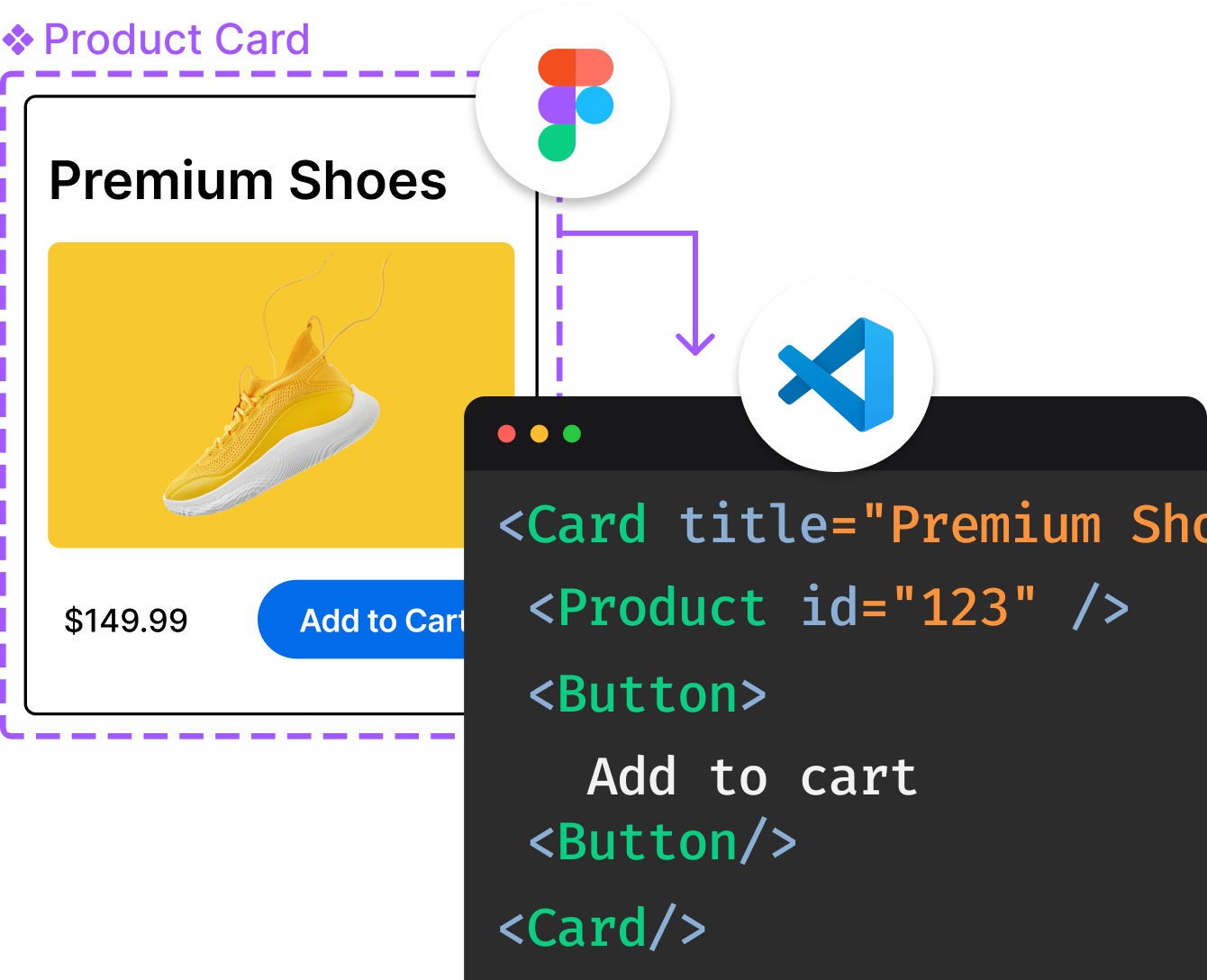
Introducing Visual Copilot: A new AI model to turn Figma designs to high quality code using your components.
Try Visual CopilotREADME
TextGen
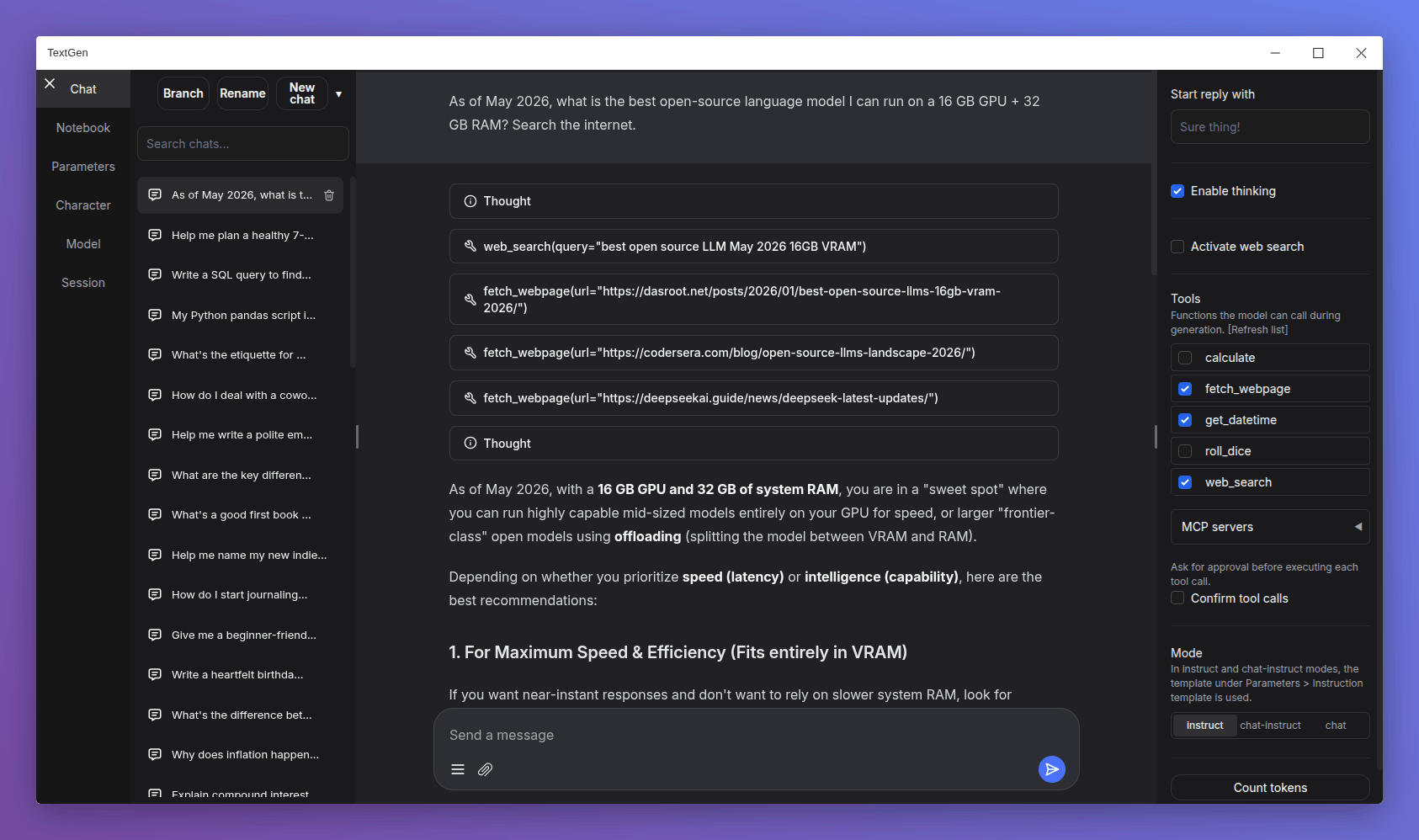
A desktop app for local LLMs. Open source, no telemetry. Text, vision, tool-calling, web search. UI + API.

Get started in 1 minute
Download, unzip, double-click textgen. A window opens.
https://github.com/oobabooga/textgen/releases
Portable builds for Linux, Windows, and macOS with CUDA, Vulkan, ROCm, and CPU-only options. All dependencies included. Compatible with GGUF (llama.cpp) models.
For additional backends (ExLlamaV3, Transformers), training, image generation, and extensions, see Installation.
Features
Chat & generation
instructmode for instruction-following (like ChatGPT), andchat-instruct/chatmodes for talking to custom characters. Prompts are automatically formatted with Jinja2 templates.- Vision (multimodal): Attach images to messages for visual understanding (tutorial).
- File attachments: Upload text files, PDF documents, and .docx documents to talk about their contents.
- Edit messages, navigate between message versions, and branch conversations at any point.
- Notebook tab for free-form text generation outside of chat turns.
Backends & API
- Multiple backends: llama.cpp, ik_llama.cpp, Transformers, ExLlamaV3, and TensorRT-LLM. Switch between backends and models without restarting.
- OpenAI/Anthropic-compatible API: Chat, Completions, and Messages endpoints with tool-calling support. Use as a local drop-in replacement for the OpenAI/Anthropic APIs (examples).
- Tool-calling: Models can call custom functions during chat, including web search, page fetching, and math. Each tool is a single
.pyfile. MCP servers are also supported (tutorial).
Training & image generation
- Training: Fine-tune LoRAs on multi-turn chat or raw text datasets. Supports resuming interrupted runs (tutorial).
- Image generation: A dedicated tab for
diffusersmodels like Z-Image-Turbo. Features 4-bit/8-bit quantization and a persistent gallery with image metadata (tutorial).
Privacy & interface
- 100% offline and private, with zero telemetry, external resources, or remote update requests.
- Dark/light themes, syntax highlighting for code blocks, and LaTeX rendering for mathematical expressions.
- Built-in and community extensions including TTS, voice input, and translation. See the extensions directory for the full list.
Downloading models
- Download a GGUF model file from Hugging Face.
- Place it in the
user_data/modelsfolder.
That's it. The UI will detect it automatically.
For recommended GGUF quants, check out LocalBench. To estimate how much memory a model will use, try the GGUF Memory Calculator.
Other model types (Transformers, EXL3)
Models that consist of multiple files (like 16-bit Transformers models and EXL3 models) should be placed in a subfolder inside user_data/models:
textgen
âââ user_data
âââ models
âââ Qwen_Qwen3-8B
âââ config.json
âââ generation_config.json
âââ model-00001-of-00004.safetensors
âââ ...
âââ tokenizer_config.json
âââ tokenizer.json
These formats require the full installation (not the portable build).
Installation
For the desktop app, see the portable builds. The options below run the web UI in your browser instead.
Manual portable install with venv
Fast setup on any Python 3.9+:
# Clone repository
git clone https://github.com/oobabooga/textgen
cd textgen

# Create virtual environment
python -m venv venv

# Activate virtual environment
# On Windows:
venv\Scripts\activate
# On macOS/Linux:
source venv/bin/activate

# Install dependencies (choose appropriate file under requirements/portable for your hardware)
pip install -r requirements/portable/requirements.txt --upgrade

# Launch server (basic command)
python server.py --portable --api --auto-launch

# When done working, deactivate
deactivate
Full installation
For users who need additional backends (ExLlamaV3, Transformers), training, image generation, or extensions like TTS, voice input, and translation. Requires ~10GB disk space and downloads PyTorch.
Installation details
One-click installer
- Clone the repository, or download its source code and extract it.
- Run the startup script for your OS:
start_windows.bat,start_linux.sh, orstart_macos.sh. - When prompted, select your GPU vendor.
- After installation, open
http://127.0.0.1:7860in your browser.
After installation:
- Restart: run the same
start_script. - Pass command-line flags: directly (e.g.,
./start_linux.sh --help), or persist them inuser_data/CMD_FLAGS.txt(e.g.,--apito enable the API). - Update: run the update script for your OS (
update_wizard_windows.bat,update_wizard_linux.sh, orupdate_wizard_macos.sh). - Reinstall from scratch: delete the
installer_filesfolder and run thestart_script again. - Install extension requirements: use the update wizard's "Install/update extensions requirements" option. It reinstalls the main project requirements at the end to ensure they take precedence over conflicting extension dependencies.
Notes:
- These scripts (
start_,update_wizard_,cmd_) don't need to run as admin/root. - For automated installation, set the
GPU_CHOICE,LAUNCH_AFTER_INSTALL, andINSTALL_EXTENSIONSenvironment variables. Example:GPU_CHOICE=A LAUNCH_AFTER_INSTALL=FALSE INSTALL_EXTENSIONS=TRUE ./start_linux.sh. - Under the hood, the script uses Miniforge to set up a Conda environment in
installer_files/. To run anything manually in this environment, launch an interactive shell usingcmd_linux.sh,cmd_windows.bat, orcmd_macos.sh.
Full installation with Conda
0. Install Conda
https://github.com/conda-forge/miniforge
On Linux or WSL, Miniforge can be automatically installed with these two commands:
curl -sL "https://github.com/conda-forge/miniforge/releases/latest/download/Miniforge3-Linux-x86_64.sh" > "Miniforge3.sh"
bash Miniforge3.sh
For other platforms, download from: https://github.com/conda-forge/miniforge/releases/latest
1. Create a new conda environment
conda create -n textgen python=3.13
conda activate textgen
2. Install Pytorch
| System | GPU | Command |
|---|---|---|
| Linux/WSL | NVIDIA | pip3 install torch==2.9.1 --index-url https://download.pytorch.org/whl/cu128 |
| Linux/WSL | CPU only | pip3 install torch==2.9.1 --index-url https://download.pytorch.org/whl/cpu |
| Linux | AMD | pip3 install https://repo.radeon.com/rocm/manylinux/rocm-rel-7.2/torch-2.9.1%2Brocm7.2.0.lw.git7e1940d4-cp313-cp313-linux_x86_64.whl |
| MacOS + MPS | Any | pip3 install torch==2.9.1 |
| Windows | NVIDIA | pip3 install torch==2.9.1 --index-url https://download.pytorch.org/whl/cu128 |
| Windows | CPU only | pip3 install torch==2.9.1 |
The up-to-date commands can be found here: https://pytorch.org/get-started/locally/.
If you need nvcc to compile some library manually, you will additionally need to install this:
conda install -y -c "nvidia/label/cuda-12.8.1" cuda
3. Install the web UI
git clone https://github.com/oobabooga/textgen
cd textgen
pip install -r requirements/full/<requirements file according to table below>
Requirements file to use:
| GPU | requirements file to use |
|---|---|
| NVIDIA | requirements.txt |
| AMD | requirements_amd.txt |
| CPU only | requirements_cpu_only.txt |
| Apple Intel | requirements_apple_intel.txt |
| Apple Silicon | requirements_apple_silicon.txt |
4. Start the web UI
conda activate textgen
cd textgen
python server.py
Then browse to http://127.0.0.1:7860.
Manual compilation
The requirements*.txt files above contain wheels precompiled through GitHub Actions. To compile manually (e.g., if no wheels are available for your hardware), use requirements_nowheels.txt and install your desired loaders manually.
Updating the requirements
From time to time, the requirements*.txt files change. To update:
conda activate textgen
cd textgen
pip install -r <requirements file that you have used> --upgrade
Docker
For NVIDIA GPU:
ln -s docker/{nvidia/Dockerfile,nvidia/docker-compose.yml,.dockerignore} .
For AMD GPU:
ln -s docker/{amd/Dockerfile,amd/docker-compose.yml,.dockerignore} .
For Intel GPU:
ln -s docker/{intel/Dockerfile,intel/docker-compose.yml,.dockerignore} .
For CPU only
ln -s docker/{cpu/Dockerfile,cpu/docker-compose.yml,.dockerignore} .
cp docker/.env.example .env
#Create logs/cache dir :
mkdir -p user_data/logs user_data/cache
# Edit .env and set:
#   TORCH_CUDA_ARCH_LIST based on your GPU model
#   APP_RUNTIME_GID      your host user's group id (run `id -g` in a terminal)
#   BUILD_EXTENIONS      optionally add comma separated list of extensions to build
# Edit user_data/CMD_FLAGS.txt and add in it the options you want to execute (like --listen --cpu)
#
docker compose up --build
- You need to have Docker Compose v2.17 or higher installed. See this guide for instructions.
- For additional docker files, check out this repository.
Command-line flags
Show full list
usage: server.py [-h] [--user-data-dir USER_DATA_DIR] [--multi-user] [--model MODEL] [--lora LORA [LORA ...]] [--model-dir MODEL_DIR] [--lora-dir LORA_DIR] [--model-menu] [--settings SETTINGS]
[--extensions EXTENSIONS [EXTENSIONS ...]] [--verbose] [--idle-timeout IDLE_TIMEOUT] [--image-model IMAGE_MODEL] [--image-model-dir IMAGE_MODEL_DIR] [--image-dtype {bfloat16,float16}]
[--image-attn-backend {flash_attention_2,sdpa}] [--image-cpu-offload] [--image-compile] [--image-quant {none,bnb-8bit,bnb-4bit,torchao-int8wo,torchao-fp4,torchao-float8wo}]
[--loader LOADER] [--ctx-size N] [--cache-type N] [--model-draft MODEL_DRAFT] [--draft-max DRAFT_MAX] [--gpu-layers-draft GPU_LAYERS_DRAFT] [--device-draft DEVICE_DRAFT]
[--ctx-size-draft CTX_SIZE_DRAFT] [--spec-type {none,ngram-mod,ngram-simple,ngram-map-k,ngram-map-k4v,ngram-cache}] [--spec-ngram-size-n SPEC_NGRAM_SIZE_N]
[--spec-ngram-size-m SPEC_NGRAM_SIZE_M] [--spec-ngram-min-hits SPEC_NGRAM_MIN_HITS] [--gpu-layers N] [--cpu-moe] [--mmproj MMPROJ] [--streaming-llm] [--tensor-split TENSOR_SPLIT]
[--split-mode {layer,row,tensor,none}] [--no-mmap] [--mlock] [--no-kv-offload] [--batch-size BATCH_SIZE] [--ubatch-size UBATCH_SIZE] [--threads THREADS]
[--threads-batch THREADS_BATCH] [--numa] [--parallel PARALLEL] [--fit-target FIT_TARGET] [--extra-flags EXTRA_FLAGS] [--ik] [--cpu] [--cpu-memory CPU_MEMORY] [--disk]
[--disk-cache-dir DISK_CACHE_DIR] [--load-in-8bit] [--bf16] [--no-cache] [--trust-remote-code] [--force-safetensors] [--no_use_fast] [--attn-implementation IMPLEMENTATION]
[--load-in-4bit] [--use_double_quant] [--compute_dtype COMPUTE_DTYPE] [--quant_type QUANT_TYPE] [--gpu-split GPU_SPLIT] [--enable-tp] [--tp-backend TP_BACKEND] [--cfg-cache]
[--listen] [--listen-port LISTEN_PORT] [--listen-host LISTEN_HOST] [--share] [--auto-launch] [--gradio-auth GRADIO_AUTH] [--gradio-auth-path GRADIO_AUTH_PATH]
[--ssl-keyfile SSL_KEYFILE] [--ssl-certfile SSL_CERTFILE] [--subpath SUBPATH] [--old-colors] [--portable] [--api] [--public-api] [--public-api-id PUBLIC_API_ID] [--api-port API_PORT]
[--api-key API_KEY] [--admin-key ADMIN_KEY] [--api-enable-ipv6] [--api-disable-ipv4] [--nowebui] [--temperature N] [--dynatemp-low N] [--dynatemp-high N] [--dynatemp-exponent N]
[--smoothing-factor N] [--smoothing-curve N] [--top-p N] [--top-k N] [--min-p N] [--top-n-sigma N] [--typical-p N] [--xtc-threshold N] [--xtc-probability N] [--epsilon-cutoff N]
[--eta-cutoff N] [--tfs N] [--top-a N] [--adaptive-target N] [--adaptive-decay N] [--dry-multiplier N] [--dry-allowed-length N] [--dry-base N] [--repetition-penalty N]
[--frequency-penalty N] [--presence-penalty N] [--encoder-repetition-penalty N] [--no-repeat-ngram-size N] [--repetition-penalty-range N] [--penalty-alpha N] [--guidance-scale N]
[--mirostat-mode N] [--mirostat-tau N] [--mirostat-eta N] [--do-sample | --no-do-sample] [--dynamic-temperature | --no-dynamic-temperature]
[--temperature-last | --no-temperature-last] [--sampler-priority N] [--dry-sequence-breakers N] [--enable-thinking | --no-enable-thinking] [--reasoning-effort N]
[--preserve-thinking | --no-preserve-thinking] [--chat-template-file CHAT_TEMPLATE_FILE] [--no-electron]
TextGen
options:
-h, --help show this help message and exit
Basic settings:
--user-data-dir USER_DATA_DIR Path to the user data directory. Default: auto-detected.
--multi-user Multi-user mode. Chat histories are not saved or automatically loaded. Best suited for small trusted teams.
--model MODEL Name of the model to load by default.
--lora LORA [LORA ...] The list of LoRAs to load. If you want to load more than one LoRA, write the names separated by spaces.
--model-dir MODEL_DIR Path to directory with all the models.
--lora-dir LORA_DIR Path to directory with all the loras.
--model-menu Show a model menu in the terminal when the web UI is first launched.
--settings SETTINGS Load the default interface settings from this yaml file. See user_data/settings-template.yaml for an example. If you create a file called
user_data/settings.yaml, this file will be loaded by default without the need to use the --settings flag.
--extensions EXTENSIONS [EXTENSIONS ...] The list of extensions to load. If you want to load more than one extension, write the names separated by spaces.
--verbose Print the prompts to the terminal.
--idle-timeout IDLE_TIMEOUT Unload model after this many minutes of inactivity. It will be automatically reloaded when you try to use it again.
Image model:
--image-model IMAGE_MODEL Name of the image model to select on startup (overrides saved setting).
--image-model-dir IMAGE_MODEL_DIR Path to directory with all the image models.
--image-dtype {bfloat16,float16} Data type for image model.
--image-attn-backend {flash_attention_2,sdpa} Attention backend for image model.
--image-cpu-offload Enable CPU offloading for image model.
--image-compile Compile the image model for faster inference.
--image-quant {none,bnb-8bit,bnb-4bit,torchao-int8wo,torchao-fp4,torchao-float8wo}
Quantization method for image model.
Model loader:
--loader LOADER Choose the model loader manually, otherwise, it will get autodetected. Valid options: Transformers, llama.cpp, ExLlamav3_HF, ExLlamav3, TensorRT-
LLM.
Context and cache:
--ctx-size, --n_ctx, --max_seq_len N Context size in tokens. 0 = auto for llama.cpp (requires gpu-layers=-1), 8192 for other loaders.
--cache-type, --cache_type N KV cache type; valid options: llama.cpp - fp16, q8_0, q4_0; ExLlamaV3 - fp16, q2 to q8 (can specify k_bits and v_bits separately, e.g. q4_q8).
Speculative decoding:
--model-draft MODEL_DRAFT Path to the draft model for speculative decoding.
--draft-max DRAFT_MAX Number of tokens to draft for speculative decoding.
--gpu-layers-draft GPU_LAYERS_DRAFT Number of layers to offload to the GPU for the draft model.
--device-draft DEVICE_DRAFT Comma-separated list of devices to use for offloading the draft model. Example: CUDA0,CUDA1
--ctx-size-draft CTX_SIZE_DRAFT Size of the prompt context for the draft model. If 0, uses the same as the main model.
--spec-type {none,ngram-mod,ngram-simple,ngram-map-k,ngram-map-k4v,ngram-cache}
Draftless speculative decoding type. Recommended: ngram-mod.
--spec-ngram-size-n SPEC_NGRAM_SIZE_N N-gram lookup size for ngram speculative decoding.
--spec-ngram-size-m SPEC_NGRAM_SIZE_M Draft n-gram size for ngram speculative decoding.
--spec-ngram-min-hits SPEC_NGRAM_MIN_HITS Minimum n-gram hits for ngram-map speculative decoding.
llama.cpp:
--gpu-layers, --n-gpu-layers N Number of layers to offload to the GPU. -1 = auto.
--cpu-moe Move the experts to the CPU (for MoE models).
--mmproj MMPROJ Path to the mmproj file for vision models.
--streaming-llm Activate StreamingLLM to avoid re-evaluating the entire prompt when old messages are removed.
--tensor-split TENSOR_SPLIT Split the model across multiple GPUs. Comma-separated list of proportions. Example: 60,40.
--split-mode {layer,row,tensor,none} How to split the model across multiple GPUs. "tensor" can make multi-GPU significantly faster.
--no-mmap Prevent mmap from being used.
--mlock Force the system to keep the model in RAM.
--no-kv-offload Do not offload the K, Q, V to the GPU. This saves VRAM but reduces performance.
--batch-size BATCH_SIZE Maximum number of prompt tokens to batch together when calling llama-server. This is the application level batch size.
--ubatch-size UBATCH_SIZE Maximum number of prompt tokens to batch together when calling llama-server. This is the max physical batch size for computation (device level).
--threads THREADS Number of threads to use.
--threads-batch THREADS_BATCH Number of threads to use for batches/prompt processing.
--numa Activate NUMA task allocation for llama.cpp.
--parallel PARALLEL Number of parallel request slots. The context size is divided equally among slots. For example, to have 4 slots with 8192 context each, set
ctx_size to 32768.
--fit-target FIT_TARGET Target VRAM margin per device for auto GPU layers, comma-separated list of values in MiB. A single value is broadcast across all devices.
--extra-flags EXTRA_FLAGS Extra flags to pass to llama-server. Example: "--jinja --rpc 192.168.1.100:50052"
--ik Use ik_llama.cpp instead of upstream llama.cpp. Requires the ik_llama_cpp_binaries package to be installed.
Transformers/Accelerate:
--cpu Use the CPU to generate text. Warning: Training on CPU is extremely slow.
--cpu-memory CPU_MEMORY Maximum CPU memory in GiB. Use this for CPU offloading.
--disk If the model is too large for your GPU(s) and CPU combined, send the remaining layers to the disk.
--disk-cache-dir DISK_CACHE_DIR Directory to save the disk cache to.
--load-in-8bit Load the model with 8-bit precision (using bitsandbytes).
--bf16 Load the model with bfloat16 precision. Requires NVIDIA Ampere GPU.
--no-cache Set use_cache to False while generating text. This reduces VRAM usage slightly, but it comes at a performance cost.
--trust-remote-code Set trust_remote_code=True while loading the model. Necessary for some models.
--force-safetensors Set use_safetensors=True while loading the model. This prevents arbitrary code execution.
--no_use_fast Set use_fast=False while loading the tokenizer (it's True by default). Use this if you have any problems related to use_fast.
--attn-implementation IMPLEMENTATION Attention implementation. Valid options: sdpa, eager, flash_attention_2.
bitsandbytes 4-bit:
--load-in-4bit Load the model with 4-bit precision (using bitsandbytes).
--use_double_quant use_double_quant for 4-bit.
--compute_dtype COMPUTE_DTYPE compute dtype for 4-bit. Valid options: bfloat16, float16, float32.
--quant_type QUANT_TYPE quant_type for 4-bit. Valid options: nf4, fp4.
ExLlamaV3:
--gpu-split GPU_SPLIT Comma-separated list of VRAM (in GB) to use per GPU device for model layers. Example: 20,7,7.
--enable-tp, --enable_tp Enable Tensor Parallelism (TP) to split the model across GPUs.
--tp-backend TP_BACKEND The backend for tensor parallelism. Valid options: native, nccl. Default: native.
--cfg-cache Create an additional cache for CFG negative prompts. Necessary to use CFG with that loader.
Gradio:
--listen Make the web UI reachable from your local network.
--listen-port LISTEN_PORT The listening port that the server will use.
--listen-host LISTEN_HOST The hostname that the server will use.
--share Create a public URL. This is useful for running the web UI on Google Colab or similar.
--auto-launch Open the web UI in the default browser upon launch.
--gradio-auth GRADIO_AUTH Set Gradio authentication password in the format "username:password". Multiple credentials can also be supplied with "u1:p1,u2:p2,u3:p3".
--gradio-auth-path GRADIO_AUTH_PATH Set the Gradio authentication file path. The file should contain one or more user:password pairs in the same format as above.
--ssl-keyfile SSL_KEYFILE The path to the SSL certificate key file.
--ssl-certfile SSL_CERTFILE The path to the SSL certificate cert file.
--subpath SUBPATH Customize the subpath for gradio, use with reverse proxy
--old-colors Use the legacy Gradio colors, before the December/2024 update.
--portable Hide features not available in portable mode like training.
API:
--api Enable the API server.
--public-api Create a public URL for the API using Cloudflare.
--public-api-id PUBLIC_API_ID Tunnel ID for named Cloudflare Tunnel. Use together with public-api option.
--api-port API_PORT The listening port for the API.
--api-key API_KEY API authentication key.
--admin-key ADMIN_KEY API authentication key for admin tasks like loading and unloading models. If not set, will be the same as --api-key.
--api-enable-ipv6 Enable IPv6 for the API
--api-disable-ipv4 Disable IPv4 for the API
--nowebui Do not launch the Gradio UI. Useful for launching the API in standalone mode.
API generation defaults:
--temperature N Temperature
--dynatemp-low N Dynamic temperature low
--dynatemp-high N Dynamic temperature high
--dynatemp-exponent N Dynamic temperature exponent
--smoothing-factor N Smoothing factor
--smoothing-curve N Smoothing curve
--top-p N Top P
--top-k N Top K
--min-p N Min P
--top-n-sigma N Top N Sigma
--typical-p N Typical P
--xtc-threshold N XTC threshold
--xtc-probability N XTC probability
--epsilon-cutoff N Epsilon cutoff
--eta-cutoff N Eta cutoff
--tfs N TFS
--top-a N Top A
--adaptive-target N Adaptive target
--adaptive-decay N Adaptive decay
--dry-multiplier N DRY multiplier
--dry-allowed-length N DRY allowed length
--dry-base N DRY base
--repetition-penalty N Repetition penalty
--frequency-penalty N Frequency penalty
--presence-penalty N Presence penalty
--encoder-repetition-penalty N Encoder repetition penalty
--no-repeat-ngram-size N No repeat ngram size
--repetition-penalty-range N Repetition penalty range
--penalty-alpha N Penalty alpha
--guidance-scale N Guidance scale
--mirostat-mode N Mirostat mode
--mirostat-tau N Mirostat tau
--mirostat-eta N Mirostat eta
--do-sample, --no-do-sample Do sample
--dynamic-temperature, --no-dynamic-temperature Dynamic temperature
--temperature-last, --no-temperature-last Temperature last
--sampler-priority N Sampler priority
--dry-sequence-breakers N DRY sequence breakers
--enable-thinking, --no-enable-thinking Enable thinking
--reasoning-effort N Reasoning effort
--preserve-thinking, --no-preserve-thinking Preserve thinking blocks from prior turns in the chat template
--chat-template-file CHAT_TEMPLATE_FILE Path to a chat template file (.jinja, .jinja2, or .yaml) to use as the default instruction template for API requests. Overrides the model's
built-in template.
Electron:
--no-electron In portable builds, skip the Electron desktop window. Useful if you prefer to use the web UI in the browser.
Loading a model automatically
To skip the Model tab on every launch, add this to user_data/CMD_FLAGS.txt:
--model my-model.gguf
Replace my-model.gguf with the name of a file in user_data/models. The model will load on startup.
To pass extra flags, put each on its own line:
--model my-model.gguf
--cache-type q8_0
Documentation
https://github.com/oobabooga/textgen/wiki
Community

Acknowledgments
- In August 2023, Andreessen Horowitz (a16z) provided a generous grant to encourage and support my independent work on this project. I am extremely grateful for their trust and recognition.
- This project was inspired by AUTOMATIC1111/stable-diffusion-webui and wouldn't exist without it.
Top Related Projects
The official gpt4free repository | various collection of powerful language models | opus 4.6 gpt 5.3 kimi 2.5 deepseek v3.2 gemini 3
Stable Diffusion web UI
Python bindings for llama.cpp
Universal LLM Deployment Engine with ML Compilation
An open platform for training, serving, and evaluating large language models. Release repo for Vicuna and Chatbot Arena.
🤗 Transformers: the model-definition framework for state-of-the-art machine learning models in text, vision, audio, and multimodal models, for both inference and training.
Convert designs to code with AI
Introducing Visual Copilot: A new AI model to turn Figma designs to high quality code using your components.
Try Visual Copilot