 PyMuPDF
PyMuPDF is a high performance Python library for data extraction, analysis, conversion & manipulation of PDF (and other) documents.
Top Related Projects

qpdf: A content-preserving PDF document transformer

A Python library for reading and writing PDF, powered by QPDF

Community maintained fork of pdfminer - we fathom PDF

A pure-python PDF library capable of splitting, merging, cropping, and transforming the pages of PDF files

Small python-gtk application, which helps the user to merge or split PDF documents and rotate, crop and rearrange their pages using an interactive and intuitive graphical interface.
Quick Overview
PyMuPDF is a Python binding for MuPDF, a lightweight PDF and XPS viewer. It provides fast access to PDF documents and allows for various operations such as rendering, text extraction, searching, and manipulation of PDF files. PyMuPDF is known for its speed and versatility in handling PDF and other document formats.
Pros
- High performance and speed in PDF processing
- Supports multiple document formats (PDF, XPS, EPUB, FB2, CBZ, SVG)
- Extensive features for PDF manipulation and analysis
- Active development and regular updates
Cons
- Complex API for some advanced operations
- Limited support for creating PDFs from scratch
- Dependency on the MuPDF library, which may require separate installation
- Some features may require a commercial license for certain use cases
Code Examples
- Opening a PDF and extracting text:
import fitz

doc = fitz.open("example.pdf")
page = doc[0]
text = page.get_text()
print(text)
- Rendering a page as an image:
import fitz

doc = fitz.open("example.pdf")
page = doc[0]
pix = page.get_pixmap()
pix.save("page_image.png")
- Searching for text in a PDF:
import fitz

doc = fitz.open("example.pdf")
search_term = "example"
for page in doc:
    text_instances = page.search_for(search_term)
    print(f"Found {len(text_instances)} instances on page {page.number + 1}")
- Adding annotations to a PDF:
import fitz

doc = fitz.open("example.pdf")
page = doc[0]
annot = page.add_highlight_annot((100, 100, 200, 120))
annot.set_info(title="Highlight", content="Important section")
doc.save("annotated.pdf")
Getting Started
To get started with PyMuPDF, follow these steps:
-
Install PyMuPDF using pip:
pip install PyMuPDF -
Import the library in your Python script:
import fitz -
Open a PDF file and start working with it:
doc = fitz.open("example.pdf")
page = doc[0]
text = page.get_text()
print(text)
For more detailed information and advanced usage, refer to the official documentation at https://pymupdf.readthedocs.io/.
Competitor Comparisons
qpdf: A content-preserving PDF document transformer
Pros of qpdf
- Written in C++, offering potentially better performance for low-level PDF operations
- Provides a command-line interface for quick PDF manipulations
- Focuses on PDF transformations and repairs, making it more specialized for certain tasks
Cons of qpdf
- Less comprehensive PDF manipulation capabilities compared to PyMuPDF
- Requires more setup and integration effort for use in Python projects
- Limited high-level abstractions for complex PDF operations
Code Comparison
PyMuPDF:
import fitz
doc = fitz.open("input.pdf")
page = doc[0]
text = page.get_text()
doc.close()
qpdf (using Python wrapper):
from qpdf import QPDFWriter
qpdf = QPDFWriter()
qpdf.read("input.pdf")
qpdf.write("output.pdf")
Note: The code examples demonstrate basic operations and may not fully represent the capabilities of each library. PyMuPDF offers more high-level PDF manipulation features, while qpdf focuses on lower-level PDF transformations and requires additional steps for text extraction and other operations.
A Python library for reading and writing PDF, powered by QPDF
Pros of pikepdf
- Focused on PDF manipulation and editing, offering more specialized PDF-specific features
- Better support for PDF/A compliance and validation
- Faster performance for certain PDF operations, especially with large files
Cons of pikepdf
- Less comprehensive document format support (primarily focused on PDFs)
- Steeper learning curve for beginners due to its more specialized nature
- Smaller community and fewer resources compared to PyMuPDF
Code Comparison
PyMuPDF:
import fitz
doc = fitz.open("input.pdf")
page = doc[0]
text = page.get_text()
doc.save("output.pdf")
pikepdf:
import pikepdf
pdf = pikepdf.Pdf.open("input.pdf")
page = pdf.pages[0]
text = page.extract_text()
pdf.save("output.pdf")
Both libraries offer similar basic functionality for opening, reading, and saving PDFs. However, pikepdf provides more advanced PDF-specific features, while PyMuPDF offers broader document format support and easier text extraction. PyMuPDF's API is generally more intuitive for beginners, while pikepdf's API is geared towards more advanced PDF manipulation tasks.
Community maintained fork of pdfminer - we fathom PDF
Pros of pdfminer.six
- Pure Python implementation, making it easier to install and use across different platforms
- More focused on text extraction and analysis, providing detailed information about text positioning and formatting
- Offers more granular control over the PDF parsing process
Cons of pdfminer.six
- Generally slower performance compared to PyMuPDF, especially for large PDF files
- Less comprehensive feature set, primarily focused on text extraction rather than full PDF manipulation
- May require more code to achieve certain tasks, as it provides lower-level access to PDF elements
Code Comparison
PyMuPDF:
import fitz
doc = fitz.open("example.pdf")
text = doc[0].get_text()
pdfminer.six:
from pdfminer.high_level import extract_text
text = extract_text("example.pdf")
Both libraries offer simple ways to extract text from PDFs, but PyMuPDF's approach is more concise. However, pdfminer.six provides more detailed extraction options when needed, allowing for finer control over the process at the cost of additional code complexity.
A pure-python PDF library capable of splitting, merging, cropping, and transforming the pages of PDF files
Pros of pypdf
- Pure Python implementation, making it easier to install and use across different platforms
- Simpler API, suitable for basic PDF operations and manipulation
- Actively maintained with regular updates and community support
Cons of pypdf
- Limited functionality compared to PyMuPDF, especially for complex PDF operations
- Slower performance for large PDF files or intensive operations
- Less comprehensive documentation and fewer examples available
Code Comparison
PyMuPDF:
import fitz
doc = fitz.open("input.pdf")
page = doc[0]
text = page.get_text()
doc.close()
pypdf:
from pypdf import PdfReader
reader = PdfReader("input.pdf")
page = reader.pages[0]
text = page.extract_text()
Both libraries offer similar basic functionality for reading PDF files and extracting text. However, PyMuPDF provides more advanced features and better performance for complex operations, while pypdf offers a simpler API and easier installation process. The choice between the two depends on the specific requirements of your project and the complexity of PDF operations needed.
Small python-gtk application, which helps the user to merge or split PDF documents and rotate, crop and rearrange their pages using an interactive and intuitive graphical interface.
Pros of pdfarranger
- User-friendly GUI for PDF manipulation tasks
- Focused on simple operations like reordering, rotating, and merging pages
- Lightweight and easy to install for end-users
Cons of pdfarranger
- Limited functionality compared to PyMuPDF's extensive PDF manipulation capabilities
- Less suitable for programmatic or automated PDF processing tasks
- Lacks advanced features like text extraction, annotation handling, or PDF creation from scratch
Code comparison
PyMuPDF:
import fitz
doc = fitz.open("input.pdf")
page = doc[0]
text = page.get_text()
doc.save("output.pdf")
pdfarranger:
# pdfarranger is primarily a GUI application
# It doesn't have a direct Python API for scripting
# Users interact with the application through its graphical interface
PyMuPDF offers a comprehensive Python API for PDF manipulation, making it suitable for both scripting and integration into larger applications. pdfarranger, on the other hand, is designed as a standalone GUI application for simple PDF editing tasks, making it more accessible for non-programmers but less flexible for complex operations or automation.
Convert  designs to code with AI
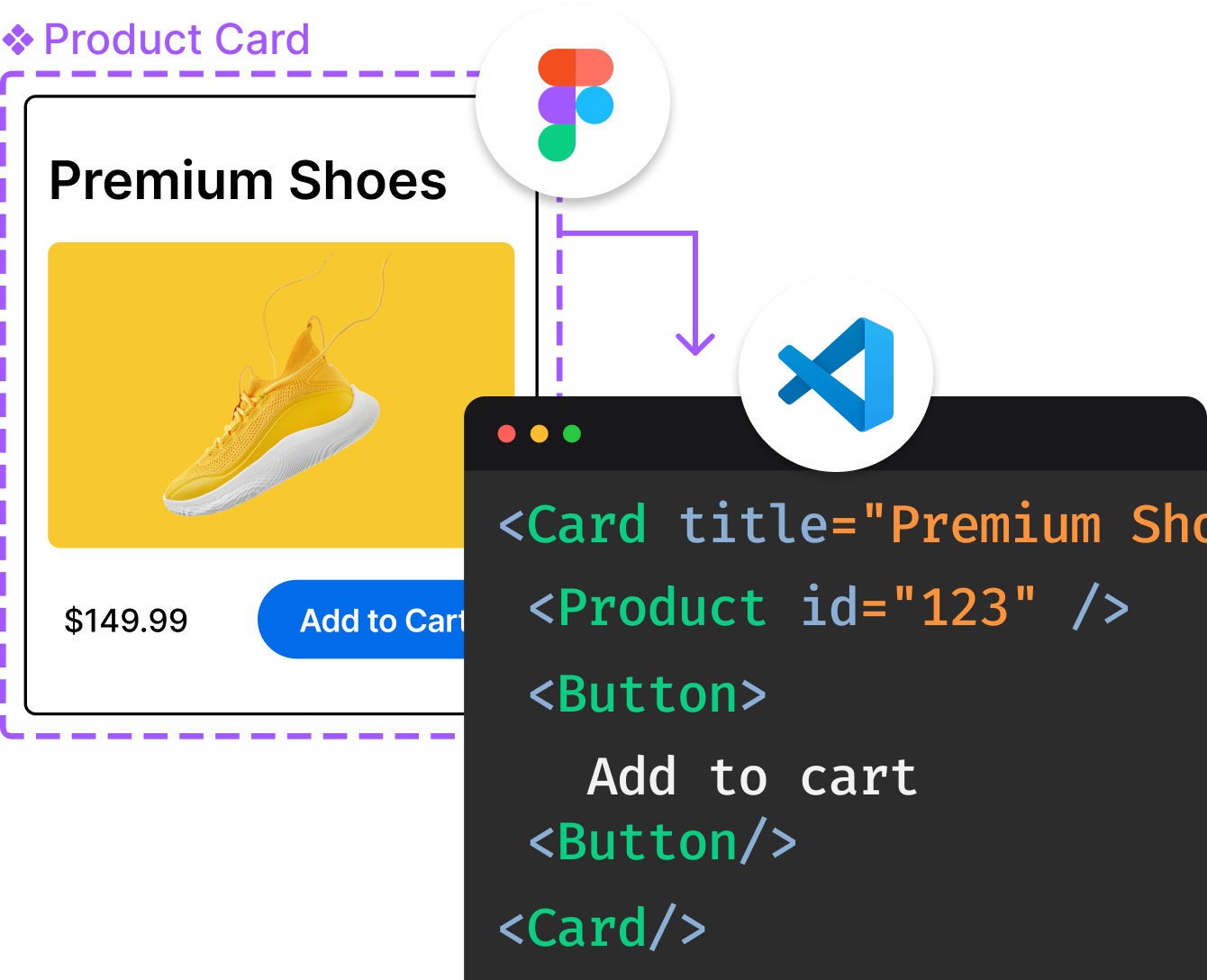
Introducing Visual Copilot: A new AI model to turn Figma designs to high quality code using your components.
Try Visual CopilotREADME

PyMuPDF










The PDF engine behind over 50 million monthly downloads, powering AI pipelines worldwide.
PyMuPDF is a high-performance Python library for data extraction, analysis, conversion, rendering and manipulation of PDF (and other) documents. Built on top of MuPDF â a lightweight, fast C engine â PyMuPDF gives you precise, low-level control over documents alongside high-level convenience APIs. No mandatory external dependencies.

Why PyMuPDF?
- Fast â powered by MuPDF, a best-in-class C rendering engine
- Accurate â pixel-perfect text extraction with font, color, and position metadata
- Versatile â read, write, annotate, redact, merge, split, and convert documents
- LLM-ready â native Markdown output via PyMuPDF4LLM for RAG and AI pipelines
- No mandatory dependencies â
pip install pymupdfand you're done
Installation
pip install pymupdf
Wheels are available for Windows, macOS, and Linux on Python 3.10â3.14. If no pre-built wheel exists for your platform, pip will compile from source (requires a C/C++ toolchain).
Optional extras
| Package | Purpose |
|---|---|
pymupdf-fonts | Extended font collection for text output |
pymupdf4llm | LLM/RAG-optimised Markdown and JSON extraction |
pymupdfpro | Adds Office document support |
tesseract-ocr | OCR for scanned pages and images (separate install) |
# More fonts
pip install pymupdf-fonts

# LLM-ready extraction
pip install pymupdf4llm

# Office support
pip install pymupdfpro

# OCR (Tesseract must be installed separately)
# macOS
brew install tesseract

# Ubuntu / Debian
sudo apt install tesseract-ocr
Supported File Formats
Input
| Category | Formats |
|---|---|
| PDF & derivatives | PDF, XPS, EPUB, CBZ, MOBI, FB2, SVG, TXT, MD |
| Images | PNG, JPEG, BMP, TIFF, GIF, and more |
| Microsoft Office (Pro) | DOC, DOCX, XLS, XLSX, PPT, PPTX |
| Korean Office (Pro) | HWP, HWPX |
Output
| Format | Notes |
|---|---|
| Full fidelity conversion from Office formats | |
| SVG | Vector page rendering |
| Image (PNG, JPEG, â¦) | Page rasterisation at any DPI |
| Markdown | Structure-aware, LLM-ready |
| JSON | Bounding boxes, layout data, per-element detail |
| Plain text | Fast, lightweight extraction |
Quick start
Extract text
import pymupdf

doc = pymupdf.open("document.pdf")
for page in doc:
    print(page.get_text())
Extract text with layout metadata
import pymupdf

doc = pymupdf.open("document.pdf")
page = doc[0]

blocks = page.get_text("dict")["blocks"]
for block in blocks:
    if block["type"] == 0:  # text block
        for line in block["lines"]:
            for span in line["spans"]:
                print(f"{span['text']!r}  font={span['font']}  size={span['size']:.1f}")
Extract tables
import pymupdf

doc = pymupdf.open("spreadsheet.pdf")
page = doc[0]

tables = page.find_tables()
for table in tables:
    print(table.to_markdown())

    # or get as Pandas DataFrame
    df = table.to_pandas()
Render a page to an image
import pymupdf

doc = pymupdf.open("document.pdf")
page = doc[0]

pixmap = page.get_pixmap(dpi=150)
pixmap.save("page_0.png")
OCR a scanned document
import pymupdf

doc = pymupdf.open("scanned.pdf")
page = doc[0]

# Requires Tesseract installed and on PATH
text = page.get_textpage_ocr(language="eng").extractText()
print(text)
Convert Markdown to PDF
import pymupdf

md_doc = pymupdf.open("example.md")
md_doc.save("example.pdf")
Convert to Markdown for LLMs
import pymupdf4llm

md = pymupdf4llm.to_markdown("report.pdf")
# Pass directly to your LLM or vector store
print(md)
Annotate and redact
import pymupdf

doc = pymupdf.open("contract.pdf")
page = doc[0]

# Add a highlight annotation
rect = pymupdf.Rect(72, 100, 400, 120)
page.add_highlight_annot(rect)

# Add a redaction and apply it
page.add_redact_annot(rect)
page.apply_redactions()

doc.save("contract_redacted.pdf")
Merge PDFs
import pymupdf

merger = pymupdf.open()
for path in ["part1.pdf", "part2.pdf", "part3.pdf"]:
    merger.insert_pdf(pymupdf.open(path))

merger.save("merged.pdf")
Convert an Office document to PDF
import pymupdf.pro

pymupdf.pro.unlock("YOUR-LICENSE-KEY")

doc = pymupdf.open("presentation.pptx")
pdf_bytes = doc.convert_to_pdf()

with open("output.pdf", "wb") as f:
    f.write(pdf_bytes)
Extract LLM-ready Markdown from a Word document
import pymupdf4llm
import pymupdf.pro

pymupdf.pro.unlock("YOUR-LICENSE-KEY")

md = pymupdf4llm.to_markdown("document.docx")
print(md)
Features
Core capabilities
| Feature | Description |
|---|---|
| Text extraction | Plain text, rich dict (font, size, color, bbox), HTML, XML, raw blocks |
| Table detection | find_tables() â locate, extract, and export tables as Markdown or structured data |
| Image extraction | Extract embedded images and render any page to a high-resolution Pixmap |
| Rendering | Render PDF pages to images or Pixmap data for use in UI or other workflows |
| OCR | Tesseract integration â full-page or partial OCR, configurable language |
| Annotations | Read and write highlights, underlines, squiggly lines, sticky notes, free text, ink, stamps |
| Redaction | Add and permanently apply redaction annotations |
| Forms | Read and fill PDF AcroForm fields |
| PDF creation | Create PDFs directly with the API or quickly convert from Markdown files |
| PDF editing | Insert, delete, and reorder pages; set metadata; merge and split documents |
| Drawing | Draw lines, curves, rectangles, and circles; insert HTML boxes |
| Encryption | Open password-protected PDFs; save with RC4 or AES encryption |
| Links | Extract hyperlinks, internal cross-references, and URI targets |
| Bookmarks | Read and write the outline / table of contents tree |
| Metadata | Title, author, creation date, producer, subject, and custom entries |
| Color spaces | RGB, CMYK, greyscale; color space conversion |
LLM & AI output (via PyMuPDF4LLM)
| Output | API |
|---|---|
| Markdown | pymupdf4llm.to_markdown(path) |
| JSON | pymupdf4llm.to_json(path) |
| Plain text | pymupdf4llm.to_text(path) |
Supports multi-column layouts, natural reading order and page chunking.

Supported Python versions
Python 3.10 â 3.14 (as of v1.27.x). Wheels ship for:
manylinuxx86_64 and aarch64musllinuxx86_64- macOS x86_64 and arm64
- Windows x86 and x86_64
Performance
PyMuPDF is built on MuPDF â one of the fastest PDF rendering engines available. Typical benchmarks against pure-Python PDF libraries show 10â50Ã speed improvements for text extraction and 100Ã or more for page rendering, with a minimal memory footprint.
For AI workloads, PyMuPDF4LLM processes documents without a GPU, cutting infrastructure costs significantly compared to vision-based LLM approaches.
Recipes
Extract all images from a PDF
import pymupdf
from pathlib import Path

doc = pymupdf.open("document.pdf")
out = Path("images")
out.mkdir(exist_ok=True)

for page_index, page in enumerate(doc):
    for img_index, img in enumerate(page.get_images()):
        xref = img[0]
        pix = pymupdf.Pixmap(doc, xref)
        if pix.n > 4:  # convert CMYK
            pix = pymupdf.Pixmap(pymupdf.csRGB, pix)
        pix.save(out / f"page{page_index}_img{img_index}.png")
Search for text across a document
import pymupdf

doc = pymupdf.open("document.pdf")
needle = "confidential"

for page in doc:
    hits = page.search_for(needle)
    if hits:
        print(f"Page {page.number}: {len(hits)} occurrence(s)")
        for rect in hits:
            page.add_highlight_annot(rect)

doc.save("highlighted.pdf")
Split a PDF into individual pages
import pymupdf

doc = pymupdf.open("document.pdf")
for i, page in enumerate(doc):
    out = pymupdf.open()
    out.insert_pdf(doc, from_page=i, to_page=i)
    out.save(f"page_{i + 1}.pdf")
Insert a watermark on every page
import pymupdf

doc = pymupdf.open("document.pdf")
for page in doc:
    page.insert_text(
        point=pymupdf.Point(72, page.rect.height / 2),
        text="DRAFT",
        fontsize=72,
        color=(0.8, 0.8, 0.8),
        rotate=45,
    )

doc.save("watermarked.pdf")
Office Document Processing
PyMuPDF can be extended with PyMuPDF Pro. This adds a conversion layer that handles Microsoft and Korean Office formats natively â no Office installation, no COM interop, no LibreOffice subprocess.
Once unlocked, pymupdf.open() accepts Office files exactly like PDFs:
import pymupdf.pro
pymupdf.pro.unlock("YOUR-LICENSE-KEY")

# Works identically regardless of format
for fmt in ["contract.docx", "data.xlsx", "deck.pptx", "report.hwpx"]:
    doc = pymupdf.open(fmt)
    for page in doc:
        print(page.get_text())
Get a trial license key for PyMuPDF Pro
What you can do with Office documents:
- Extract text and images page-by-page
- Convert to PDF with
doc.convert_to_pdf() - Rasterise pages to PNG/JPEG for visual inspection
- Feed directly into PyMuPDF4LLM for AI-ready output
Restrictions Without a License Key
When pymupdf.pro.unlock() is called without a key, the following restrictions apply:
| Restriction | Detail |
|---|---|
| Page limit | Only the first 3 pages of any document are accessible |
| Time limit | Evaluation period â functionality expires after a set duration |
All other Pro features work normally within these constraints, making it straightforward to prototype before purchasing a license.
Frequently Asked Questions
Can I use PyMuPDF, PyMuPDF4LLM and PyMuPDF Pro without sending data to the cloud?
Yes, absolutely â and this is one of PyMuPDF's most significant advantages.
PyMuPDF runs entirely locally. It is a native Python library built on top of the MuPDF C engine. When you call pymupdf.open(), page.get_text(), page.find_tables(), or any other method, everything executes in-process on your own machine. No data is transmitted anywhere.
There are no telemetry calls, no licence validation callbacks, no cloud dependencies of any kind in the open-source AGPL build or the commercial build. Once the package is installed, it works fully air-gapped.
This makes PyMuPDF well-suited for:
- Regulated industries â healthcare (HIPAA), finance, legal, government, where documents cannot leave a controlled environment
- On-premise deployments â servers with no outbound internet access
- Air-gapped systems â classified or sensitive environments
- Self-hosted RAG pipelines â processing confidential documents locally before feeding an on-premise LLM
- Saving on token costs for document pre-processing before sending data to your LLM
The only thing you need an internet connection for is the initial pip install. After that, the package and all its capabilities are entirely self-contained.
Should I import pymupdf or import fitz?
Use import pymupdf. The fitz name is a legacy alias that still works as of v1.24.0+, but import pymupdf is the recommended and future-proof approach. The two are interchangeable in existing code:
import pymupdf # recommended
# import fitz # legacy alias â still works but avoid for new code
Does PyMuPDF work with Korean, Japanese, or Chinese documents?
Yes â PyMuPDF has solid CJK support
How do I extract Markdown from PDF for LLM?
Let PyMuPDF4LLM do everything (recommended for RAG).
PyMuPDF4LLM is a high-level wrapper that outputs standard text and table content together in an integrated Markdown-formatted string across all document pages PyMuPDF â tables are detected, converted to GitHub-compatible Markdown, and interleaved with surrounding text in the correct reading order. This is the best starting point for feeding an LLM or building a RAG pipeline.
import pymupdf4llm

md = pymupdf4llm.to_markdown("report.pdf")
print(md)
# Tables appear as Markdown | col1 | col2 | ... inline with the text
Text extraction returns garbled characters or empty output. Why?
This usually means the PDF uses custom font encodings without a proper character map (CMAP). The font's glyphs are present but cannot be mapped back to Unicode. In these cases:
- Use OCR as a fallback (
page.get_textpage_ocr()) - Consider that scanned PDFs will always need OCR â text extraction on scans returns nothing
How do I extract text from a specific area of a page?
Pass a clip rectangle to get_text():
import pymupdf

doc = pymupdf.open("input.pdf")
page = doc[0]

# Define the area you want (x0, y0, x1, y1) in points
clip = pymupdf.Rect(50, 100, 400, 300)
text = page.get_text("text", clip=clip)
How do I search for text and find its location on the page?
import pymupdf

doc = pymupdf.open("input.pdf")
page = doc[0]

# Returns a list of Rect objects surrounding each match
locations = page.search_for("invoice number")
for rect in locations:
    print(rect)  # e.g. Rect(72.0, 120.5, 210.0, 134.0)
get_images shows no images but I can clearly see charts in the PDF. Why?
Charts and diagrams created by tools like matplotlib, Excel, or R are typically rendered as vector graphics (PDF drawing commands), not raster images. get_images only lists embedded raster image objects and will not detect vector graphics. To capture these, rasterise the entire page with page.get_pixmap().
How does OCR work in PyMuPDF? Does it require a separate Tesseract installation?
PyMuPDF uses MuPDF's built-in Tesseract-based OCR support, so there is no Python-level pytesseract dependency. However, PyMuPDF still needs access to the Tesseract language data files (tessdata), and automatic tessdata discovery may invoke the tesseract executable (for example, to list available languages) if you do not explicitly provide a tessdata path. In practice, the recommended setup is to either install Tesseract so discovery works automatically, or configure the tessdata location yourself via the tessdata parameter or the TESSDATA_PREFIX environment variable. Over 100 languages are supported.
import pymupdf

doc = pymupdf.open("scanned.pdf")
page = doc[0]

# Get a text page using OCR
tp = page.get_textpage_ocr(language="eng")
text = page.get_text(textpage=tp)
print(text)
How do I run OCR on a standalone image file (not a PDF)?
import pymupdf
pix = pymupdf.Pixmap("image.png")
if pix.alpha:
pix = pymupdf.Pixmap(pix, 0) # remove alpha channel â required for OCR
# Wrap in a 1-page PDF and OCR it
doc = pymupdf.open()
page = doc.new_page(width=pix.width, height=pix.height)
page.insert_image(page.rect, pixmap=pix)
tp = page.get_textpage_ocr()
text = page.get_text(textpage=tp)
How do I highlight text in a PDF?
import pymupdf

doc = pymupdf.open("input.pdf")
page = doc[0]

# Use quads=True for accurate highlights on non-horizontal text
quads = page.search_for("important term", quads=True)
page.add_highlight_annot(quads)

doc.save("highlighted.pdf")
PyMuPDF supports all standard PDF text markers: highlight, underline, strikeout, and squiggly.
How do I permanently redact (remove) content from a PDF?
Redaction is a deliberate two-step process so you can review before committing:
import pymupdf
doc = pymupdf.open("input.pdf")
page = doc[0]
# Step 1: Mark the area(s) to redact
rect = page.search_for("confidential")[0]
page.add_redact_annot(rect, fill=(1, 1, 1)) # white fill
# Step 2: Apply â permanently removes the underlying content
page.apply_redactions()
doc.save("redacted.pdf")
After apply_redactions(), the original content is gone. It cannot be recovered from the saved file.
How do I read form field values from a PDF?
import pymupdf

doc = pymupdf.open("form.pdf")
page = doc[0]

for field in page.widgets():
    print(f"{field.field_name}: {field.field_value}")
How do I fill in a PDF form programmatically?
import pymupdf

doc = pymupdf.open("form.pdf")
page = doc[0]

for field in page.widgets():
    if field.field_name == "First Name":
        field.field_value = "Ada"
        field.update()

doc.save("filled_form.pdf")
Can I use multithreading with PyMuPDF?
No. PyMuPDF does not support multithreaded use, even with Python's newer free-threading mode. The underlying MuPDF library only provides partial thread safety, and a fully thread-safe PyMuPDF implementation would still impose a single-threaded overhead â negating the benefit.
Use multiprocessing instead. Each process opens the file independently and works on its own page range:
from multiprocessing import Pool
import pymupdf

def process_pages(args):
    path, start, end = args
    doc = pymupdf.open(path)  # each process opens its own handle
    results = []
    for i in range(start, end):
        results.append(doc[i].get_text())
    return results

with Pool(4) as pool:
    chunks = [("input.pdf", 0, 25), ("input.pdf", 25, 50), ...]
    all_results = pool.map(process_pages, chunks)
How can I speed up repeated text extraction on the same page?
Reuse a TextPage object. Creating a TextPage is the expensive part â once created, switching between extraction formats is cheap:
import pymupdf

page = doc[0]
tp = page.get_textpage()  # create once

text  = page.get_text("text",    textpage=tp)
words = page.get_text("words",   textpage=tp)
data  = page.get_text("dict",    textpage=tp)
This can reduce execution time by 50â95% for repeated extractions on the same page.
How do I read and write PDF metadata?
import pymupdf

doc = pymupdf.open("input.pdf")

# Read
print(doc.metadata)
# {'title': '...', 'author': '...', 'subject': '...', 'keywords': '...', ...}

# Write
doc.set_metadata({
    "title": "Annual Report 2025",
    "author": "Finance Team",
    "keywords": "annual, finance, 2025"
})
doc.save("output.pdf")
How do I read or set the table of contents / bookmarks?
import pymupdf
doc = pymupdf.open("input.pdf")
# Read â returns a list of [level, title, page_number] entries
toc = doc.get_toc()
for level, title, page in toc:
print(" " * level, title, "â page", page)
# Write
new_toc = [
[1, "Introduction", 1],
[1, "Methods", 5],
[2, "Data sources", 6],
]
doc.set_toc(new_toc)
doc.save("output.pdf")
Documentation
Full installation guide, API reference, cookbook, and tutorial at pymupdf.readthedocs.io.
Related projects
| Project | Description |
|---|---|
| PyMuPDF4LLM | LLM/RAG-optimised Markdown and JSON extraction |
| PyMuPDF Pro | Adds Office and HWP document support |
| pymupdf-fonts | Extended font collection for PyMuPDF text output |
Licensing
PyMuPDF and MuPDF are maintained by Artifex Software, Inc.
- Open source â GNU AGPL v3. Free for open-source projects.
- Commercial â separate commercial licences available from Artifex for proprietary applications.
Contributing
Contributions are welcome. Please open an issue before submitting large pull requests.
â Support this project
If you find this useful, please consider giving it a star â it helps others discover it!
Top Related Projects
qpdf: A content-preserving PDF document transformer
A Python library for reading and writing PDF, powered by QPDF
Community maintained fork of pdfminer - we fathom PDF
A pure-python PDF library capable of splitting, merging, cropping, and transforming the pages of PDF files
Small python-gtk application, which helps the user to merge or split PDF documents and rotate, crop and rearrange their pages using an interactive and intuitive graphical interface.
Convert designs to code with AI
Introducing Visual Copilot: A new AI model to turn Figma designs to high quality code using your components.
Try Visual Copilot