
Top Related Projects

Cross-platform, cross-blockchain wallet library.

WalletConnect Monorepo

:globe_with_meridians: :electric_plug: The MetaMask browser extension enables browsing Ethereum blockchain enabled websites

a free (libre) open source, mobile OS for Ethereum
Quick Overview
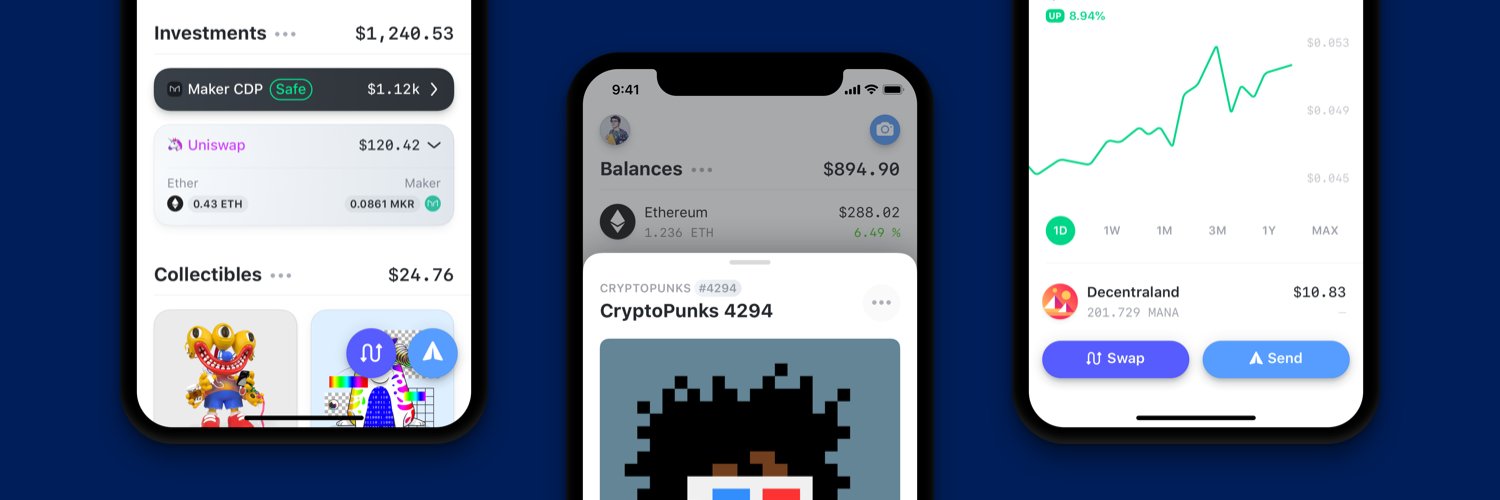
Rainbow is an open-source Ethereum wallet for iOS and Android. It provides a user-friendly interface for managing cryptocurrencies, NFTs, and interacting with decentralized applications (dApps) on the Ethereum blockchain.
Pros
- Beautiful and intuitive user interface
- Support for multiple Ethereum-based assets (ERC-20 tokens, NFTs)
- Built-in DeFi features like swapping and lending
- Strong focus on security and privacy
Cons
- Limited to Ethereum and Ethereum-based assets
- May have a steeper learning curve for crypto beginners
- Dependent on third-party services for some features
- Not as feature-rich as some desktop wallets
Code Examples
As Rainbow is a mobile wallet application and not a code library, there are no specific code examples to provide.
Getting Started
Since Rainbow is a mobile application, there's no code-based getting started process. Instead, users can follow these steps:
- Download the Rainbow app from the App Store (iOS) or Google Play Store (Android)
- Open the app and create a new wallet or import an existing one
- Secure your wallet by backing up your recovery phrase
- Start using Rainbow to manage your Ethereum assets and interact with dApps
Competitor Comparisons
Cross-platform, cross-blockchain wallet library.
Pros of wallet-core
- Broader multi-chain support, including Bitcoin and many other cryptocurrencies
- More comprehensive and lower-level cryptographic operations
- Extensive documentation and integration guides
Cons of wallet-core
- Steeper learning curve due to its C++ core and complex architecture
- Less focus on user interface and experience compared to Rainbow
- Requires more setup and configuration for basic wallet functionality
Code Comparison
wallet-core (C++):
TWPublicKey *publicKey = TWPrivateKeyGetPublicKeySecp256k1(privateKey, false);
TWString *address = TWCoinTypeConfigurationGetString(TWCoinTypeEthereum, TWCoinTypeConfigurationDefault);
TWString *derivedAddress = TWEthereumAddressCreateWithPublicKey(publicKey, TWEthereumAddressTypeStandard);
Rainbow (JavaScript):
const wallet = ethers.Wallet.createRandom();
const address = wallet.address;
const privateKey = wallet.privateKey;
Summary
wallet-core offers a more comprehensive, multi-chain solution with lower-level cryptographic operations, making it suitable for developers building complex wallet applications. However, it comes with a steeper learning curve and requires more setup. Rainbow, on the other hand, provides a more user-friendly approach, focusing on Ethereum and related networks, with easier integration for basic wallet functionality.
WalletConnect Monorepo
Pros of walletconnect-monorepo
- Comprehensive solution for wallet connectivity across multiple platforms
- Extensive documentation and developer resources
- Active community and frequent updates
Cons of walletconnect-monorepo
- More complex setup and integration process
- Larger codebase and potential performance overhead
- Steeper learning curve for developers new to the ecosystem
Code Comparison
walletconnect-monorepo:
import WalletConnect from "@walletconnect/client";
import QRCodeModal from "@walletconnect/qrcode-modal";

const connector = new WalletConnect({
  bridge: "https://bridge.walletconnect.org",
  qrcodeModal: QRCodeModal,
});
rainbow:
import { RainbowKit } from '@rainbow-me/rainbowkit';

const App = () => {
  return (
    <RainbowKit>
      {/* Your app content */}
    </RainbowKit>
  );
};
The walletconnect-monorepo provides a more flexible and customizable approach, allowing developers to configure various options. Rainbow, on the other hand, offers a simpler and more opinionated implementation, which can be easier to integrate for basic use cases but may limit advanced customization options.
:globe_with_meridians: :electric_plug: The MetaMask browser extension enables browsing Ethereum blockchain enabled websites
Pros of MetaMask
- Larger community and more extensive documentation
- Supports a wider range of networks and tokens
- More robust security features and audits
Cons of MetaMask
- More complex user interface, potentially overwhelming for beginners
- Slower development cycle and feature updates
- Higher resource usage, which can impact browser performance
Code Comparison
MetaMask (JavaScript):
const provider = new ethers.providers.Web3Provider(window.ethereum);
const signer = provider.getSigner();
const contract = new ethers.Contract(contractAddress, abi, signer);
Rainbow (React Native):
import { useWalletConnect } from '@rainbow-me/rainbow-wallet-connect';

const { connectWallet, address } = useWalletConnect();
MetaMask focuses on providing a comprehensive Ethereum interface for web browsers, while Rainbow aims for a more streamlined, mobile-first experience. MetaMask's code tends to be more verbose and flexible, allowing for deeper customization. Rainbow's code is often more concise and tailored for React Native mobile development.
Both projects are open-source and actively maintained, but MetaMask has a larger contributor base and more frequent updates. Rainbow, however, offers a more modern and user-friendly design, especially for mobile users.
a free (libre) open source, mobile OS for Ethereum
Error generating comparison
Convert  designs to code with AI

Introducing Visual Copilot: A new AI model to turn Figma designs to high quality code using your components.
Try Visual CopilotREADME
ðï¸ Rainbow
the Ethereum wallet that lives in your pocket!
ð²ï¸ Available on the iOS App Store.
ð¤ Android available on the Google Play Store
ð» Browser extension available on, Chrome, Brave, Edge, FireFox, and Arc.
ð Follow us on X
Setup
[!TIP] > Internal developers can also use the
rainbow-me/rainbow-setupscript to install all dependencies and configure the project in one step.
Prerequisites
- Install nvm: https://github.com/creationix/nvm
- Install the required Node.js version:
nvm install - Install Ruby (version specified in
.ruby-version). macOS system Ruby is too old and will not work. Use a version manager such as rbenv or rvm. - Enable yarn:
corepack enable
Note: On future terminal sessions, run nvm use to activate the correct
Node.js version. Alternatively, set up
automatic nvm switching
in your shell.
Internal developers
Set up these before running yarn install, as the postinstall script reads
.env and rainbow-scripts to generate build configs and run prebuild hooks.
- Copy
dotenvfromrainbow-me/rainbow-envto.envin the project root. - Copy
android/app/google-services.jsonfrom the same repo toandroid/app/in this project. - Clone
rainbow-me/rainbow-scriptsinto the project root (the postinstall prebuild hooks depend on it). - Install dependencies and run setup:
yarn install && yarn setup
External contributors
- Copy
.env.exampleto.envand fill in your own API keys. Note that some features are currently not accessible; we are working with our Data Providers to provide open source API Keys.- Etherscan: https://etherscan.io/apis
- Infura: https://infura.io/
- ETH Gas Station: https://docs.ethgasstation.info/
- Imgix: https://www.imgix.com/
- Provide your own
google-services.jsoninandroid/app/from a personal Firebase project registered under the package nameme.rainbow. - Install dependencies and run setup:
yarn install && yarn setup
The iOS GoogleService-Info.plist is already in the repo and gets its API key
patched by the postinstall script from GOOGLE_SERVICE_API_KEY in your .env.
iOS (macOS only)
- Install the Xcode version pinned in
.xcode-version. Recommended: use thexcodesCLI, which reads.xcode-versionautomatically:
Alternatively, download the pinned version from developer.apple.com/download. CI and Bitrise build against the same pin, so local parity matters.brew install xcodesorg/made/xcodes xcodes install - Install Watchman:
brew install watchman - Install the required bundles and Pods:
yarn install-bundle && yarn install-pods
Android
-
Install JDK 17. Do not use the JDK bundled with Android Studio (it's JDK 21, which causes build failures). On macOS:
brew install --cask zulu@17 -
Add to your shell profile (
~/.zshrcor~/.bashrc):export JAVA_HOME=/Library/Java/JavaVirtualMachines/zulu-17.jdk/Contents/Home export ANDROID_HOME=$HOME/Library/Android/sdk # macOS # export ANDROID_HOME=$HOME/Android/Sdk # Linux export PATH=$PATH:$ANDROID_HOME/emulator export PATH=$PATH:$ANDROID_HOME/platform-toolsOn Linux, also install system dependencies:
sudo apt install libsecret-tools watchman -
Install Android Studio (the standard setup wizard is fine).
-
Increase the IDE memory: Android Studio > Settings > Memory Settings and set the heap to at least 4096 MB. This project is large enough that the default 2048 MB will cause slow syncs and builds.
-
Set the Gradle JDK: Settings > Build, Execution, Deployment > Build Tools > Gradle > Gradle JDK and select the
JAVA_HOME(Azul Zulu 17) entry. The default points to the bundled JDK 21. -
Restart any open terminals so the new environment variables take effect.
-
Create an emulator via Android Studio > Device Manager (unless using a physical device).
-
Run the first build from the terminal to generate native headers that Android Studio needs for Gradle sync:
cd android && ./gradlew assembleDebug && cd .. -
Quit Android Studio completely, then reopen it from the terminal so Gradle sync picks up the generated headers:
open -a "Android Studio" # macOSAlways launch Android Studio this way so it inherits your shell PATH (including
nodefrom nvm). Launching from Spotlight or the Dock will cause Gradle sync to fail with "Cannot run program node".
Developing
Start Metro in one terminal:
yarn start
Then build and run:
- iOS: Open
ios/Rainbow.xcworkspacein Xcode (not the.xcodeproj) and press Cmd+R, or runyarn iosfrom the terminal. - Android: Open the
android/folder in Android Studio, or runyarn androidfrom the terminal.
Top Related Projects
Cross-platform, cross-blockchain wallet library.
WalletConnect Monorepo
:globe_with_meridians: :electric_plug: The MetaMask browser extension enables browsing Ethereum blockchain enabled websites
a free (libre) open source, mobile OS for Ethereum
Convert designs to code with AI
Introducing Visual Copilot: A new AI model to turn Figma designs to high quality code using your components.
Try Visual Copilot