 table
table
📋 Low-level table primitives for React, maintained in the Ant Design ecosystem.
Top Related Projects

An enterprise-class UI design language and React UI library

Material UI: Comprehensive React component library that implements Google's Material Design. Free forever.

🤖 Headless UI for building powerful tables & datagrids for TS/JS - React-Table, Vue-Table, Solid-Table, Svelte-Table

The best JavaScript Data Table for building Enterprise Applications. Supports React / Angular / Vue / Plain JavaScript.

JavaScript Data Grid / Data Table with a Spreadsheet Look & Feel. Works with React, Angular, and Vue. Supported by the Handsontable team ⚡

Feature-rich and customizable data grid React component
Quick Overview
React-component/table is a high-performance table component for React applications. It provides a flexible and feature-rich solution for displaying large datasets in a tabular format, with support for various customization options and advanced functionalities like virtualization and fixed columns.
Pros
- Excellent performance with large datasets due to virtualization
- Highly customizable with extensive API and theming options
- Supports fixed columns and headers for better user experience
- Active development and maintenance with regular updates
Cons
- Steeper learning curve compared to simpler table components
- Documentation can be overwhelming for beginners
- Some advanced features may require additional configuration
- Limited built-in styling options, requiring custom CSS for complex designs
Code Examples
- Basic table setup:
import Table from 'rc-table';

const columns = [
  { title: 'Name', dataIndex: 'name', key: 'name' },
  { title: 'Age', dataIndex: 'age', key: 'age' },
  { title: 'Address', dataIndex: 'address', key: 'address' },
];

const data = [
  { name: 'John Brown', age: 32, address: 'New York No. 1 Lake Park', key: 1 },
  { name: 'Jim Green', age: 42, address: 'London No. 1 Bridge Street', key: 2 },
];

const MyTable = () => <Table columns={columns} data={data} />;
- Table with fixed columns:
const columns = [
  { title: 'Name', dataIndex: 'name', key: 'name', width: 100, fixed: 'left' },
  { title: 'Age', dataIndex: 'age', key: 'age', width: 100 },
  { title: 'Address', dataIndex: 'address', key: 'address', width: 200 },
  { title: 'Operations', dataIndex: '', key: 'operations', fixed: 'right', width: 100 },
];

const MyFixedColumnsTable = () => <Table columns={columns} data={data} scroll={{ x: 1000 }} />;
- Table with expandable rows:
const expandedRowRender = (record) => <p>{record.description}</p>;

const MyExpandableTable = () => (
  <Table
    columns={columns}
    expandable={{
      expandedRowRender,
      defaultExpandedRowKeys: ['0'],
    }}
    dataSource={data}
  />
);
Getting Started
-
Install the package:
npm install rc-table -
Import and use the Table component in your React application:
import Table from 'rc-table'; import 'rc-table/assets/index.css'; const MyComponent = () => { const columns = [ { title: 'Name', dataIndex: 'name', key: 'name' }, { title: 'Age', dataIndex: 'age', key: 'age' }, ]; const data = [ { name: 'John Brown', age: 32, key: 1 }, { name: 'Jim Green', age: 42, key: 2 }, ]; return <Table columns={columns} data={data} />; }; -
Customize the table as needed using the available props and API options.
Competitor Comparisons
An enterprise-class UI design language and React UI library
Pros of ant-design
- Comprehensive UI component library with a wide range of components beyond tables
- Consistent design system and theming capabilities
- Extensive documentation and community support
Cons of ant-design
- Larger bundle size due to the full component library
- Steeper learning curve for developers new to the ecosystem
- Less flexibility for customizing individual components
Code Comparison
ant-design Table
import { Table } from 'antd';

const columns = [
  { title: 'Name', dataIndex: 'name', key: 'name' },
  { title: 'Age', dataIndex: 'age', key: 'age' },
];

<Table dataSource={data} columns={columns} />
react-component/table
import Table from 'rc-table';

const columns = [
  { title: 'Name', dataIndex: 'name', key: 'name' },
  { title: 'Age', dataIndex: 'age', key: 'age' },
];

<Table data={data} columns={columns} />
Summary
ant-design offers a comprehensive UI library with consistent design and extensive documentation, making it suitable for large-scale applications. However, it comes with a larger bundle size and less flexibility for customization. react-component/table, on the other hand, provides a more focused and lightweight solution for table components, offering greater customization options but with less out-of-the-box functionality and design consistency.
Material UI: Comprehensive React component library that implements Google's Material Design. Free forever.
Pros of Material-UI
- Comprehensive UI component library with a wide range of pre-built components
- Follows Google's Material Design guidelines for consistent and modern UI
- Large community and extensive documentation for easier development
Cons of Material-UI
- Larger bundle size due to the extensive component library
- Steeper learning curve for customization and theming
- May require more setup and configuration for specific use cases
Code Comparison
Material-UI Table:
import { Table, TableBody, TableCell, TableContainer, TableHead, TableRow, Paper } from '@mui/material';

<TableContainer component={Paper}>
  <Table>
    <TableHead>
      <TableRow>
        <TableCell>Header 1</TableCell>
        <TableCell>Header 2</TableCell>
      </TableRow>
    </TableHead>
    <TableBody>
      <TableRow>
        <TableCell>Data 1</TableCell>
        <TableCell>Data 2</TableCell>
      </TableRow>
    </TableBody>
  </Table>
</TableContainer>
react-component/table:
import Table from 'rc-table';

<Table
  columns={[
    { title: 'Header 1', dataIndex: 'col1', key: 'col1' },
    { title: 'Header 2', dataIndex: 'col2', key: 'col2' },
  ]}
  data={[
    { col1: 'Data 1', col2: 'Data 2' },
  ]}
/>
🤖 Headless UI for building powerful tables & datagrids for TS/JS - React-Table, Vue-Table, Solid-Table, Svelte-Table
Pros of Table
- More flexible and feature-rich, supporting various UI frameworks beyond React
- Better TypeScript support and type safety
- Extensive documentation and examples for complex use cases
Cons of Table
- Steeper learning curve due to its more complex API
- Potentially larger bundle size for simpler table requirements
Code Comparison
Table (TanStack):
import { useTable } from '@tanstack/react-table'

function Table({ data, columns }) {
  const tableInstance = useTable({ columns, data })
  // ... render table using tableInstance
}
Table (react-component):
import Table from 'rc-table'

function MyTable({ data, columns }) {
  return <Table columns={columns} data={data} />
}
Key Differences
- Table offers a more declarative approach with hooks
- Table provides more granular control over table behavior
- react-component/table has a simpler API for basic use cases
Use Cases
- Table: Complex tables with advanced sorting, filtering, and pagination
- react-component/table: Simpler tables with basic functionality
Community and Maintenance
- Table has a larger and more active community
- Both projects are well-maintained, but Table sees more frequent updates
Performance
- Table may have better performance for large datasets due to virtualization support
- react-component/table is generally lighter-weight for simpler tables
The best JavaScript Data Table for building Enterprise Applications. Supports React / Angular / Vue / Plain JavaScript.
Pros of ag-grid
- More feature-rich with advanced functionality like filtering, sorting, and grouping
- Better performance for large datasets
- Extensive documentation and community support
Cons of ag-grid
- Steeper learning curve due to its complexity
- Larger bundle size, which may impact initial load times
- Commercial license required for some advanced features
Code Comparison
ag-grid:
<AgGridReact
  columnDefs={columnDefs}
  rowData={rowData}
  defaultColDef={defaultColDef}
  onGridReady={onGridReady}
/>
react-component/table:
<Table
  columns={columns}
  dataSource={dataSource}
  pagination={pagination}
  onChange={handleTableChange}
/>
Key Differences
- ag-grid offers more built-in features and customization options
- react-component/table is simpler and easier to set up for basic use cases
- ag-grid has a more complex API, while react-component/table follows a more straightforward approach
- ag-grid is framework-agnostic, while react-component/table is specifically designed for React
Use Cases
- Choose ag-grid for complex, data-intensive applications requiring advanced grid features
- Opt for react-component/table for simpler React projects with basic table needs and a preference for lightweight solutions
JavaScript Data Grid / Data Table with a Spreadsheet Look & Feel. Works with React, Angular, and Vue. Supported by the Handsontable team ⚡
Pros of Handsontable
- More feature-rich with advanced functionalities like data validation, filtering, and sorting
- Supports various data types and formats, including spreadsheet-like capabilities
- Extensive documentation and community support
Cons of Handsontable
- Steeper learning curve due to its complexity and extensive API
- Larger file size and potential performance impact for simpler use cases
- Commercial license required for some features and use cases
Code Comparison
Handsontable:
const hot = new Handsontable(container, {
  data: data,
  rowHeaders: true,
  colHeaders: true,
  filters: true,
  dropdownMenu: true
});
Table:
<Table
  columns={columns}
  dataSource={data}
  pagination={pagination}
  onChange={handleChange}
/>
Key Differences
- Handsontable offers a more Excel-like experience with advanced features
- Table focuses on simplicity and ease of integration with React applications
- Handsontable requires more configuration but provides greater flexibility
- Table has a smaller footprint and is generally easier to set up for basic use cases
Use Cases
- Choose Handsontable for complex data grids with spreadsheet-like functionality
- Opt for Table when building simpler React-based tables with basic sorting and filtering needs
Feature-rich and customizable data grid React component
Error generating comparison
Convert  designs to code with AI
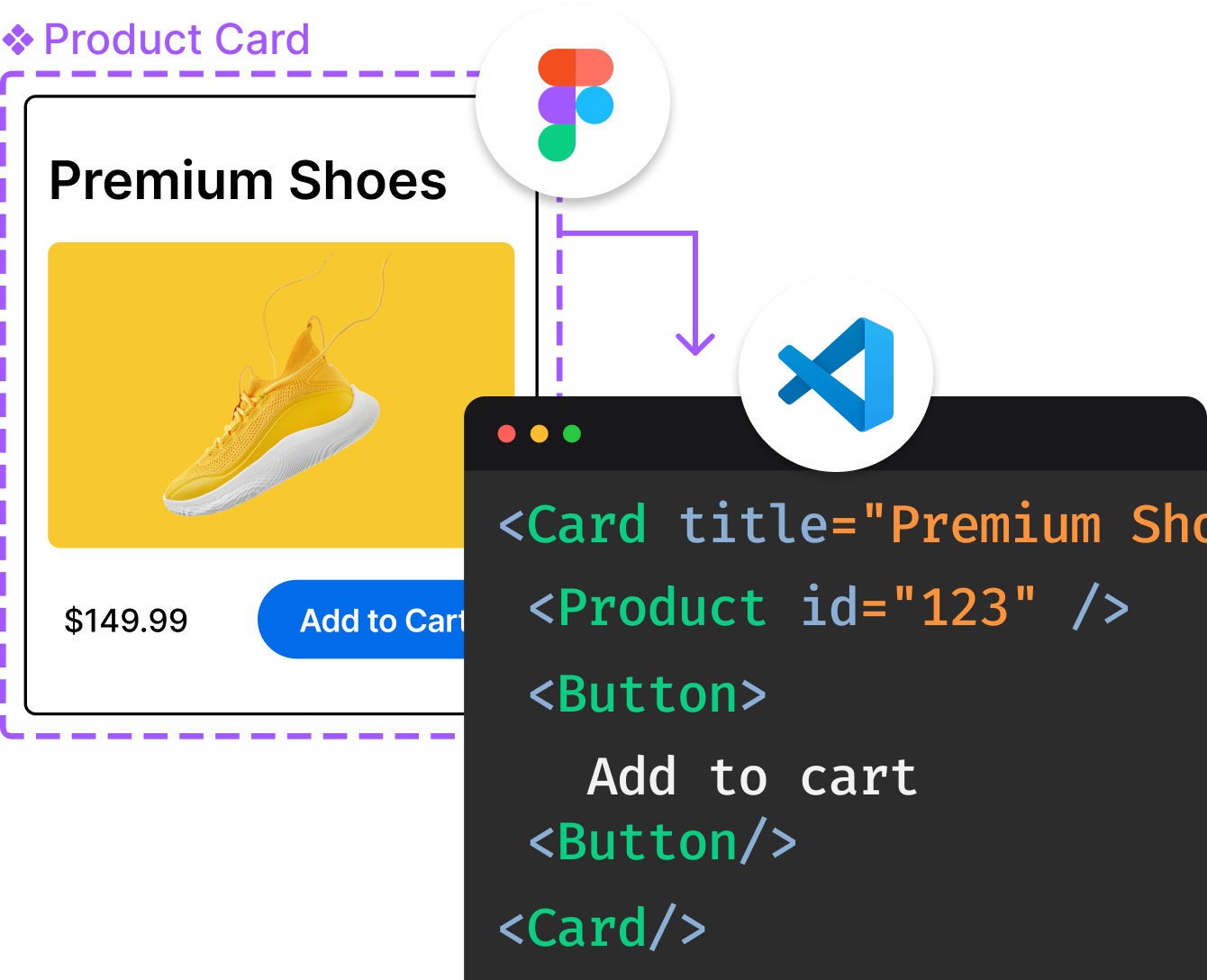
Introducing Visual Copilot: A new AI model to turn Figma designs to high quality code using your components.
Try Visual CopilotREADME
@rc-component/table
 Part of the Ant Design ecosystem.
ð Low-level table primitives for React, maintained in the Ant Design ecosystem.






English | ç®ä½ä¸æ
Highlights
- Flexible column, summary, fixed header, sticky, expandable row, and virtual table support.
- TypeScript-first API designed for composition in design systems.
- Used by Ant Design Table and other React data display experiences.
Install
npm install @rc-component/table
Usage
import Table from '@rc-component/table';
import type { ColumnsType } from '@rc-component/table';

interface User {
  key: string;
  name: string;
  age: number;
  address: string;
}

const columns: ColumnsType<User> = [
  { title: 'Name', dataIndex: 'name', key: 'name', width: 120 },
  { title: 'Age', dataIndex: 'age', key: 'age', width: 80 },
  { title: 'Address', dataIndex: 'address', key: 'address' },
];

const data: User[] = [
  { key: '1', name: 'Jack', age: 28, address: 'Somewhere' },
  { key: '2', name: 'Rose', age: 36, address: 'Somewhere else' },
];

export default () => <Table columns={columns} data={data} />;
Examples
Run the local dumi site:
npm install
npm start
Then open http://localhost:8000.
API
Properties
| Name | Type | Default | Description |
|---|---|---|---|
| tableLayout | auto | fixed | auto | fixed for any columns is fixed or ellipsis or header is fixed | https://developer.mozilla.org/en-US/docs/Web/CSS/table-layout |
| prefixCls | String | rc-table | |
| className | String | additional className | |
| id | String | identifier of the container div | |
| useFixedHeader | Boolean | false | whether use separator table for header. better set width for columns |
| scroll | Object | {x: false, y: false} | whether table can be scroll in x/y direction, x or y can be a number that indicated the width and height of table body |
| expandable | Object | Config expand props | |
| expandable.defaultExpandAllRows | Boolean | false | Expand All Rows initially |
| expandable.defaultExpandedRowKeys | String[] | [] | initial expanded rows keys |
| expandable.expandedRowKeys | String[] | current expanded rows keys | |
| expandable.expandedRowRender | Function(recode, index, indent, expanded):ReactNode | Content render to expanded row | |
| expandable.forceRender | Boolean | false | Force render expanded row content before expansion. In virtual mode, only rows currently mounted by the virtual list are force-rendered; off-screen rows may still be unmounted |
| expandable.expandedRowClassName | string | (recode, index, indent) => string | get expanded row's className | |
| expandable.columnTitle | ReactNode | Function({ expandIcon }) | Customize expand column title | |
| expandable.expandRowByClick | boolean | Support expand by click row | |
| expandable.expandIconColumnIndex | Number | 0 | The index of expandIcon which column will be inserted when expandIconAsCell is false |
| expandable.expandIcon | props => ReactNode | Deprecated. Use components.ExpandIcon; retained as a row-only fallback | |
| expandable.indentSize | Number | 15 | indentSize for every level of data.i.children, better using with column.width specified |
| expandable.rowExpandable | (record) => boolean | Config row support expandable | |
| expandable.showExpandAll | Boolean | false | Show expand all icon in the expand column header when using expandedRowRender |
| expandable.onExpand | Function(expanded, record) | function to call when click expand icon | |
| expandable.onExpandAll | Function(expanded) | function to call when click expand all icon | |
| expandable.onExpandedRowsChange | Function(expandedRows) | function to call when the expanded rows change | |
| expandable.fixed | String | Boolean | - | this expand icon will be fixed when table scroll horizontally: true or left or right and expandIconColumnIndex need to stay first or last |
| rowKey | string or Function(record, index):string | 'key' | If rowKey is string, record[rowKey] will be used as key. If rowKey is function, the return value of rowKey(record, index) will be use as key. |
| rowClassName | string or Function(record, index, indent):string | get row's className | |
| rowRef | Function(record, index, indent):string | get row's ref key | |
| data | Object[] | data record array to be rendered | |
| onRow | Function(record, index) | Set custom props per each row. | |
| onHeaderRow | Function(record, index) | Set custom props per each header row. | |
| showHeader | Boolean | true | whether table head is shown |
| hidden | Boolean | false | Hidden column. |
| title | Function(currentData) | table title render function | |
| footer | Function(currentData) | table footer render function | |
| emptyText | React.Node or Function | No Data | Display text when data is empty |
| columns | Object[] | The columns config of table, see table below | |
| components | Object | Override table elements, see #171 for more details | |
| components.ExpandIcon | React.ComponentType<ExpandIconProps> | Customize both row and expand-all icons. Receives type (row or all), prefixCls, expanded, expandable, onClick, and record for rows only | |
| sticky | boolean | {offsetHeader?: number, offsetScroll?: number, getContainer?: () => Window | HTMLElement } | false | stick header and scroll bar |
| summary | (data: readonly RecordType[]) => React.ReactNode | - | summary attribute in table component is used to define the summary row. |
| rowHoverable | boolean | true | Table hover interaction |
Methods
scrollTo
Table component exposes scrollTo method to scroll to a specific position:
const tblRef = useRef();
tblRef.current?.scrollTo({ key: 'rowKey', align: 'start' });
| Name | Type | Default | Description |
|---|---|---|---|
| index | number | - | Row index to scroll to |
| top | number | - | Scroll to specific top position (in px) |
| key | string | - | Scroll to row by row key |
| offset | number | - | Additional offset from target position |
| align | start | center | end | nearest | nearest | Alignment of the target element within the scroll container. start aligns to top, center to middle, end to bottom, nearest automatically chooses the closest alignment. Note: Virtual table does not support center. |
Column Props
| Name | Type | Default | Description |
|---|---|---|---|
| key | String | key of this column | |
| className | String | className of this column | |
| colSpan | Number | thead colSpan of this column | |
| title | React Node | title of this column | |
| dataIndex | String | display field of the data record | |
| width | String | Number | width of the specific proportion calculation according to the width of the columns | |
| minWidth | Number | the minimum width of the column, only worked when tableLayout is auto | |
| fixed | String | Boolean | this column will be fixed when table scroll horizontally: true or 'left' or 'right' | |
| align | String | specify how cell content is aligned | |
| ellipsis | Boolean | specify whether cell content be ellipsized | |
| rowScope | 'row' | 'rowgroup' | Set scope attribute for all cells in this column | |
| onCell | Function(record, index) | Set custom props per each cell. | |
| onHeaderCell | Function(record) | Set custom props per each header cell. | |
| render | Function(value, row, index) | The render function of cell, has three params: the text of this cell, the record of this row, the index of this row, it's return an object:{ children: value, props: { colSpan: 1, rowSpan:1 } } ==> 'children' is the text of this cell, props is some setting of this cell, eg: 'colspan' set td colspan, 'rowspan' set td rowspan |
Summary Props
Table.Summary
| Name | Type | Default | Description |
|---|---|---|---|
| key | String | key of this summary | |
| fixed | boolean | 'top' | 'bottom' | - | true fixes the summary row at the bottom of the table. top fixes the summary row at the top of the table, while bottom fixes it at the bottom. undefined or false makes the summary row scrollable along with the table. |
Table.Summary.Row
| Name | Type | Default | Description |
|---|---|---|---|
| key | String | key of this summary | |
| className | String | - | className of this summary row |
| style | React.CSSProperties | - | style of this summary row |
| onClick | (e?: React.MouseEvent<HTMLElement>) => void | - | The onClick attribute in Table.Summary.Row component can be used to set a click event handler for the summary row. |
Development
npm install
npm start
The dumi site runs at http://localhost:8000 by default.
Run checks before sending a pull request:
npm run lint
npm run tsc
npm test
npm run build
Release
npm run prepublishOnly
The release flow is handled by @rc-component/np through the rc-np command after the package build.
Ecosystem
This package is part of the React Component organization and is maintained alongside Ant Design. The Ant Design mark above is used only as ecosystem context; the package itself stays framework-level and unstyled except for its bundled assets.
License
@rc-component/table is released under the MIT license.
Top Related Projects
An enterprise-class UI design language and React UI library
Material UI: Comprehensive React component library that implements Google's Material Design. Free forever.
🤖 Headless UI for building powerful tables & datagrids for TS/JS - React-Table, Vue-Table, Solid-Table, Svelte-Table
The best JavaScript Data Table for building Enterprise Applications. Supports React / Angular / Vue / Plain JavaScript.
JavaScript Data Grid / Data Table with a Spreadsheet Look & Feel. Works with React, Angular, and Vue. Supported by the Handsontable team ⚡
Feature-rich and customizable data grid React component
Convert designs to code with AI
Introducing Visual Copilot: A new AI model to turn Figma designs to high quality code using your components.
Try Visual Copilot