
Top Related Projects

yargs the modern, pirate-themed successor to optimist.

CLI for generating, building, and releasing oclif CLIs. Built by Salesforce.

A Commander for modern Go CLI interactions

Create *beautiful* command-line interfaces with Python

Smooth (CLI) Operator 🎶
Quick Overview
Commander.js is a popular command-line interface solution for Node.js applications. It provides a complete solution for creating command-line tools, including options parsing, command organization, and help documentation generation.
Pros
- Easy to use and intuitive API
- Automatic help generation and version information
- Supports both git-style and unix-style command structures
- Extensive customization options for advanced use cases
Cons
- Limited built-in support for interactive prompts (requires additional libraries)
- May be overkill for very simple CLI applications
- Learning curve for more advanced features
- Occasional breaking changes between major versions
Code Examples
- Basic command with options:
const { program } = require('commander');

program
  .option('-d, --debug', 'output extra debugging')
  .option('-s, --small', 'small pizza size')
  .option('-p, --pizza-type <type>', 'flavour of pizza');

program.parse(process.argv);

const options = program.opts();
console.log(options);
- Subcommands:
const { program } = require('commander');

program
  .command('clone <source> [destination]')
  .description('clone a repository into a newly created directory')
  .action((source, destination) => {
    console.log('clone command called');
  });

program.parse(process.argv);
- Custom help:
const { program } = require('commander');

program
  .name('custom-help-example')
  .usage('[options]')
  .option('-f, --foo', 'enable some foo')
  .option('-b, --bar', 'enable some bar')
  .option('-B, --baz', 'enable some baz');

program.addHelpText('after', `
Example call:
  $ custom-help --help`);

program.parse(process.argv);
Getting Started
To use Commander.js in your Node.js project:
-
Install the package:
npm install commander -
Create a new JavaScript file (e.g.,
cli.js) and add the following:const { program } = require('commander'); program .version('0.1.0') .description('A simple CLI tool') .option('-n, --name <name>', 'your name') .action((options) => { console.log(`Hello, ${options.name || 'World'}!`); }); program.parse(process.argv); -
Run your CLI tool:
node cli.js --name Alice
This will output: "Hello, Alice!"
Competitor Comparisons
yargs the modern, pirate-themed successor to optimist.
Pros of yargs
- More flexible and powerful configuration options
- Better support for nested commands and subcommands
- Extensive API for argument parsing and validation
Cons of yargs
- Steeper learning curve due to more complex API
- Slightly larger package size and runtime overhead
- Less intuitive for simple command-line applications
Code Comparison
yargs:
#!/usr/bin/env node
require('yargs')
  .command('serve [port]', 'Start the server', (yargs) => {
    yargs.positional('port', {
      describe: 'Port to bind on',
      default: 5000
    })
  }, (argv) => {
    console.log(`Server started on port ${argv.port}`)
  })
  .help()
  .argv
commander:
#!/usr/bin/env node
const { program } = require('commander');

program
  .command('serve')
  .description('Start the server')
  .option('-p, --port <number>', 'Port to bind on', 5000)
  .action((options) => {
    console.log(`Server started on port ${options.port}`);
  });

program.parse(process.argv);
Both libraries offer robust command-line argument parsing, but yargs provides more advanced features and configuration options, while commander focuses on simplicity and ease of use for basic scenarios. The choice between them depends on the complexity of your CLI application and personal preference.
CLI for generating, building, and releasing oclif CLIs. Built by Salesforce.
Pros of oclif
- More comprehensive CLI framework with built-in features like auto-documentation and plugin support
- Provides a structured approach to building complex, multi-command CLIs
- Offers TypeScript support out of the box
Cons of oclif
- Steeper learning curve due to its more opinionated structure
- Heavier and more complex than simpler alternatives
- May be overkill for small, single-command CLI tools
Code Comparison
oclif:
import {Command, flags} from '@oclif/command'

export class MyCommand extends Command {
  static flags = {
    name: flags.string({char: 'n', description: 'name to print'})
  }

  async run() {
    const {flags} = this.parse(MyCommand)
    console.log(`Hello ${flags.name || 'world'}!`)
  }
}
commander:
const { Command } = require('commander');
const program = new Command();

program
  .option('-n, --name <name>', 'name to print')
  .action((options) => {
    console.log(`Hello ${options.name || 'world'}!`);
  });

program.parse(process.argv);
Both libraries provide ways to create CLI commands with options, but oclif offers a more structured, class-based approach while commander uses a more functional style.
A Commander for modern Go CLI interactions
Pros of Cobra
- More comprehensive CLI framework with built-in support for subcommands, flags, and persistent flags
- Generates CLI documentation automatically (man pages, Markdown, etc.)
- Offers shell completion scripts generation
Cons of Cobra
- Steeper learning curve due to more complex API and concepts
- Requires more boilerplate code for simple CLI applications
- Larger dependency footprint
Code Comparison
Commander:
const program = require('commander');

program
  .version('0.1.0')
  .option('-p, --peppers', 'Add peppers')
  .option('-c, --cheese <type>', 'Add cheese')
  .parse(process.argv);
Cobra:
import "github.com/spf13/cobra"

var rootCmd = &cobra.Command{
  Use:   "app",
  Short: "A brief description of your application",
  Run: func(cmd *cobra.Command, args []string) {
    // Your logic here
  },
}
Both Commander and Cobra are popular CLI frameworks, but they cater to different languages and have distinct approaches. Commander is simpler and more lightweight, making it ideal for small to medium-sized Node.js projects. Cobra, on the other hand, offers a more feature-rich experience for Go applications, particularly those with complex command structures.
Create *beautiful* command-line interfaces with Python
Pros of docopt
- Declarative approach using a usage string, which can be more intuitive for some developers
- Supports multiple programming languages, not just JavaScript
- Automatically generates help messages based on the usage string
Cons of docopt
- Less flexible for complex command-line interfaces
- May require more setup for advanced features like custom validation
- Not as actively maintained as Commander
Code Comparison
docopt:
"""Naval Fate.

Usage:
  naval_fate.py ship new <name>...
  naval_fate.py ship <name> move <x> <y> [--speed=<kn>]
  naval_fate.py ship shoot <x> <y>
  naval_fate.py mine (set|remove) <x> <y> [--moored|--drifting]
  naval_fate.py -h | --help
  naval_fate.py --version

Options:
  -h --help     Show this screen.
  --version     Show version.
  --speed=<kn>  Speed in knots [default: 10].
  --moored      Moored (anchored) mine.
  --drifting    Drifting mine.
"""
Commander:
program
  .version('0.1.0')
  .command('ship')
  .description('Manage ships')
  .command('new <name...>')
  .action((names) => {
    console.log('Creating new ships:', names);
  });
Smooth (CLI) Operator 🎶
Pros of sade
- Lightweight and minimal with a smaller bundle size
- Simpler API with less boilerplate code
- Built-in support for async commands
Cons of sade
- Less feature-rich compared to Commander
- Smaller community and ecosystem
- Limited options for complex command structures
Code Comparison
sade:
const sade = require('sade');

sade('my-cli')
  .command('greet <name>')
  .action((name) => {
    console.log(`Hello, ${name}!`);
  })
  .parse(process.argv);
Commander:
const { program } = require('commander');

program
  .command('greet <name>')
  .action((name) => {
    console.log(`Hello, ${name}!`);
  });

program.parse(process.argv);
Summary
sade is a lightweight alternative to Commander, offering a simpler API and smaller bundle size. It's ideal for smaller projects or when minimalism is preferred. However, Commander provides more features and flexibility for complex CLI applications, backed by a larger community. The choice between the two depends on the specific needs of your project and personal preferences.
Convert  designs to code with AI
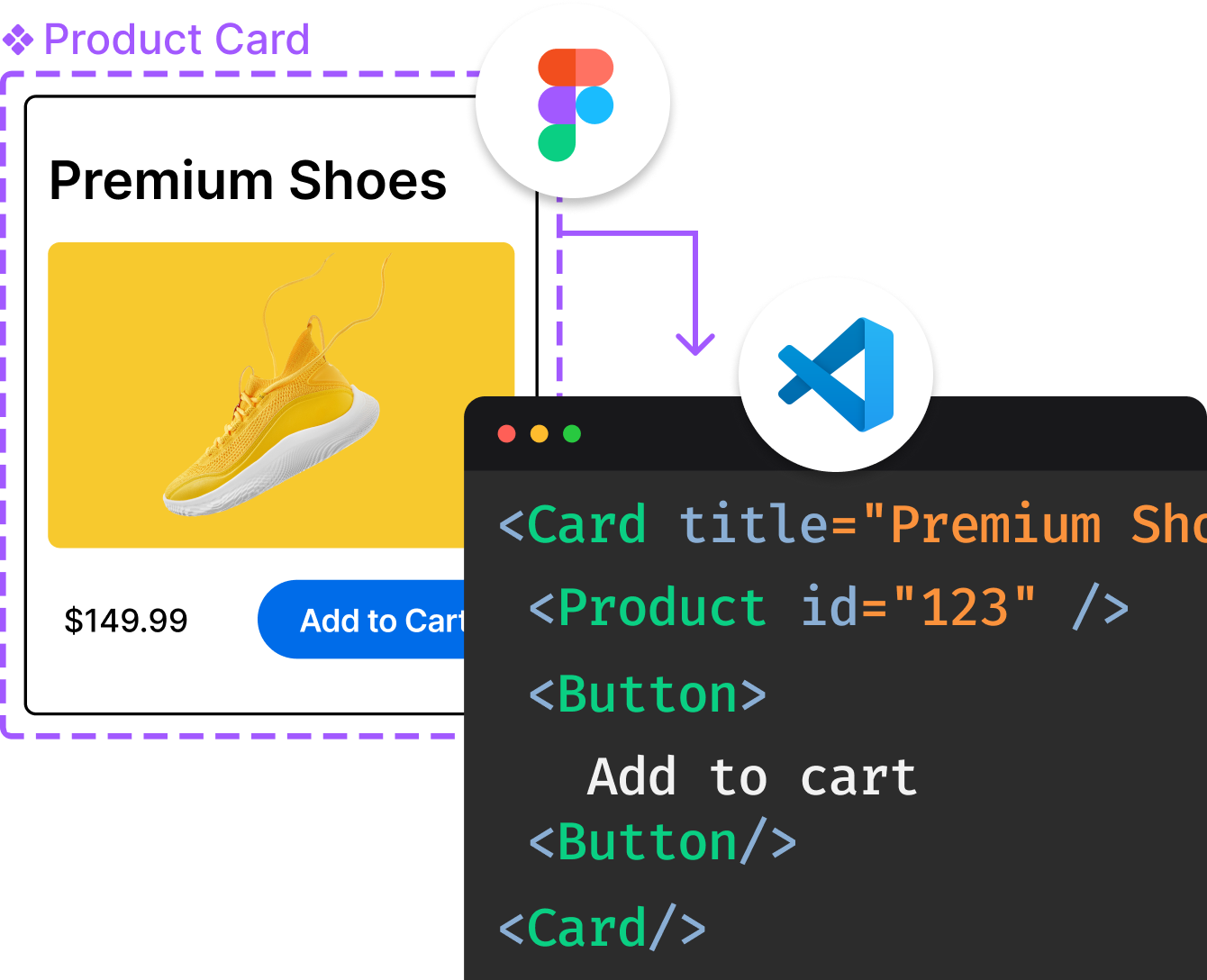
Introducing Visual Copilot: A new AI model to turn Figma designs to high quality code using your components.
Try Visual CopilotREADME
Commander
This repo has moved to https://github.com/commander-rb/commander! Please file issues/PRs there.
Top Related Projects
yargs the modern, pirate-themed successor to optimist.
CLI for generating, building, and releasing oclif CLIs. Built by Salesforce.
A Commander for modern Go CLI interactions
Create *beautiful* command-line interfaces with Python
Smooth (CLI) Operator 🎶
Convert designs to code with AI
Introducing Visual Copilot: A new AI model to turn Figma designs to high quality code using your components.
Try Visual Copilot