
Top Related Projects

Build smaller, faster, and more secure desktop and mobile applications with a web frontend.

Make any web page a desktop application

Clone to try a simple Electron app

Create beautiful applications using Go

Portable and lightweight cross-platform desktop application development framework
Quick Overview
Pake is an open-source tool that allows users to quickly turn any website into a desktop application using Rust. It simplifies the process of creating cross-platform desktop apps from web applications, providing a lightweight alternative to Electron.
Pros
- Fast and lightweight compared to Electron-based alternatives
- Cross-platform support (macOS, Windows, Linux)
- Easy to use with minimal configuration required
- Customizable with various options for app appearance and behavior
Cons
- Limited documentation and examples for advanced use cases
- Fewer features compared to more established frameworks like Electron
- Potential compatibility issues with complex web applications
- Relatively new project, which may lead to stability concerns
Getting Started
To use Pake, follow these steps:
- Install Rust and Cargo (Rust's package manager) on your system.
- Install Pake using Cargo:
cargo install pake-cli
- Create a desktop app from a website:
pake https://example.com
- For more options, use the help command:
pake --help
This will display available customization options such as app name, icon, and window size.
Competitor Comparisons
Build smaller, faster, and more secure desktop and mobile applications with a web frontend.
Pros of Tauri
- More mature and feature-rich framework with extensive documentation
- Supports multiple programming languages (Rust, JavaScript, TypeScript)
- Offers greater customization and control over the application structure
Cons of Tauri
- Steeper learning curve, especially for developers new to Rust
- Larger bundle size due to its comprehensive feature set
- More complex setup process compared to Pake's simplicity
Code Comparison
Pake (simplified web app creation):
pake 'https://example.com' --name 'ExampleApp' --icon 'path/to/icon.png'
Tauri (more complex, but flexible):
#[tauri::command]
fn greet(name: &str) -> String {
    format!("Hello, {}!", name)
}

fn main() {
    tauri::Builder::default()
        .invoke_handler(tauri::generate_handler![greet])
        .run(tauri::generate_context!())
        .expect("error while running tauri application");
}
Pake focuses on quickly converting websites into desktop apps with minimal configuration, while Tauri provides a more comprehensive framework for building cross-platform applications with native performance and advanced features. Pake is ideal for simple web-to-desktop conversions, whereas Tauri is better suited for complex, custom applications requiring fine-grained control and extensive functionality.
Make any web page a desktop application
Pros of Nativefier
- More mature project with a larger community and extensive documentation
- Supports a wider range of platforms, including Windows, macOS, and Linux
- Offers more customization options and command-line arguments
Cons of Nativefier
- Larger app size due to bundling Electron with each app
- Higher resource usage, which can impact system performance
- Slower startup times compared to Pake's Tauri-based apps
Code Comparison
Nativefier:
nativefier --name "My App" --icon icon.png https://example.com
Pake:
pake https://example.com MyApp --icon icon.png
Both tools aim to convert web applications into desktop apps, but they use different underlying technologies. Nativefier uses Electron, while Pake leverages Tauri. This fundamental difference impacts app size, performance, and resource usage.
Nativefier offers more flexibility and options, making it suitable for complex use cases and developers who need fine-grained control. However, this comes at the cost of larger app sizes and higher resource consumption.
Pake, being newer and built on Tauri, produces smaller, more efficient apps with faster startup times. It's ideal for simpler use cases and when minimizing resource usage is a priority. However, it may lack some of the advanced features and customization options available in Nativefier.
Clone to try a simple Electron app
Pros of minimal-repro
- Designed specifically for creating minimal reproducible examples for Electron issues
- Simpler structure, focused on demonstrating Electron-specific problems
- Easier to understand and modify for debugging purposes
Cons of minimal-repro
- Limited functionality, not intended for building full applications
- Lacks features for creating standalone desktop apps from web services
- Requires more manual setup and configuration for each use case
Code Comparison
minimal-repro:
const { app, BrowserWindow } = require('electron')

function createWindow () {
  const win = new BrowserWindow({ width: 800, height: 600 })
  win.loadFile('index.html')
}

app.whenReady().then(createWindow)
Pake:
import { app, BrowserWindow } from 'electron'
import { createWindow } from './window'

app.whenReady().then(() => {
  createWindow()
})
Key Differences
- Pake is designed to quickly turn web apps into desktop applications
- minimal-repro focuses on creating small examples for Electron issue reporting
- Pake offers more features for customizing and packaging desktop apps
- minimal-repro provides a bare-bones structure for isolating Electron-specific problems
- Pake includes additional tools and scripts for app development and distribution
Both projects serve different purposes within the Electron ecosystem, with Pake being more suitable for rapid desktop app creation and minimal-repro for troubleshooting and bug reporting.
Create beautiful applications using Go
Pros of Wails
- More mature and feature-rich framework for building desktop applications
- Supports multiple programming languages (Go, JavaScript, TypeScript)
- Extensive documentation and larger community support
Cons of Wails
- Steeper learning curve, especially for developers new to Go
- Requires more setup and configuration compared to Pake
- Larger application size due to bundled Go runtime
Code Comparison
Pake (JavaScript):
import { pake } from 'pake-cli';

pake({
  url: 'https://example.com',
  name: 'MyApp',
  icon: 'path/to/icon.png'
});
Wails (Go):
package main

import (
    "github.com/wailsapp/wails/v2"
    "github.com/wailsapp/wails/v2/pkg/options"
)

func main() {
    app := wails.CreateApp(&options.App{
        Width:  1024,
        Height: 768,
        Title:  "My Wails App",
    })
    app.Run()
}
Pake focuses on simplicity and quick setup for wrapping web applications, while Wails offers a more comprehensive framework for building native-feeling desktop applications with Go and web technologies. Pake is ideal for rapid prototyping and simple web-to-desktop conversions, whereas Wails is better suited for more complex, feature-rich desktop applications that require deeper integration with the operating system.
Portable and lightweight cross-platform desktop application development framework
Pros of Neutralinojs
- More flexible and customizable, allowing developers to create a wider range of applications
- Better documentation and larger community support
- Cross-platform compatibility with Windows, macOS, and Linux
Cons of Neutralinojs
- Steeper learning curve compared to Pake's simpler approach
- Requires more setup and configuration to get started
- Larger file size and potentially higher resource usage
Code Comparison
Pake (creating a simple window):
import { createWindow } from 'pake';

createWindow({
  url: 'https://example.com',
  width: 800,
  height: 600
});
Neutralinojs (creating a simple window):
const { app, window } = require('neutralino');

app.on('ready', () => {
  window.create('https://example.com', {
    width: 800,
    height: 600
  });
});
Both projects aim to simplify the process of creating desktop applications from web technologies. Pake focuses on quickly turning websites into desktop apps with minimal configuration, while Neutralinojs offers a more comprehensive framework for building cross-platform desktop applications with web technologies. The choice between the two depends on the specific needs of the project and the developer's preferences for simplicity versus flexibility.
Convert  designs to code with AI

Introducing Visual Copilot: A new AI model to turn Figma designs to high quality code using your components.
Try Visual CopilotREADME
English | ç®ä½ä¸æ

Pake
Turn any webpage into a desktop app with one command, supports macOS, Windows, and Linux





Features
- ð Lightweight: Installer is nearly 20 times smaller than Electron packages, typically under 10M on disk
- ð Fast: Built with Rust Tauri, much faster than traditional JS frameworks with lower memory usage
- â¡ Easy to use: One-command packaging via CLI or online building, no complex configuration needed
- ð¦ Feature-rich: Supports shortcuts, immersive windows, drag & drop, style customization, ad removal
Getting Started
- Beginners: Download ready-made Popular Packages or use Online Building with no environment setup required
- Developers: Install CLI Tool for one-command packaging of any website with customizable icons, window settings, and more
- Advanced Users: Clone the project locally for Custom Development, or check Advanced Usage for style customization and feature enhancement
- Troubleshooting: Check FAQ for common issues and solutions
Popular Packages
| WeRead Mac Windows Linux | Twitter Mac Windows Linux |
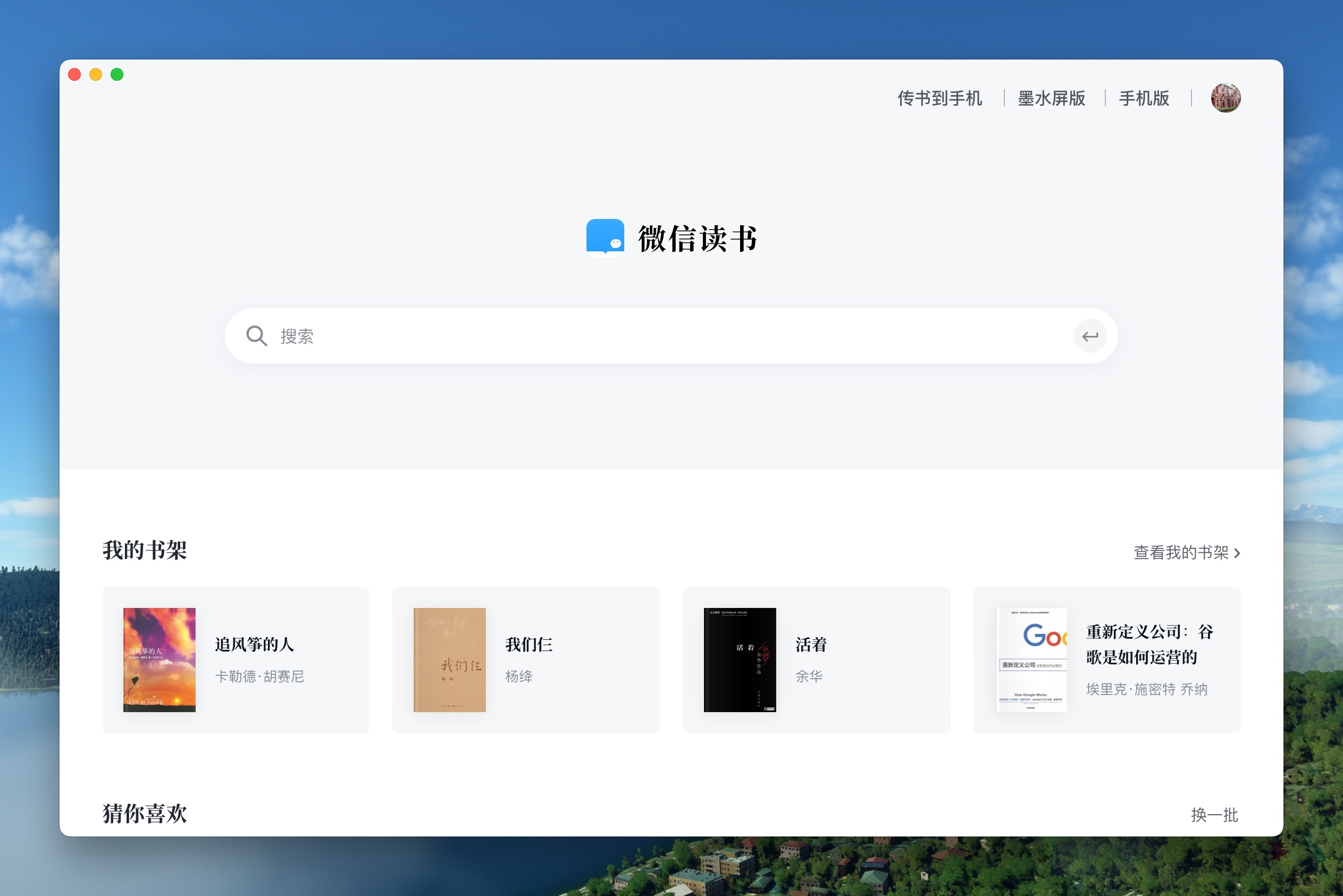 |
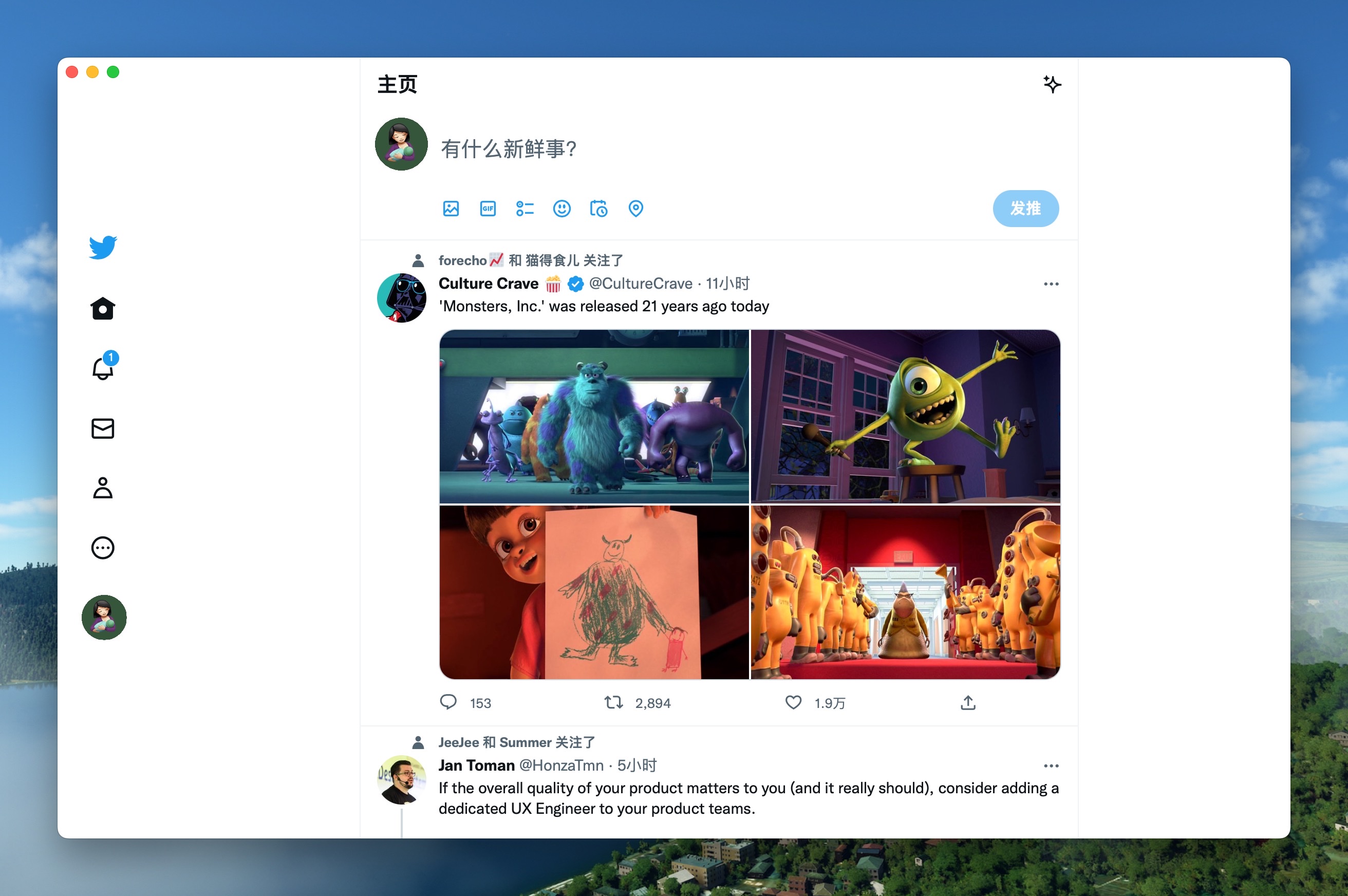 |
| Grok Mac Windows Linux | DeepSeek Mac Windows Linux |
 |
 |
| ChatGPT Mac Windows Linux | Gemini Mac Windows Linux |
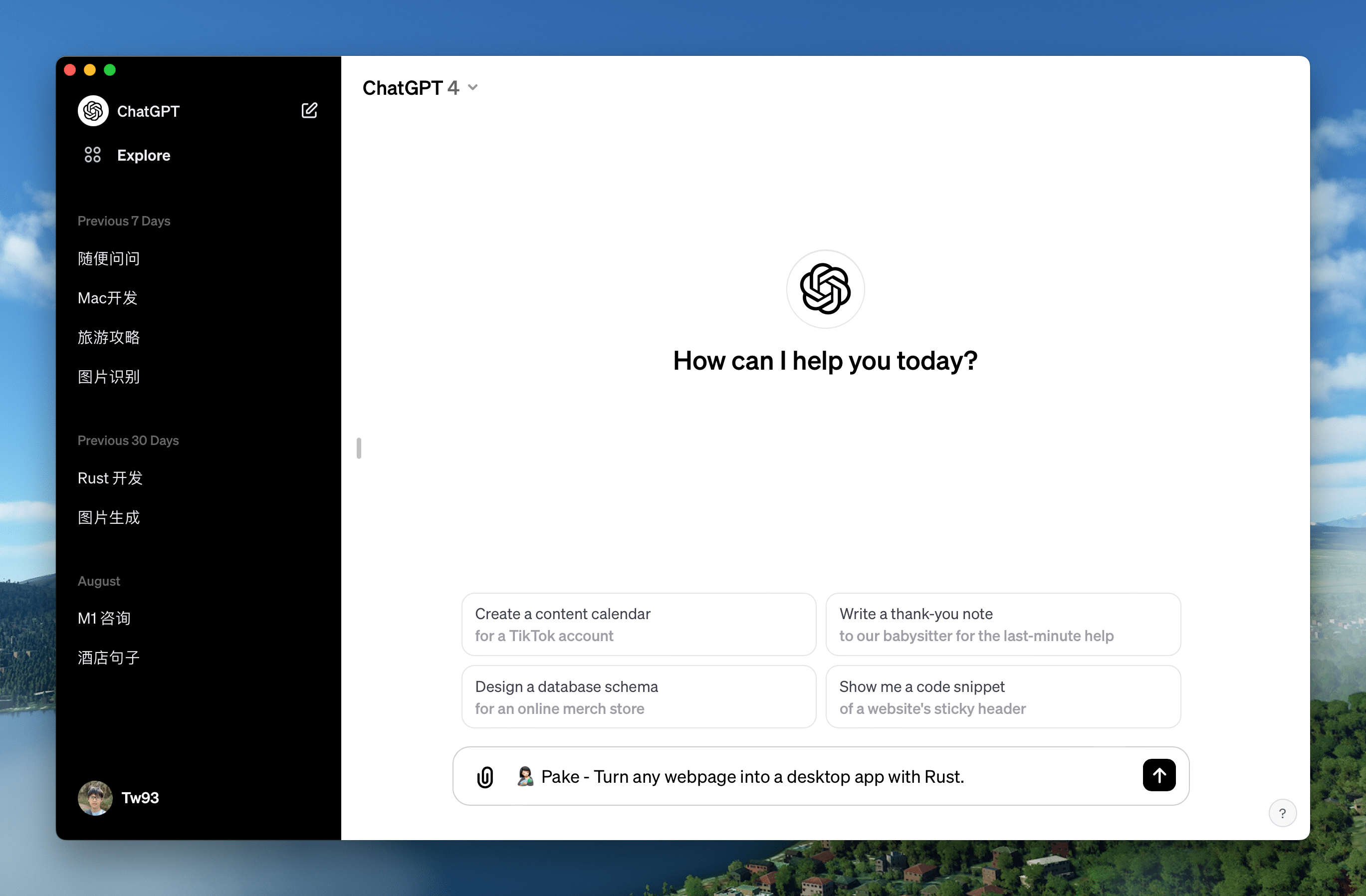 |
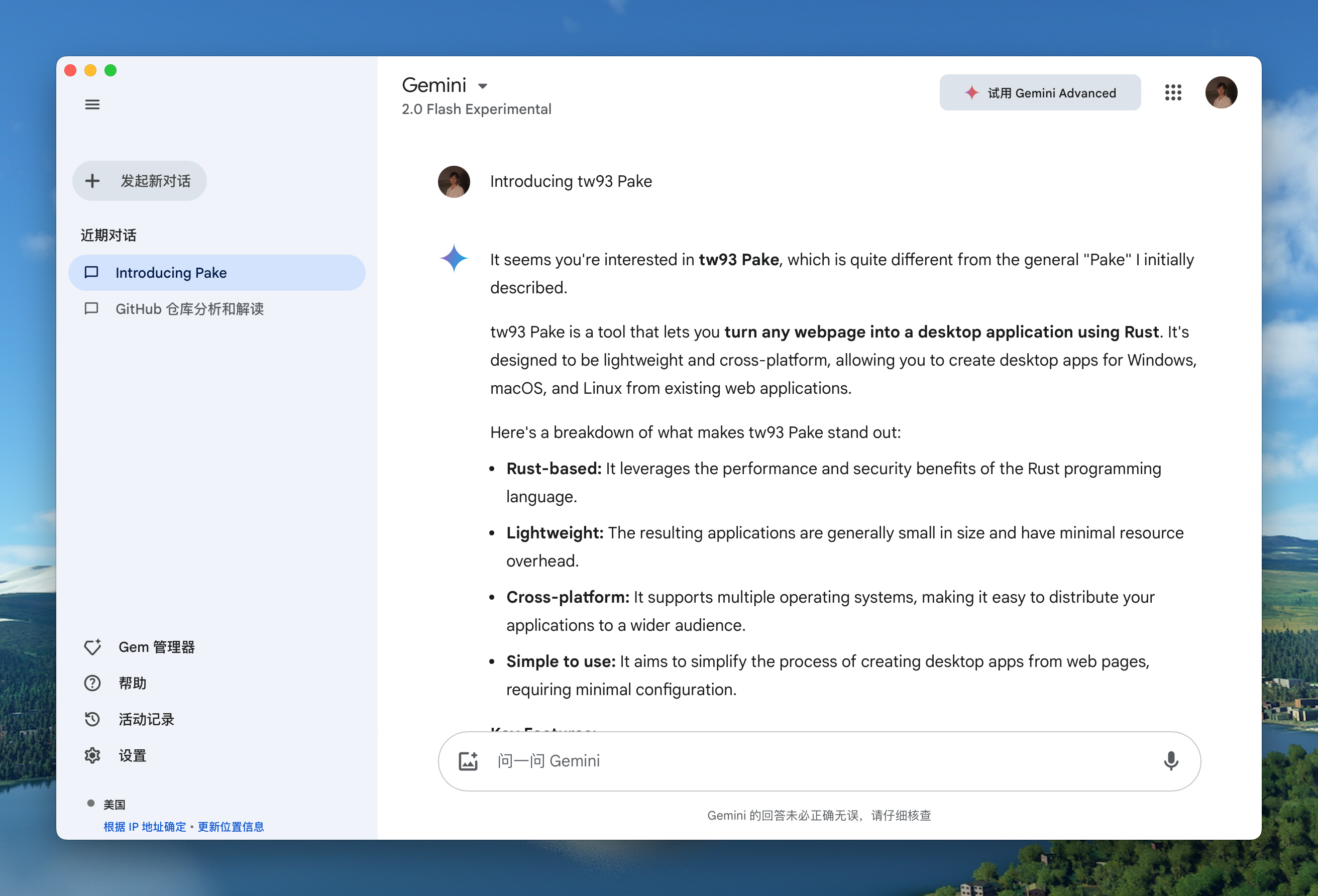 |
| YouTube Music Mac Windows Linux | YouTube Mac Windows Linux |
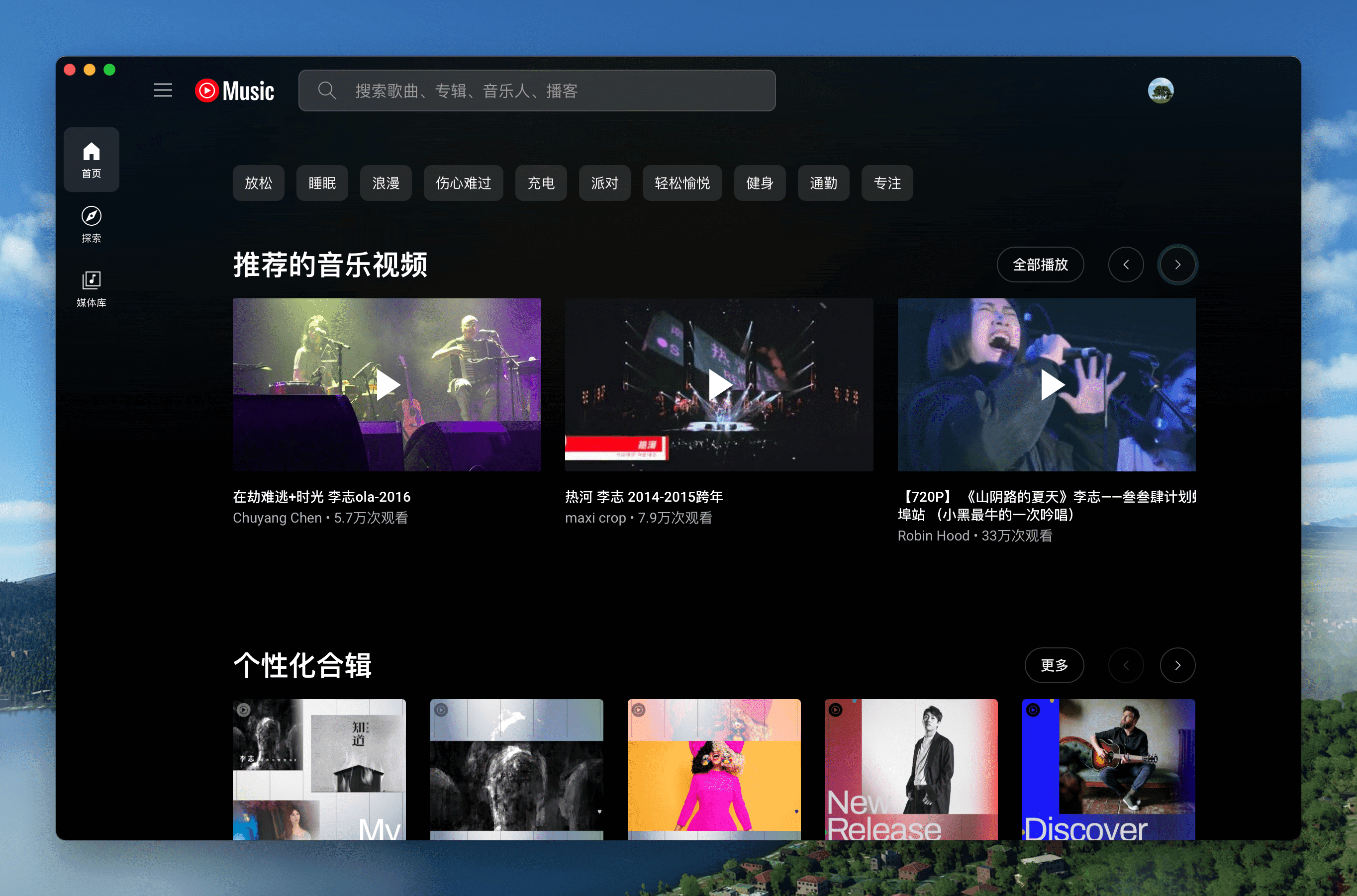 |
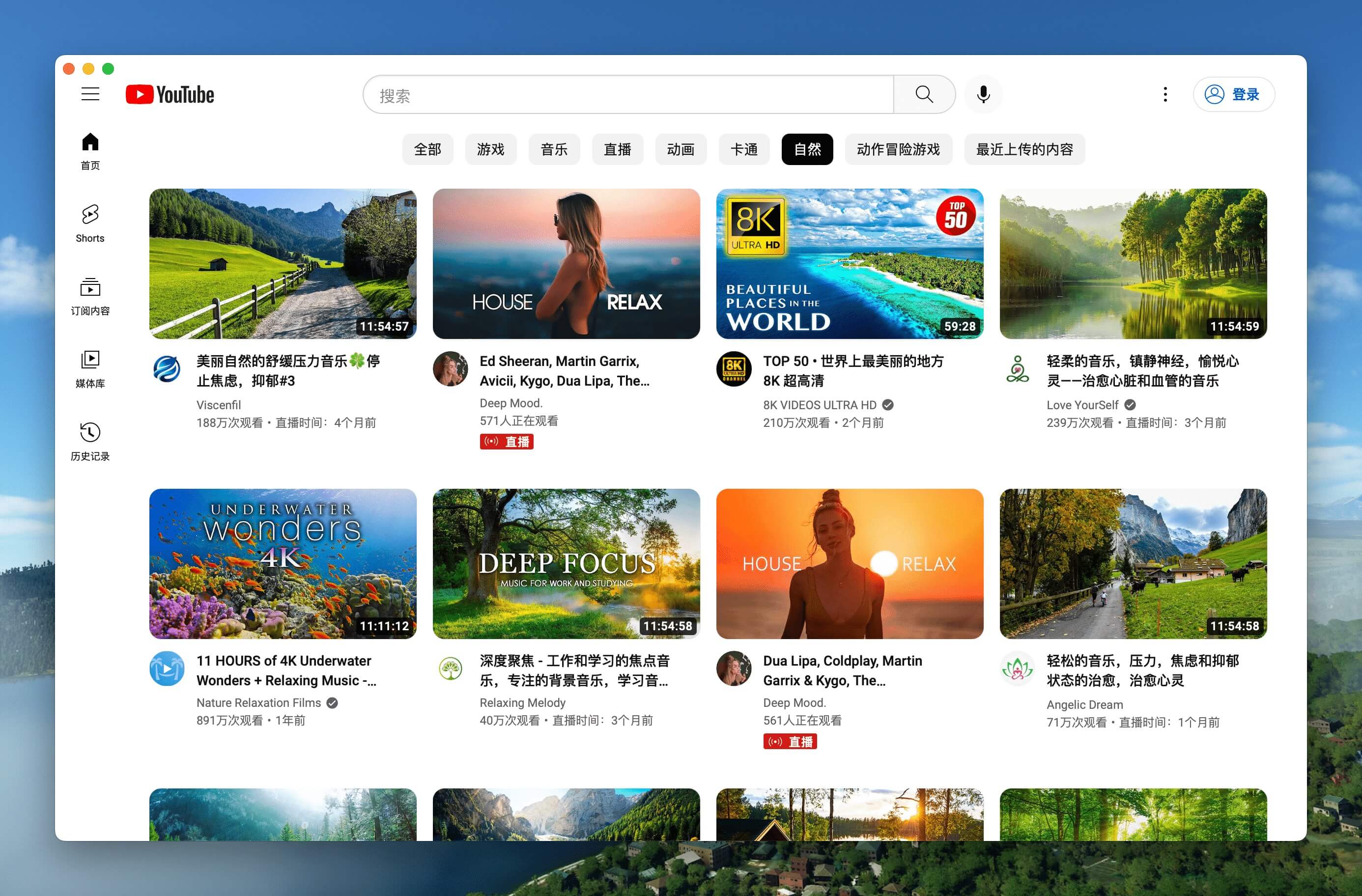 |
| LiZhi Mac Windows Linux | ProgramMusic Mac Windows Linux |
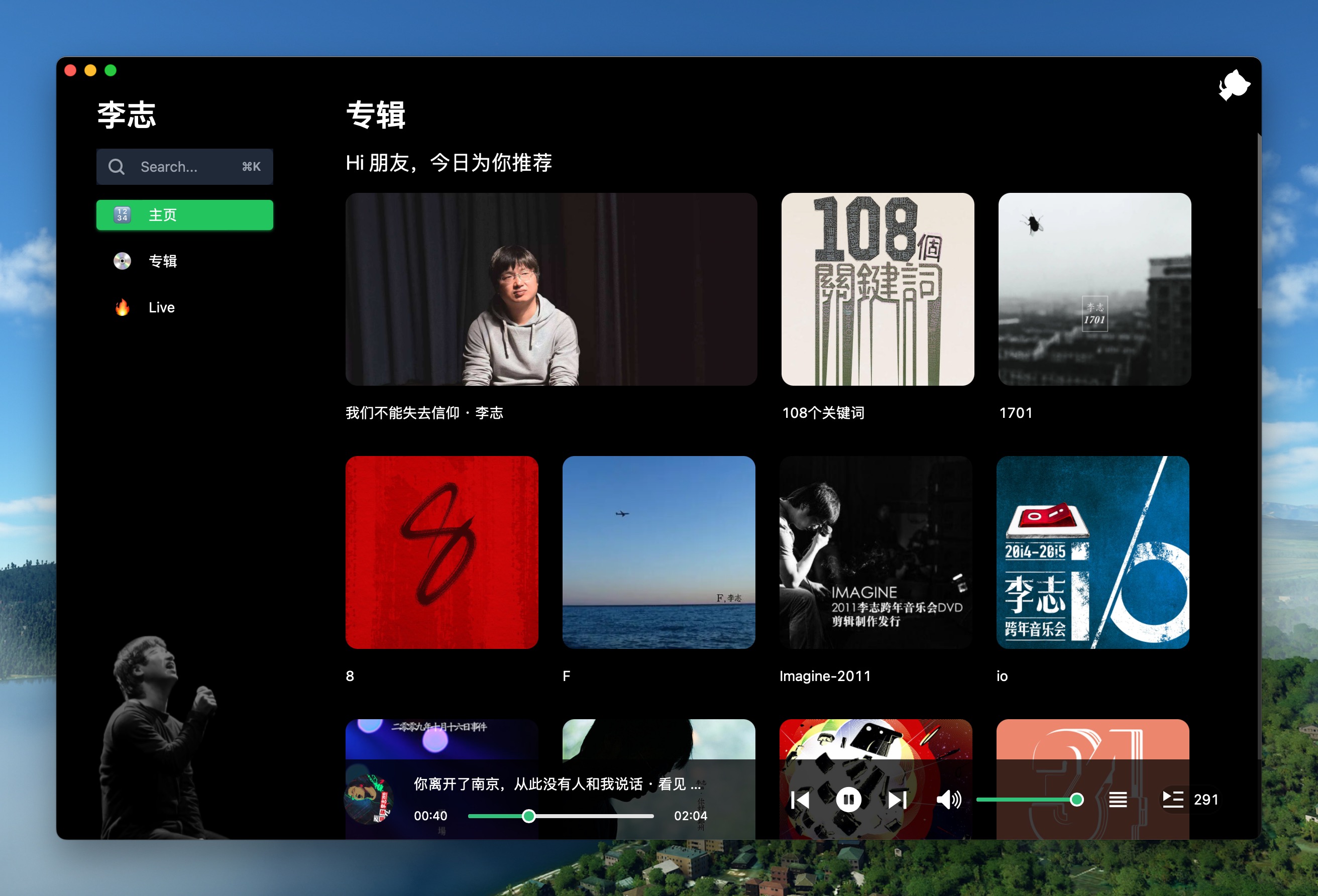 |
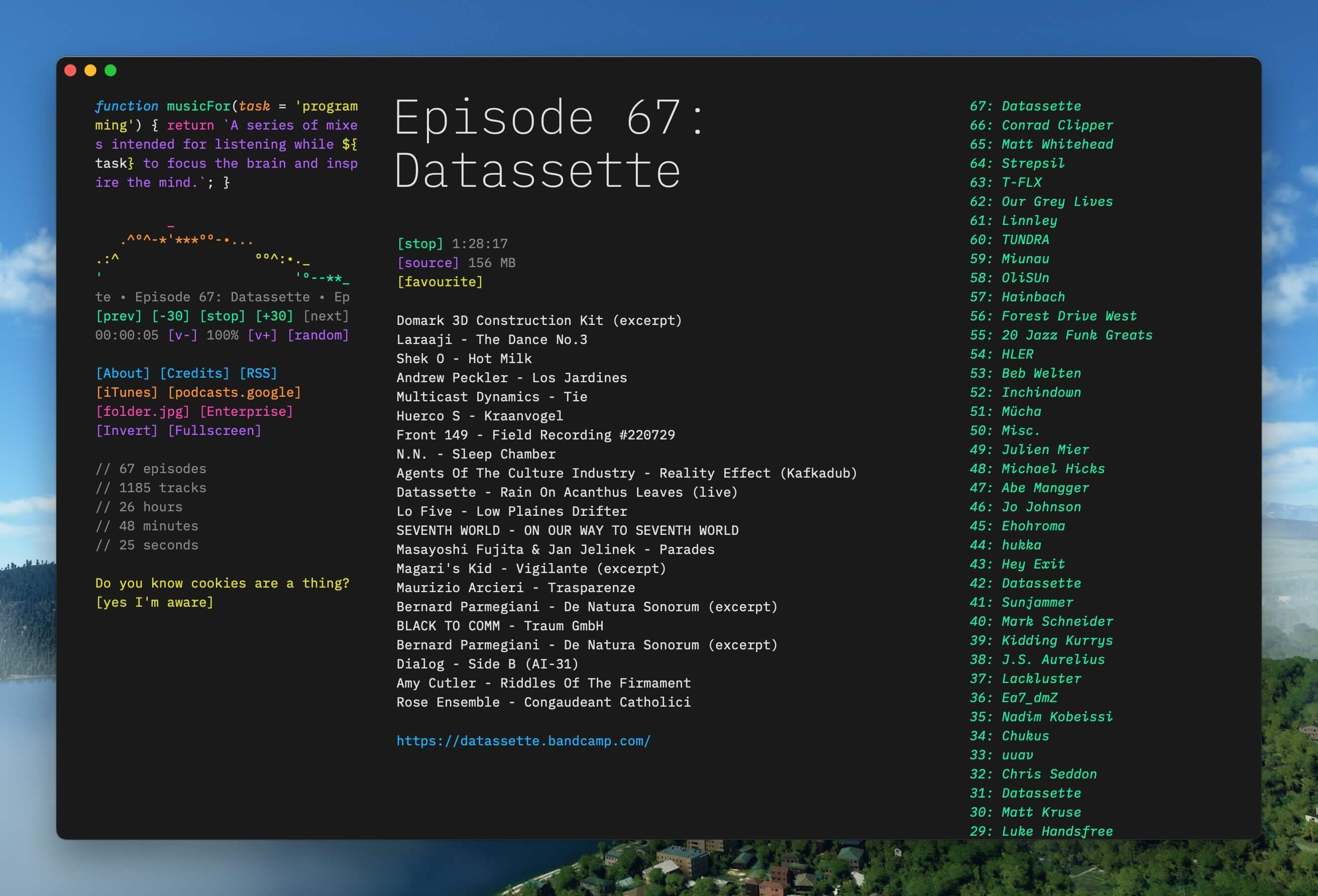 |
| Excalidraw Mac Windows Linux | XiaoHongShu Mac Windows Linux |
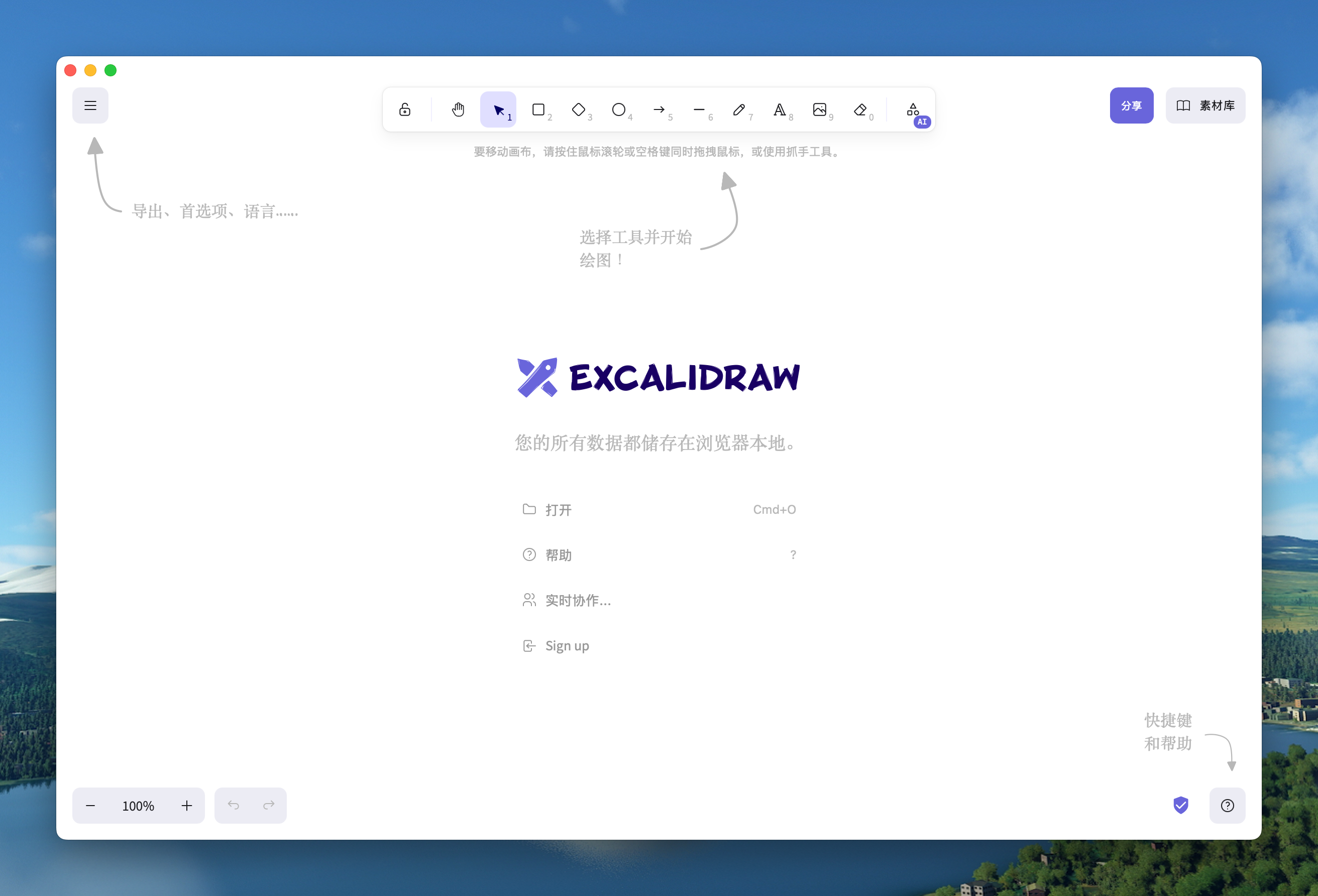 |
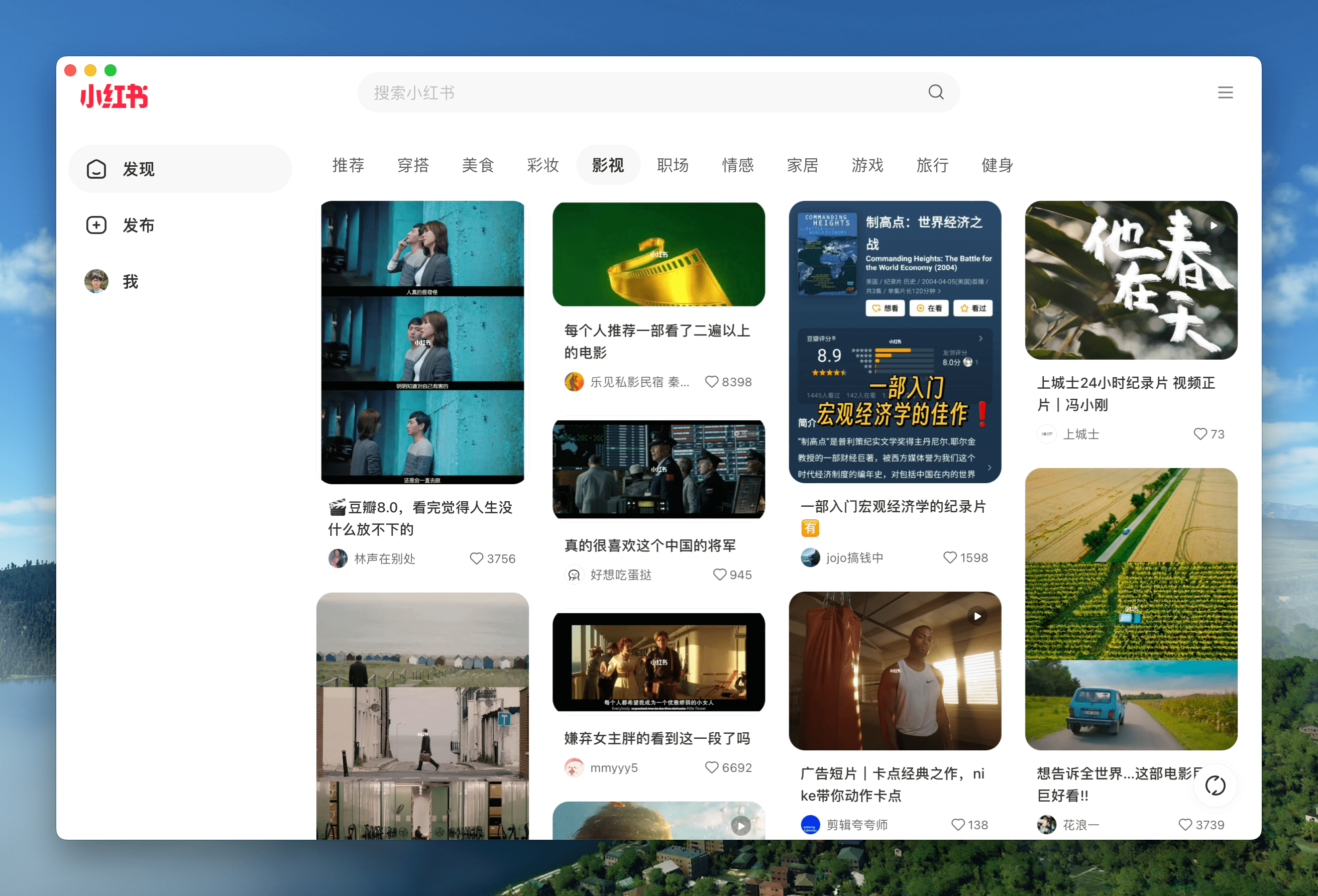 |
| Notion Mac Windows Linux | Flomo Mac Windows Linux |
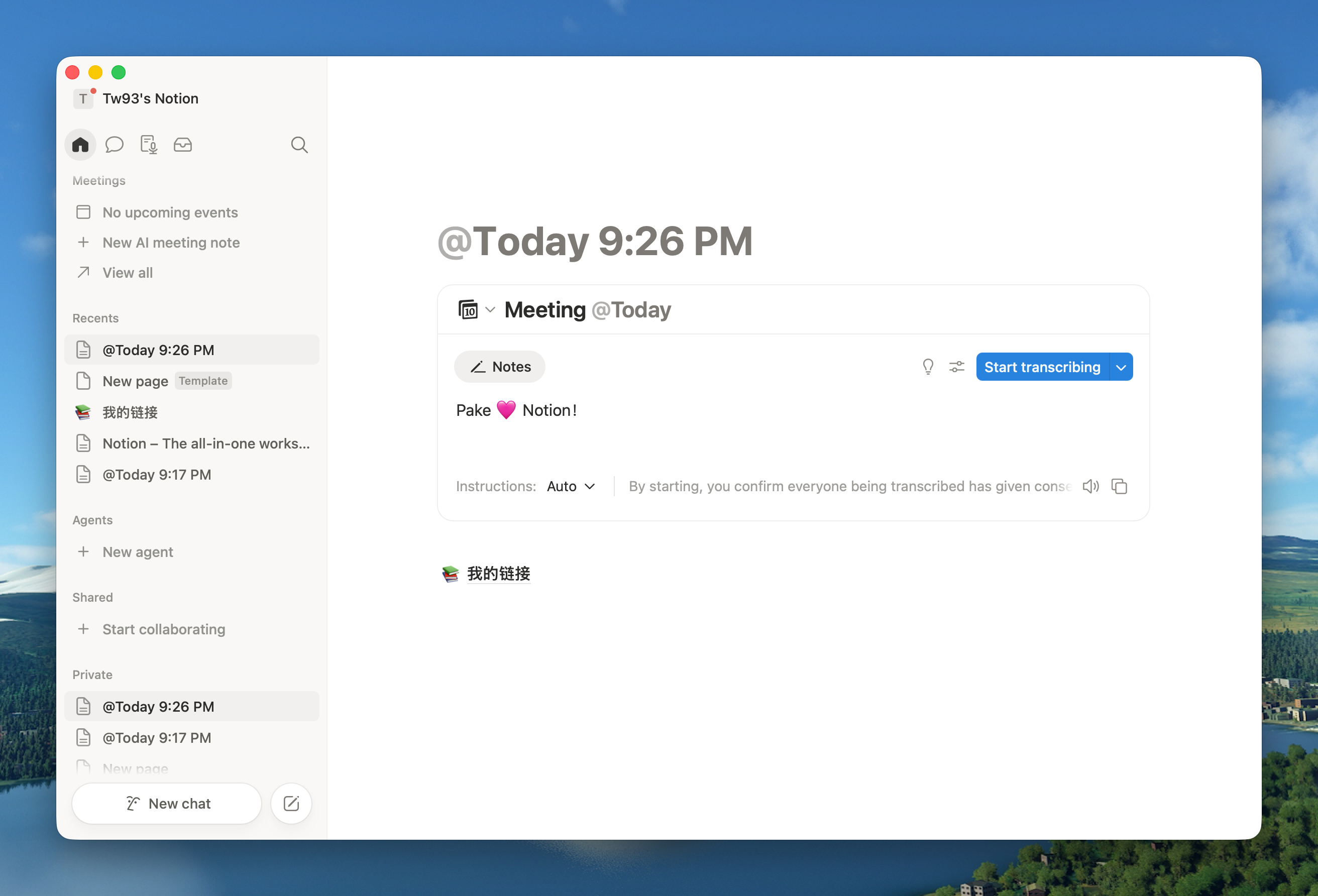 |
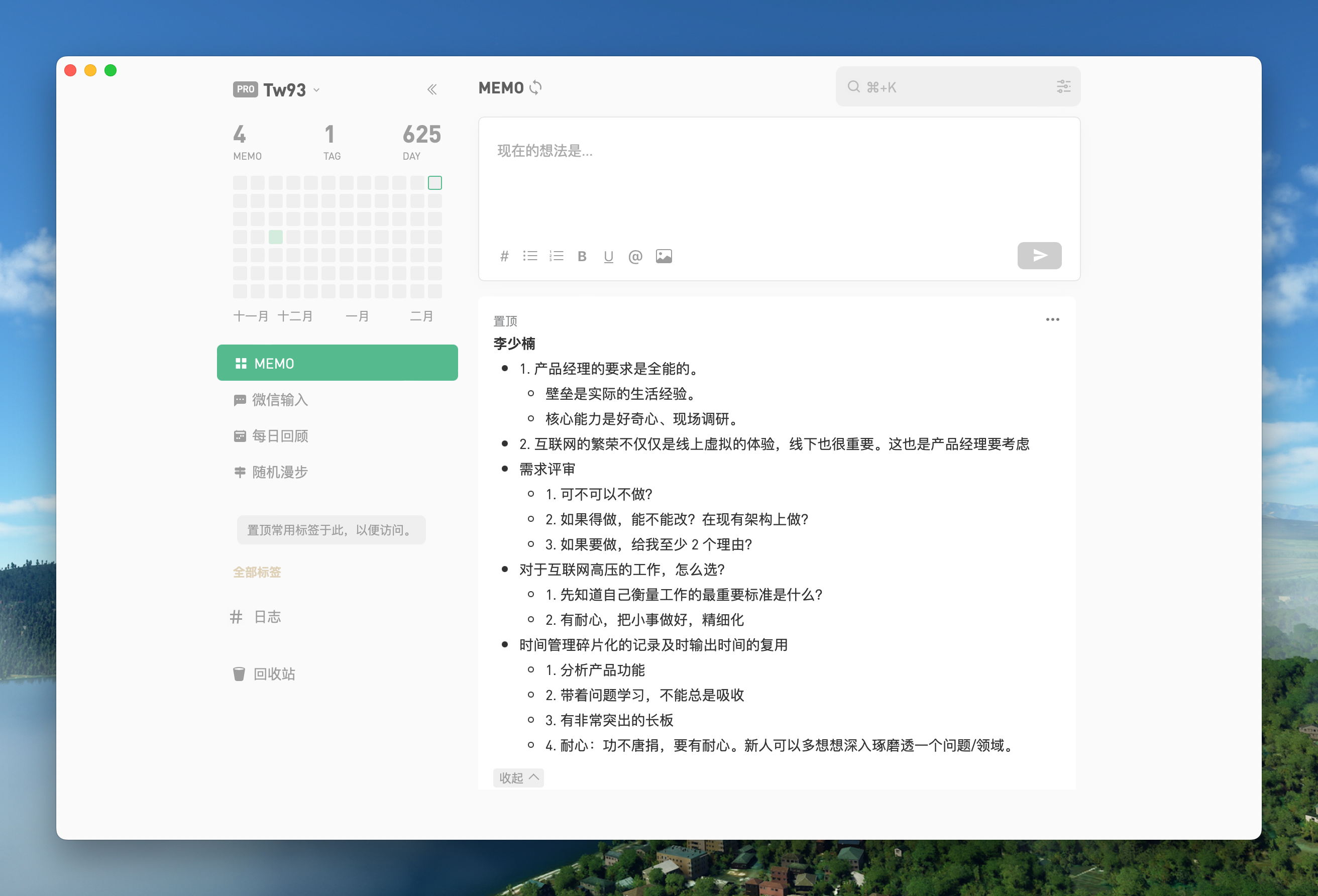 |
ð You can download more applications from Releases. Click here to expand the shortcuts reference!
| Mac | Windows/Linux | Function |
|---|---|---|
| â + [ | Ctrl + â | Return to the previous page |
| â + ] | Ctrl + â | Go to the next page |
| â + â | Ctrl + â | Auto scroll to top of page |
| â + â | Ctrl + â | Auto scroll to bottom of page |
| â + r | Ctrl + r | Refresh Page |
| â + w | Ctrl + w | Hide window, not quit |
| â + - | Ctrl + - | Zoom out the page |
| â + = | Ctrl + = | Zoom in the Page |
| â + 0 | Ctrl + 0 | Reset the page zoom |
| â + L | Ctrl + L | Copy Current Page URL |
| â + ⧠+ ⥠+ V | Ctrl + Shift + V | Paste and Match Style |
| â + ⧠+ H | Ctrl + Shift + H | Go to Home Page |
| â + ⥠+ I | Ctrl + Shift + I | Toggle Developer Tools (Debug Only) |
| â + ⧠+ â« | Ctrl + Shift + Del | Clear Cache & Restart |
| â + â + F | F11 | Toggle native window fullscreen |
In addition, double-click the title bar to switch to full-screen mode. On Windows and Linux, use --hide-window-decorations for a frameless window with a top drag region. For Mac users, you can also use the gesture to go to the previous or next page and drag the title bar to move the window. The new menu also offers options for navigation, zoom, and window controls.
Command-Line Packaging
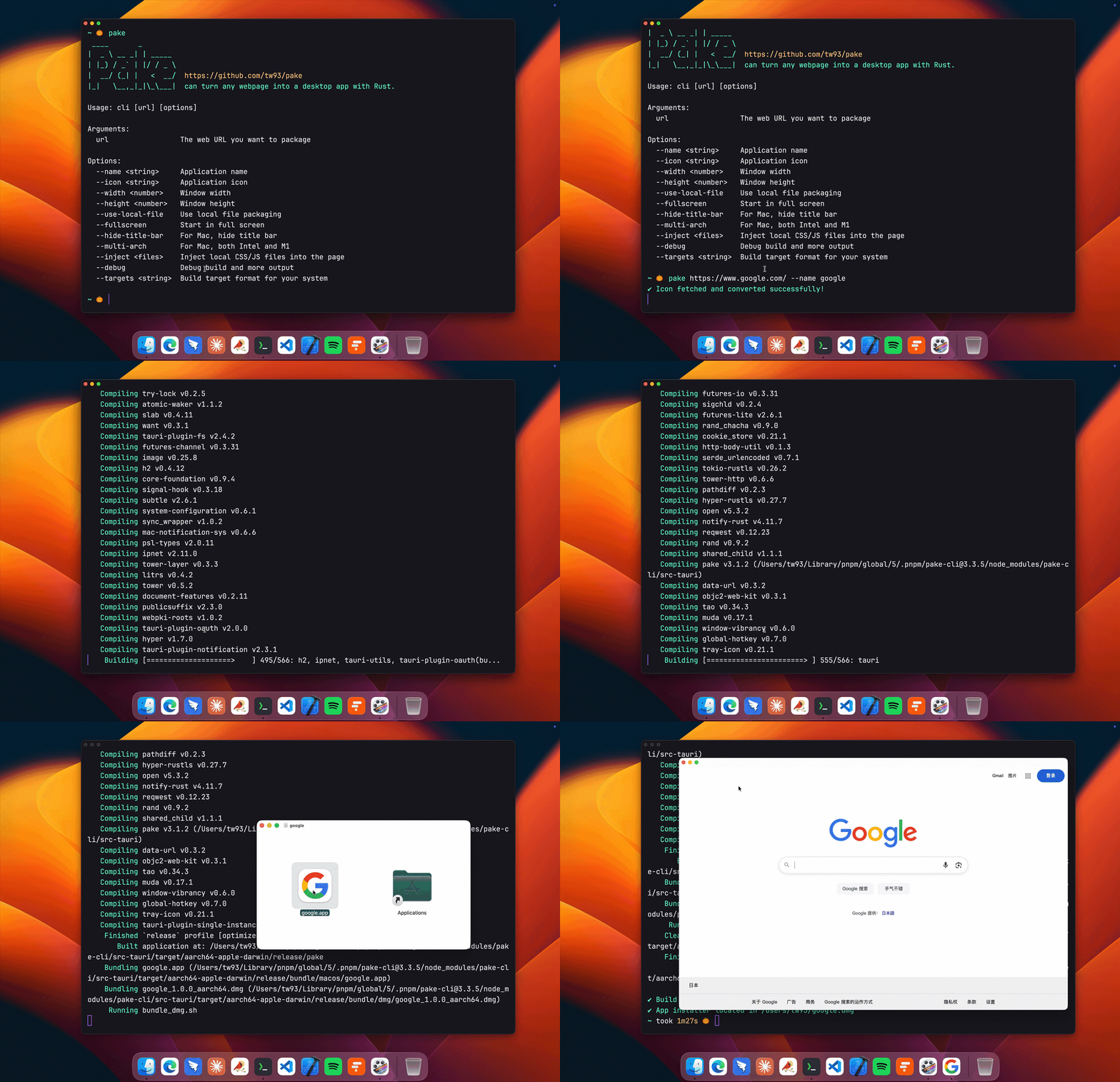
# Install Pake CLI
pnpm install -g pake-cli

# Basic usage - automatically fetches website icon
pake https://github.com --name GitHub

# Advanced usage with custom options
pake https://weekly.tw93.fun --name Weekly --icon https://cdn.tw93.fun/pake/weekly.icns --width 1200 --height 800 --hide-title-bar
First-time packaging requires environment setup and may be slower, subsequent builds are fast. For complete parameter documentation, see CLI Usage Guide. Don't want to use CLI? Try GitHub Actions Online Building.
Using Pake from a script or AI agent? Pass --json for machine-readable results, describe apps declaratively with --config app.json (schema), and package local build output directly with pake ./dist --name MyTool. See llms.txt for the full agent contract. Claude Code users can install the official skill with /plugin marketplace add tw93/Pake and /plugin install pake@pake.
Copy this to your AI agent to get started:
Use Pake (npm i -g pake-cli) to package webpages as desktop apps. Read https://unpkg.com/pake-cli@latest/llms.txt first; always run pake with --json and parse stdout as a single JSON object. Package <url-or-local-dist> into an app named <AppName>.
Development
Requires Rust >=1.85 and Node >=22 (recommended LTS; >=18 also works). For detailed installation guide, see Tauri documentation. If unfamiliar with development environment, use the CLI tool instead.
# Install dependencies
pnpm i

# Local development [right-click to open debug mode]
pnpm run dev

# Build application
pnpm run build
For style customization, feature enhancement, container communication and other advanced features, see Advanced Usage Documentation.
Developers
Pake's development can not be without these Hackers. They contributed a lot of capabilities for Pake. Also, welcome to follow them! â¤ï¸

Support
- The most direct way to support me is getting Mole for Mac, my paid Mac cleanup app.
- If Pake helped you, give it a star, share it, or open an issue or PR.
- I have two cats, TangYuan and Coke. If you think Pake delights your life, you can feed them canned food ð¥©.
These lovely people already did ð±

License
Pake is open source under GPL-3.0, see LICENSE and Pake Output Exception; apps you build with Pake are entirely yours to use and distribute. If you fork Pake into your own product, to avoid confusion please give it a different name and credit Pake as the source.
Top Related Projects
Build smaller, faster, and more secure desktop and mobile applications with a web frontend.
Make any web page a desktop application
Clone to try a simple Electron app
Create beautiful applications using Go
Portable and lightweight cross-platform desktop application development framework
Convert designs to code with AI
Introducing Visual Copilot: A new AI model to turn Figma designs to high quality code using your components.
Try Visual Copilot