 flycut-caption
A complete video subtitle editing React component with AI-powered speech recognition and visual editing capabilities.
Quick Overview
Error generating quick overview
Convert  designs to code with AI
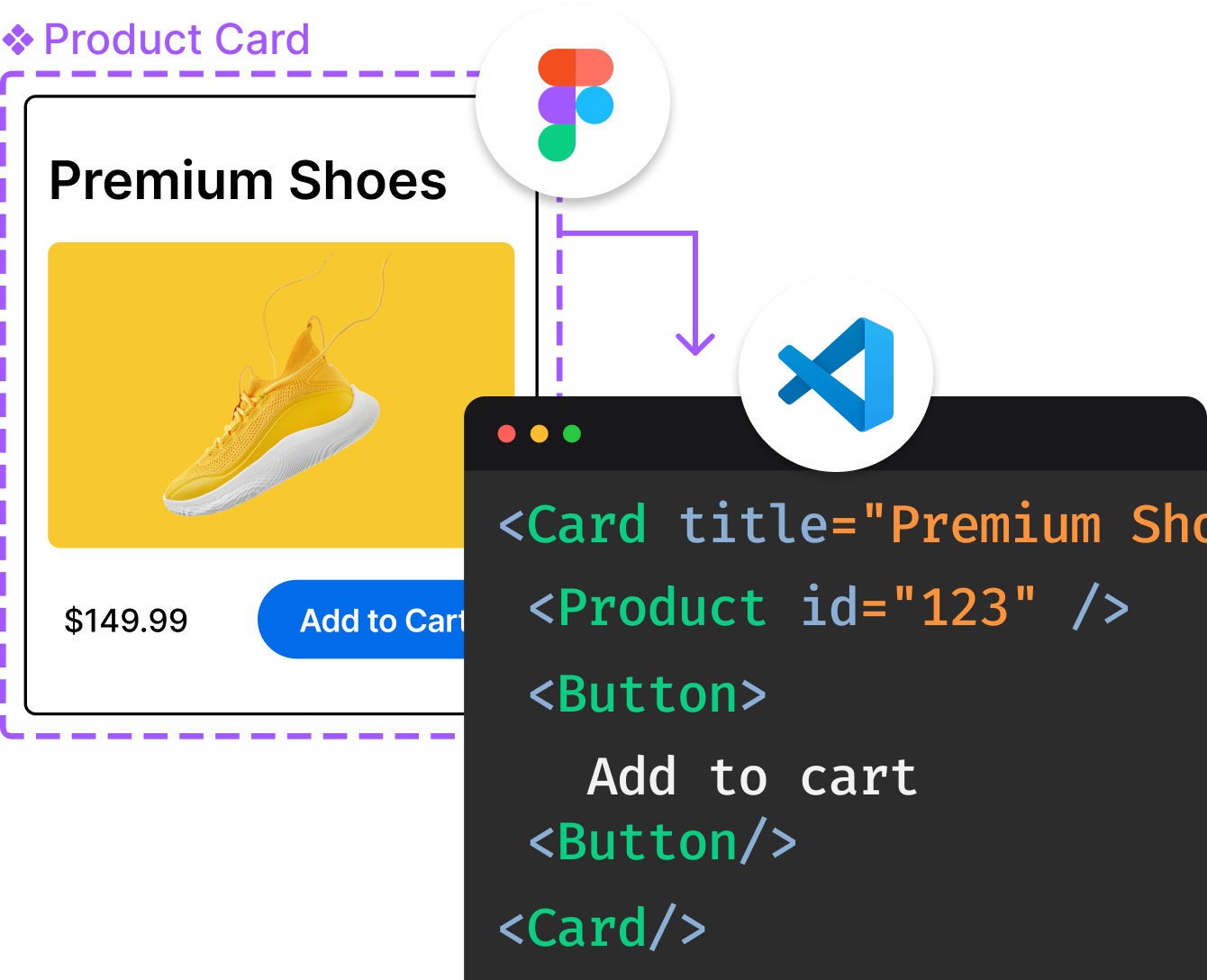
Introducing Visual Copilot: A new AI model to turn Figma designs to high quality code using your components.
Try Visual CopilotREADME
FlyCut Caption - AI-Powered Video Subtitle Editing Tool

A powerful AI-driven video subtitle editing tool focused on intelligent subtitle generation, bilingual editing, smart blank cutting, and hard-burn export.
⨠Features
ð¯ Core Features
- ð¤ Intelligent Speech Recognition: High-precision ASR with Whisper (browser) and FunASR (desktop/Tauri), word-level timestamps
- ð Bilingual Subtitles: Primary + secondary tracks, AI translation (e.g. Chinese â English), dual-track editing
- âï¸ Visual Subtitle Editing: Select, delete, restore segments; word-level mark/delete modes
- â¡ Smart Cut Blank: One-click detect and remove silent gaps to tighten the cut
- ð¬ Real-time Preview: Player synced with timeline; preview mode skips deleted segments
- ð¨ Subtitle Style Customization: Fonts, colors, presets, dual-track layout
- ð¤ Multi-format Export: SRT / JSON subtitles, clip-only video, or hard-burn dual subtitles into the video
- 𧪠Sample Video: One-click load a cloud sample to try the full pipeline
ð§ Technical Features
- â¡ Modern Tech Stack: React 19 + TypeScript + Vite + Tailwind CSS 4 + Tauri
- ð§ Local AI Processing: Browser models via Transformers.js; desktop FunASR sidecar for higher quality
- ð¯ Web Workers / Sidecars: ASR and encoding stay off the UI thread
- ð± Responsive Design: Modern workstation UI adapted to different screen sizes
- ðª Component Architecture: Modular design, easy to maintain and extend
ð Quick Start
Prerequisites
- Node.js 18+
- pnpm (recommended) or npm
Installation Steps
- Clone the project
git clone https://github.com/x007xyz/flycut-caption.git
cd flycut-caption
- Install dependencies
pnpm install
- Start development server
pnpm dev
- Open browser
http://localhost:5173
Build for Production
# Build project
pnpm build

# Preview build result
pnpm preview
ð User Guide
1. Upload Video Files
- Supported formats: MP4, WebM, AVI, MOV
- Supported audio: MP3, WAV, OGG
- Drag and drop files, pick a local file, or click Use sample video to try instantly

2. Generate Subtitles
- Choose ASR engine / model and recognition language
- Click start recognition; AI generates timestamped subtitles in the background
- Desktop builds can use FunASR for higher accuracy on longer clips

3. Edit Subtitles & Translate
- Dual tracks: Primary + secondary (bilingual) list and timeline
- AI translation: Translate the full track (e.g. Deepseek â English)
- Select / delete: Segment-level or word-level mark & remove
- History: Undo / redo supported
4. Smart Cut Blank
- Click Smart Cut Blank to detect long silences and mark them for removal
- Timeline shows kept (green) vs removed (red) regions
- Preview mode plays only kept segments so you can judge the cut before export

5. Video Preview
- Preview mode: Automatically skip deleted segments to preview final result
- Keyboard shortcuts:
Space: Play/Pauseâ/â: Rewind/Fast forward 5 secondsShift + â/â: Rewind/Fast forward 10 secondsâ/â: Adjust volumeM: Mute/UnmuteF: Fullscreen
6. Subtitle Styling
- Font settings: Font size, weight, color, presets
- Dual layout: Primary / secondary track styles independently
- Background style: Background color, transparency, border
- Real-time preview: WYSIWYG style adjustment on the player
7. Export Results
- Subtitle export: SRT, JSON, and other subtitle formats
- Video export:
- Keep only non-deleted segments (smart cut applied)
- Optional hard-burn of dual subtitles into the video
- Hardware-accelerated encode on desktop when available

ð Internationalization Design
FlyCut Caption adopts componentized internationalization design, supporting flexible language pack management and real-time language switching. The component can automatically sync external language changes with internal UI components.
Built-in Language Packs
import { FlyCutCaption, zhCN, enUS } from '@flycut/caption-react'

// Use built-in Chinese language pack
<FlyCutCaption
  config={{ language: 'zh' }}
  locale={zhCN}
/>

// Use built-in English language pack
<FlyCutCaption
  config={{ language: 'en' }}
  locale={enUS}
/>
Custom Language Packs
import { FlyCutCaption, type FlyCutCaptionLocale } from '@flycut/caption-react'
// Create custom language pack (Japanese example)
const customJaJP: FlyCutCaptionLocale = {
common: {
loading: 'èªã¿è¾¼ã¿ä¸...',
error: 'ã¨ã©ã¼',
success: 'æå',
confirm: '確èª',
cancel: 'ãã£ã³ã»ã«',
ok: 'OK',
// ... more common translations
},
components: {
fileUpload: {
dragDropText: 'ãããªãã¡ã¤ã«ãããã«ãã©ãã°ããããã¯ãªãã¯ãã¦é¸æ',
selectFile: 'ãã¡ã¤ã«ãé¸æ',
supportedFormats: 'ãµãã¼ãå½¢å¼ï¼',
// ... more component translations
},
subtitleEditor: {
title: 'åå¹ã¨ãã£ã¿ã¼',
addSubtitle: 'åå¹ã追å ',
deleteSelected: 'é¸æé
ç®ãåé¤',
// ... more editor translations
},
// ... other component translations
},
messages: {
fileUpload: {
uploadSuccess: 'ãã¡ã¤ã«ã¢ãããã¼ãæå',
uploadFailed: 'ãã¡ã¤ã«ã¢ãããã¼ã失æ',
// ... more message translations
},
// ... other message translations
}
}
// Use custom language pack
<FlyCutCaption
config={{ language: 'ja' }}
locale={customJaJP}
/>
Componentized Language Switching
The new componentized approach provides better language synchronization between external controls and internal components:
import { useState } from 'react'
import { FlyCutCaption, zhCN, enUS, type FlyCutCaptionLocale } from '@flycut/caption-react'
function App() {
const [currentLanguage, setCurrentLanguage] = useState('zh')
const [currentLocale, setCurrentLocale] = useState<FlyCutCaptionLocale | undefined>(undefined)
const handleLanguageChange = (language: string) => {
console.log('Language switched to:', language)
setCurrentLanguage(language)
// Set corresponding language pack based on language
switch (language) {
case 'zh':
case 'zh-CN':
setCurrentLocale(zhCN)
break
case 'en':
case 'en-US':
setCurrentLocale(enUS)
break
case 'ja':
case 'ja-JP':
setCurrentLocale(customJaJP) // Custom Japanese pack
break
default:
setCurrentLocale(undefined) // Use default language pack
}
}
return (
<div className="min-h-screen bg-background">
<div className="container mx-auto py-8">
<h1 className="text-3xl font-bold text-center mb-8">
FlyCut Caption Internationalization Demo
</h1>
{/* External Language Controls */}
<div className="mb-8 text-center space-y-4">
<div>
<h2 className="text-xl font-semibold mb-4">Language Switcher</h2>
<div className="flex justify-center gap-4">
<button
className={`px-4 py-2 rounded ${currentLanguage === 'zh' ? 'bg-primary text-primary-foreground' : 'bg-secondary'}`}
onClick={() => handleLanguageChange('zh')}
>
ä¸æ (Built-in)
</button>
<button
className={`px-4 py-2 rounded ${currentLanguage === 'en' ? 'bg-primary text-primary-foreground' : 'bg-secondary'}`}
onClick={() => handleLanguageChange('en')}
>
English (Built-in)
</button>
<button
className={`px-4 py-2 rounded ${currentLanguage === 'ja' ? 'bg-primary text-primary-foreground' : 'bg-secondary'}`}
onClick={() => handleLanguageChange('ja')}
>
æ¥æ¬èª (Custom)
</button>
</div>
</div>
<div className="bg-muted p-4 rounded-lg">
<p className="text-sm">
<strong>Current Language:</strong> {currentLanguage}
</p>
<p className="text-sm">
<strong>Language Pack Type:</strong> {currentLocale ? 'Custom Language Pack' : 'Built-in Language Pack'}
</p>
</div>
</div>
{/* FlyCut Caption Component */}
<div className="border rounded-lg p-4">
<h2 className="text-xl font-semibold mb-4">FlyCut Caption Component</h2>
<FlyCutCaption
config={{
theme: 'auto',
language: currentLanguage,
enableThemeToggle: true,
enableLanguageSelector: true // Internal language selector will sync with external changes
}}
locale={currentLocale}
onLanguageChange={handleLanguageChange} // Sync internal changes back to external state
onError={(error) => {
console.error('Component error:', error)
}}
onProgress={(stage, progress) => {
console.log(`Progress: ${stage} - ${progress}%`)
}}
/>
</div>
</div>
</div>
)
}
Available Language Packs
| Language | Import | Description |
|---|---|---|
| Chinese (Simplified) | zhCN | ç®ä½ä¸æ |
| English (US) | enUS | English (United States) |
| Default | defaultLocale | Same as zhCN |
Language Pack API
// Import language pack utilities
import { LocaleProvider, useLocale, useTranslation } from '@flycut/caption-react'

// Use LocaleProvider for nested components
<LocaleProvider language="zh" locale={zhCN}>
  <YourComponent />
</LocaleProvider>

// Access language pack context
const { t, setLanguage, registerLocale } = useLocale()

// Register custom language pack
registerLocale('fr', frenchLocale)

// Programmatic language switching
setLanguage('fr')
ð Detailed internationalization guide: See INTERNATIONALIZATION.md for complete documentation on language packs, custom localization and advanced i18n features.
ð Usage Guide
1. Installation & Setup
# Install package
npm install @flycut/caption-react

# TypeScript projects don't need additional type packages
# Type definitions are included
2. Import Styles
The component requires CSS styles to work properly:
import '@flycut/caption-react/styles'
// or specific CSS file
import '@flycut/caption-react/dist/caption-react.css'
3. Basic Integration
import { FlyCutCaption } from '@flycut/caption-react'
import '@flycut/caption-react/styles'

function VideoEditor() {
  return (
    <div className="video-editor-container">
      <FlyCutCaption />
    </div>
  )
}
4. Event Handling
import { FlyCutCaption } from '@flycut/caption-react'

function VideoEditorWithEvents() {
  const handleFileSelected = (file: File) => {
    console.log('Selected file:', file.name, file.size)
  }

  const handleSubtitleGenerated = (subtitles: SubtitleChunk[]) => {
    console.log('Generated subtitles:', subtitles.length)
    // Save subtitles to backend
    saveSubtitles(subtitles)
  }

  const handleVideoProcessed = (blob: Blob, filename: string) => {
    // Handle processed video
    const url = URL.createObjectURL(blob)
    // Download or upload to server
    downloadFile(url, filename)
  }

  const handleError = (error: Error) => {
    // Handle errors gracefully
    console.error('FlyCut Caption error:', error)
    showErrorNotification(error.message)
  }

  return (
    <FlyCutCaption
      onFileSelected={handleFileSelected}
      onSubtitleGenerated={handleSubtitleGenerated}
      onVideoProcessed={handleVideoProcessed}
      onError={handleError}
    />
  )
}
5. Configuration Options
import { FlyCutCaption } from '@flycut/caption-react'

function ConfiguredEditor() {
  const config = {
    // Theme settings
    theme: 'dark' as const,

    // Language settings
    language: 'zh-CN',
    asrLanguage: 'zh',

    // Feature toggles
    enableDragDrop: true,
    enableExport: true,
    enableVideoProcessing: true,
    enableThemeToggle: true,
    enableLanguageSelector: true,

    // File constraints
    maxFileSize: 1000, // 1GB
    supportedFormats: ['mp4', 'webm', 'mov']
  }

  return (
    <FlyCutCaption config={config} />
  )
}
6. Custom Styling
import { FlyCutCaption } from '@flycut/caption-react'
import './custom-styles.css'

function StyledEditor() {
  return (
    <FlyCutCaption
      className="my-custom-editor"
      style={{
        borderRadius: '8px',
        boxShadow: '0 4px 6px rgba(0, 0, 0, 0.1)'
      }}
    />
  )
}
/* custom-styles.css */
.my-custom-editor {
  --flycut-primary: #10b981;
  --flycut-border-radius: 12px;
}

.my-custom-editor .subtitle-item {
  border-radius: var(--flycut-border-radius);
}
ð API Reference
FlyCutCaptionProps
| Property | Type | Default | Description |
|---|---|---|---|
className | string | undefined | Custom CSS class name |
style | CSSProperties | undefined | Custom inline styles |
config | FlyCutCaptionConfig | defaultConfig | Component configuration |
locale | FlyCutCaptionLocale | undefined | Custom language pack |
onReady | () => void | undefined | Called when component is ready |
onFileSelected | (file: File) => void | undefined | Called when a file is selected |
onSubtitleGenerated | (subtitles: SubtitleChunk[]) => void | undefined | Called when subtitles are generated |
onSubtitleChanged | (subtitles: SubtitleChunk[]) => void | undefined | Called when subtitles are changed |
onVideoProcessed | (blob: Blob, filename: string) => void | undefined | Called when video processing is complete |
onExportComplete | (blob: Blob, filename: string) => void | undefined | Called when export is complete |
onError | (error: Error) => void | undefined | Called when an error occurs |
onProgress | (stage: string, progress: number) => void | undefined | Called to report progress updates |
onLanguageChange | (language: string) => void | undefined | Called when language changes |
FlyCutCaptionConfig
| Property | Type | Default | Description |
|---|---|---|---|
theme | 'light' | 'dark' | 'auto' | 'auto' | Theme mode |
language | string | 'zh-CN' | Interface language |
asrLanguage | string | 'auto' | ASR recognition language |
enableDragDrop | boolean | true | Enable drag and drop file upload |
enableExport | boolean | true | Enable export functionality |
enableVideoProcessing | boolean | true | Enable video processing functionality |
enableThemeToggle | boolean | true | Enable theme toggle button |
enableLanguageSelector | boolean | true | Enable language selector |
maxFileSize | number | 500 | Maximum file size in MB |
supportedFormats | string[] | ['mp4', 'webm', 'avi', 'mov', 'mp3', 'wav', 'ogg'] | Supported file formats |
ð¨ Styling
The component comes with built-in styles that you need to import:
import '@flycut/caption-react/styles'
You can also customize the appearance by:
- CSS Custom Properties: Override CSS variables for colors and spacing
- Custom CSS Classes: Use the
classNameprop to apply custom styles - Theme Configuration: Use the
themeconfig option for light/dark modes
CSS Variables
:root {
  --flycut-primary: #3b82f6;
  --flycut-background: #ffffff;
  --flycut-foreground: #1f2937;
  --flycut-muted: #f3f4f6;
  --flycut-border: #e5e7eb;
}

.dark {
  --flycut-background: #111827;
  --flycut-foreground: #f9fafb;
  --flycut-muted: #374151;
  --flycut-border: #4b5563;
}
ðï¸ Project Architecture
Tech Stack
- Frontend Framework: React 19 with Hooks
- Type Checking: TypeScript 5.8
- Build Tool: Vite 7.1
- Styling Solution: Tailwind CSS 4.1 + Shadcn/ui
- State Management: Zustand + React Context
- AI Model: Hugging Face Transformers.js
- Video Processing: WebAV
- Internationalization: react-i18next
Project Structure
src/
âââ components/ # UI Components
â âââ FileUpload/ # File upload component
â âââ VideoPlayer/ # Video player
â âââ SubtitleEditor/ # Subtitle editor
â âââ ProcessingPanel/ # Processing panel
â âââ ExportPanel/ # Export panel
â âââ ui/ # Basic UI components
âââ hooks/ # Custom Hooks
âââ services/ # Business service layer
â âââ asrService.ts # ASR speech recognition service
â âââ UnifiedVideoProcessor.ts # Video processing service
âââ stores/ # State management
â âââ appStore.ts # Application global state
â âââ historyStore.ts # Subtitle history records
â âââ themeStore.ts # Theme state
âââ types/ # TypeScript type definitions
âââ utils/ # Utility functions
âââ workers/ # Web Workers
â âââ asrWorker.ts # ASR processing worker thread
âââ locales/ # Internationalization files
Core Modules
ASR Speech Recognition
- Local speech recognition based on Whisper model
- Web Workers background processing without blocking main thread
- Support multiple languages and audio formats
- Generate precise word-level timestamps
Subtitle Editor
- Visual subtitle segment management
- Support batch selection and operations
- Real-time video playback position synchronization
- History records and undo/redo functionality
Video Processing
- Local video processing based on WebAV
- Support interval clipping and merging
- Subtitle burn-in functionality
- Multiple output formats and quality options
ð ï¸ Development Guide
Development Commands
# Start development server
pnpm dev

# Type checking
pnpm run typecheck

# Code linting
pnpm lint

# Build project
pnpm build

# Preview build
pnpm preview
Adding New Components
Project uses Shadcn/ui component library:
pnpm dlx shadcn@latest add <component-name>
Code Standards
- TypeScript strict mode
- ESLint + React related rules
- Functional components + Hooks
- Componentized and modular design
ð¬ Video Processing
The component supports various video processing features:
Supported Formats
- Video: MP4, WebM, AVI, MOV
- Audio: MP3, WAV, OGG
Processing Options
- Quality: Low, Medium, High
- Format: MP4, WebM
- Subtitle Processing: Burn-in, Separate file
- Audio Preservation: Enabled by default
ð± Browser Support
- Chrome 88+
- Firefox 78+
- Safari 14+
- Edge 88+
ð¡ Examples & Best Practices
Complete React Application
import React, { useState, useCallback } from 'react'
import { FlyCutCaption, zhCN, enUS, type FlyCutCaptionLocale } from '@flycut/caption-react'
import '@flycut/caption-react/styles'
function VideoEditorApp() {
const [language, setLanguage] = useState<'zh' | 'en'>('zh')
const [subtitles, setSubtitles] = useState([])
const [isProcessing, setIsProcessing] = useState(false)
const locale = language === 'zh' ? zhCN : enUS
const handleLanguageChange = useCallback((newLang: string) => {
setLanguage(newLang as 'zh' | 'en')
}, [])
const handleSubtitleGenerated = useCallback((newSubtitles) => {
setSubtitles(newSubtitles)
// Auto-save to local storage
localStorage.setItem('flycut-subtitles', JSON.stringify(newSubtitles))
}, [])
const handleProgress = useCallback((stage: string, progress: number) => {
setIsProcessing(progress < 100)
}, [])
return (
<div className="min-h-screen bg-gray-50">
<header className="bg-white shadow-sm">
<div className="max-w-7xl mx-auto px-4 py-4">
<div className="flex justify-between items-center">
<h1 className="text-2xl font-bold">Video Editor</h1>
<div className="flex gap-2">
<button
onClick={() => handleLanguageChange('zh')}
className={language === 'zh' ? 'btn-primary' : 'btn-secondary'}
>
ä¸æ
</button>
<button
onClick={() => handleLanguageChange('en')}
className={language === 'en' ? 'btn-primary' : 'btn-secondary'}
>
English
</button>
</div>
</div>
</div>
</header>
<main className="max-w-7xl mx-auto px-4 py-8">
<div className="bg-white rounded-lg shadow-lg overflow-hidden">
<FlyCutCaption
config={{
theme: 'auto',
language,
enableDragDrop: true,
enableExport: true,
maxFileSize: 1000
}}
locale={locale}
onLanguageChange={handleLanguageChange}
onSubtitleGenerated={handleSubtitleGenerated}
onProgress={handleProgress}
onError={(error) => {
console.error('Error:', error)
// Show user-friendly error message
alert('An error occurred during processing, please try again')
}}
/>
</div>
{isProcessing && (
<div className="mt-4 text-center">
<div className="inline-flex items-center px-4 py-2 bg-blue-100 rounded-lg">
<div className="animate-spin rounded-full h-4 w-4 border-b-2 border-blue-600 mr-2"></div>
Processing, please wait...
</div>
</div>
)}
{subtitles.length > 0 && (
<div className="mt-8 bg-white rounded-lg shadow p-6">
<h2 className="text-lg font-semibold mb-4">Generated Subtitles ({subtitles.length} items)</h2>
<div className="text-sm text-gray-600">
Subtitles have been automatically saved to local storage
</div>
</div>
)}
</main>
</div>
)
}
export default VideoEditorApp
Next.js Integration
// pages/editor.tsx
import dynamic from 'next/dynamic'
import { useState } from 'react'

// Dynamically import to avoid SSR issues
const FlyCutCaption = dynamic(
  () => import('@flycut/caption-react').then(mod => mod.FlyCutCaption),
  { ssr: false }
)

export default function EditorPage() {
  return (
    <div style={{ height: '100vh' }}>
      <FlyCutCaption
        config={{
          theme: 'auto',
          language: 'zh'
        }}
        onVideoProcessed={(blob, filename) => {
          // Handle video processing result
          const url = URL.createObjectURL(blob)
          window.open(url, '_blank')
        }}
      />
    </div>
  )
}
Best Practices
- Always import styles: The component requires CSS to work properly
- Handle errors gracefully: Implement proper error boundaries and user feedback
- Optimize for performance: Use dynamic imports for SSR applications
- Provide user feedback: Show loading states and progress indicators
- Responsive design: Ensure your container has appropriate height/width
- Accessibility: The component includes ARIA labels and keyboard navigation
- Memory management: Clean up blob URLs when components unmount
ð§ Development
Prerequisites
- Node.js 18+
- pnpm 8+
Setup
git clone https://github.com/x007xyz/flycut-caption.git
cd flycut-caption
pnpm install
Development
# Start development server
pnpm dev

# Build library
pnpm run build:lib

# Build demo
pnpm run build:demo

# Lint code
pnpm lint

# Run test app
cd test-app && pnpm dev
ð¤ Contributing
We welcome contributions of all kinds!
How to Contribute
- Fork this project
- Create feature branch (
git checkout -b feature/AmazingFeature) - Commit changes (
git commit -m 'Add some AmazingFeature') - Push to branch (
git push origin feature/AmazingFeature) - Create Pull Request
Contribution Types
- ð Bug fixes
- ⨠New feature development
- ð Documentation improvements
- ð¨ UI/UX optimizations
- â¡ Performance optimizations
- ð Internationalization translations
ð License
This project is licensed under the MIT License with additional terms:
- â Allowed: Personal, educational, commercial use
- â Allowed: Modification, distribution, creating derivative works
- â Prohibited: Removing or modifying logos, watermarks, brand elements in the software interface
- â Prohibited: Hiding or tampering with attribution statements
To remove brand elements, please contact FlyCut Team for explicit written permission.
See LICENSE file for details.
ð Acknowledgments
- Hugging Face - Excellent Transformers.js library
- OpenAI Whisper - Powerful speech recognition model
- Shadcn/ui - Elegant UI component library
- WebAV - Powerful web audio/video processing library
ð Support
- ð§ Email: x007xyzabc@gmail.com
- ð Issues: GitHub Issues
- ð Documentation: API Docs
If this project helps you, please give us a â Star!
Made with â¤ï¸ by FlyCut Team
Convert designs to code with AI
Introducing Visual Copilot: A new AI model to turn Figma designs to high quality code using your components.
Try Visual Copilot