
Top Related Projects

Google's Material Design in XAML & WPF, for C# & VB.Net.

Develop Desktop, Embedded, Mobile and WebAssembly apps with C# and XAML. The most popular .NET UI client technology

A framework that allows developers to cobble together a better UI for their own WPF applications with minimal effort.

Dragable and tearable tab control for WPF

Modern UI for WPF

Theming .NET WinForms, C# or VB.Net, to Google's Material Design Principles.
Quick Overview
HandyControl is a WPF UI library that provides a set of customizable and modern controls for Windows Presentation Foundation applications. It offers a wide range of UI elements and styles to enhance the visual appeal and functionality of WPF applications, while maintaining a consistent and professional look.
Pros
- Extensive collection of controls and styles
- Easy to integrate and customize
- Regular updates and active community support
- Comprehensive documentation and examples
Cons
- Limited to WPF applications only
- May have a learning curve for developers new to WPF
- Some controls might not be as feature-rich as specialized alternatives
- Potential performance impact on large-scale applications
Code Examples
- Creating a custom button:
<hc:Button Content="Click Me"
           Style="{StaticResource ButtonPrimary}"
           hc:IconElement.Geometry="{StaticResource StarGeometry}"/>
- Implementing a loading indicator:
<hc:LoadingCircle Style="{StaticResource LoadingCircleLight}" />
- Using a color picker:
<hc:ColorPicker ShowDropDownButton="True"
                SelectedBrush="{Binding SelectedColor}" />
- Creating a card control:
<hc:Card Header="Card Title"
         Content="This is the card content."
         Footer="Card Footer" />
Getting Started
-
Install the HandyControl NuGet package:
Install-Package HandyControl -
Add the following to your App.xaml:
<Application.Resources> <ResourceDictionary> <ResourceDictionary.MergedDictionaries> <ResourceDictionary Source="pack://application:,,,/HandyControl;component/Themes/SkinDefault.xaml"/> <ResourceDictionary Source="pack://application:,,,/HandyControl;component/Themes/Theme.xaml"/> </ResourceDictionary.MergedDictionaries> </ResourceDictionary> </Application.Resources> -
Start using HandyControl controls in your XAML:
<Window x:Class="YourNamespace.MainWindow"
        xmlns="http://schemas.microsoft.com/winfx/2006/xaml/presentation"
        xmlns:x="http://schemas.microsoft.com/winfx/2006/xaml"
        xmlns:hc="https://handyorg.github.io/handycontrol">
    <hc:SimplePanel>
        <hc:Button Content="Hello, HandyControl!" />
    </hc:SimplePanel>
</Window>
Competitor Comparisons
Google's Material Design in XAML & WPF, for C# & VB.Net.
Pros of MaterialDesignInXamlToolkit
- More comprehensive implementation of Material Design principles
- Larger community and more frequent updates
- Better documentation and examples
Cons of MaterialDesignInXamlToolkit
- Steeper learning curve due to its extensive feature set
- Potentially heavier resource usage in some scenarios
- Less flexibility for custom styling outside of Material Design
Code Comparison
MaterialDesignInXamlToolkit:
<materialDesign:Card Padding="32" Margin="16">
    <TextBlock Style="{DynamicResource MaterialDesignHeadline6TextBlock}">
        Hello World
    </TextBlock>
</materialDesign:Card>
HandyControl:
<hc:Card Margin="16">
    <TextBlock Style="{StaticResource TextBlockLargeBold}"
               Margin="32">
        Hello World
    </TextBlock>
</hc:Card>
Both libraries offer similar components, but MaterialDesignInXamlToolkit adheres more strictly to Material Design guidelines, while HandyControl provides a broader range of styles and more flexibility in customization. MaterialDesignInXamlToolkit is better suited for projects aiming for a pure Material Design look, while HandyControl might be preferable for applications requiring a mix of styles or more custom designs.
Develop Desktop, Embedded, Mobile and WebAssembly apps with C# and XAML. The most popular .NET UI client technology
Pros of Avalonia
- Cross-platform support (Windows, macOS, Linux, iOS, Android, WebAssembly)
- XAML-based UI framework with modern features
- Active development and community support
Cons of Avalonia
- Steeper learning curve for developers new to XAML
- Smaller ecosystem compared to WPF or Windows Forms
Code Comparison
HandyControl (XAML):
<hc:Window x:Class="HandyControlDemo.MainWindow"
           xmlns="http://schemas.microsoft.com/winfx/2006/xaml/presentation"
           xmlns:x="http://schemas.microsoft.com/winfx/2006/xaml"
           xmlns:hc="https://handyorg.github.io/handycontrol">
    <hc:SimplePanel>
        <hc:Button Content="Click Me" />
    </hc:SimplePanel>
</hc:Window>
Avalonia (XAML):
<Window xmlns="https://github.com/avaloniaui"
        xmlns:x="http://schemas.microsoft.com/winfx/2006/xaml"
        x:Class="AvaloniaApplication.MainWindow">
    <Panel>
        <Button Content="Click Me" />
    </Panel>
</Window>
Summary
Avalonia offers cross-platform development capabilities and a modern XAML-based approach, making it suitable for developers looking to create applications that run on multiple operating systems. However, it may have a steeper learning curve for those unfamiliar with XAML. HandyControl, on the other hand, is primarily focused on enhancing WPF applications with additional controls and styles, making it more accessible for developers already working with WPF but limiting its cross-platform potential.
A framework that allows developers to cobble together a better UI for their own WPF applications with minimal effort.
Pros of MahApps.Metro
- More mature and established project with a larger community
- Extensive documentation and examples available
- Wider range of controls and features out-of-the-box
Cons of MahApps.Metro
- Heavier and potentially slower performance compared to HandyControl
- Less frequent updates and slower development cycle
- More opinionated design, which may not suit all projects
Code Comparison
MahApps.Metro:
<Controls:MetroWindow x:Class="MainWindow"
    xmlns:Controls="http://metro.mahapps.com/winfx/xaml/controls"
    Title="MahApps.Metro Window" Height="600" Width="800">
    <Controls:MetroWindow.RightWindowCommands>
        <Controls:WindowCommands>
            <Button Content="Settings" />
        </Controls:WindowCommands>
    </Controls:MetroWindow.RightWindowCommands>
</Controls:MetroWindow>
HandyControl:
<hc:Window x:Class="MainWindow"
    xmlns:hc="https://handyorg.github.io/handycontrol"
    Title="HandyControl Window" Height="600" Width="800">
    <hc:Window.NonClientAreaContent>
        <Button Content="Settings" HorizontalAlignment="Right" />
    </hc:Window.NonClientAreaContent>
</hc:Window>
Both libraries offer similar functionality for creating modern Windows applications, but with different approaches to styling and control implementation.
Dragable and tearable tab control for WPF
Pros of Dragablz
- Specialized in tab control and docking functionality
- Lightweight and focused on specific UI elements
- Highly customizable tab layouts and behaviors
Cons of Dragablz
- Limited scope compared to HandyControl's comprehensive UI toolkit
- Less frequent updates and maintenance
- Smaller community and fewer contributors
Code Comparison
HandyControl example (Button):
<hc:Button Content="Click Me"
           Style="{StaticResource ButtonPrimary}"
           hc:IconElement.Geometry="{StaticResource IconGeometryCheck}"/>
Dragablz example (TabControl):
<dragablz:TabablzControl>
    <dragablz:TabablzControl.InterTabController>
        <dragablz:InterTabController />
    </dragablz:TabablzControl.InterTabController>
    <TabItem Header="Tab No. 1" />
    <TabItem Header="Tab No. 2" />
</dragablz:TabablzControl>
HandyControl offers a wider range of UI controls and styles, making it suitable for comprehensive application development. Dragablz, on the other hand, excels in providing advanced tab and docking features, making it ideal for applications requiring complex tab management. While HandyControl provides a more holistic approach to UI design, Dragablz offers deeper customization for specific tab-related functionalities.
Modern UI for WPF
Error generating comparison
Theming .NET WinForms, C# or VB.Net, to Google's Material Design Principles.
Pros of MaterialSkin
- Focused specifically on Material Design, providing a more authentic Material look
- Simpler API and easier to implement for basic Material Design interfaces
- Lighter weight library with fewer dependencies
Cons of MaterialSkin
- Less comprehensive control set compared to HandyControl
- Limited customization options beyond Material Design guidelines
- Less frequent updates and maintenance
Code Comparison
MaterialSkin:
MaterialSkinManager.Instance.AddFormToManage(this);
MaterialSkinManager.Instance.Theme = MaterialSkinManager.Themes.LIGHT;
MaterialSkinManager.Instance.ColorScheme = new ColorScheme(Primary.Blue400, Primary.Blue500, Primary.Blue500, Accent.LightBlue200, TextShade.WHITE);
HandyControl:
<hc:Window x:Class="HandyControlDemo.MainWindow"
           xmlns="http://schemas.microsoft.com/winfx/2006/xaml/presentation"
           xmlns:x="http://schemas.microsoft.com/winfx/2006/xaml"
           xmlns:hc="https://handyorg.github.io/handycontrol"
           Style="{StaticResource WindowPrimary}"
           Title="MainWindow" Height="450" Width="800">
</hc:Window>
MaterialSkin focuses on programmatic setup of Material Design themes, while HandyControl uses XAML-based styling and offers a wider range of controls and customization options. HandyControl provides a more comprehensive UI toolkit, while MaterialSkin specializes in Material Design implementation for Windows Forms applications.
Convert  designs to code with AI

Introducing Visual Copilot: A new AI model to turn Figma designs to high quality code using your components.
Try Visual CopilotREADME
Blogroll
SimpleFactoryGenerator - A simple factory source generator that enables the pattern to not violate the open-close principle.
WpfExtensions - Some syntactic sugar for Wpf development.





é¢åä¸å½
ææ¯äº¤æµ
https://join.slack.com/t/handycontrol/shared_invite/zt-sw29prqd-okFmRlmETdtWhnF7C3foxA
ç äº
https://gitee.com/handyorg/HandyControl/
ä¸æææ¡£
https://handyorg.github.io/handycontrol/
èµå©
-
以HandyControlçåä¹ä¸ºæ åäºä¸åè´¡ç®ï¼è¯·èç³»æ们ä¸èµå©å¢ï¼
-
为æ们è´ä¹°é²è±æ´åæ°´ ï¼æ¯ä»å®æ«ç ï¼

Contributors


Backers


Special thanks to


Projects using HandyControl


if your project is not listed here, let us know! ð
Usage
Step 1: Add a reference to HandyControl or search for HandyControl on the nuget;
Install-Package HandyControl
Step 2: Add code in App.xaml as follows:
<Application.Resources>
    <ResourceDictionary>
        <ResourceDictionary.MergedDictionaries>
            <ResourceDictionary Source="pack://application:,,,/HandyControl;component/Themes/SkinDefault.xaml"/>
            <ResourceDictionary Source="pack://application:,,,/HandyControl;component/Themes/Theme.xaml"/>
        </ResourceDictionary.MergedDictionaries>
    </ResourceDictionary>
</Application.Resources>
Step 3: Add NameSpace:
xmlns:hc="https://handyorg.github.io/handycontrol"
Step 4: Enjoy coding
VSIX packages for Visual Studio
| VS2019 |
|---|
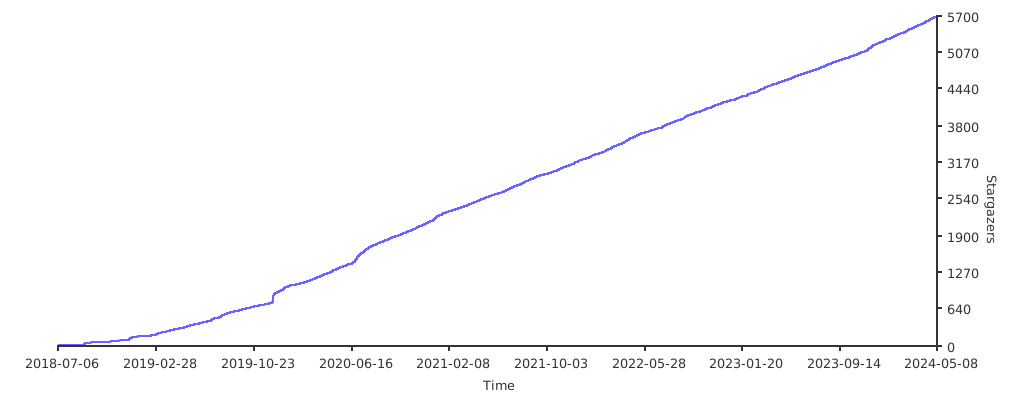
Stargazers over time
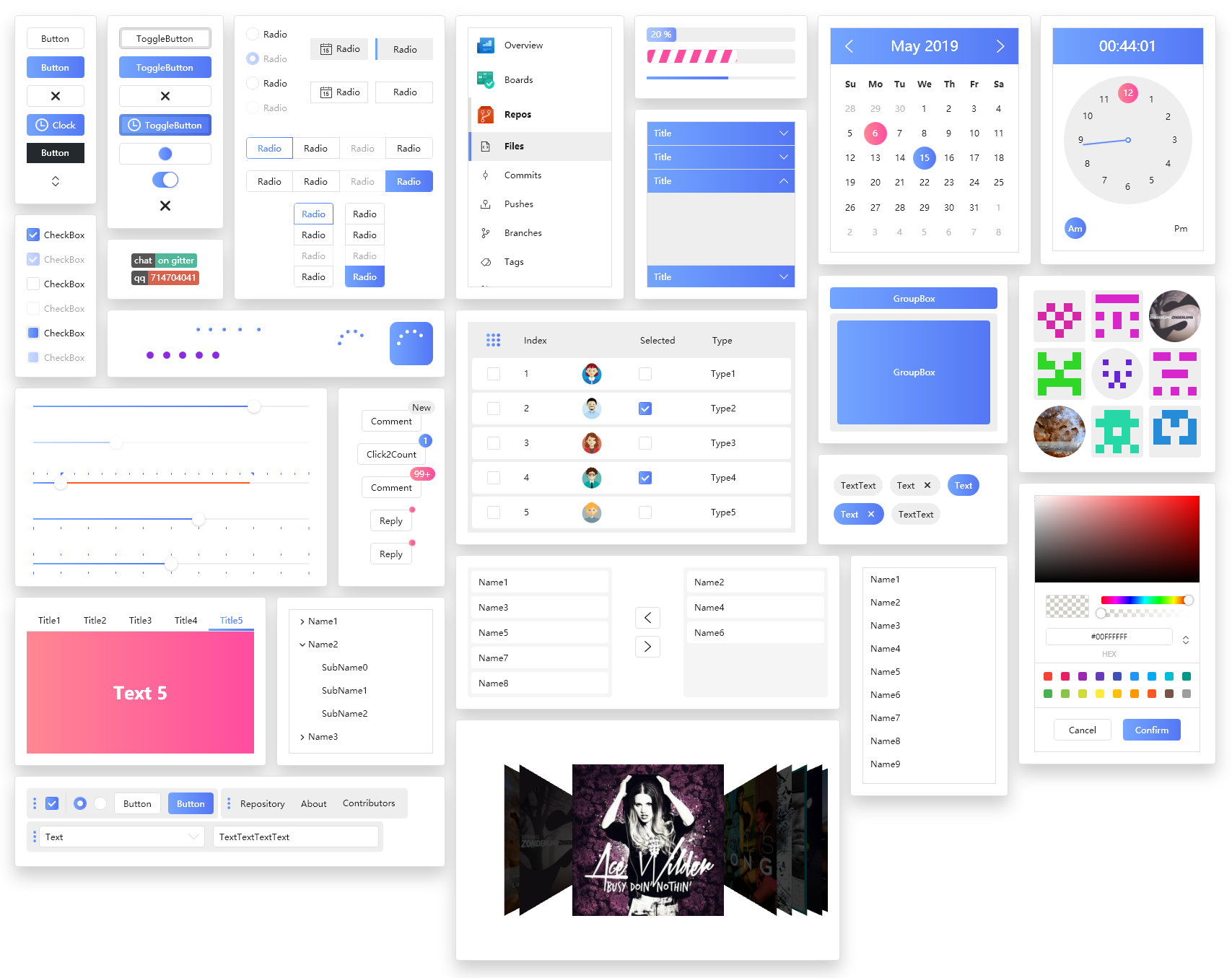
Overview
Latest examples
ConfettiCannon

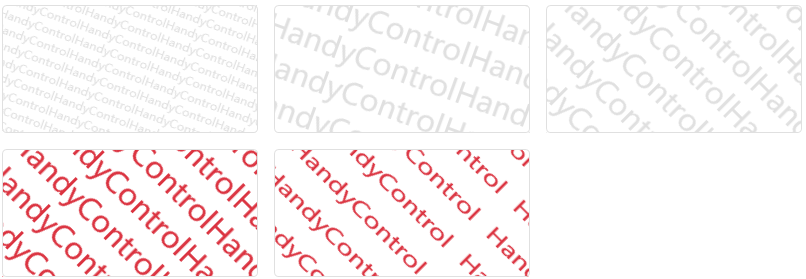
Watermark
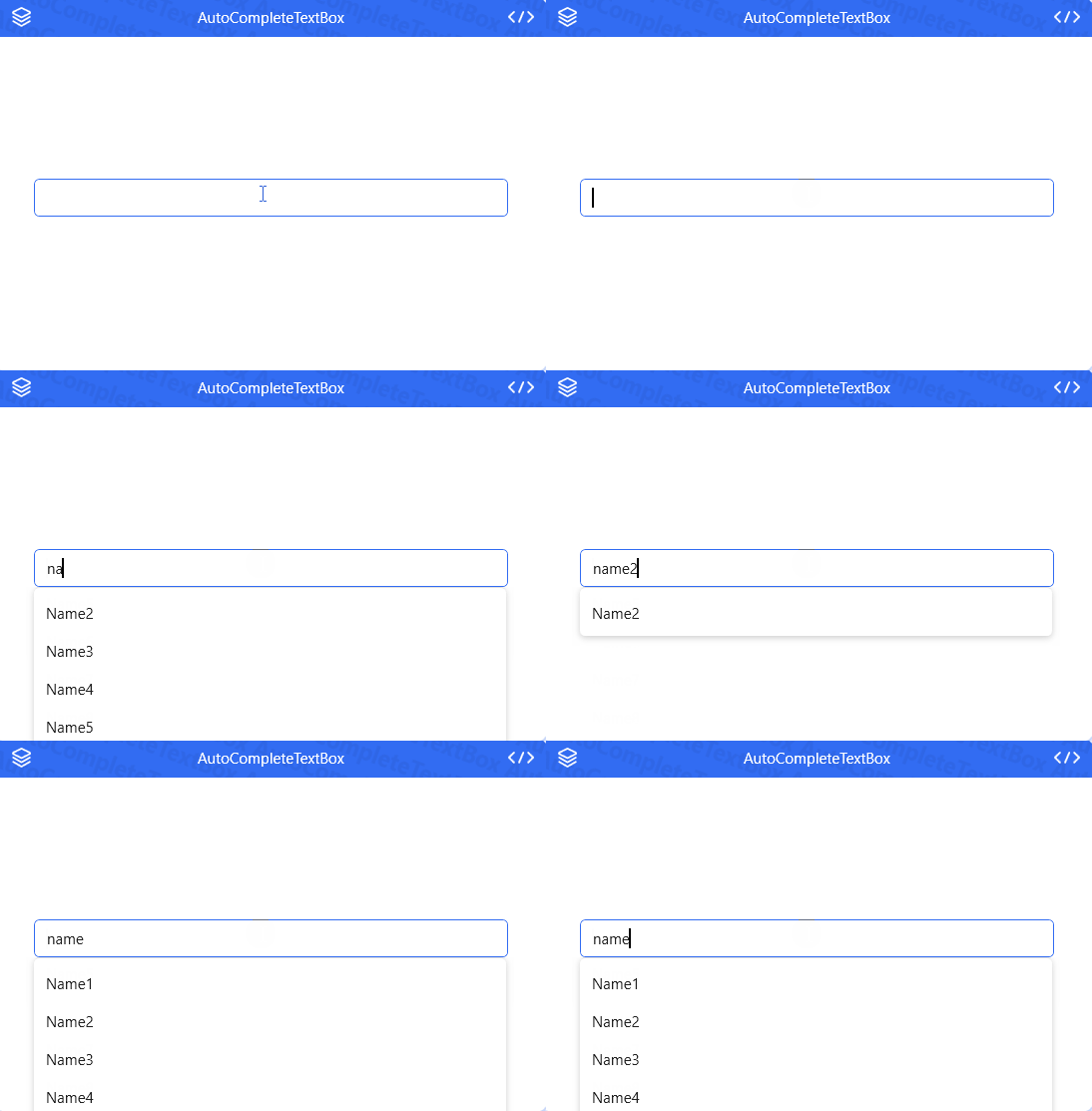
AutoCompleteTextBox
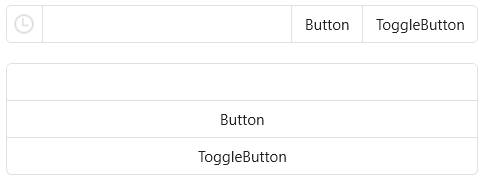
ElementGroup
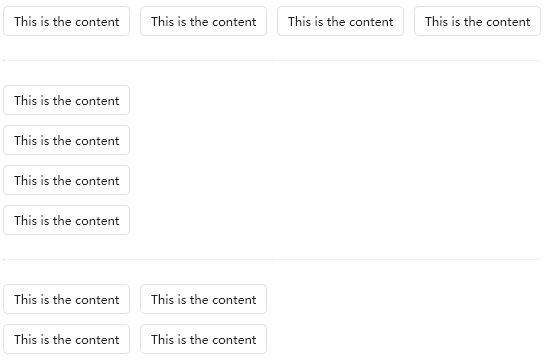
UniformSpacingPanel
History publication
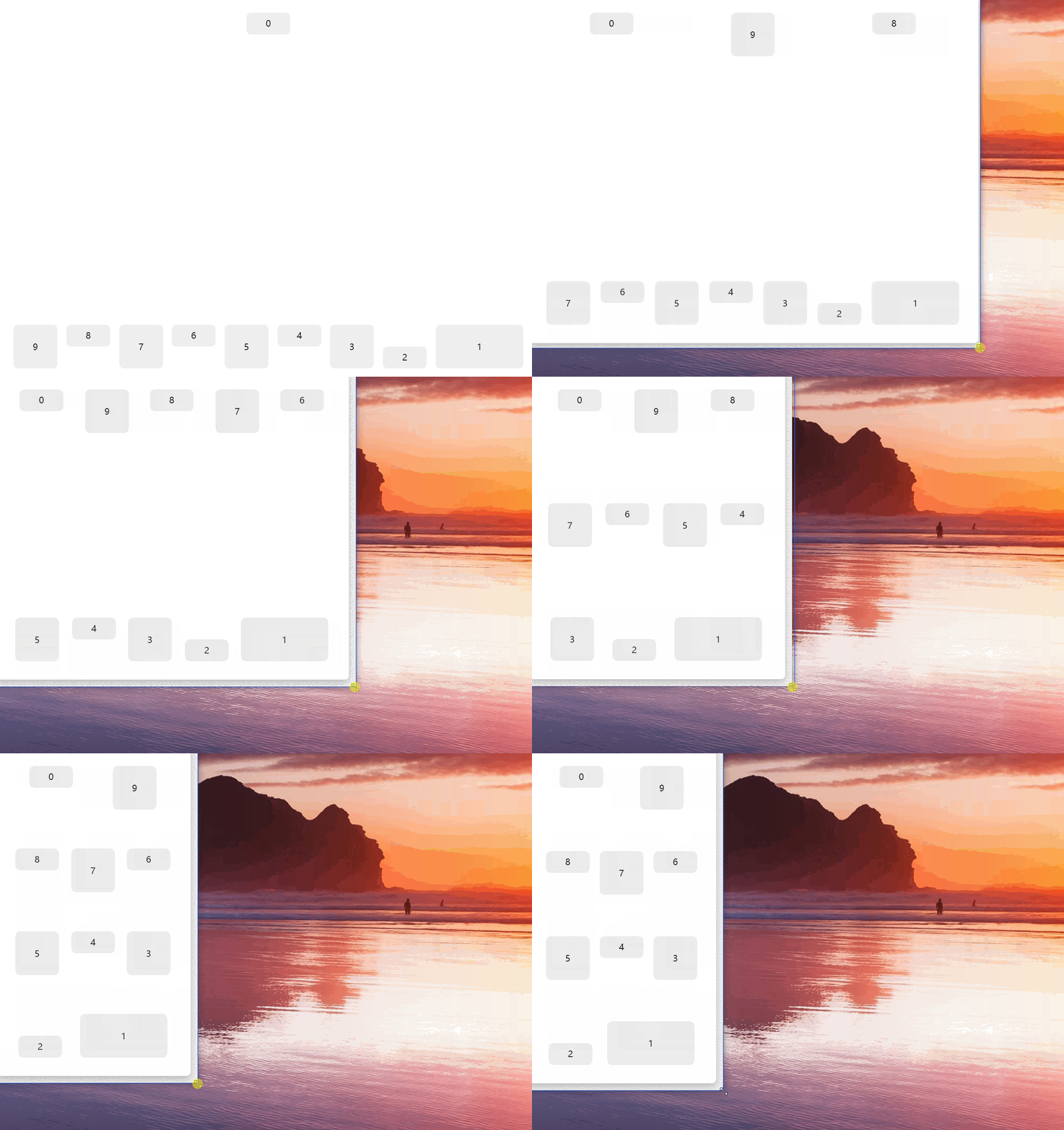
FlexPanel
CheckComboBox
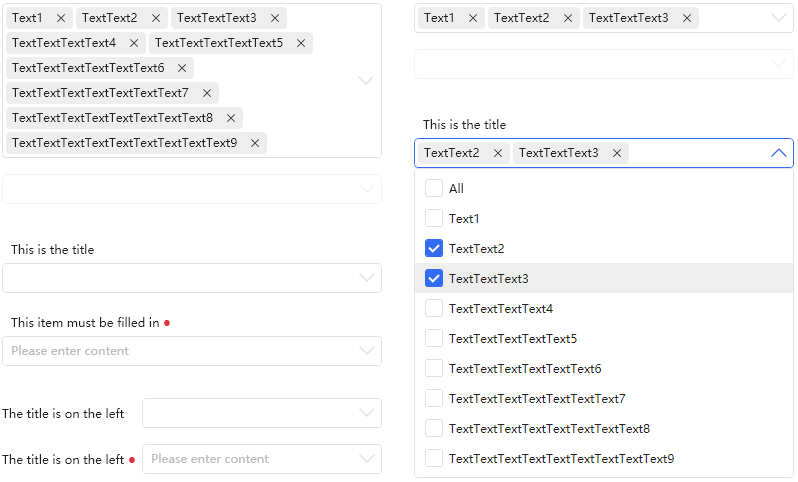
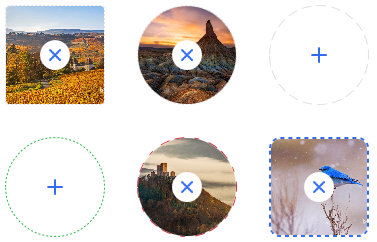
ImageSelector
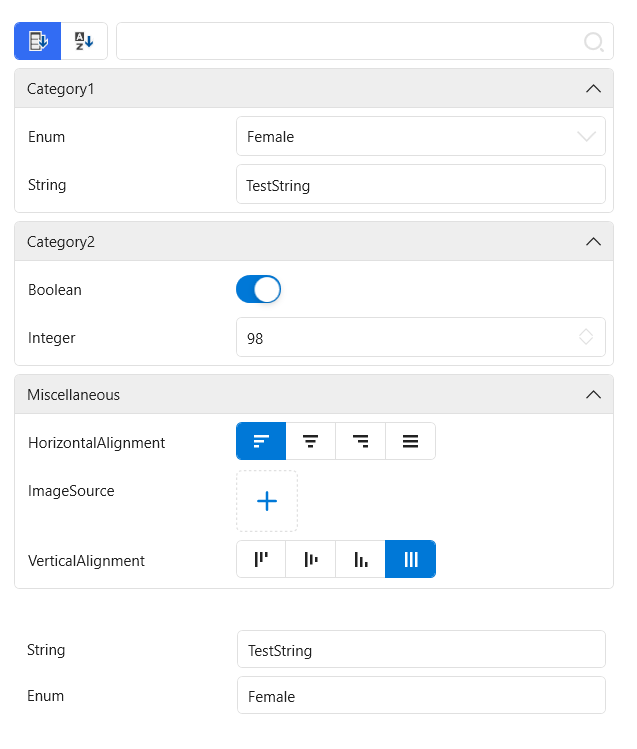
PropertyGrid
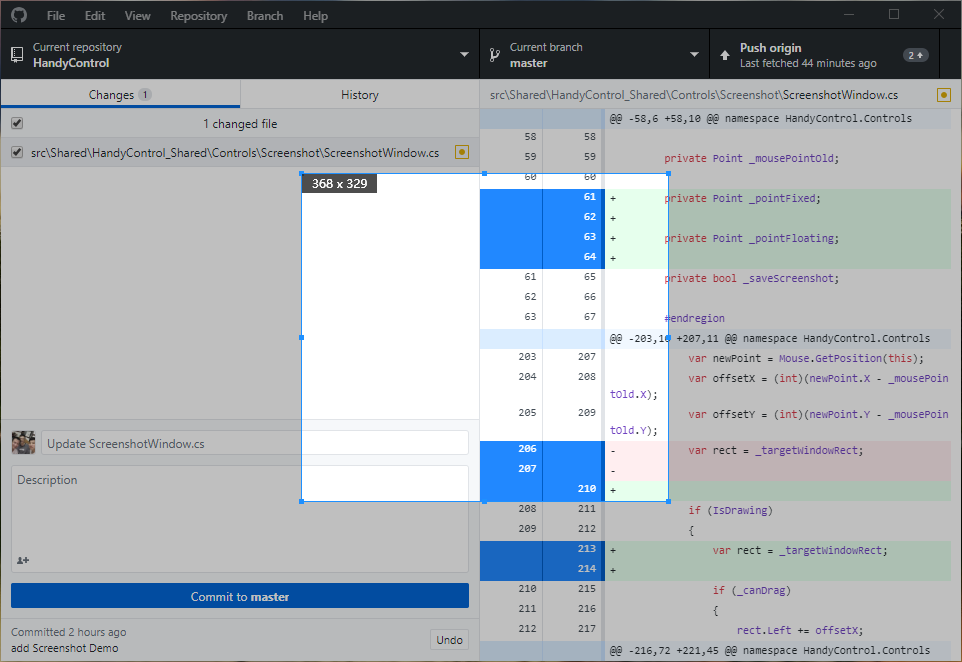
Screenshot
GooeyEffect

GlowWindow
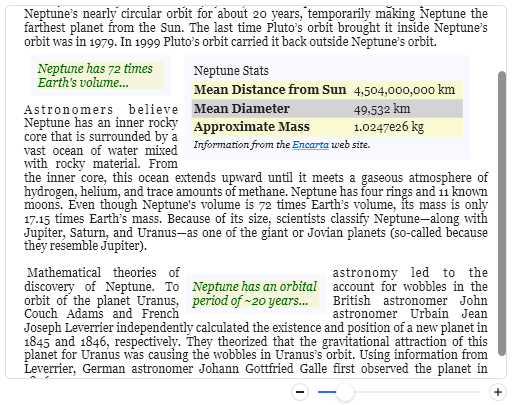
FlowDocumentScrollViewerStyle
PinBox
Effects
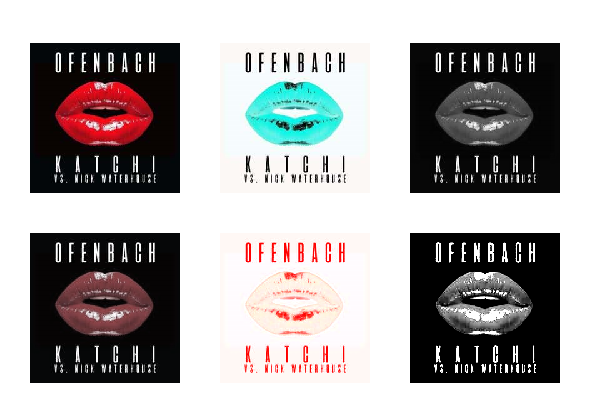
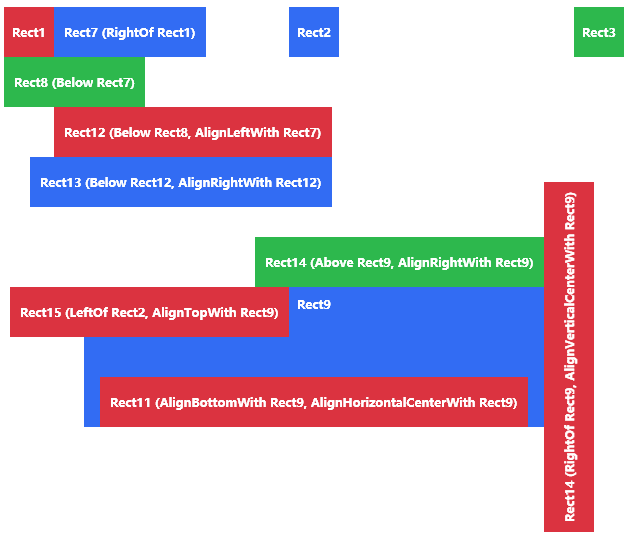
RelativePanel
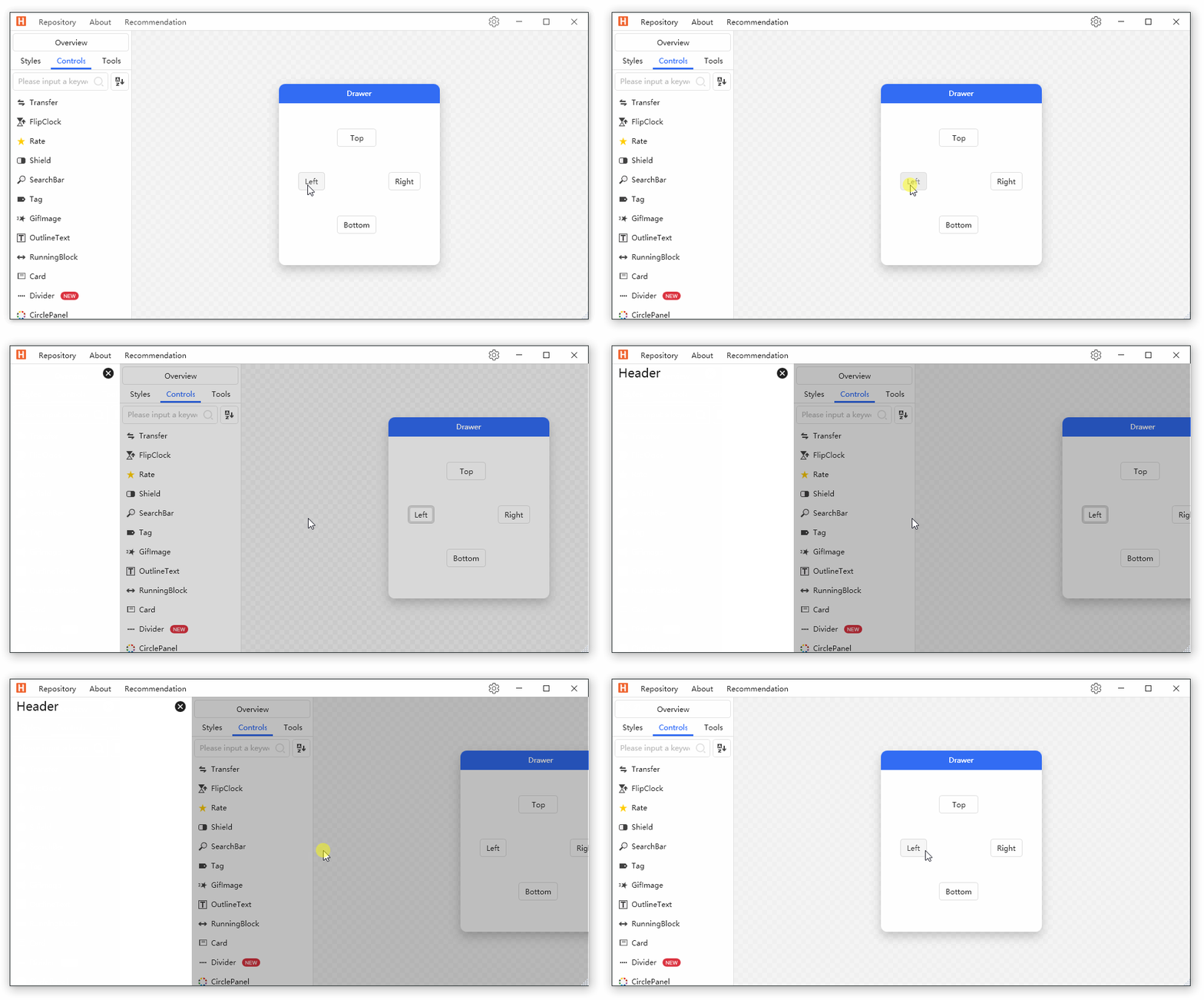
Drawer
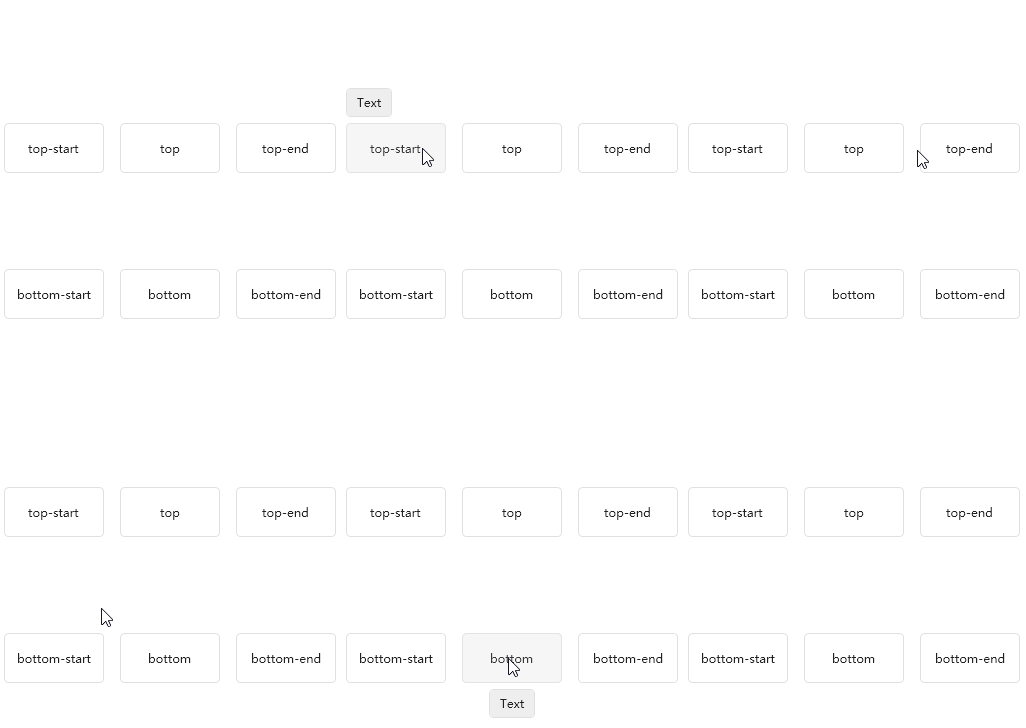
Poptip
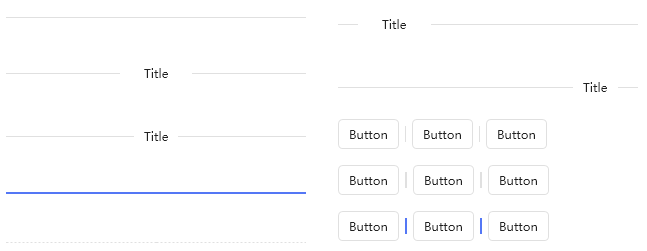
Divider
GeometryAnimation

SplitButton
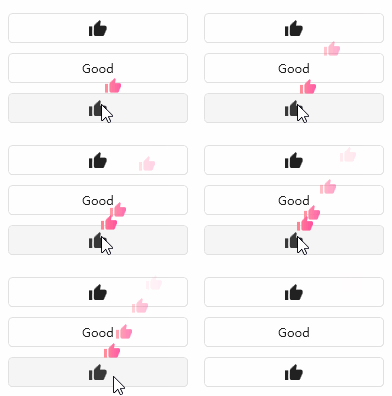
FloatingBlock
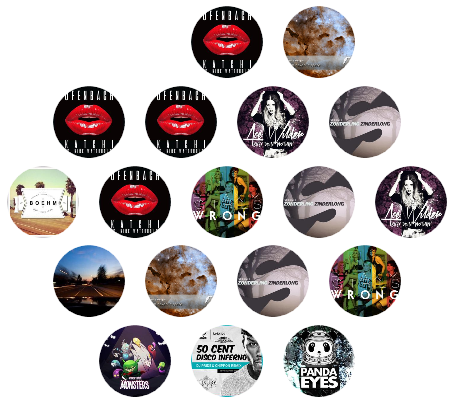
HoneycombPanel
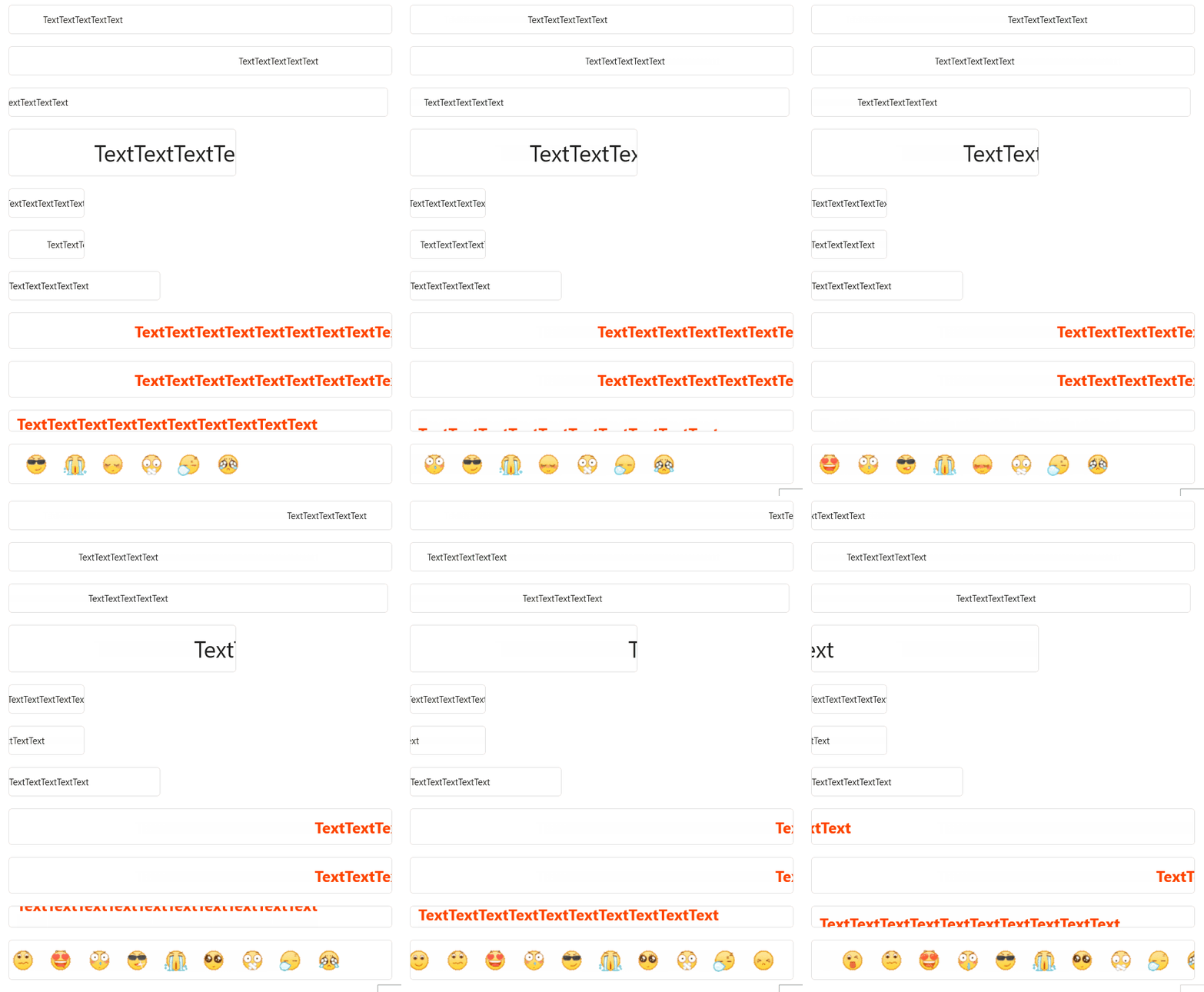
RunningBlock
ImageBlock

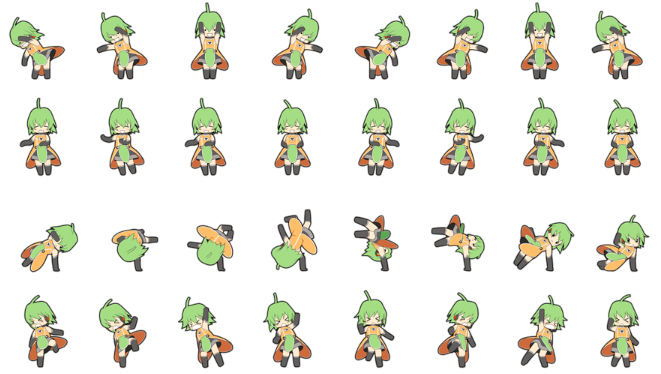
Magnifier
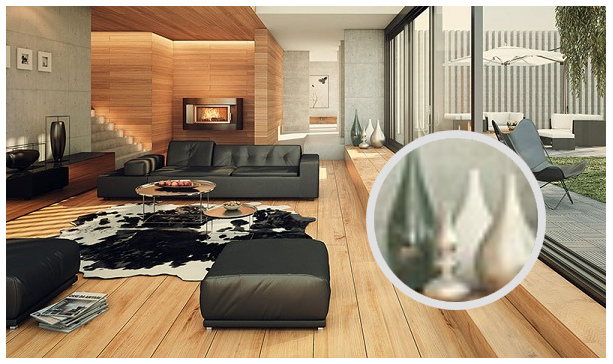
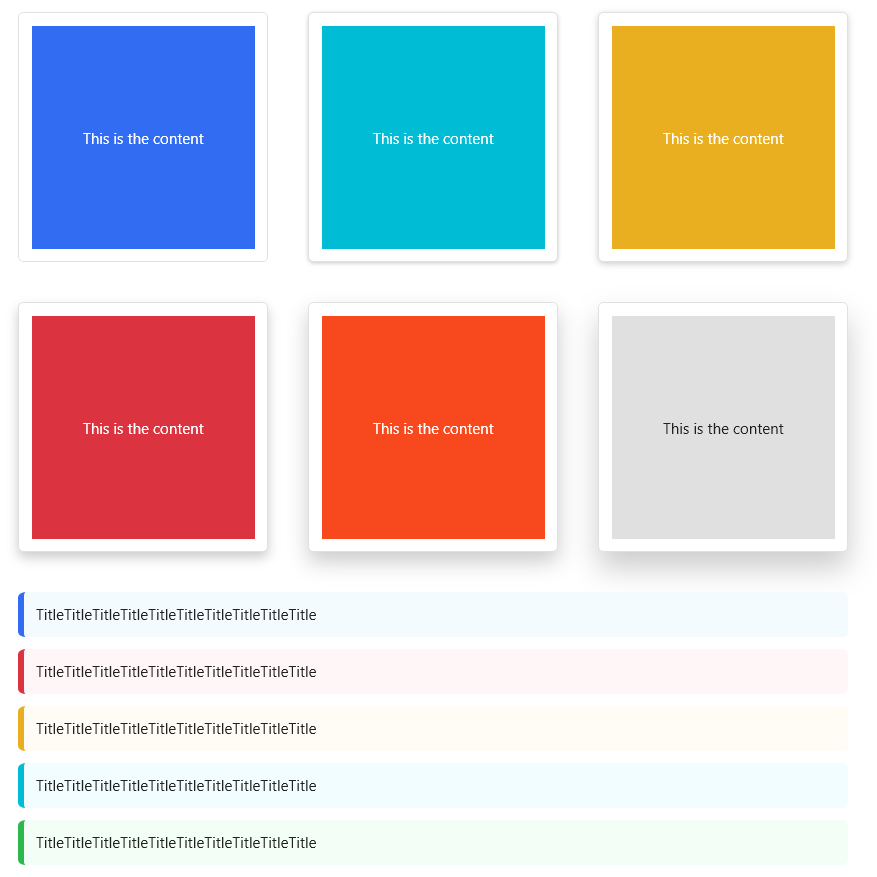
Card
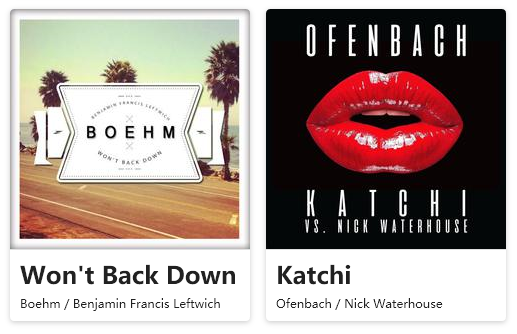
ButtonGroup
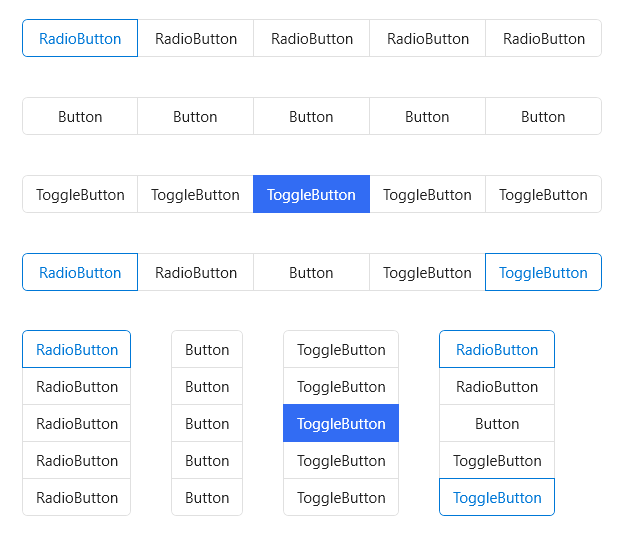
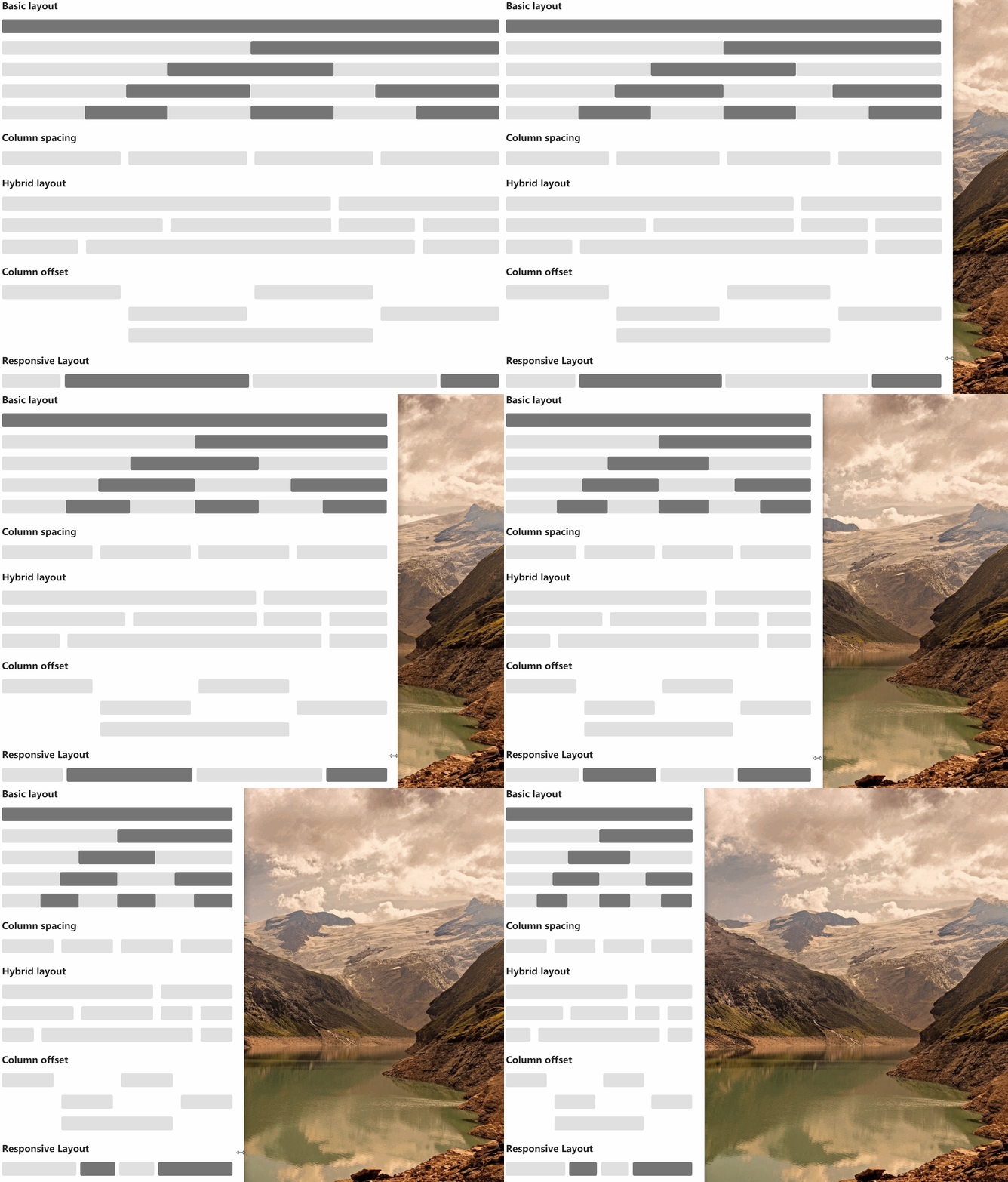
Grid
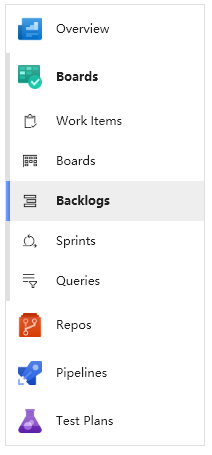
SideMenu
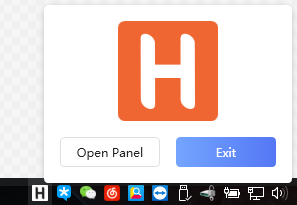
NotifyIcon
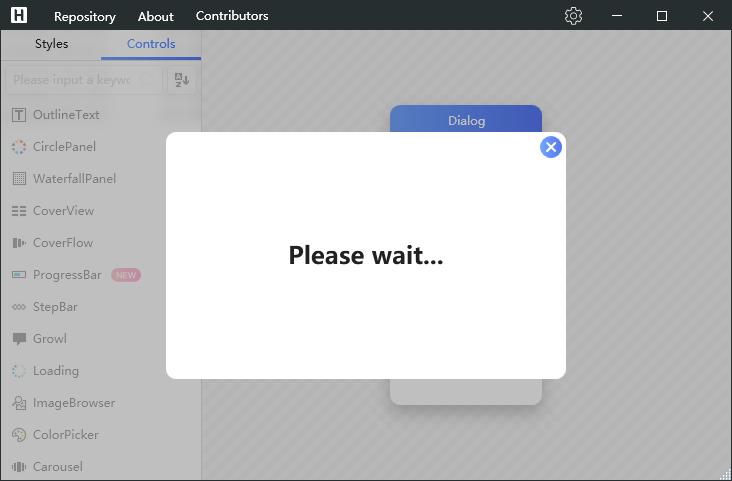
Dialog
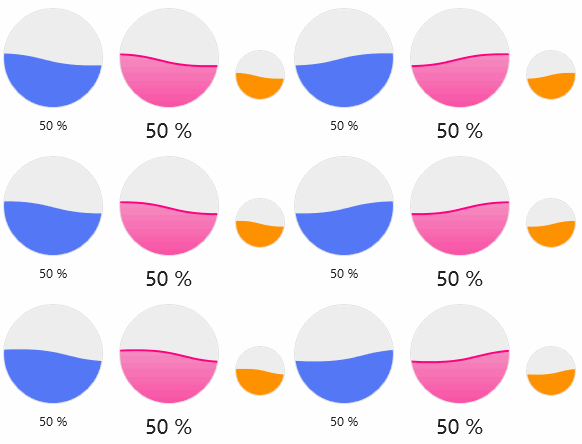
WaveProgressBar
Badge

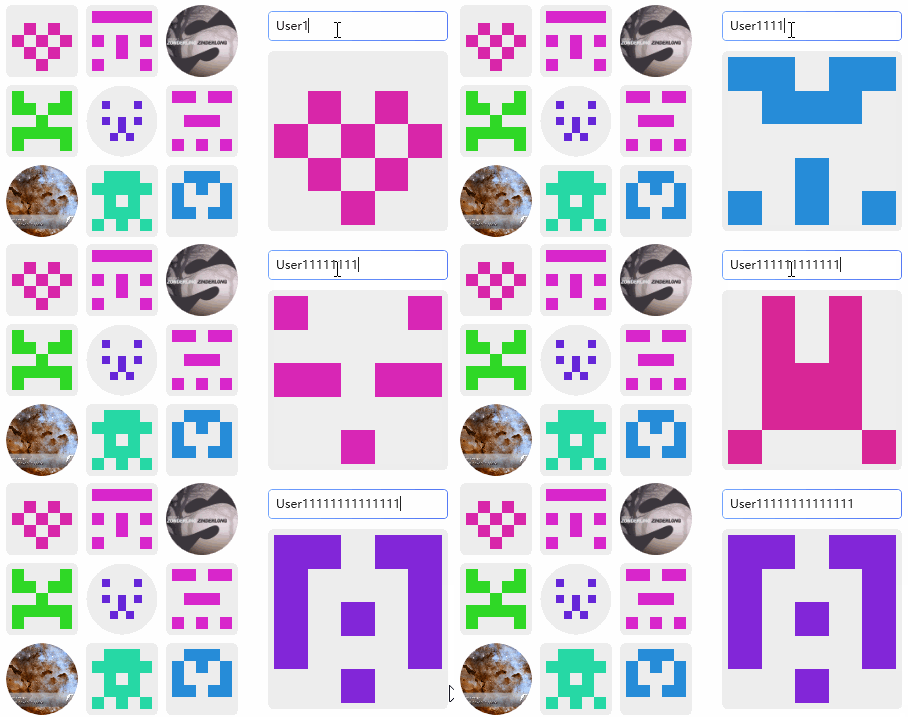
Gravatar
GoToTop

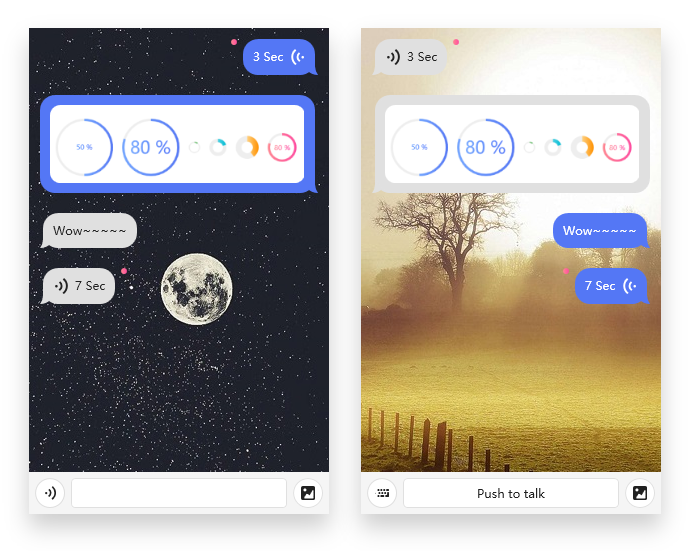
ChatBubble
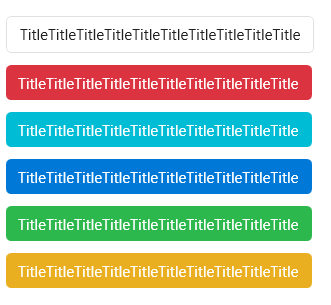
Label
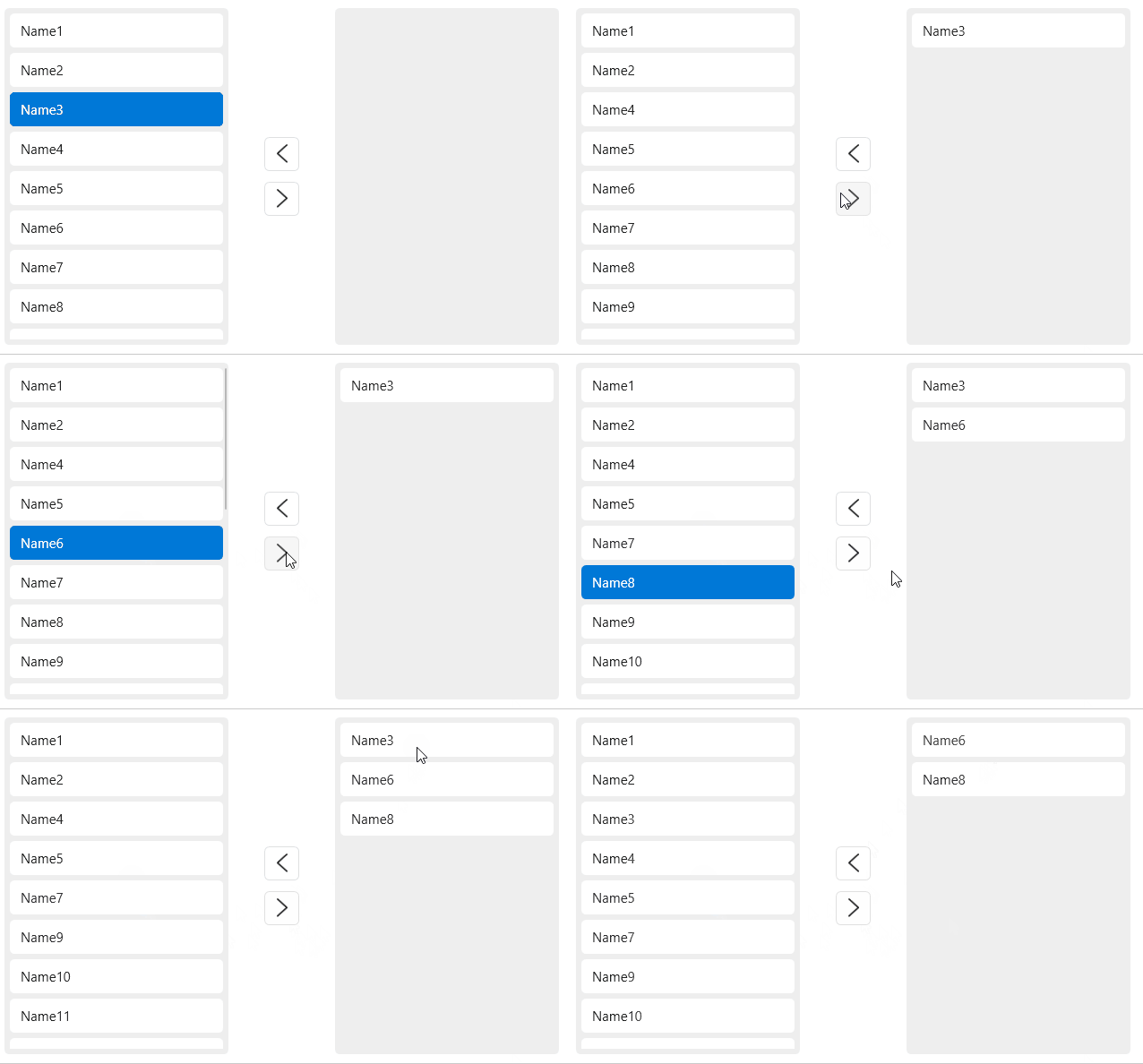
Transfer
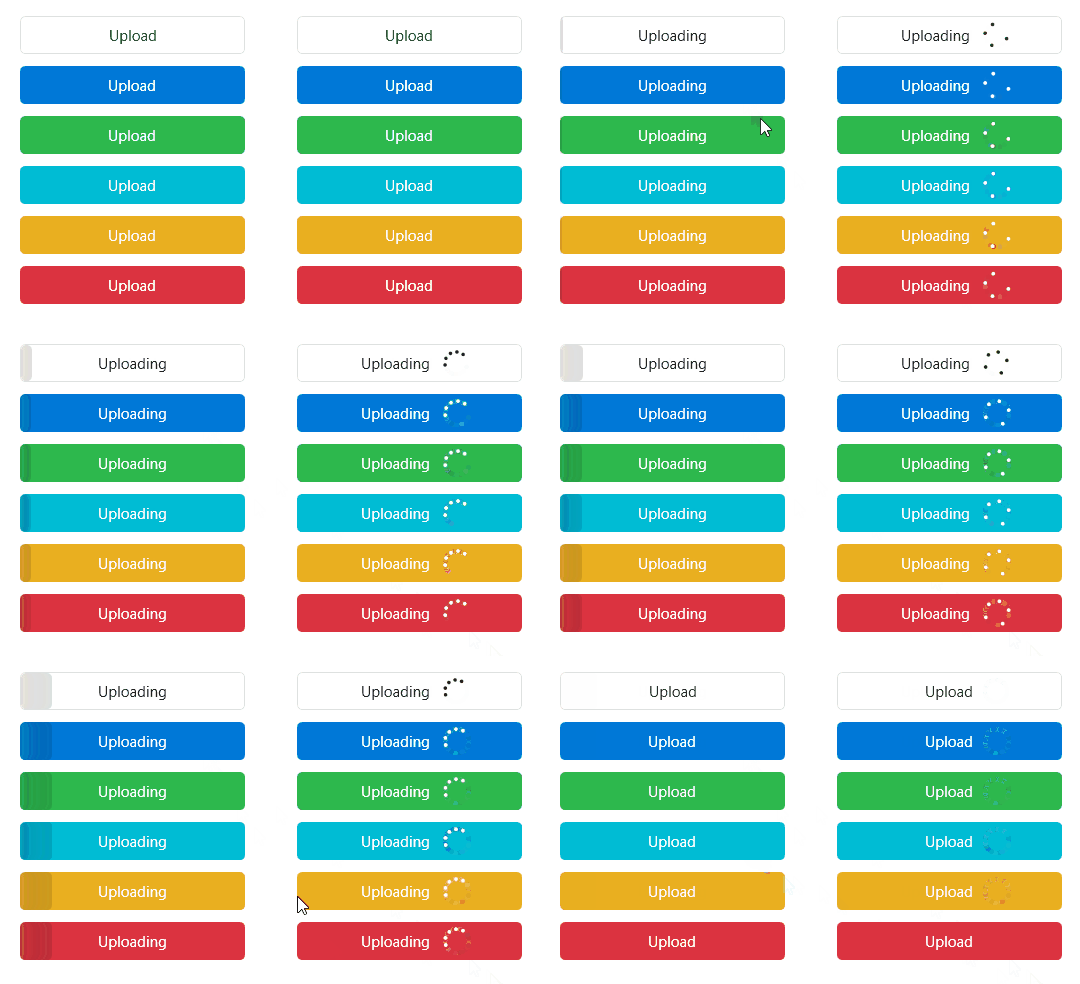
ProgressButton
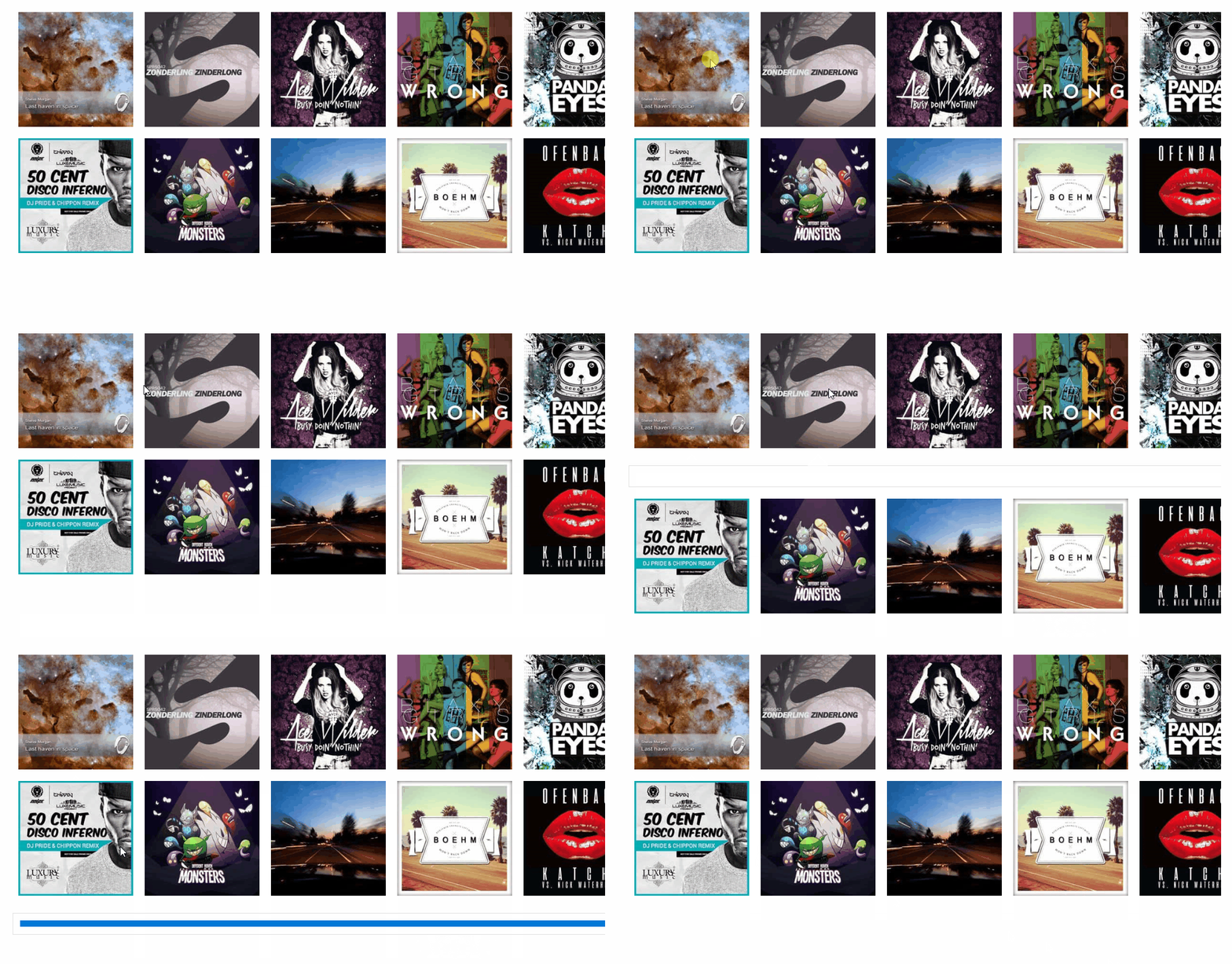
CoverFlow

CoverView
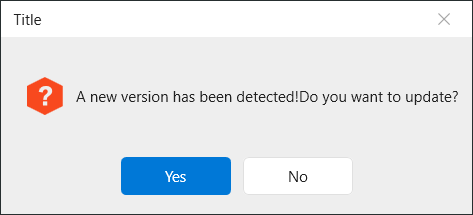
MessageBox
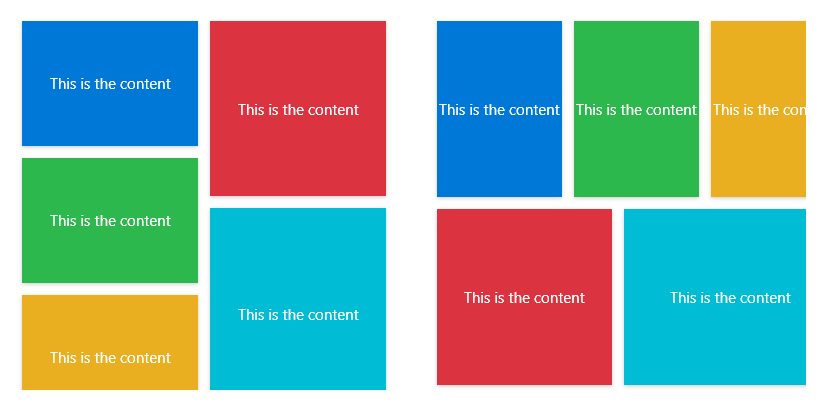
WaterfallPanel
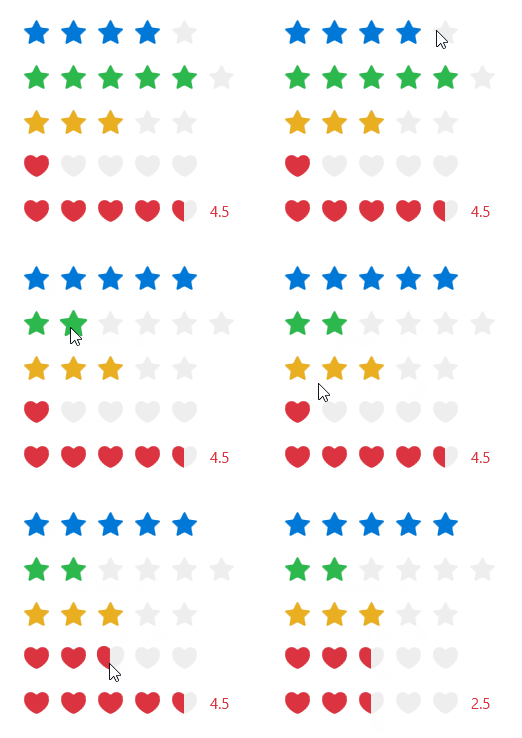
Rate
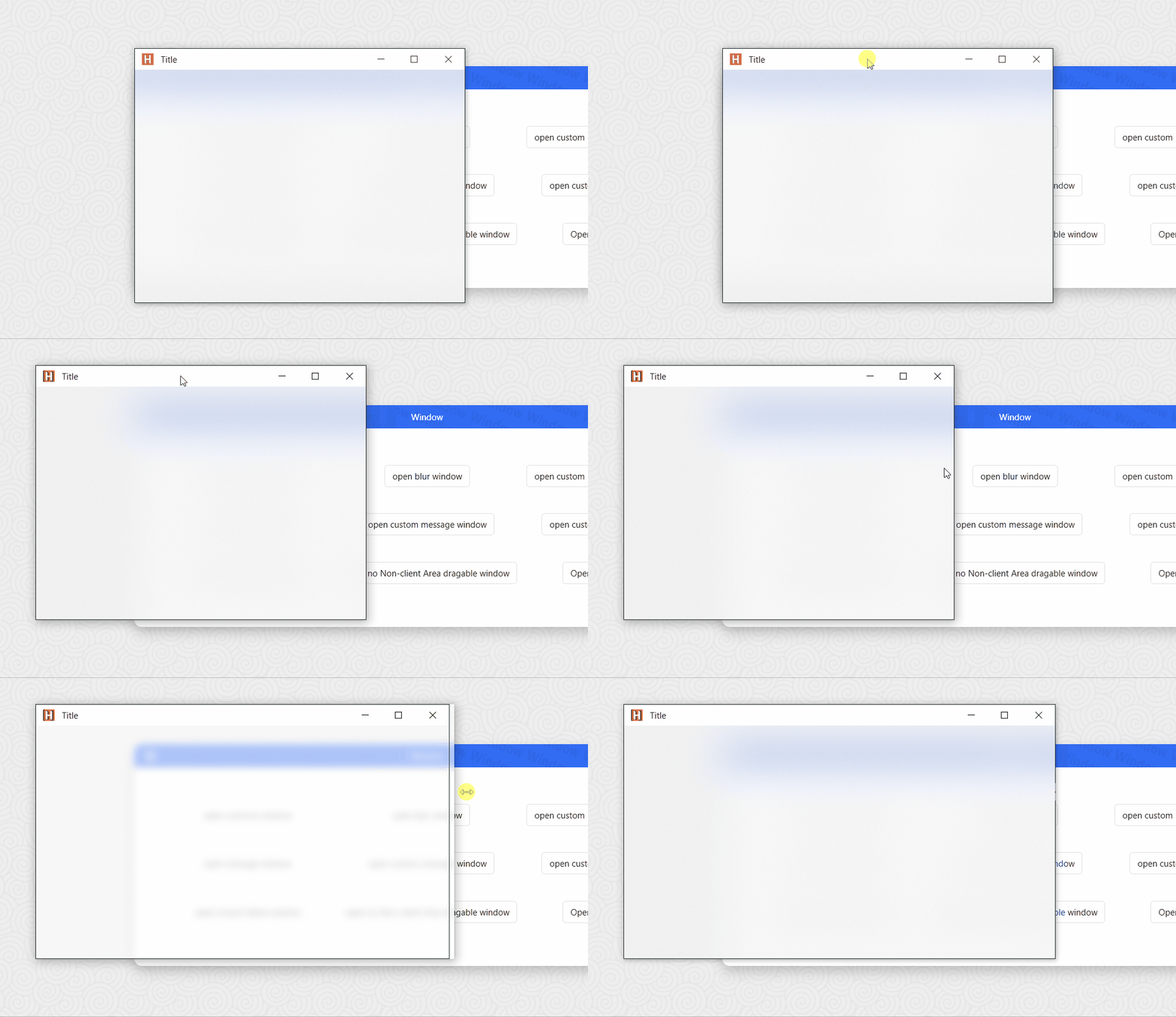
BlurWindow
FlipClock

Shield

OutlineText
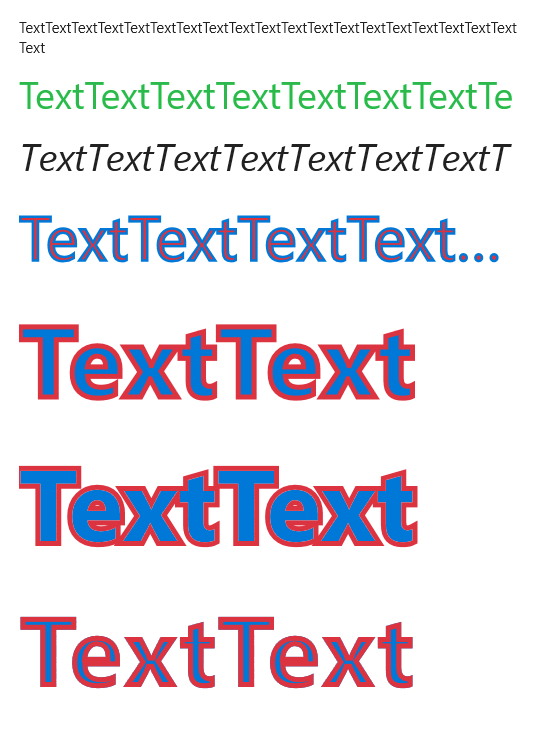
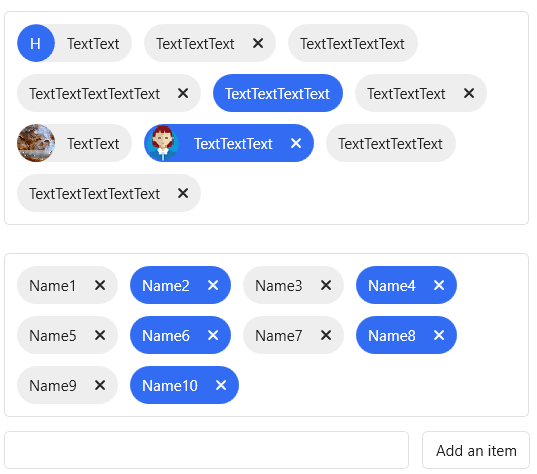
Tag
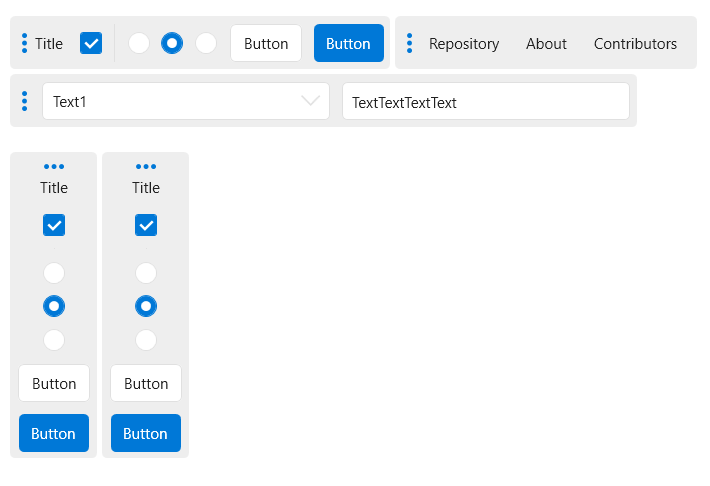
ToolBar
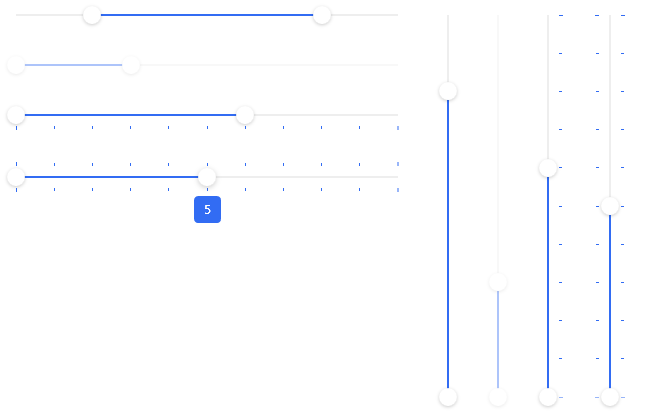
Slider
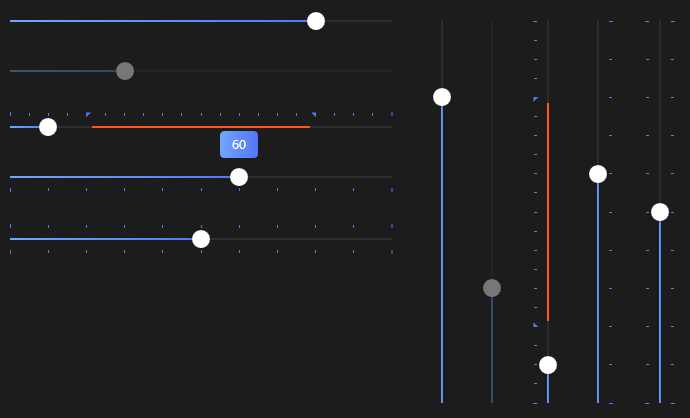
RangeSlider
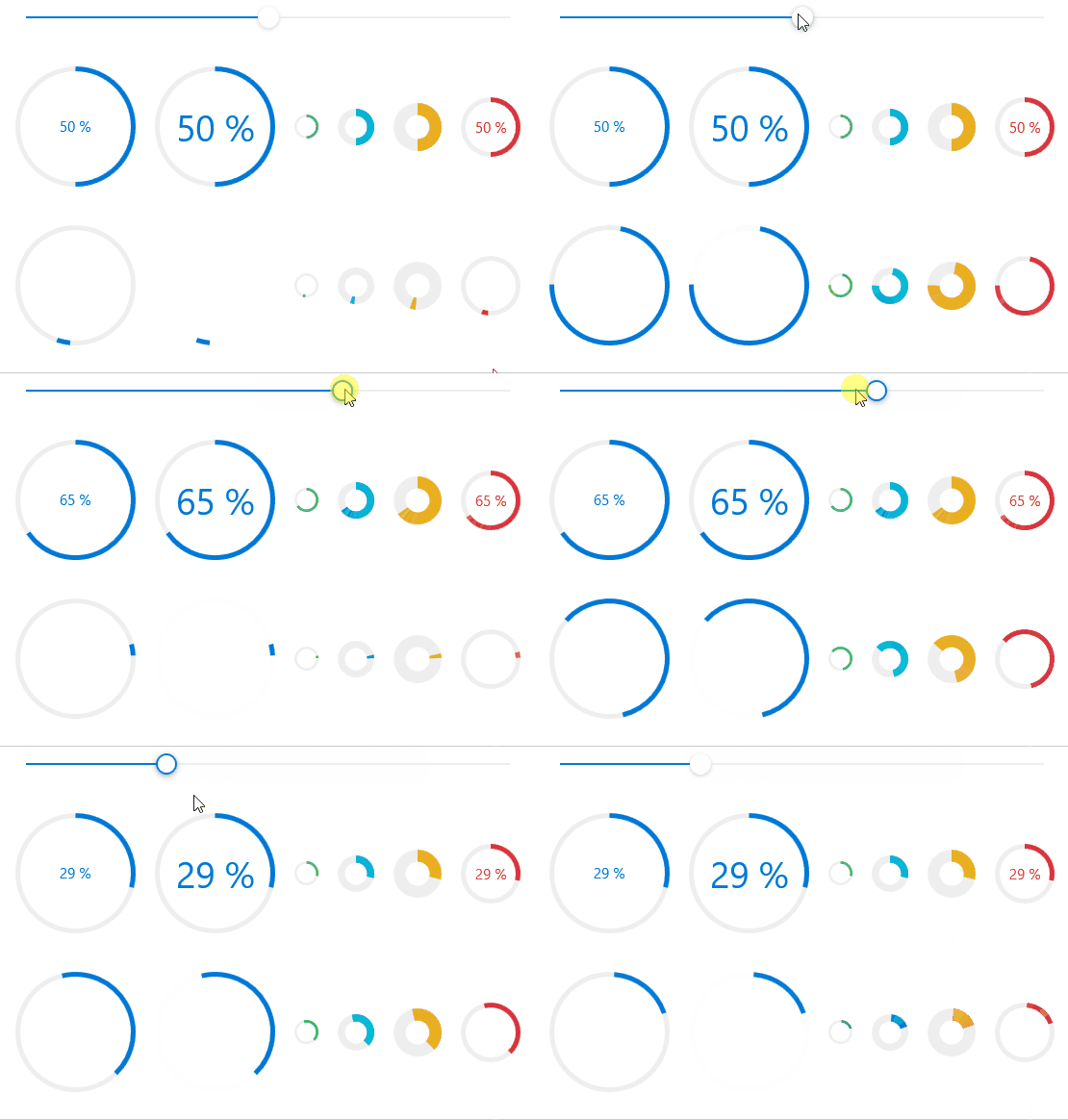
CircleProgressBar
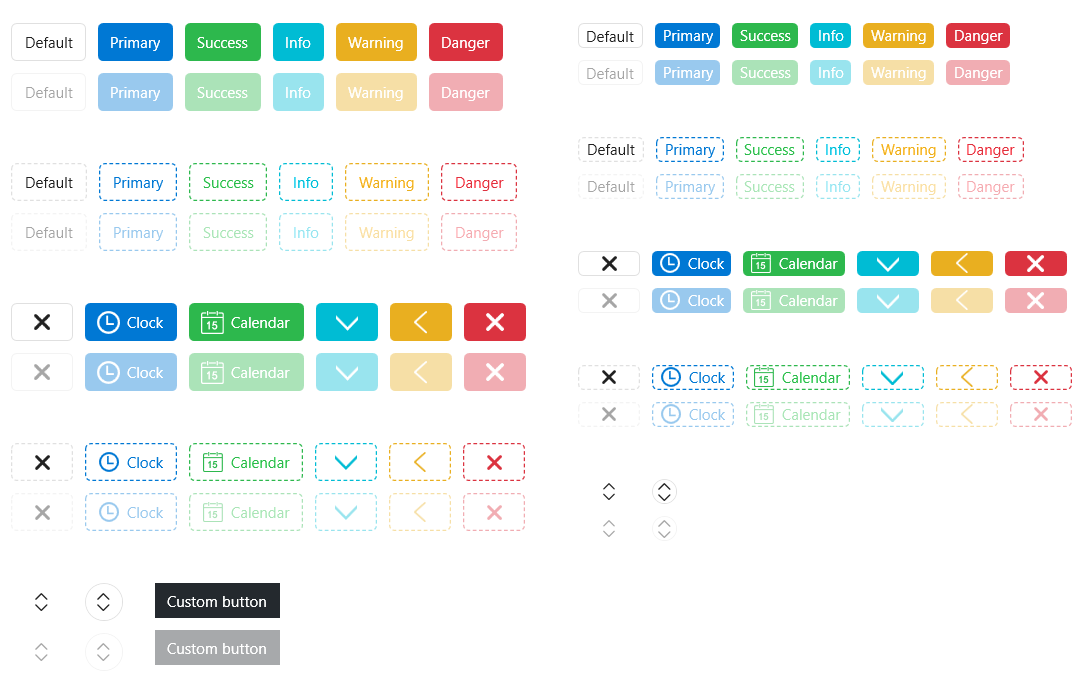
ButtonStyle
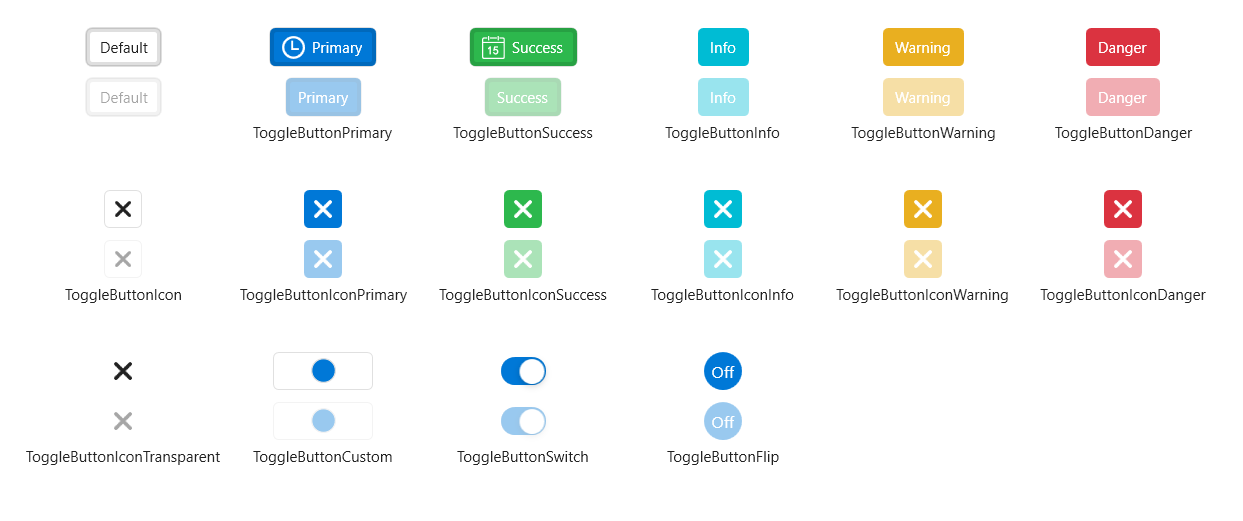
ToggleButtonStyle
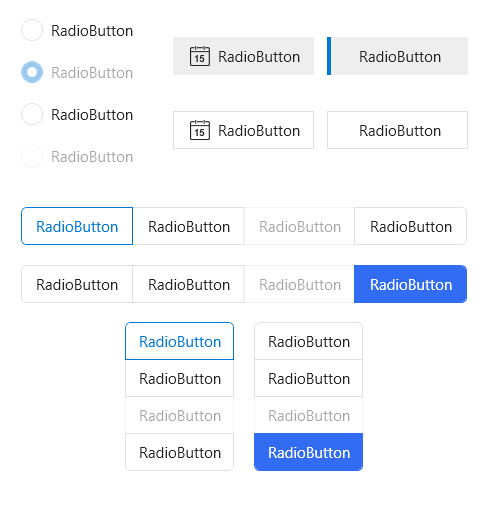
RadioButtonStyle
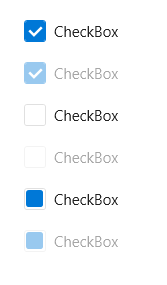
CheckBoxStyle
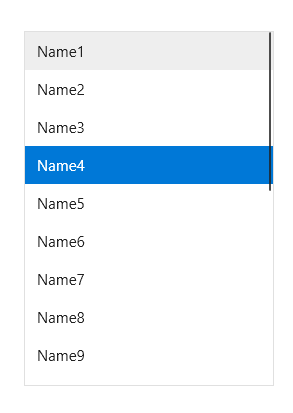
ListBoxStyle
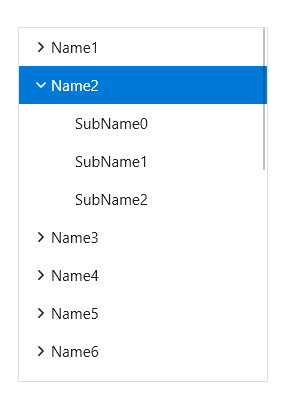
TreeViewStyle
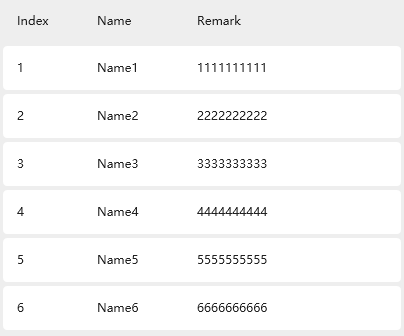
ListViewStyle
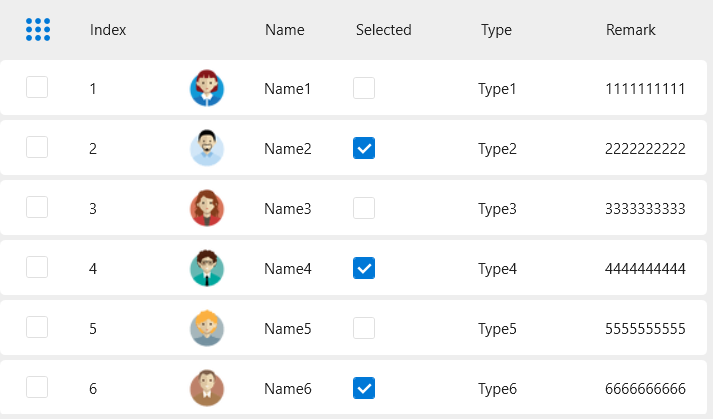
DataGrid
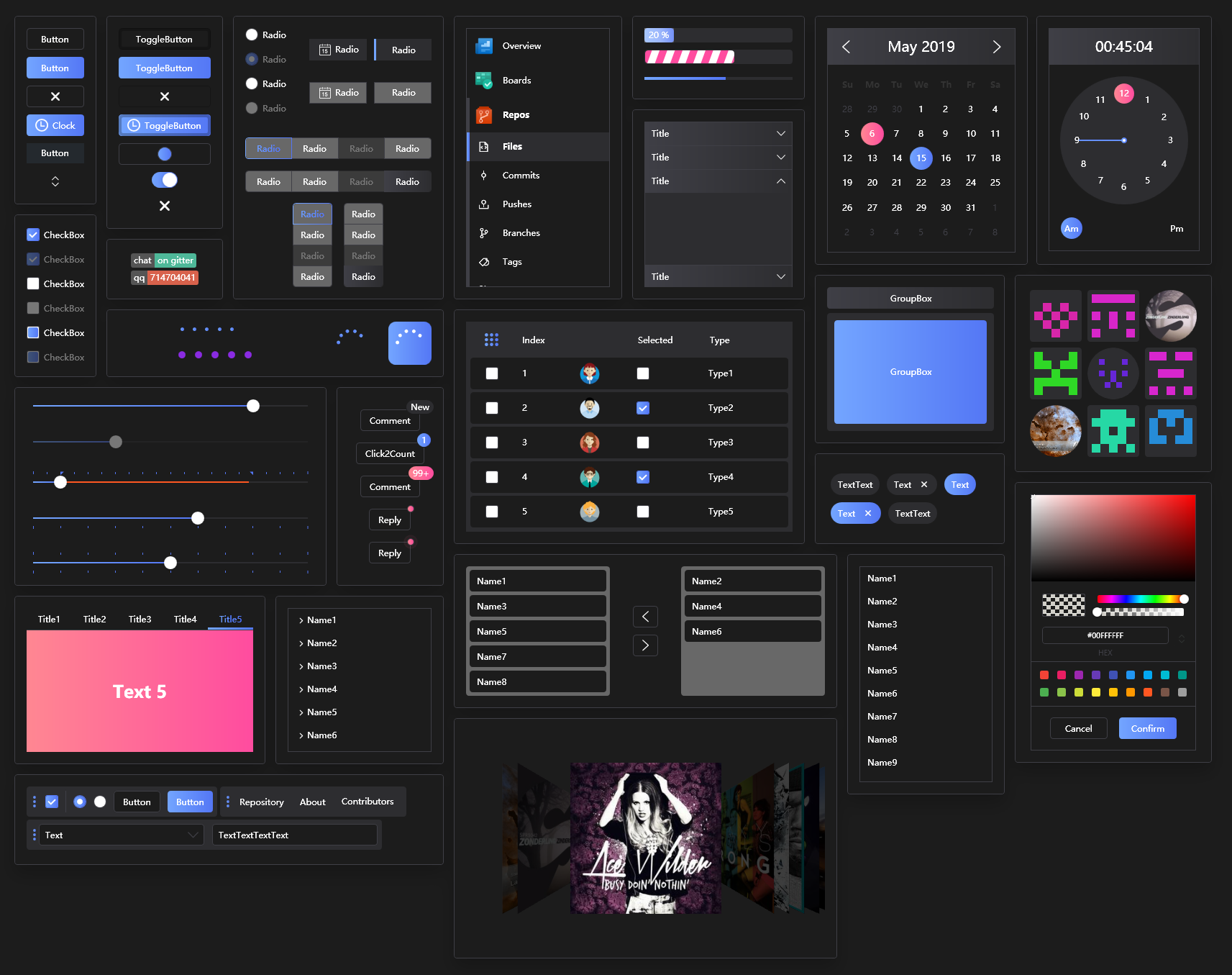
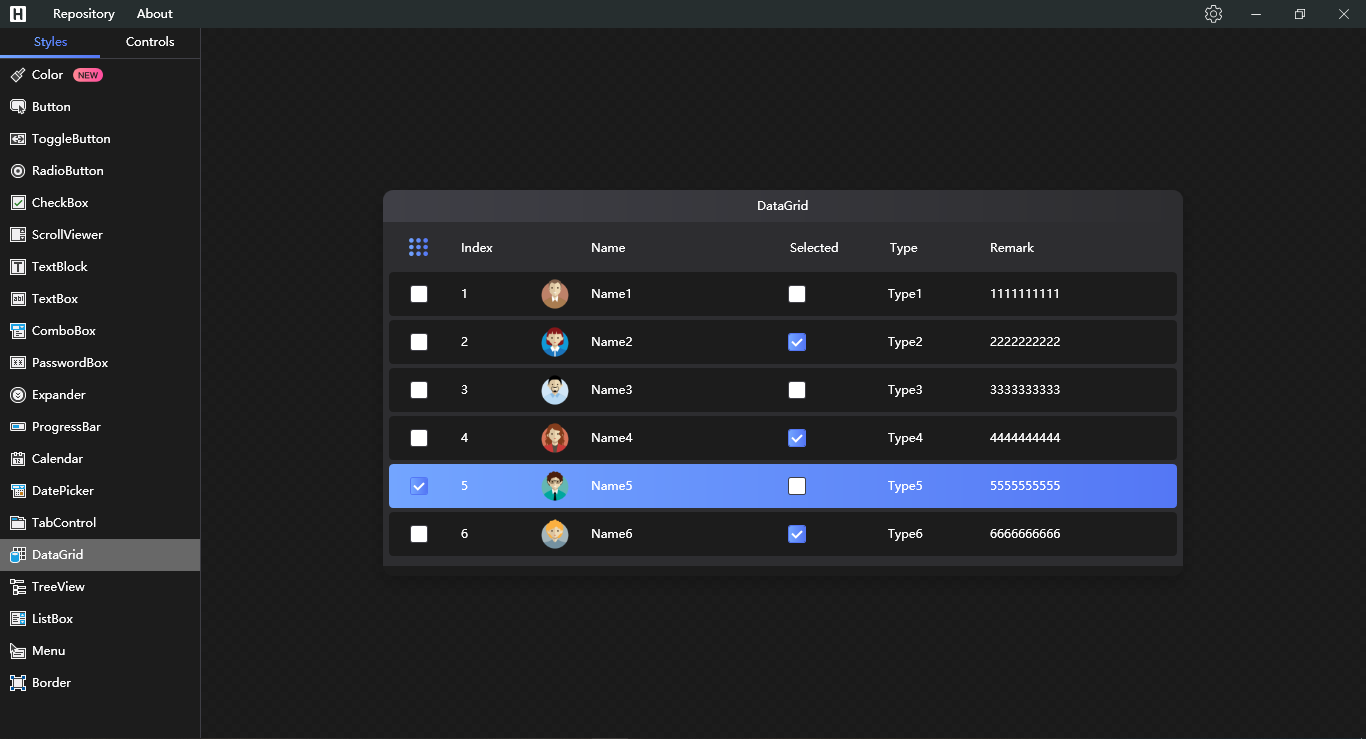
Now you can switch to dark theme
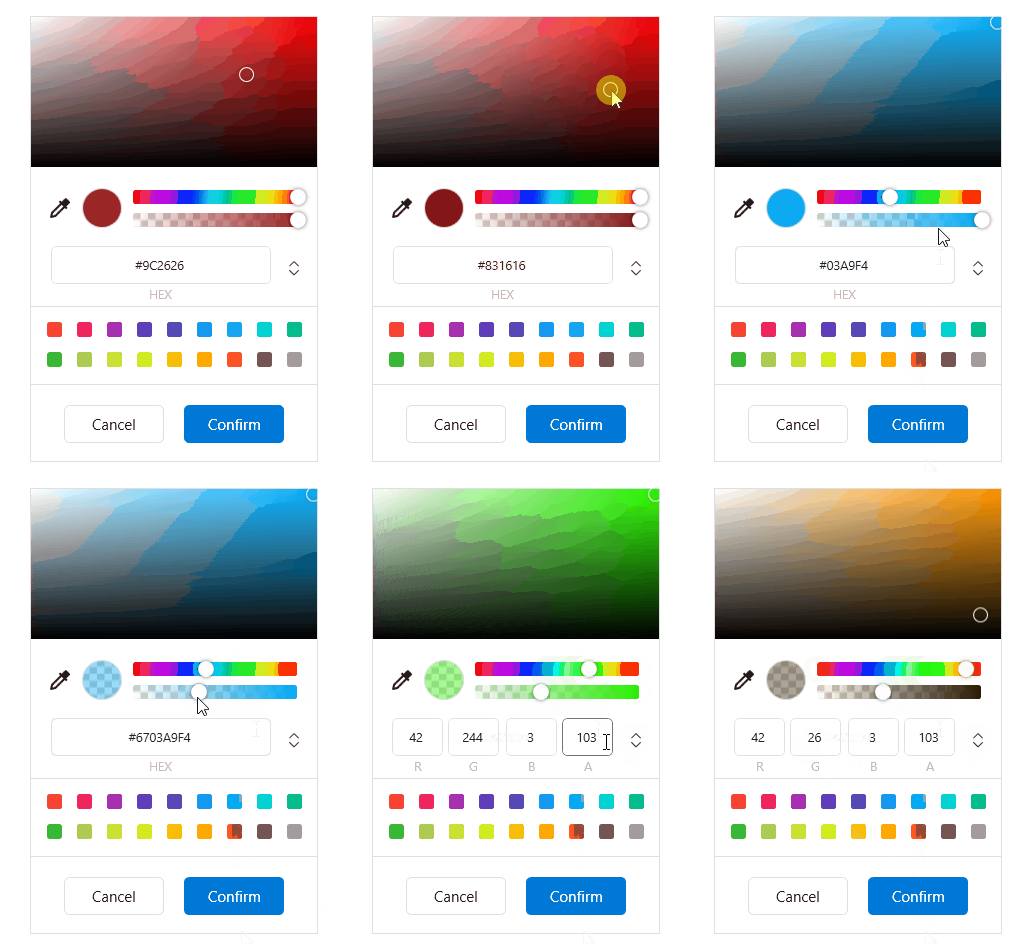
ColorPicker
Loading

Carousel

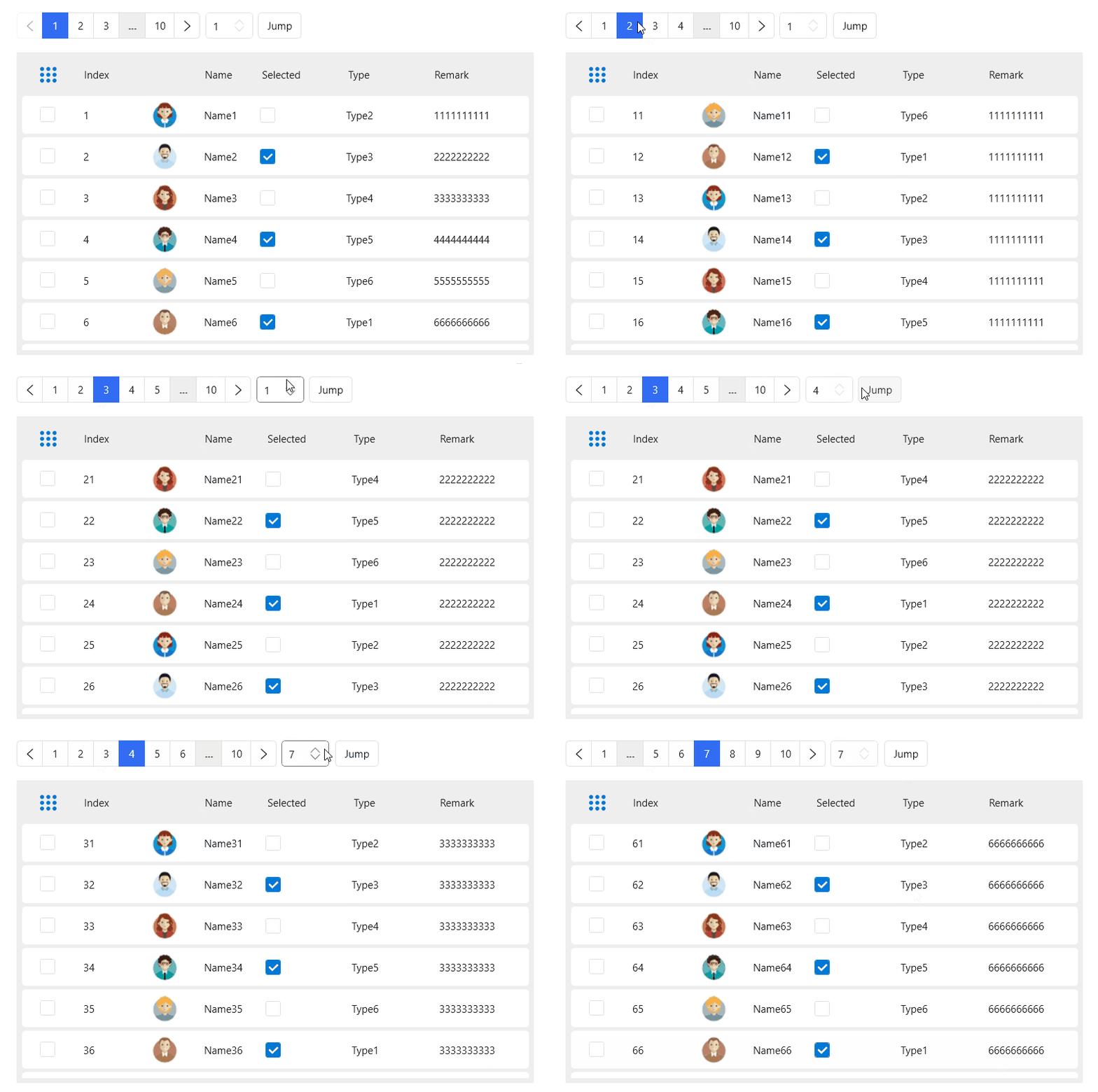
Pagination
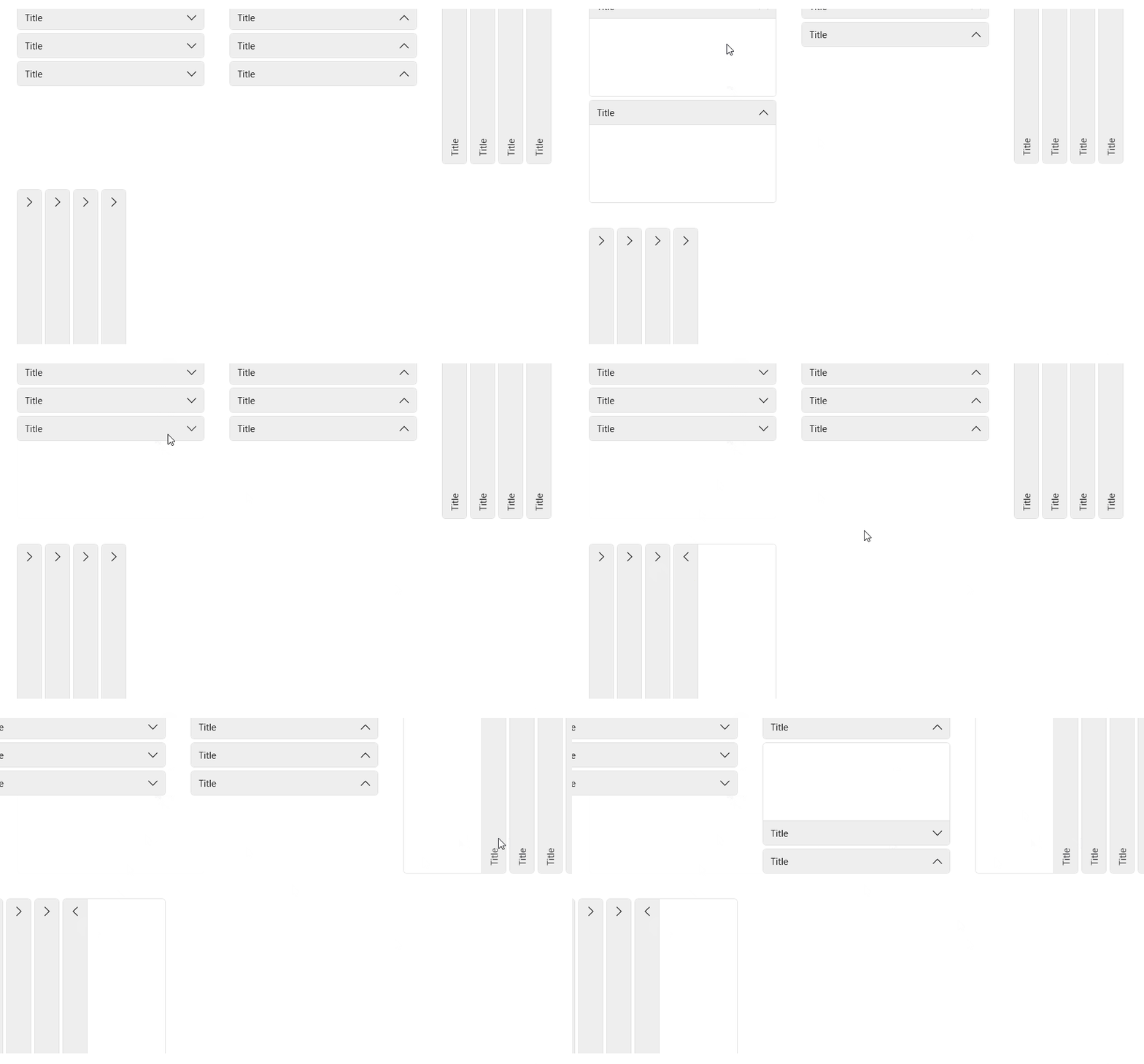
Expander
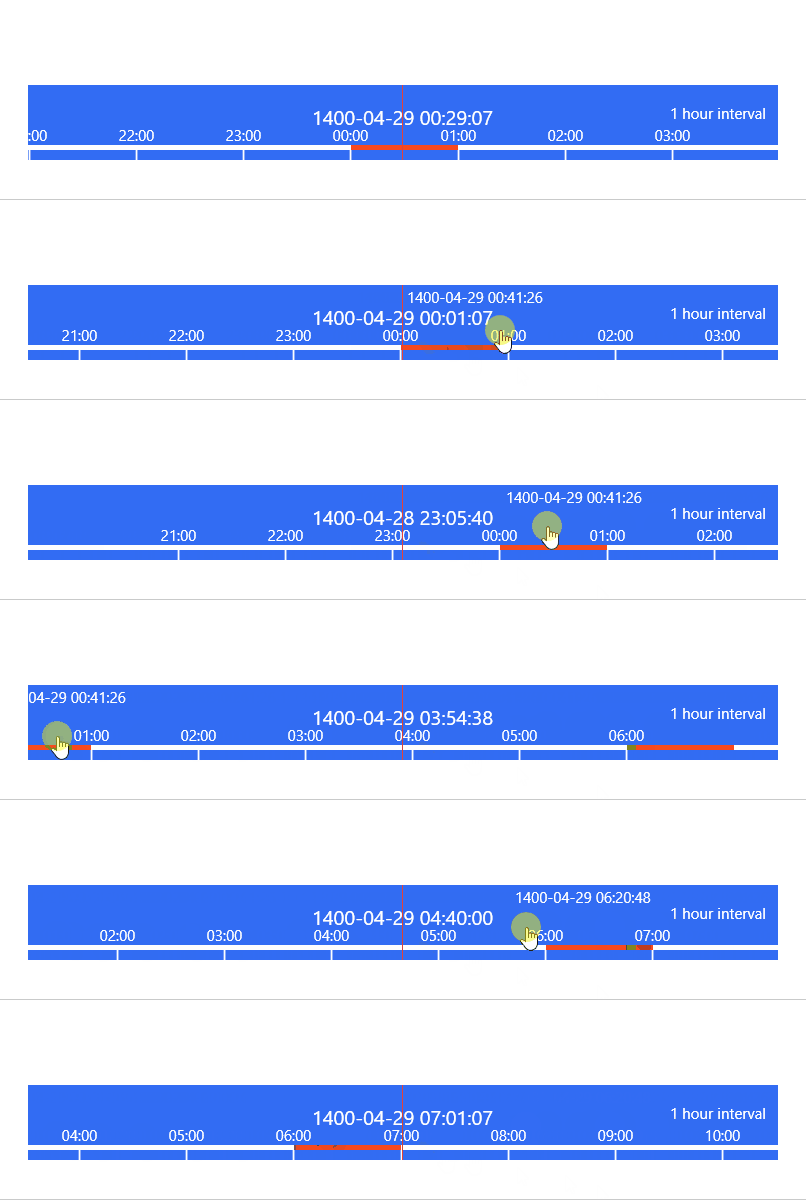
TimeBar
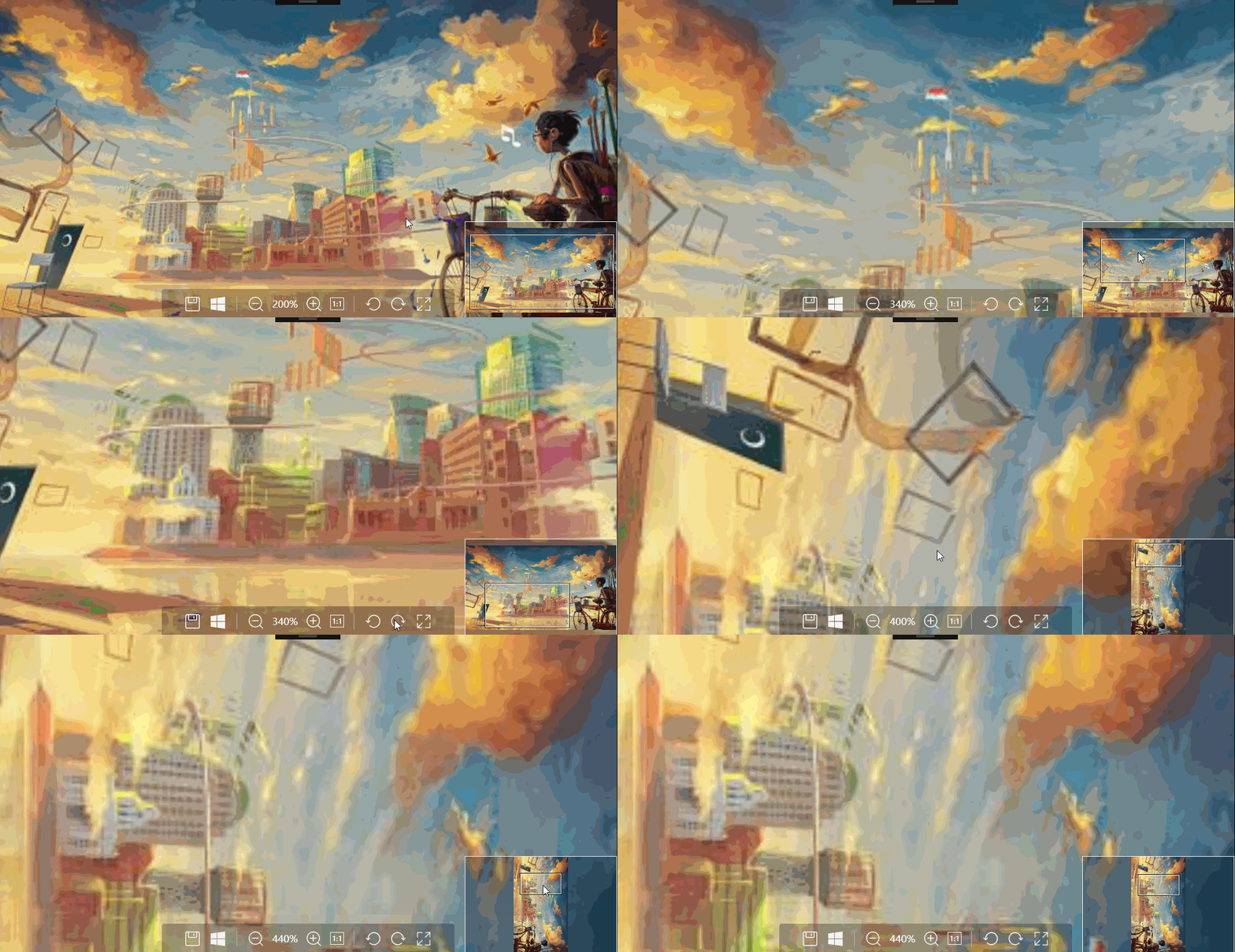
ImageBrowser
PreviewSlider
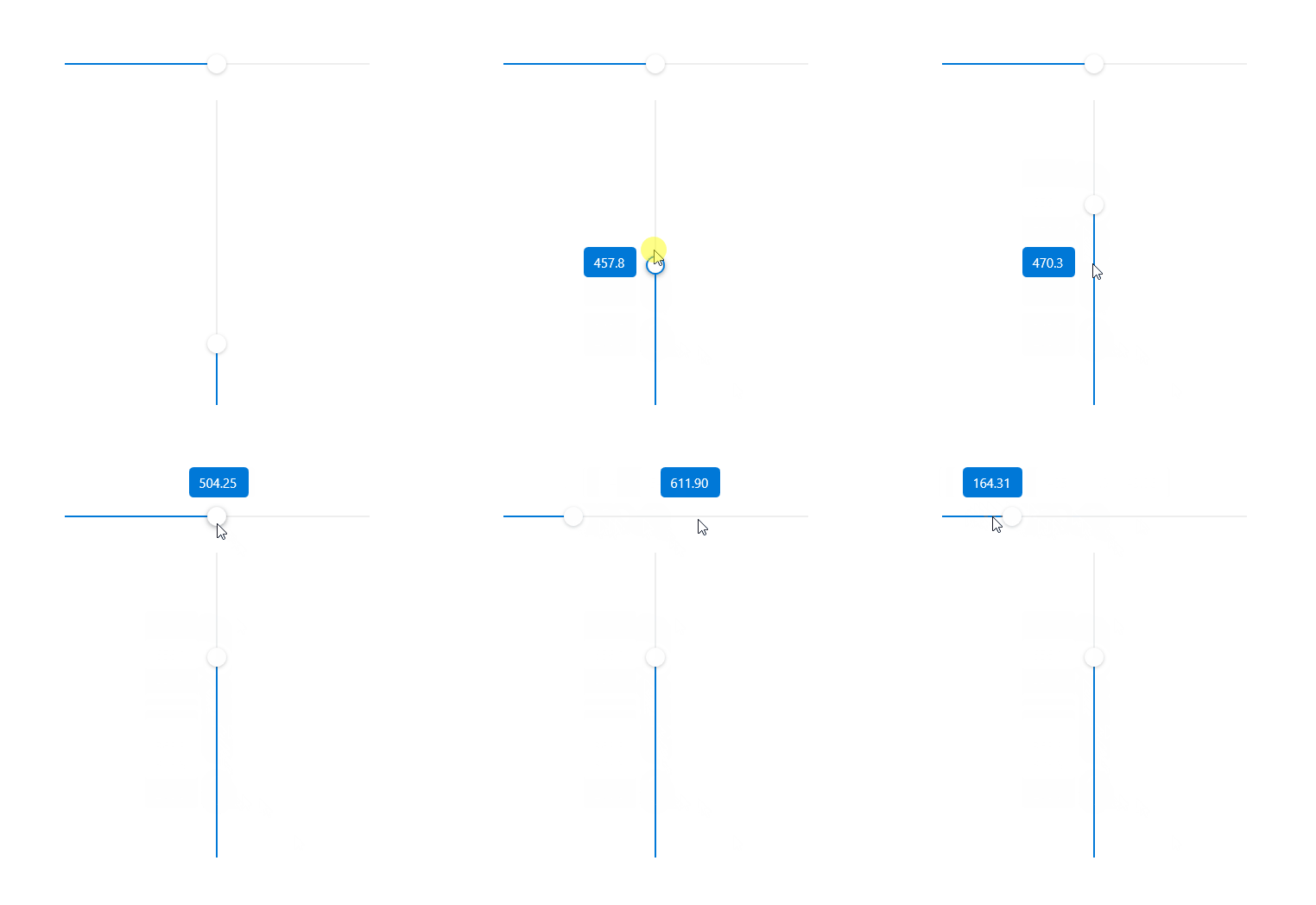
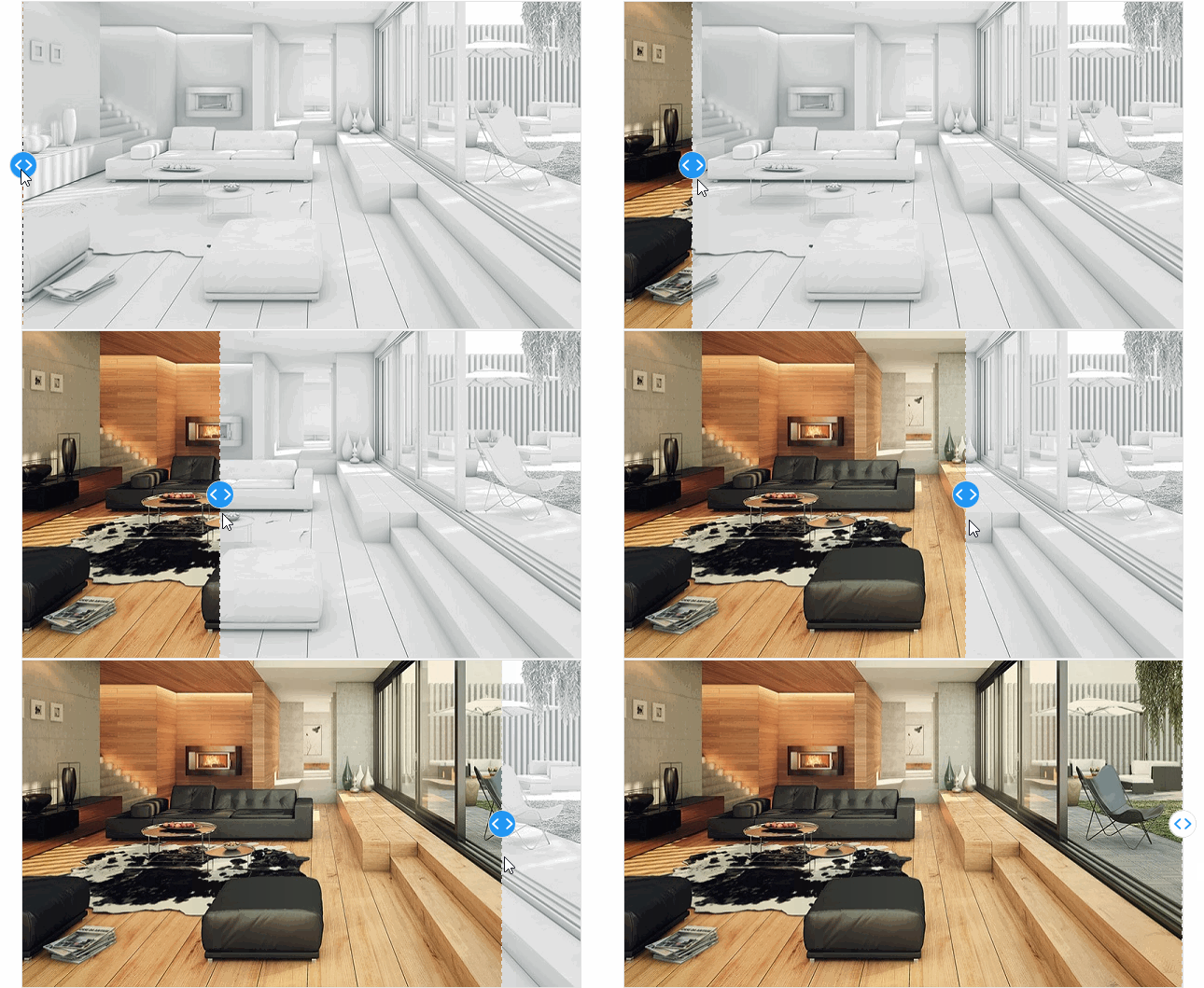
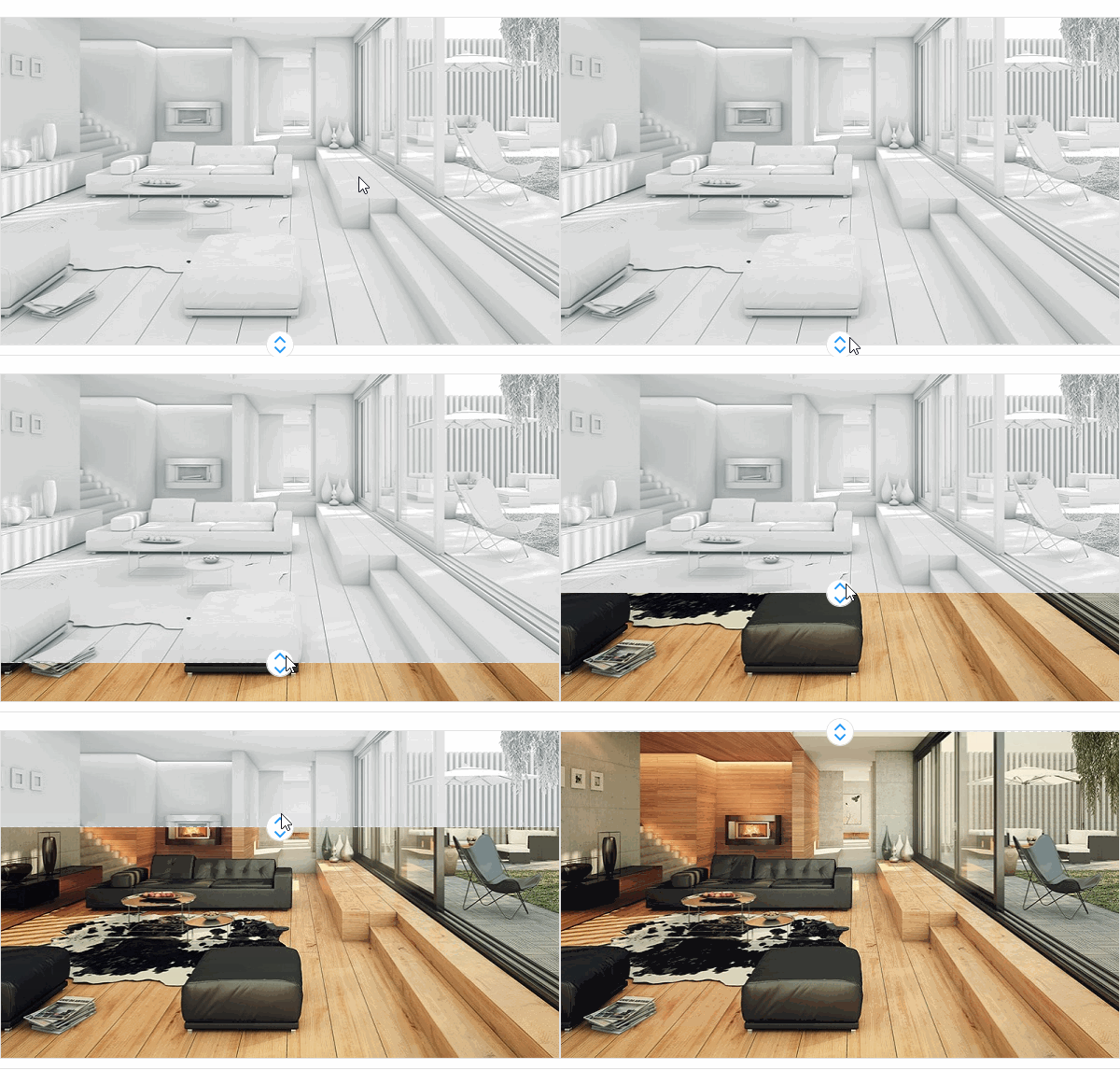
CompareSlider
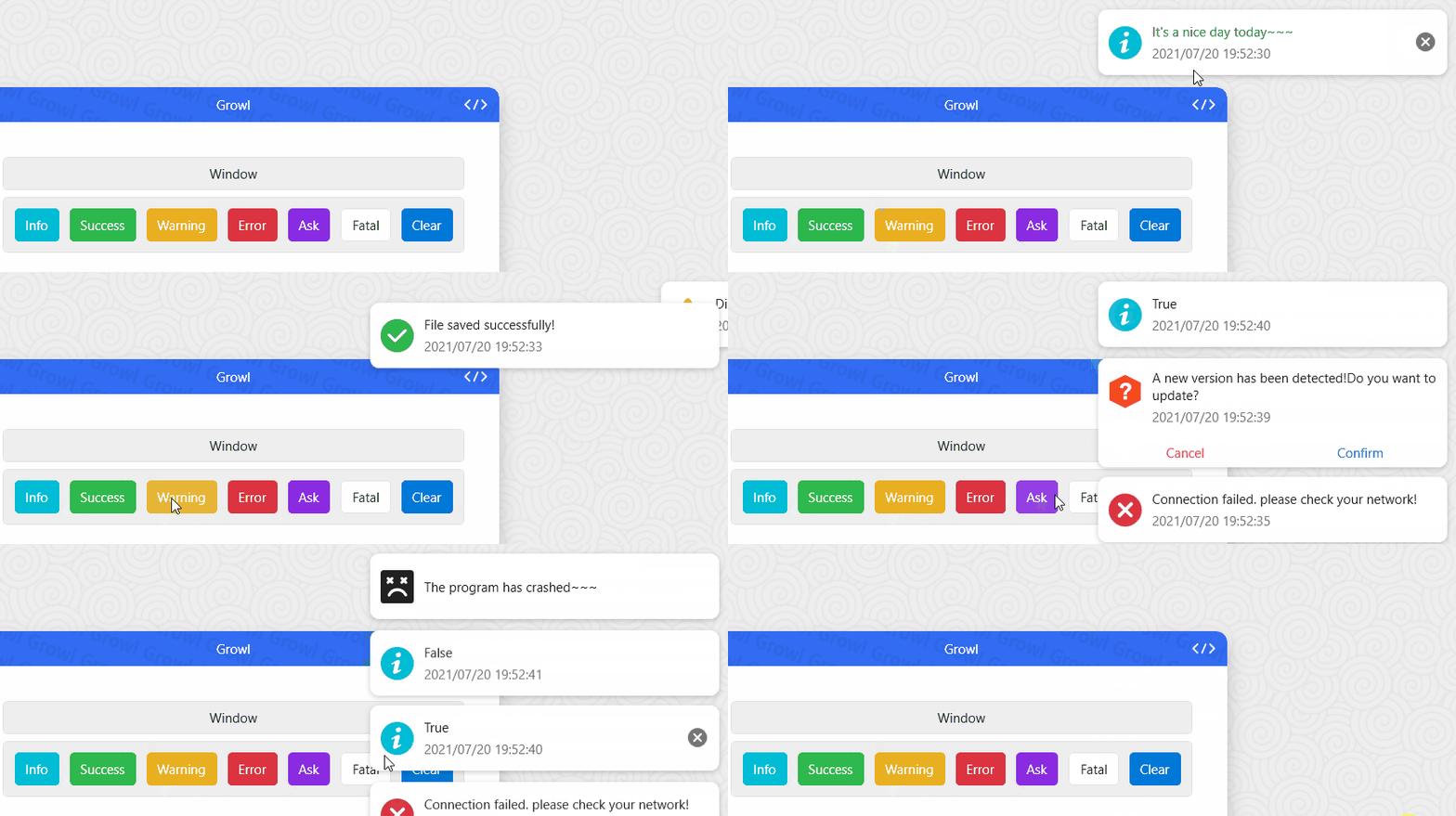
Growl
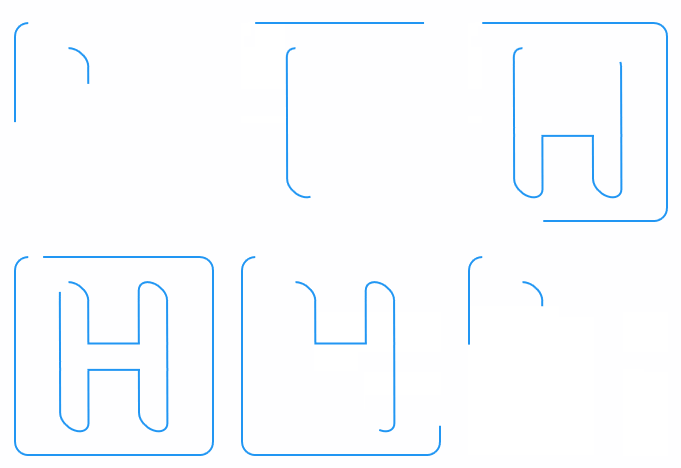
AnimationPath
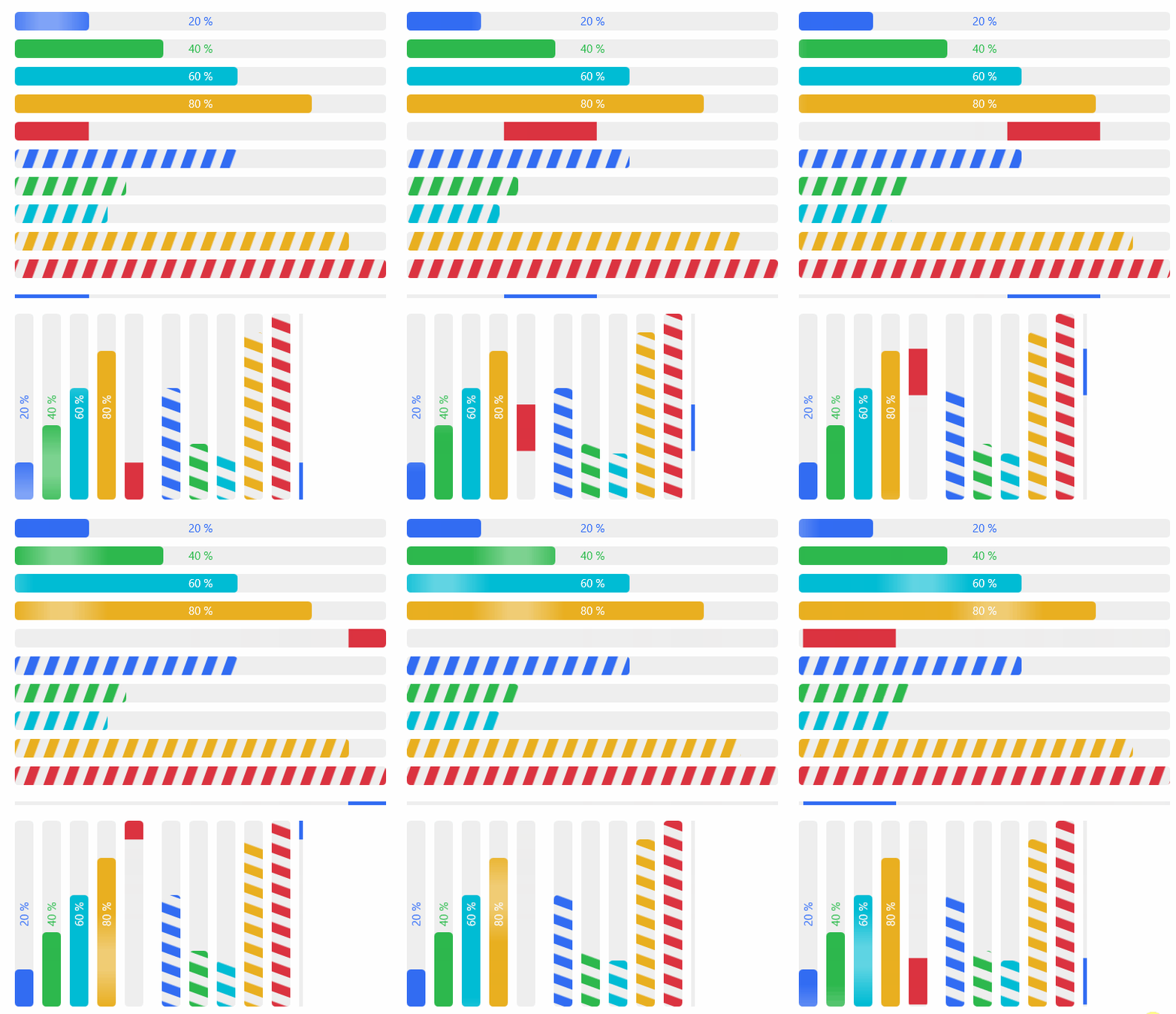
ProgressBar
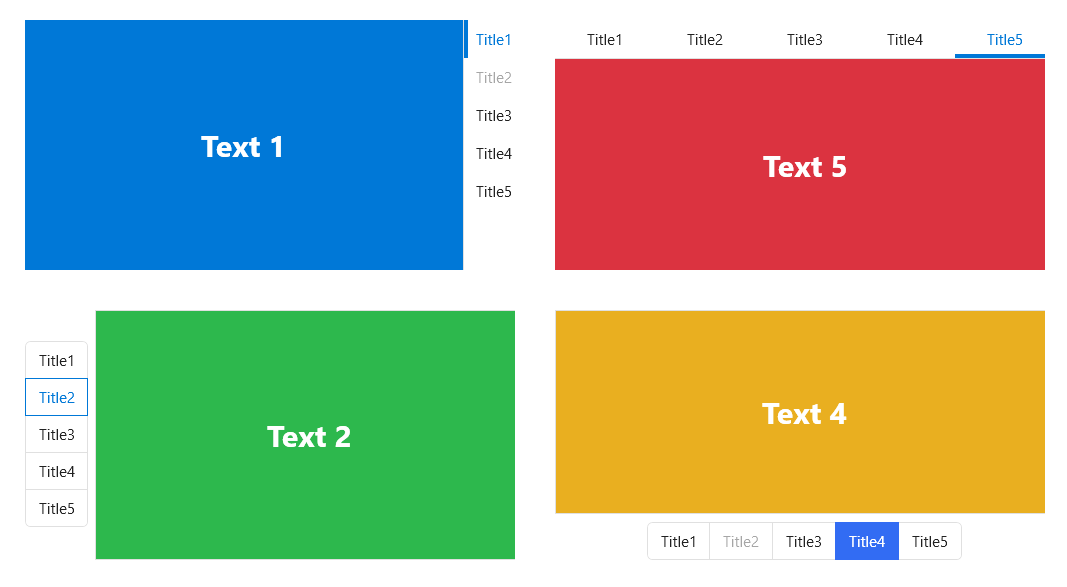
TabControl

TabControlStyle
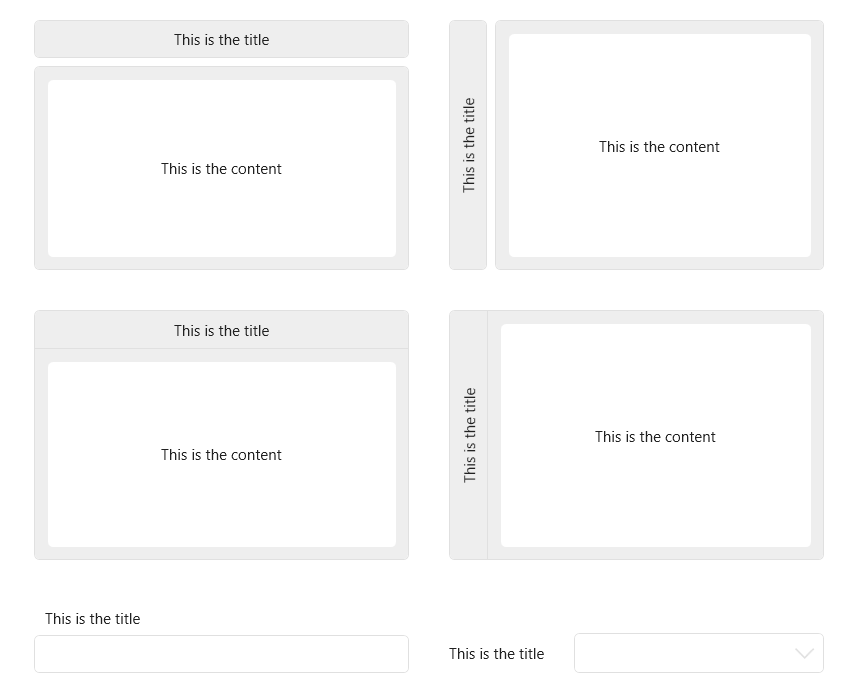
GroupBox
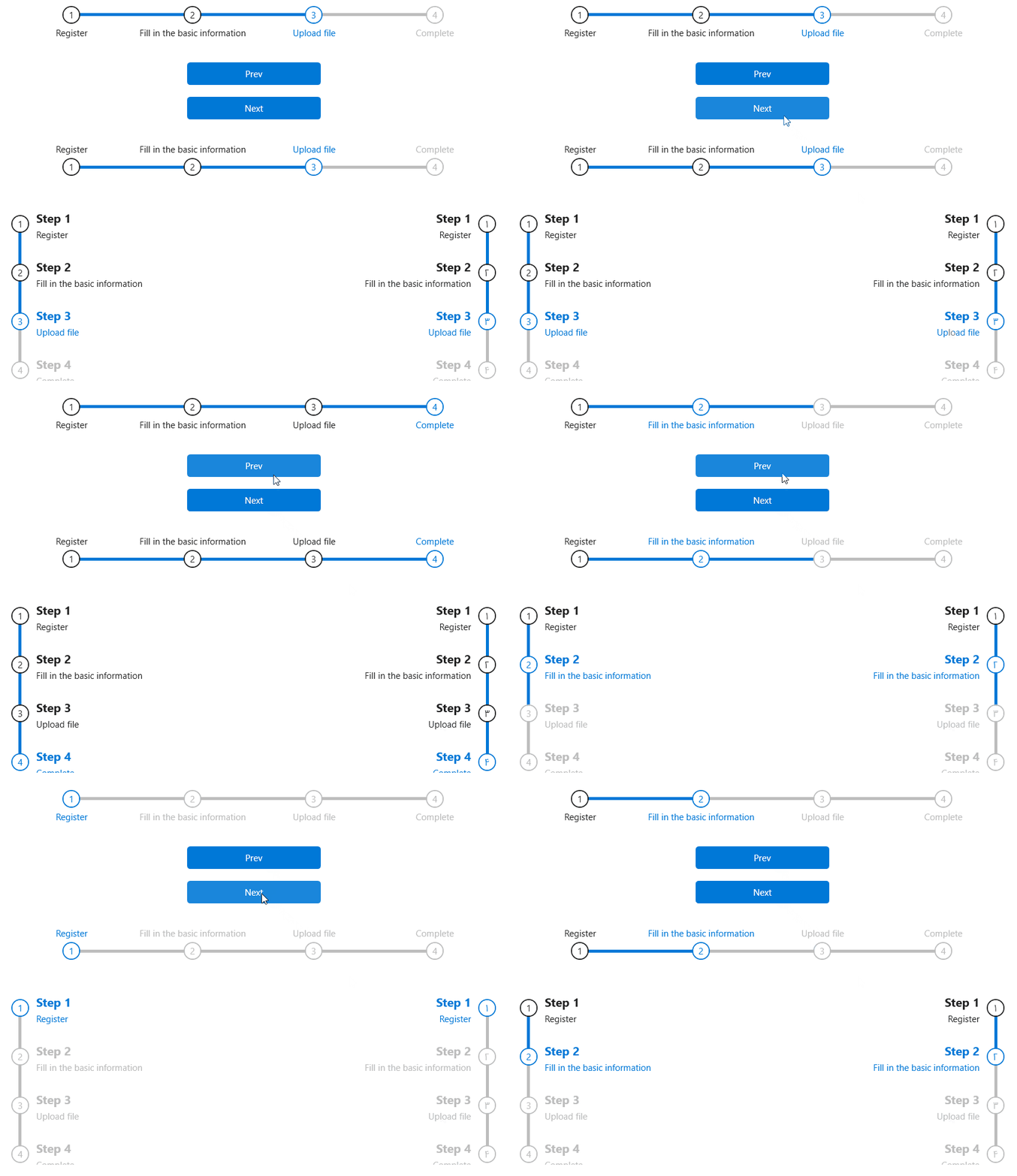
StepBar
GifImage

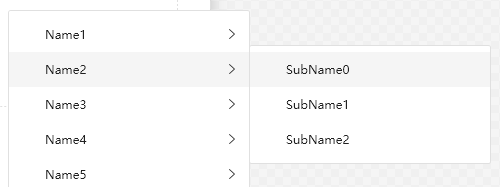
ContextMenu
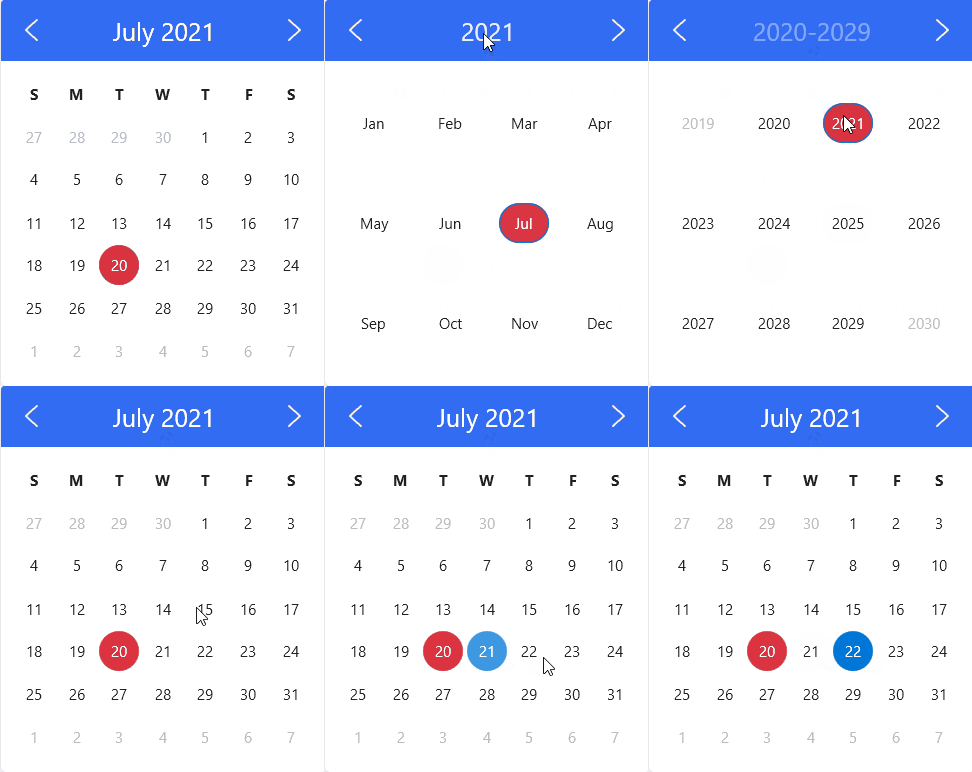
Calendar
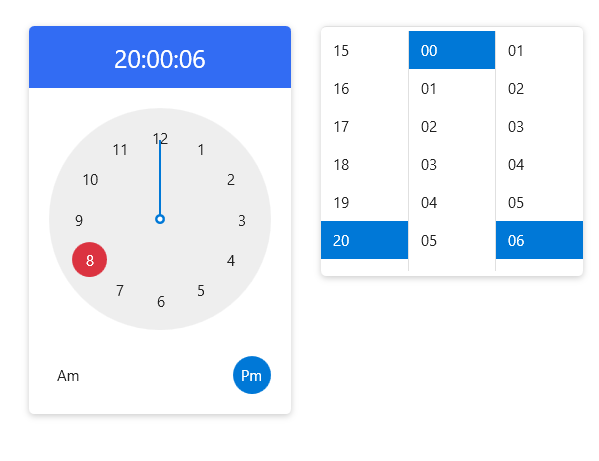
Clock
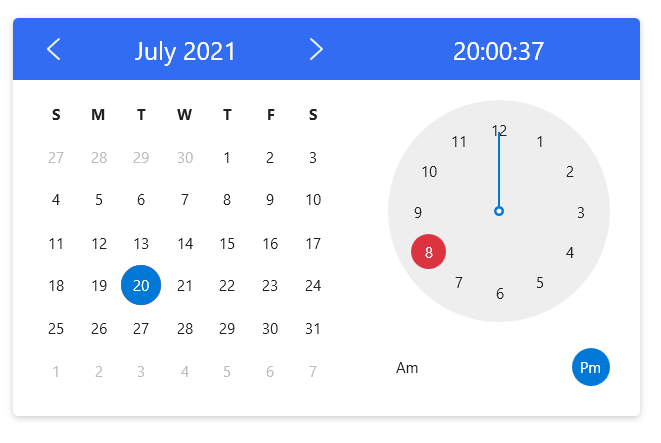
CalendarWithClock
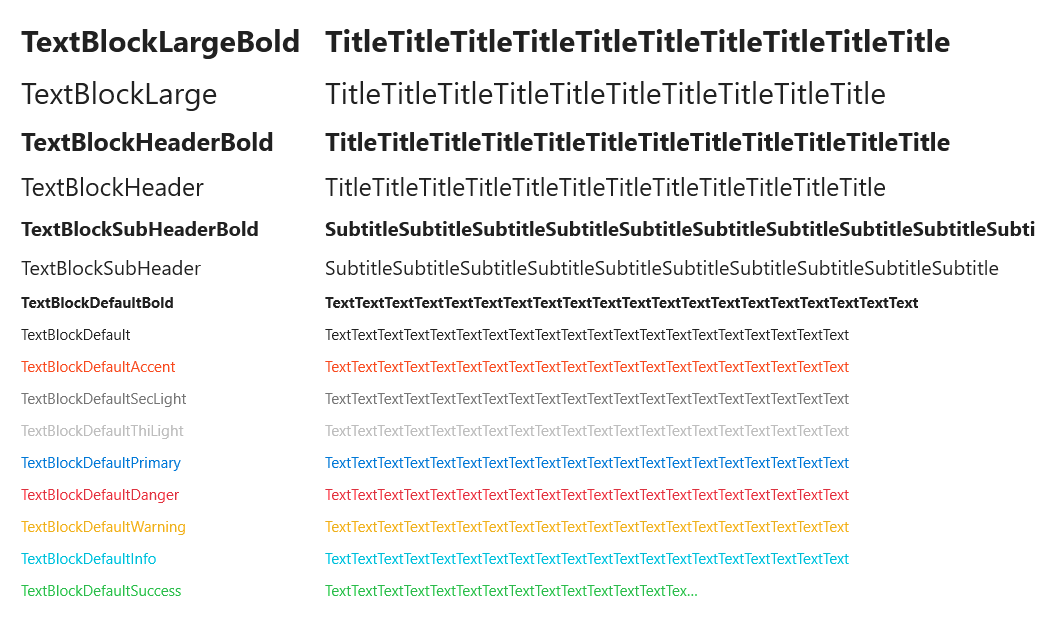
TextBlock
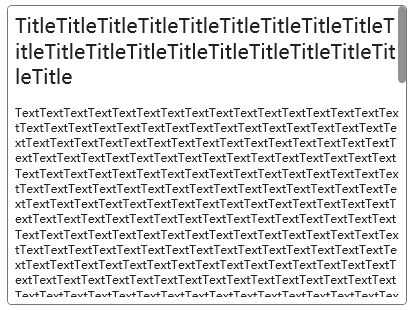
RichTextBoxStyle
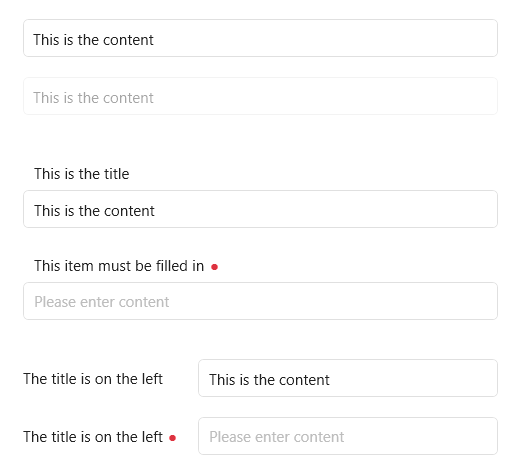
TextBox
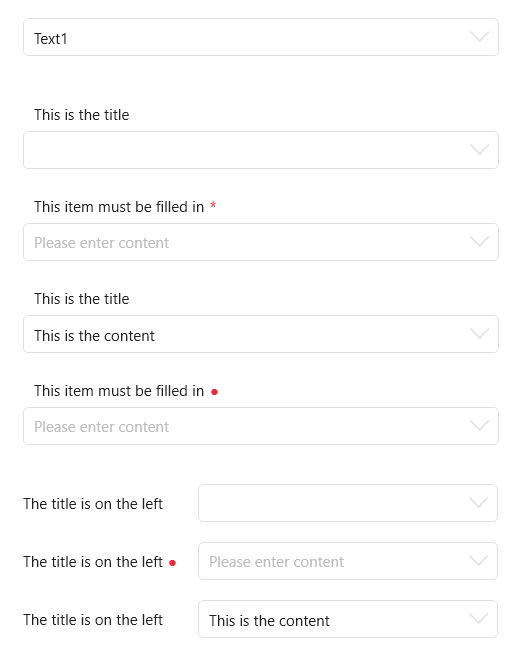
ComboBox
NumericUpDown
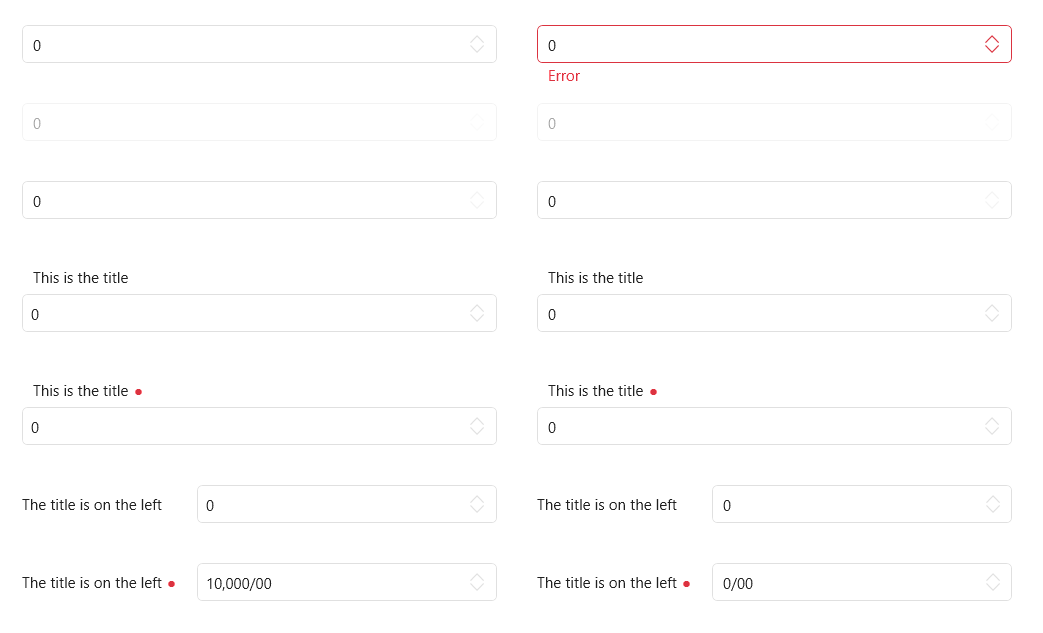
SearchBar

PasswordBox
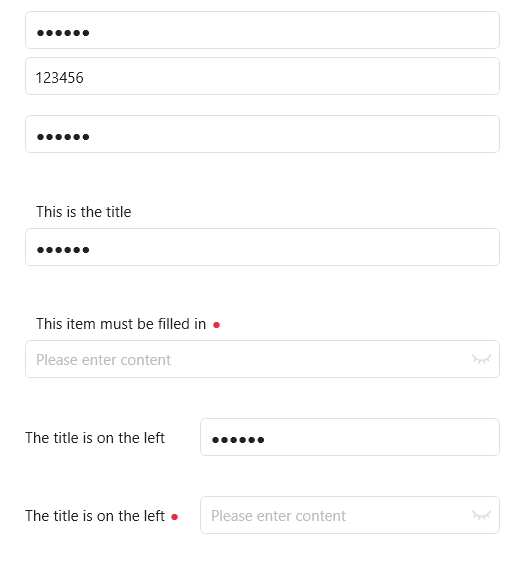
DatePicker
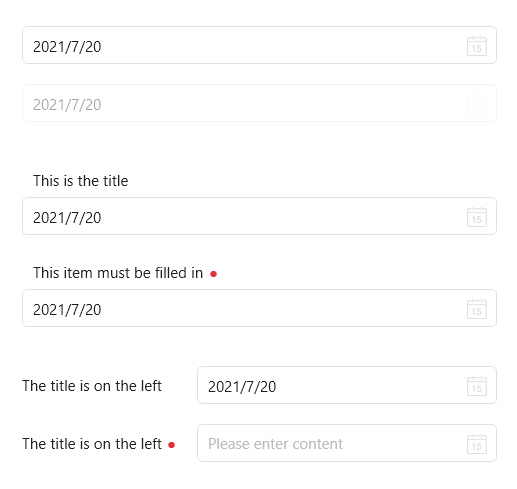
TimePicker
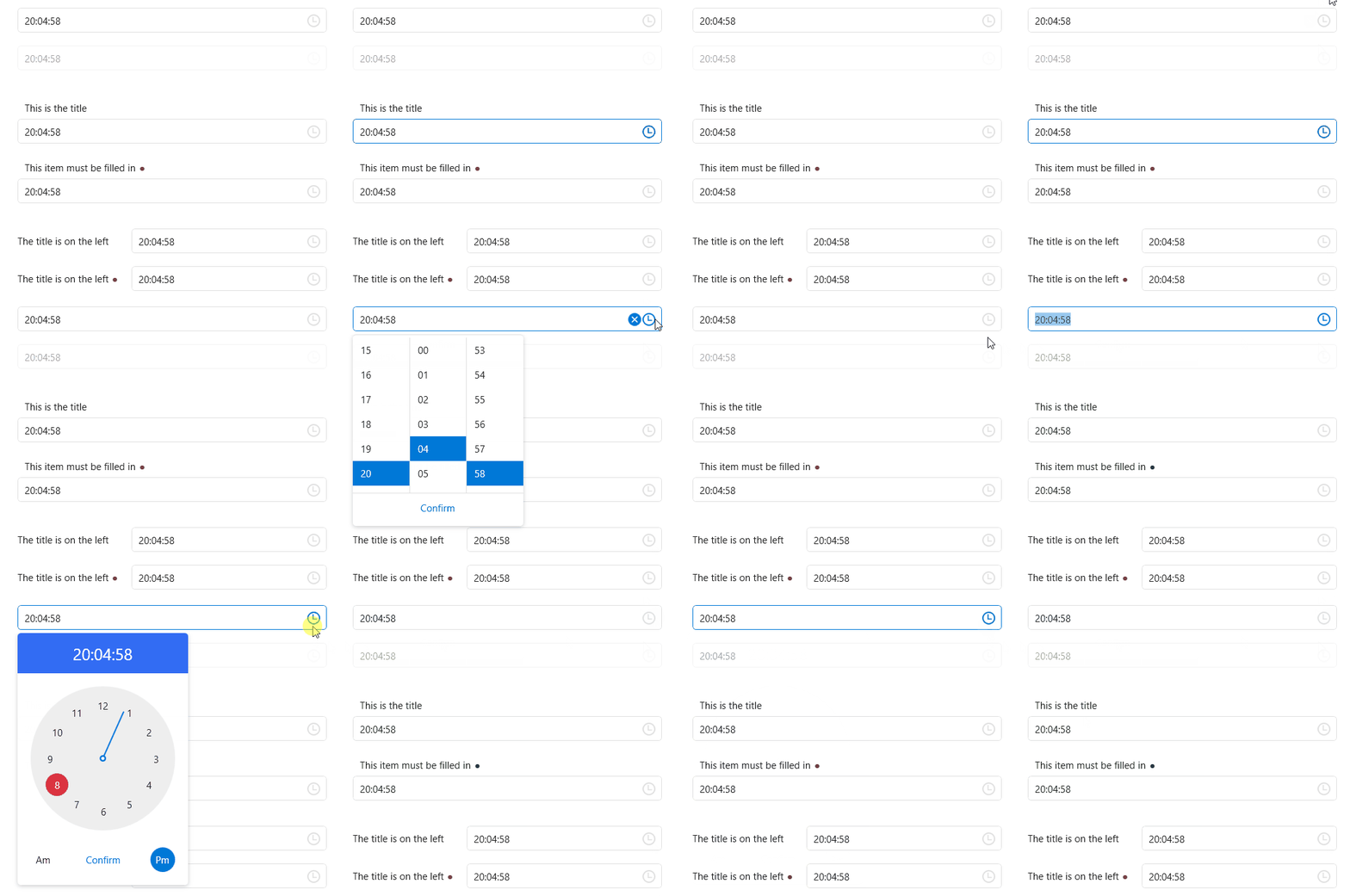
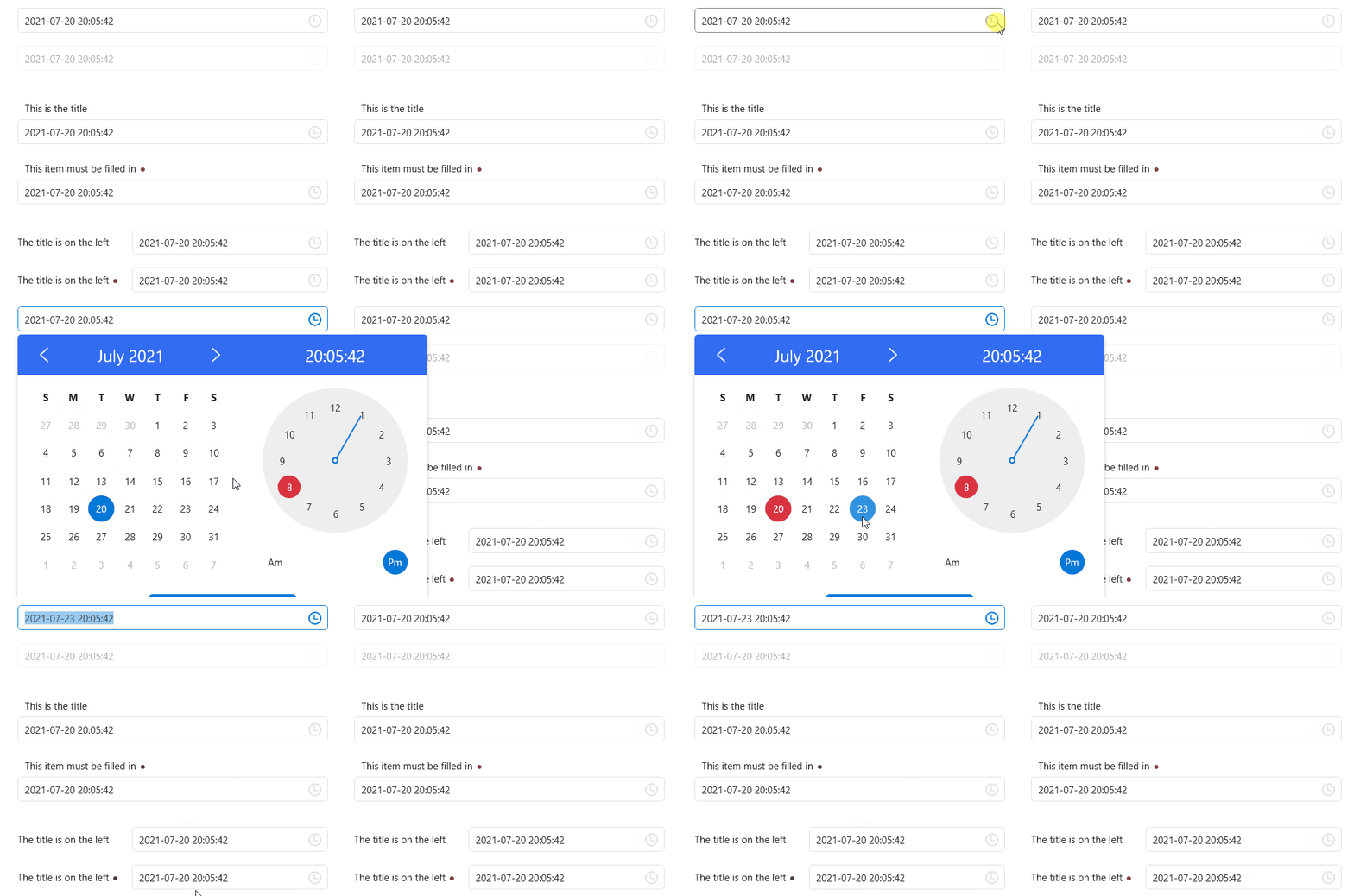
DateTimePicker
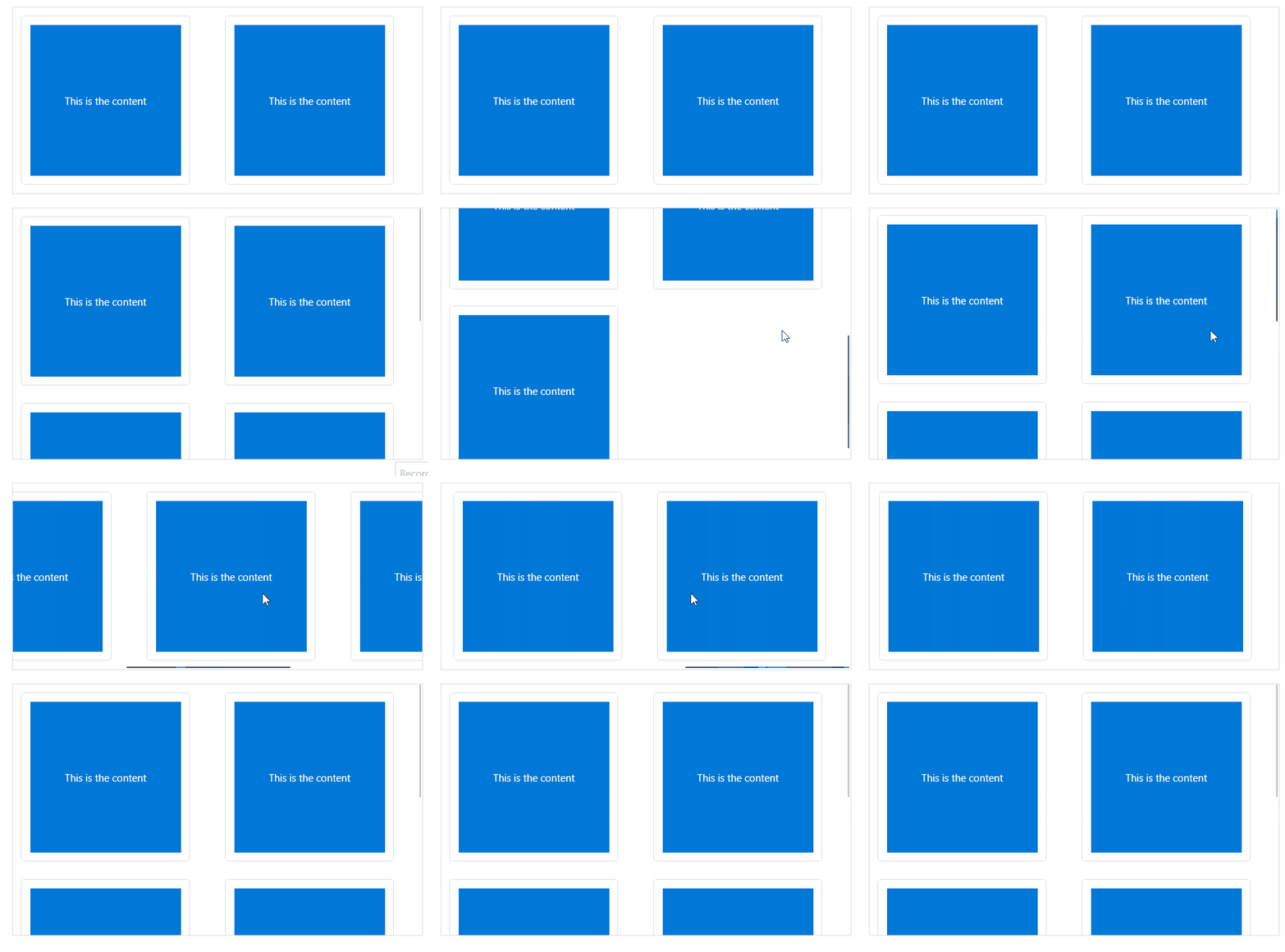
ScrollViewer
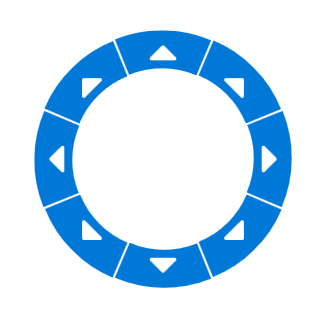
CirclePanel
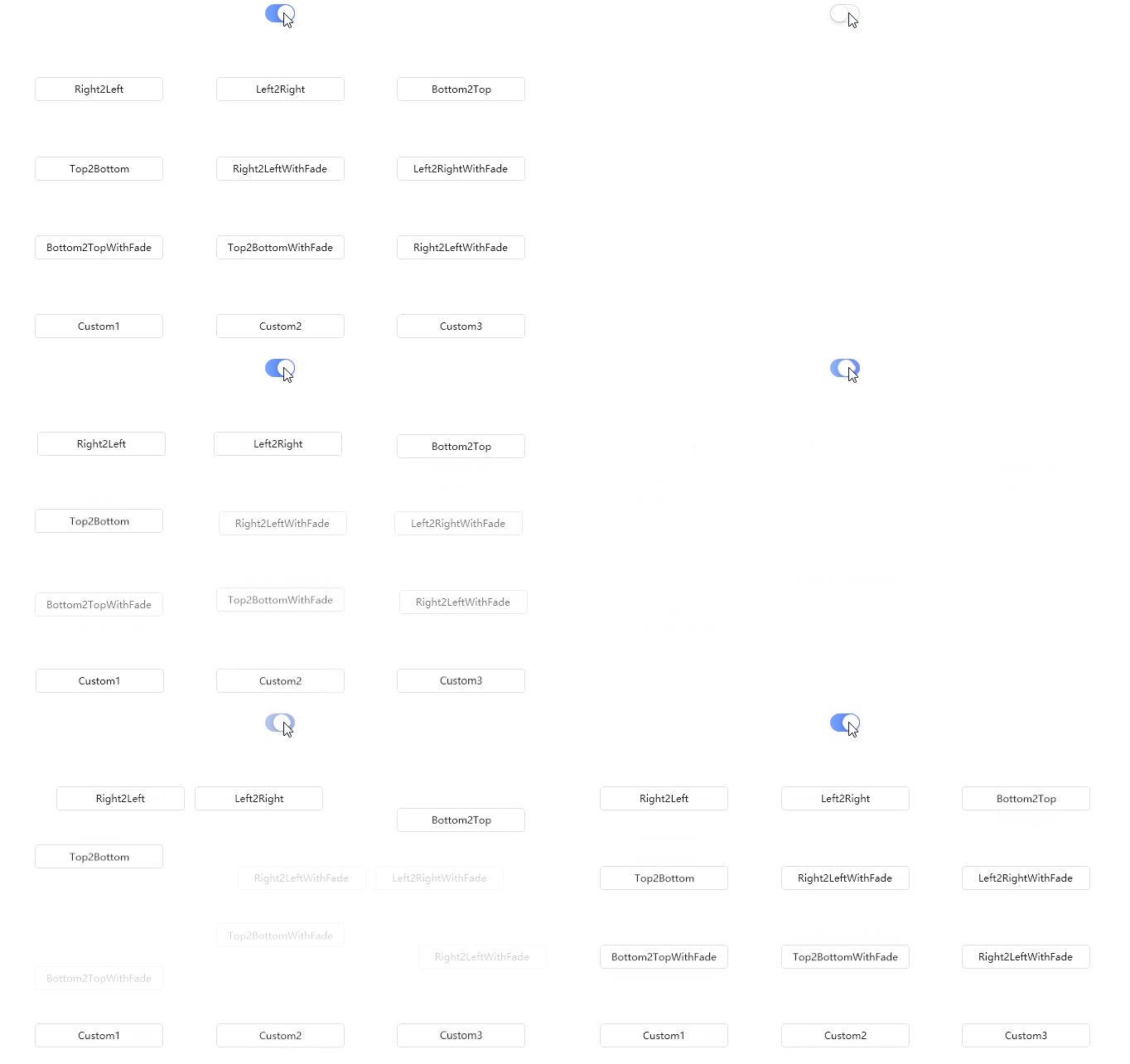
TransitioningContentControl
BorderStyle
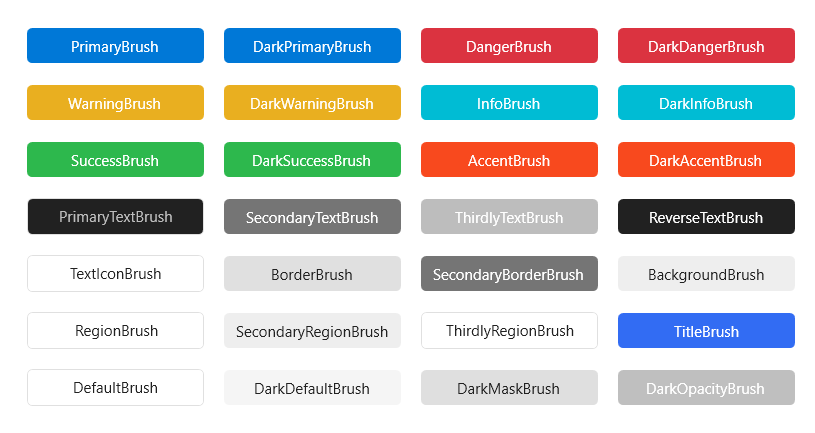
Brush
Top Related Projects
Google's Material Design in XAML & WPF, for C# & VB.Net.
Develop Desktop, Embedded, Mobile and WebAssembly apps with C# and XAML. The most popular .NET UI client technology
A framework that allows developers to cobble together a better UI for their own WPF applications with minimal effort.
Dragable and tearable tab control for WPF
Modern UI for WPF
Theming .NET WinForms, C# or VB.Net, to Google's Material Design Principles.
Convert designs to code with AI
Introducing Visual Copilot: A new AI model to turn Figma designs to high quality code using your components.
Try Visual Copilot