
Top Related Projects

A modern replacement for ‘ls’.
The next gen ls command

A simple, fast and user-friendly alternative to 'find'

ripgrep recursively searches directories for a regex pattern while respecting your gitignore
A cat(1) clone with wings.

A syntax-highlighting pager for git, diff, grep, rg --json, and blame output
Quick Overview
LSD (LSDeluxe) is a modern, feature-rich alternative to the traditional ls command in Unix-like systems. Written in Rust, it provides colorful and informative directory listings with icons, Git integration, and various formatting options. LSD aims to enhance the user experience when navigating and exploring file systems in the terminal.
Pros
- Visually appealing output with color-coding and icons for different file types
- Git integration, showing file status in repositories
- Highly customizable with numerous display options and themes
- Fast performance due to being written in Rust
Cons
- Requires installation of a custom font for full icon support
- May be overwhelming for users accustomed to the simplicity of the standard
lscommand - Larger binary size compared to the built-in
lscommand - Some advanced features may not be necessary for all users
Getting Started
To install LSD on a system with Cargo (Rust's package manager) installed:
cargo install lsd
For other installation methods, visit the project's GitHub repository.
Basic usage:
# List files in the current directory
lsd

# List all files, including hidden ones
lsd -a

# Use tree view
lsd --tree

# Show file permissions, size, and modification date
lsd -l
For more advanced usage and customization options, refer to the project's documentation on GitHub.
Competitor Comparisons
A modern replacement for ‘ls’.
Pros of exa
- More mature project with longer development history
- Extensive documentation and man pages
- Supports more advanced features like Git integration
Cons of exa
- Written in Rust, which may have a steeper learning curve for contributors
- No longer actively maintained (last commit in 2021)
- Slower performance compared to lsd in some scenarios
Code Comparison
exa:
pub fn print_dir(dir: &Dir, options: &Options) -> io::Result<()> {
    let mut files = Vec::new();
    for entry in dir.files() {
        files.push(entry?);
    }
    // ... (sorting and filtering logic)
}
lsd:
pub fn print_dir(dir: &Path, options: &Flags) -> io::Result<()> {
    let mut entries = fs::read_dir(dir)?
        .filter_map(|entry| entry.ok())
        .collect::<Vec<_>>();
    // ... (sorting and filtering logic)
}
Both projects aim to provide modern alternatives to the traditional ls command, offering colorized output and additional features. exa has been around longer and offers more advanced functionality, but lsd is actively maintained and generally performs faster. The code structures are similar, with both using Rust for implementation. exa's approach to reading directory contents appears more abstracted, while lsd directly uses the filesystem API.
The next gen ls command
Pros of lsd
- More actively maintained with frequent updates
- Larger community and contributor base
- Extensive documentation and user guides
Cons of lsd
- Potentially higher resource usage due to more features
- Steeper learning curve for new users
- May have more dependencies
Code Comparison
lsd:
pub fn get_icon(file_name: &str, file_type: FileType) -> &'static str {
    match file_type {
        FileType::Directory => icons::FOLDER,
        FileType::SymLink => icons::SYMLINK,
        _ => icons::get_icon(file_name),
    }
}
lsd>:
pub fn get_icon(file_name: &str, file_type: FileType) -> &'static str {
    match file_type {
        FileType::Directory => "📁",
        FileType::SymLink => "🔗",
        _ => "📄",
    }
}
The code comparison shows that lsd uses a more sophisticated icon selection system, potentially offering a wider range of icons for different file types. lsd> uses a simpler approach with basic emoji icons for common file types.
A simple, fast and user-friendly alternative to 'find'
Pros of fd
- Faster and more efficient search functionality
- Cross-platform support (Windows, macOS, Linux)
- Extensive command-line options for fine-tuned searches
Cons of fd
- Limited to file and directory search operations
- Less visually appealing output compared to lsd
- Fewer customization options for display formatting
Code Comparison
fd:
let regex = RegexBuilder::new(&pattern)
    .case_insensitive(case_insensitive)
    .build()
    .map_err(|_| FdError::InvalidRegex)?;
lsd:
pub fn new(
    flags: Flags,
    input: Vec<String>,
    config: Config,
) -> Result<Self, Box<dyn std::error::Error>> {
    // Implementation details
}
Summary
fd is a fast and efficient file search tool with cross-platform support, while lsd is a modern replacement for the ls command with enhanced visual output. fd excels in search operations but lacks the visual enhancements and customization options that lsd provides for directory listings. The code snippets demonstrate fd's focus on regex-based search patterns, while lsd emphasizes configuration and display options for file listings.
ripgrep recursively searches directories for a regex pattern while respecting your gitignore
Pros of ripgrep
- Faster search performance, especially for large codebases
- More advanced regex support and search options
- Cross-platform compatibility (Windows, macOS, Linux)
Cons of ripgrep
- Limited to text search functionality
- Steeper learning curve for advanced features
- No built-in file listing or directory visualization
Code comparison
ripgrep:
pub fn search<R: io::Read>(mut rdr: R) -> io::Result<()> {
    let mut buf = [0; 8 * (1<<10)];
    loop {
        let n = rdr.read(&mut buf)?;
        if n == 0 { break; }
        // Process buffer contents
    }
    Ok(())
}
lsd:
pub fn list_dir(path: &Path) -> io::Result<()> {
    for entry in fs::read_dir(path)? {
        let entry = entry?;
        let metadata = entry.metadata()?;
        // Display file/directory information
    }
    Ok(())
}
Summary
ripgrep is a powerful text search tool optimized for speed and advanced search capabilities, while lsd focuses on enhanced directory listing and file visualization. ripgrep excels in searching large codebases with complex patterns, but lacks file listing features. lsd provides a more user-friendly directory browsing experience with icons and color-coding but doesn't offer text search functionality. The choice between the two depends on whether the primary need is fast text searching or improved file system navigation and visualization.
A cat(1) clone with wings.
Pros of bat
- More versatile: Can display file contents with syntax highlighting, not just file listings
- Supports a wider range of file formats and programming languages
- Integrates well with other command-line tools like
findandripgrep
Cons of bat
- Slower performance for large files or directories compared to lsd
- Higher memory usage, especially when dealing with multiple files
- Less focused on directory listing features
Code Comparison
lsd example:
let mut grid = Grid::new(GridOptions {
    direction: Direction::TopToBottom,
    ..Default::default()
});
bat example:
let mut printer = BufferPrinter::new(
    &config.term_width,
    &config.colored_output,
    &config.true_color,
    config.paging_mode,
);
Key Differences
- lsd focuses on enhanced directory listings with icons and colors
- bat specializes in file content display with syntax highlighting
- lsd is generally faster for directory operations
- bat offers more features for file content viewing and searching
Both projects are written in Rust and provide modern alternatives to traditional Unix commands (ls and cat, respectively), but they serve different primary purposes in the command-line ecosystem.
A syntax-highlighting pager for git, diff, grep, rg --json, and blame output
Pros of delta
- Specialized for git diffs with syntax highlighting and side-by-side view
- Highly customizable with themes and line-level options
- Integrates well with git and can be used as a pager
Cons of delta
- Focused solely on diff viewing, not a general-purpose file listing tool
- May have a steeper learning curve for configuration
- Requires more setup to integrate with git workflows
Code comparison
delta:
let mut painter = Painter::new(config, highlighter, syntax_set);
painter.paint_lines(lines, line_numbers)?;
lsd:
let mut printer = Printer::new(config);
printer.print_entries(&entries)?;
Summary
Delta is a specialized tool for enhancing git diff output with syntax highlighting and advanced viewing options. LSD, on the other hand, is a modern replacement for the ls command, focusing on colorful and informative file listings. While both are written in Rust and aim to improve command-line experiences, they serve different purposes. Delta excels in diff visualization, whereas LSD provides rich file and directory information. Choose Delta for improved git diff viewing, and LSD for enhanced file browsing and listing capabilities.
Convert  designs to code with AI

Introducing Visual Copilot: A new AI model to turn Figma designs to high quality code using your components.
Try Visual CopilotREADME
Maintained with â¤ï¸ + ð¤ by Pochi

Pochi is an AI agent designed for software development.
[!IMPORTANT] This is the documentation for the development version of lsd. Please consult the documentation on the Tags page if you are looking for the documentation of individual releases.
The current newest release is: v1.2.0
LSD (LSDeluxe)





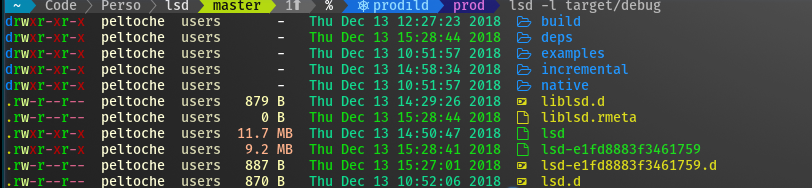
This project is a rewrite of GNU ls with lots of added features like colors, icons, tree-view, more formatting options etc.
The project is heavily inspired by the super colorls project.
Installation
Prerequisites
[!TIP] Have a look at the Nerd Font README for help with installing Nerd Fonts
- In order for icons to work you need to have a patched font like nerd-font or font-awesome installed on your machine and your terminal needs to be configured to use the patched font of your choosing.
- If you intend to install
lsdfrom source you need to have a working Rust toolchain (obviously) on your machine.
Installing with a package manager
Packaging status

Please consult the table below for the installation command associated with your package manager.
| OS/Distro | Command |
|---|---|
| Archlinux | pacman -S lsd |
| Fedora | dnf install lsd |
| Gentoo | sudo emerge sys-apps/lsd |
| macOS | brew install lsd or sudo port install lsd |
| Nix (non NixOS) | nix-env -iA nixpkgs.lsd |
| NixOS | Add environment.systemPackages = [ pkgs.lsd ]; to your system config |
| FreeBSD | pkg install lsd |
NetBSD or any pkgsrc platform | pkgin install lsd or cd /usr/pkgsrc/sysutils/lsd && make install |
| OpenBSD | pkg_add lsd |
| Windows | scoop install lsd or winget install --id lsd-rs.lsd or choco install lsd |
| Android (via Termux) | pkg install lsd |
| Debian sid and bookworm | apt install lsd |
| Ubuntu 23.04 (Lunar Lobster) | apt install lsd |
| Earlier Ubuntu/Debian versions | snap discontinued, use the method described here instead |
| Solus | eopkg it lsd |
| Void Linux | sudo xbps-install lsd |
| openSUSE | sudo zypper install lsd |
Installing from source
With Rust's package manager cargo, you can install lsd via:
cargo install lsd
And if you want to install the latest main branch commit you can do so via:
cargo install --git https://github.com/lsd-rs/lsd.git --branch main
Installing binaries directly
The release page includes precompiled binaries for Linux, macOS, and Windows for every release. You can also get the latest binary of the main branch from the GitHub action build artifacts (choose the top action and then scroll down to the artifacts section).
Configuring your shell to use lsd instead of ls (optional)
In order to use lsd instead of entering the ls command, you need to create an alias for ls in to your shell configuration file (~/.bashrc, ~/.zshrc, etc...). The simplest variant of such an alias is:
alias ls='lsd'
The alias above will replace a stock ls command with an lsd command without additional parameters.
Some examples of other useful aliases are:
alias l='lsd -l'
alias la='lsd -a'
alias lla='lsd -la'
alias lt='lsd --tree'
Customizing lsd (configuration and theming)
[!TIP] In order to make the customization process easier for you weâve supplied sample files. These files contain the entries for all the defaults that
lsdcomes with after installation. You can find the sample files in the documentation folder.We've also supplied a color reference where weâve documented the default colors
lsduses in its output. You can also preview there.
In order to tailor lsd to your specific needs you can create any of the following three files and make adjustments as you see fit.
config.yamlâ config sample file herecolors.yamlâ colors sample file hereicons.yamlâ icons sample file here
Note that it is not required to have all three of the files present in order for your configuration to be applied. For example, if you only want to customize the icons then only icons.yaml needs to be present in the configuration directory; config.yaml, and colors.yaml do not have to be present in order for your icon modifications to be applied.
Config file locations
[!TIP] You can also instruct
lsdto look for configuration files in a custom location of your choosing by using the following command:lsd --config-file [YOUR_CUSTOM_PATH]. This is particularly useful when testing a configuration changes before committing to them.
Unix (Linux, Mac, etc...)
On non-Windows systems lsd follows the XDG Base Directory Specification, thus lsd will look for configuration files any of the following locations:
$HOME/.config/lsd$XDG_CONFIG_HOME/lsd
On most systems these variables are mapped to the same location, which is usually ~/.config/lsd/. If lsd does not detect the location, or if the location exists but does not contain any of the three configuration files, the default configuration will be used instead.
Windows
On Windows systems lsd will look for configuration files in the following locations, in order:
%USERPROFILE%\.config\lsd%APPDATA%\lsd
These locations are usually something like C:\Users\username\AppData\Roaming\lsd\, and C:\Users\username\.config\lsd\ respectively.
Quick customization example
For this example let's assume you're already content lsd, but there are a few of the default icons that really bug you and you want to change them to something that suits your needs better. All you have to do is create an icons.yaml file in the configuration directory and configure your custom icon there. Hereâs how.
There are 3 kinds of icon overrides available in lsd:
namefiletypeextension
Both nerd font glyphs and Unicode emojis can be used for icons. The final set of icons that lsd will use is a combination of the default icons with the custom icons youâve set in the icons.yaml file.
[!NOTE] Aside from the icon sample file, you can also find the default icon set in the source code here.
A short example for each type of the icon overrides is shown below.
name:
.trash: ï¸
.cargo: î¨
.emacs.d: î¹
a.out: ï
extension:
go: î§
hs: î·
rs: ð¦
filetype:
dir: ð
file: ð
pipe: ð©
socket: ó°¨
executable: ï
symlink-dir: ï
symlink-file: ï
device-char: î
device-block: ó°«
special: ï
F.A.Q and troubleshooting
How can I enable nerd fonts using xresources?
To enable nerd fonts for your terminal, URxvt for example, in .Xresources take a look at the example below:
URxvt*font: xft:Hack Nerd Font:style=Regular:size=11
Why am I seeing Uses unknown compression for member âcontrol.tar.zst' when using deb?
Zst compression is only supported from Debian 12, Ubuntu 21.10, and upward. Starting from lsd v1.1.0 please use the _xz.deb release instead. See this issue for additional details and manual fixes.
How can I set custom color schemes for Windows?
In order to display a custom color scheme lsd reads a system environment variable called LS_COLORS. If your custom color scheme is not working LS_COLORS is most likely missing. Please look at the marked solution in this post, which contains instructions on how to set a custom color scheme on Windows for guidance.
Why are icons not showing up
[!IMPORTANT] Always check if the font you are using is correctly set up! Run the following snippet in your terminal emulator and verify that the output prints a folder icon. If it prints a box, or question mark, or something else, then you might have some issues in how you set up the font or how your terminal emulator renders the font.
echo $'\uf115'
For lsd to be able to display icons the font has to include special font glyphs. If icons are not being displayed it could be the case that your current font does not include such glyphs. Thankfully, you can patch most fonts using NerdFont and add these icons to your current font.
Alternatively, you can also download an already patched version of your favorite font from the NerdFont font download page.
Here is a guide on how to set up fonts on macOS, and on Android.
Why are Icons missing or not rendering correctly using PuTTY/KiTTY on Windows?
First of all, make sure a patched font is available on your local machine and that PuTTY/KiTTY is configured to use that font. If you are not certain what this entails please read the Prerequisites.
Please note that there are problems for PuTTY/KiTTY displaying 2 character wide icons which may be the case for the font you configured. To ensure only 1 character wide icons are used by your font, please select a font like Hack Regular Nerd Font Complete Mono Windows Compatible (see this issue for further details).
Why is the first character of a folder/file getting trimmed?
[!NOTE] Workaround for Konsole: edit the config file (or create it if it doesn't already exist) and paste the following configuration directive into it.
# CAREFUL: use copy-paste because this block contains invisible Unicode characters! icons: separator: " ã ¤"
This is a known issue in a few terminal emulators. Try using a different terminal emulator like Alacritty or Kitty and see if these suit your needs.
You might also want to check if your font is responsible for causing this. To verify this, try running lsd with icons disabled and if the first character is still being trimmed, youâve discovered a bug in lsd. Until the bug is fixed you can use the following command as workaround:
lsd --icon never --ignore-config
Why are there weird (UTF-8) characters in the output?
lsd will always attempt to display the UTF-8 characters in file name, but a U+FFFD REPLACEMENT CHARACTER(�) is used to represent the invalid UTF-8 characters. If you are seeing this in your lsd output your filename contains an invalid UTF-8 character.
Why are the icons are showing up strangely?
Nerd Fonts is moving the code points of the Material Design Icons in version 3.0, so starting from #830 lsd is using an updated the icon set. If your icons look weird, use fonts that have been patched using Nerd Fonts v2.3.0 or later.
Contributors
Everyone can contribute to this project, improving the code or adding functions. If anyone wants something to be added we will try to do it.
As this is being updated regularly, don't forget to rebase your fork before creating a pull-request.
Credits
Special thanks to:
- meain for all his contributions and reviews
- danieldulaney for the Windows integration
- sharkdp and his superb fd from which I have stolen a lot of CI stuff.
- athityakumar for the project colorls
- All the other contributors
Top Related Projects
A modern replacement for ‘ls’.
The next gen ls command
A simple, fast and user-friendly alternative to 'find'
ripgrep recursively searches directories for a regex pattern while respecting your gitignore
A cat(1) clone with wings.
A syntax-highlighting pager for git, diff, grep, rg --json, and blame output
Convert designs to code with AI
Introducing Visual Copilot: A new AI model to turn Figma designs to high quality code using your components.
Try Visual Copilot